The thought of an interview can be nerve-wracking, but the right preparation can make all the difference. Explore this comprehensive guide to Mac OS and Windows Proficiency interview questions and gain the confidence you need to showcase your abilities and secure the role.
Questions Asked in Mac OS and Windows Proficiency Interview
Q 1. Explain the differences between NTFS and APFS filesystems.
NTFS (New Technology File System) and APFS (Apple File System) are both file systems, but they’re designed for different operating systems and have key differences. NTFS is the primary file system for Windows, while APFS is the default for macOS and iOS.
- Journaling: Both are journaling file systems, meaning they keep a record of changes, allowing for data recovery in case of a crash. APFS’s journaling is more robust and efficient.
- Copy-on-write: APFS utilizes copy-on-write technology. This means when you modify a file, APFS creates a copy instead of overwriting the original, improving performance and enabling features like snapshots and space sharing.
- Data Integrity: APFS includes built-in data integrity checks, ensuring data is consistent and preventing corruption. NTFS relies more on external tools for this.
- Space Management: APFS handles space more efficiently, especially with sparse files and many small files. It dynamically allocates space, leading to better disk utilization.
- Snapshots: APFS offers built-in snapshot capabilities, allowing you to create point-in-time copies of your data, which is incredibly useful for backups and system recovery. NTFS requires third-party tools for similar functionality.
- Encryption: Both support encryption, but APFS offers more granular control and faster encryption/decryption speeds.
In essence, APFS is a more modern and efficient file system, designed for the demands of modern hardware and software, while NTFS is a mature and widely compatible system that’s been a workhorse for Windows for decades. Choosing the right one depends entirely on the operating system and your specific needs.
Q 2. How do you troubleshoot a slow boot on a Windows machine?
A slow boot in Windows can be frustrating, but systematic troubleshooting can pinpoint the cause. I usually follow these steps:
- Check Startup Programs: Many programs automatically start when Windows boots, consuming resources. Use the Task Manager (
Ctrl+Shift+Esc) to identify resource-intensive startup programs and disable unnecessary ones. - Scan for Malware: Malware can significantly slow down your boot process. Run a full scan with your antivirus software.
- Check Disk Errors: A fragmented or corrupted hard drive can cause slow boots. Use the
chkdskcommand (e.g.,chkdsk C: /f /rin an elevated command prompt) to check and repair disk errors. Be aware, this might require a restart. - Disable or Update Drivers: Outdated or malfunctioning drivers can negatively impact boot times. Check your Device Manager for any flagged devices and either update or disable them.
- Boot in Safe Mode: Booting in Safe Mode (press
F8repeatedly during startup) disables non-essential startup programs and services. If your boot time is significantly faster in Safe Mode, the issue lies within a startup program or service. - Run System File Checker (SFC): The System File Checker tool can repair corrupted system files. Open an elevated command prompt and run
sfc /scannow. - Consider Hardware Upgrades: An older or failing hard drive (especially an HDD) can cause slow boot times. Consider upgrading to an SSD (Solid State Drive) for a significant performance boost.
By systematically addressing these areas, you can generally identify and resolve the root cause of a slow Windows boot. I’ve found this process to be quite effective in real-world situations, particularly when dealing with support requests from clients.
Q 3. Describe your experience with macOS command-line interface (CLI).
I’m very comfortable working with the macOS command-line interface (CLI), also known as Terminal. It’s a powerful tool that provides a direct interface with the operating system, offering a lot of functionality not easily accessible through the GUI. I’ve used it extensively for tasks such as:
- System Administration: Managing users and groups (
dscl,dseditgroup), configuring network settings (networksetup), monitoring system processes (top,htop). - File Management: Navigating directories (
cd), creating and deleting files and directories (touch,mkdir,rm), manipulating file permissions (chmod), searching for files (find). - Package Management: Using Homebrew (
brew) for installing and managing software packages. - Scripting and Automation: Creating shell scripts (
bash,zsh) to automate repetitive tasks. - Troubleshooting: Diagnosing network issues (
ping,traceroute), checking disk space (df), monitoring system logs (log show).
For instance, I recently used a shell script to automate the process of backing up specific files to an external drive, significantly streamlining a routine task. The command-line provides a level of control and efficiency that’s invaluable for system administrators and power users.
Q 4. How would you resolve a network connectivity issue on a Mac?
Resolving network connectivity issues on a Mac involves a structured approach. My usual steps are:
- Check the Obvious: Ensure the Wi-Fi is enabled and the cable is properly connected if using Ethernet. Check the router and modem for power and connectivity.
- Restart the Computer and Router/Modem: A simple restart often resolves temporary glitches.
- Check Network Preferences: Go to System Preferences > Network and verify your network settings. Ensure the correct network is selected and there are no configuration errors.
- Release and Renew DHCP Lease: Open Terminal and type
sudo ipconfig releasefollowed bysudo ipconfig renewto reset your IP address. This can resolve IP address conflicts. - Check the Network Adapter: In System Information (found in Applications > Utilities), check the status of your network adapter to ensure it’s functioning correctly.
- Use Network Utility: In Applications > Utilities, the Network Utility provides tools like ping (
ping google.com) and traceroute (traceroute google.com) to test network connectivity. - Check DNS Settings: Incorrect DNS settings can prevent internet access. Try using public DNS servers like Google’s (8.8.8.8 and 8.8.4.4) in your Network preferences.
- Run Diagnostics: macOS has built-in diagnostics that can detect network problems. Check the Apple menu for any diagnostic options.
I often combine these methods depending on the situation. For example, I recently helped a user by using ping to identify a faulty network cable causing intermittent internet drops.
Q 5. What are the common causes of a blue screen of death (BSOD) in Windows?
The Blue Screen of Death (BSOD) is a dreaded Windows error indicating a critical system failure. Common causes include:
- Driver Issues: Outdated, corrupted, or incompatible device drivers are a leading cause of BSODs. This is often related to graphics cards, network adapters, or storage controllers.
- Hardware Problems: Failing hardware components such as RAM, hard drives, or the CPU can trigger BSODs. A failing component might intermittently cause problems, leading to unpredictable crashes.
- Software Conflicts: Conflicts between programs or software incompatibilities can cause system instability, resulting in a BSOD.
- Corrupted System Files: Damaged or corrupted system files can prevent Windows from booting correctly. Malware can also contribute to this.
- Overheating: Excessive heat can cause system instability and lead to a BSOD. Make sure your system has adequate cooling.
- Power Supply Issues: An inadequate or failing power supply can deprive components of sufficient power, leading to crashes.
Diagnosing the specific cause requires careful investigation, often utilizing tools like the Event Viewer to examine error logs and memory diagnostic tools to check RAM integrity. Analyzing the BSOD error code can often provide clues about the underlying problem.
Q 6. Explain your experience with Active Directory.
My experience with Active Directory (AD) spans several years, encompassing design, implementation, and administration. I’ve worked with it extensively in enterprise environments to manage user accounts, group policies, and network resources. My skills include:
- User and Group Management: Creating, modifying, and deleting user accounts and groups; assigning permissions and security settings.
- Group Policy Management: Creating and deploying Group Policies to manage software, security settings, and user configurations across the network. This includes using both default and custom Group Policy Objects (GPOs).
- Domain Controller Management: Managing and maintaining domain controllers, including backups, replication, and security updates. I’m familiar with different domain controller roles and their functions.
- Troubleshooting AD Issues: Diagnosing and resolving common AD issues like replication failures, authentication problems, and permissions conflicts. This includes the use of Active Directory Users and Computers, command-line tools such as
repadmin, and event logs. - AD Schema Management: Understanding and modifying the AD schema to customize attributes and extend functionality. I have experience extending the schema with attributes tailored to specific business needs.
In one particular project, I designed and implemented an Active Directory structure for a large organization, streamlining their user management and security policies, resulting in significant improvements in efficiency and security.
Q 7. How do you manage user accounts and permissions in macOS?
Managing user accounts and permissions in macOS is done primarily through the System Preferences and the command-line.
- System Preferences: Users & Groups in System Preferences provides a graphical interface for managing user accounts, setting passwords, and assigning administrative privileges. You can also create new accounts (standard, administrator, etc.) and customize their home directories.
- Command-Line: The command-line offers more granular control. The
dsclcommand allows for detailed manipulation of user accounts and groups. For example,dscl . -create /Users/newusercreates a new user account, anddscl . -passwd /Users/newuser newpasswordsets the password.chmodis crucial for modifying file permissions. - Sharing Preferences: You can manage file and printer sharing and define user permissions for access through System Preferences > Sharing.
- Gatekeeper: macOS’s Gatekeeper controls which apps are allowed to run, providing an essential layer of security in managing user access to applications.
A practical example: I recently used dscl to create a new group for a specific project and then used the GUI to add users to that group, granting them access to shared resources. The command-line is essential for scripting repetitive actions while the GUI provides ease of management for typical user and group tasks.
Q 8. Describe your experience with Windows Group Policy.
Windows Group Policy is a powerful administrative tool allowing centralized management of user settings, security configurations, and software deployments across a network of Windows computers. Think of it as a centralized rulebook for your entire Windows infrastructure.
My experience encompasses designing and implementing Group Policy Objects (GPOs) to enforce security policies, manage software installations, configure network settings, and control user access to resources. For example, I’ve used GPOs to restrict access to USB drives, enforce strong password policies, automatically install crucial updates, and configure default printer settings across a large organization. I’m proficient in using the Group Policy Management Console (GPMC) to create, edit, link, and troubleshoot GPOs. I understand the intricacies of applying GPOs at different organizational units (OUs) for granular control and the use of Resultant Set of Policy (RSoP) to analyze the effective policy applied to a specific computer or user.
I’m also familiar with using Group Policy Preferences for more granular control over specific settings, allowing finer adjustments than traditional Group Policy settings. This includes managing desktop settings, start menu items, and even specific registry keys.
Q 9. How do you troubleshoot printer issues on both Mac and Windows?
Troubleshooting printer issues involves a systematic approach, differing slightly between Mac and Windows. The core principles remain the same: verify connectivity, check driver status, and examine the printer’s physical state.
- Windows: I start by checking if the printer is correctly installed in Devices and Printers. I’ll then look for error messages within the printer’s properties. If the printer isn’t showing up, I check the network connection and ensure the printer is correctly configured on the network. Reinstalling the printer driver is a common solution. Sometimes, the print spooler needs a restart. Using the command prompt with the command
net stop spooler && net start spoolercan resolve many issues. - Mac: On a Mac, I would first check System Preferences > Printers & Scanners. If the printer isn’t listed, I’ll ensure it’s properly connected to the network or via USB. I then check for any error messages in the printer queue. Reinstalling the printer from the manufacturer’s website is a common step. I also examine the printer’s status light and check for physical errors like paper jams.
In both cases, contacting the printer manufacturer’s support is crucial for hardware-specific issues. Testing print jobs from different applications can help isolate if the problem is application-specific or a system-wide issue.
Q 10. What are the differences between a Mac’s Time Machine and Windows’ File History?
Both Time Machine (Mac) and File History (Windows) are backup solutions, but they differ significantly in their approach and features.
- Time Machine: Provides a complete and incremental backup of your entire system, including applications, system files, and user data. It uses an intuitive, near-seamless interface and creates multiple snapshots across time. Think of it as a continuously updating archive. Restoring files is as simple as browsing through these snapshots.
- File History: Focuses primarily on backing up user files, not the entire system. It backs up user folders (Documents, Pictures, etc.) to an external drive. It’s more selective in its approach and less comprehensive than Time Machine. While it provides versioning, it doesn’t offer the same granular level of system recovery.
Essentially, Time Machine is a comprehensive system-level backup with a simple, user-friendly interface. File History is a more selective backup aimed at protecting individual user data. The choice depends on whether you need a full system image backup or just a safety net for your documents and pictures.
Q 11. How would you resolve a boot sector error on a Windows PC?
Boot sector errors prevent Windows from loading, usually indicated by error messages during startup. The solution often involves repairing the Master Boot Record (MBR) or Boot Configuration Data (BCD).
My approach would start with attempting a repair using the Windows installation media (a USB or DVD). Booting from this media offers several options. I would use the Windows Recovery Environment (WinRE):
- Startup Repair: This automatically attempts to detect and fix boot sector issues. It’s the first thing I’d try.
- Command Prompt: If Startup Repair fails, the command prompt within WinRE provides more control. Commands like
bootrec /fixmbr(repairs the MBR),bootrec /fixboot(repairs the boot sector), andbootrec /rebuildbcd(rebuilds the BCD) can be used. Each command addresses different parts of the boot process.
These commands should be executed carefully, as incorrect usage can cause further damage. If these methods fail, a more drastic solution might be necessary, such as reinstalling Windows – but this should be a last resort, as it involves data loss unless a prior backup exists.
Q 12. Explain your experience with disk partitioning and formatting.
Disk partitioning and formatting are fundamental tasks in managing storage space. Partitioning divides a physical hard drive into logical sections, allowing the installation of multiple operating systems or the organization of data. Formatting prepares a partition for use by a specific file system, erasing all existing data.
My experience includes using disk management tools within both Windows (Disk Management) and macOS (Disk Utility) to create, delete, resize, and format partitions. I understand the differences between various file systems (NTFS, FAT32, exFAT for Windows and APFS, HFS+ for macOS), and I choose the appropriate file system based on the operating system and intended use. For example, NTFS is generally preferred for the main Windows drive, offering features like access control lists, while exFAT is useful for external drives shared between Windows and Mac, and APFS offers superior performance and features on modern macOS systems.
I’m meticulous when performing these operations as data loss can occur if not done correctly. I always back up important data before making any changes to partitions or formatting. In professional settings, I employ best practices to ensure data integrity and minimize downtime.
Q 13. Describe the process of installing and configuring software on both operating systems.
Installing and configuring software differs between Windows and macOS, but the core principles remain the same: download, execute the installer, and configure the settings.
- Windows: Software is typically installed using an executable file (.exe). This often involves accepting license agreements and choosing installation locations. Configuration might involve setting up user accounts, preferences, and connecting to services.
- macOS: Software installation is often simpler, frequently using installer packages (.pkg or .dmg). The process is usually more streamlined, often using graphical installers. Configuration often involves preferences within the application’s settings.
In both operating systems, I prioritize downloading software from trusted sources to avoid malware. I carefully review the software’s license agreement and understand the terms of use. For enterprise deployments, I employ centralized software management tools to streamline the process and ensure consistent configurations across many machines.
Q 14. How do you troubleshoot common hardware issues, such as RAM or hard drive failures?
Troubleshooting hardware issues requires a methodical approach. The first step is to identify the symptoms and potential sources of the problem.
- RAM: Symptoms include system crashes, application freezes, and blue screen errors (Windows) or kernel panics (macOS). I’d start by running memory diagnostic tools built into the OS (Windows Memory Diagnostic, Apple Diagnostics) or using third-party tools. Visual inspection of the RAM modules for physical damage might also be necessary.
- Hard Drive: Symptoms include slow performance, data corruption, and boot failures. I’d utilize built-in diagnostic tools (CHKDSK in Windows, Disk Utility in macOS) to check the hard drive’s integrity. Monitoring SMART data (Self-Monitoring, Analysis, and Reporting Technology) can provide early warnings of potential hard drive failures. Third-party utilities can provide more in-depth analysis. Unusual noises from the drive are also a warning sign.
If the diagnostic tools indicate a failure, replacement of the faulty component is usually the solution. In a professional setting, I’d ensure proper grounding and ESD (Electrostatic Discharge) precautions are followed when handling hardware components.
Q 15. What are your preferred methods for remote desktop support?
My preferred methods for remote desktop support depend on the situation and the level of access required. For quick troubleshooting or showing a user how to do something, I often utilize tools like TeamViewer or AnyDesk for their ease of use and cross-platform compatibility. These solutions offer secure connections and are readily available. For more in-depth support, especially within a corporate environment, I favor solutions like Microsoft Remote Desktop Protocol (RDP) for Windows machines and VNC (Virtual Network Computing) for both Windows and macOS, offering more control and manageability. RDP provides robust features for managing and controlling a remote Windows machine, while VNC offers similar capabilities across various operating systems. When dealing with sensitive data, I always ensure the connection is encrypted. The choice depends on factors like security needs, the operating system of the remote machine, and the complexity of the issue.
For example, if a user is experiencing a simple application crash, a quick TeamViewer session might suffice. However, if I need to perform more advanced system configurations or data recovery, I would opt for RDP or VNC to gain privileged access.
Career Expert Tips:
- Ace those interviews! Prepare effectively by reviewing the Top 50 Most Common Interview Questions on ResumeGemini.
- Navigate your job search with confidence! Explore a wide range of Career Tips on ResumeGemini. Learn about common challenges and recommendations to overcome them.
- Craft the perfect resume! Master the Art of Resume Writing with ResumeGemini’s guide. Showcase your unique qualifications and achievements effectively.
- Don’t miss out on holiday savings! Build your dream resume with ResumeGemini’s ATS optimized templates.
Q 16. Explain your experience with different types of network topologies.
My experience encompasses various network topologies, each with its strengths and weaknesses. I’ve worked with:
- Bus Topology: Simple and inexpensive, but a single cable failure can bring down the entire network. Think of it like a single road – if that road is blocked, everything stops.
- Star Topology: The most common topology, where all devices connect to a central hub or switch. This is highly reliable as a failure of one device doesn’t affect the others. This is like a city with many roads leading to a central point, if one road is blocked, others can still function.
- Ring Topology: Data flows in one direction around a closed loop. This topology was popular earlier but is less common today. Think of it like a circular train track – the data keeps moving in a circle.
- Mesh Topology: Multiple paths exist between devices, providing redundancy and high reliability. This is ideal for critical systems where network failure is unacceptable, like in large corporations or data centers. This is like having multiple interconnected roads, if one is blocked, others offer alternative routes.
- Tree Topology: Combines elements of star and bus topologies; it’s a hierarchical structure. This works well for larger networks that need to be organized.
Understanding these topologies is critical for troubleshooting network problems and designing efficient and reliable networks.
Q 17. How do you secure a computer against malware and viruses?
Securing a computer against malware and viruses is a multi-layered approach. It’s like building a fortress with multiple defenses.
- Antivirus Software: Essential for detecting and removing known threats. Regular updates are vital. I recommend using reputable antivirus software from established vendors and keeping it updated.
- Firewall: A firewall acts as a gatekeeper, controlling network traffic in and out of the computer. Both software and hardware firewalls are beneficial.
- Operating System Updates: Regularly updating the operating system patches security vulnerabilities that attackers can exploit. This is critical, as many attacks target known weaknesses.
- Strong Passwords: Using strong, unique passwords for all accounts is paramount. Password managers can help manage this efficiently.
- Software Updates: Keeping applications and software up-to-date is critical; outdated software often contains known vulnerabilities.
- Phishing Awareness: Educating users about phishing scams and safe browsing practices is essential to prevent accidental infections. Never click links or download attachments from untrusted sources.
- Data Backups: Regularly backing up important data provides a safety net if a computer is compromised. I suggest a 3-2-1 backup strategy: 3 copies of your data, on 2 different media types, with 1 copy offsite.
A combination of these methods significantly reduces the risk of infection.
Q 18. Describe your experience with virtualization technologies (e.g., VMware, VirtualBox).
I have extensive experience with virtualization technologies, primarily VMware Workstation and Oracle VirtualBox. These tools allow you to create and manage virtual machines (VMs) – essentially, complete virtual computers running within your existing operating system.
With VMware, I’ve worked on setting up and managing complex virtual environments, including configuring virtual networks, resource allocation, and snapshot management for different operating systems. I’ve used it for software testing, development environments, and server simulations in a professional setting, where being able to test software on different versions of Windows and Linux without needing physical hardware is crucial. VirtualBox is a great tool for simpler tasks and personal use, offering a lightweight yet powerful solution for running multiple operating systems simultaneously.
For example, I once used VMware to test a client’s application across different versions of Windows before its release, preventing compatibility issues in a production environment. Using VirtualBox, I have run multiple Linux distributions alongside Windows to experiment with different scripting languages without affecting my main system.
Q 19. How would you diagnose and resolve a DNS issue?
Diagnosing and resolving a DNS issue involves a systematic approach. DNS, or Domain Name System, translates human-readable domain names (like google.com) into machine-readable IP addresses (like 172.217.160.142). When DNS fails, you can’t access websites.
- Check the Local DNS Resolver: First, I’d check if the local computer’s DNS settings are correct. On Windows, this is done through Network Connections, and on macOS through System Preferences > Network. Make sure the correct DNS server addresses (often provided by your ISP) are entered.
- Test DNS Resolution: Use the
nslookuporpingcommand-line tools to test DNS resolution. For example,nslookup google.comshould return the IP address of google.com. If it fails, there’s a DNS problem. - Check for Network Connectivity: Ensure the computer can connect to the network. A simple ping to a known IP address (like 8.8.8.8, Google’s public DNS) can confirm this.
- Check the DNS Server: If the local configuration is correct, the problem could be with the DNS server itself. You can try using a different DNS server (like Google’s 8.8.8.8 or 8.8.4.4) temporarily to see if the issue is resolved.
- Check for Caching Issues: DNS resolvers often cache results. Flushing the DNS cache can resolve temporary issues. On Windows, use
ipconfig /flushdns. On macOS, use the Terminal commandsudo dscacheutil -flushcache; sudo killall -HUP mDNSResponder - Check for Firewall/Router Issues: A firewall or router could be blocking DNS requests. Check your firewall settings and router configuration.
By following these steps, I can usually pinpoint and resolve most DNS issues. The exact solution will vary based on the underlying cause.
Q 20. What are your experiences with scripting (e.g., Bash, PowerShell)?
I have significant experience with both Bash scripting (on macOS and Linux) and PowerShell scripting (on Windows). These tools allow for automation of repetitive tasks and system administration.
In Bash, I’ve written scripts for automating backups, system monitoring, and user account management. For instance, I’ve created a script to automatically compress and archive log files, then upload them to a remote server. This saved significant time and effort compared to manual processes.
With PowerShell, I’ve automated tasks such as deploying software, managing Active Directory users, and generating reports. For example, I’ve created a script that retrieves system information from multiple computers on a network and compiles it into a single report. This is very useful for inventory management or troubleshooting.
My scripting abilities allow for efficient system management and automation of tasks that would otherwise be time-consuming and error-prone.
Q 21. Explain your experience with using system monitoring tools.
I regularly use system monitoring tools to track performance, identify bottlenecks, and proactively address potential problems. The specific tools I use vary based on the operating system and the task at hand.
On macOS, I frequently use Activity Monitor to check CPU usage, memory consumption, and disk I/O. For more detailed network monitoring, I might utilize Little Snitch or iStat Menus. These tools provide real-time insights into system performance, enabling me to quickly identify resource-intensive processes or network anomalies.
On Windows, I utilize Task Manager for a similar overview of system performance, alongside Performance Monitor for more granular insights into specific metrics. For network monitoring, I may use Resource Monitor or dedicated network monitoring software. These tools provide vital data to track resource usage, diagnose performance problems, and make informed decisions about system optimization.
Regular monitoring prevents performance degradation and ensures smooth system operation, particularly in critical applications or servers.
Q 22. How would you troubleshoot a network printer that isn’t printing correctly?
Troubleshooting a network printer involves a systematic approach. Think of it like a detective investigating a crime scene – we need to gather clues and eliminate possibilities one by one. First, we verify the most basic things: is the printer powered on? Are all cables securely connected? Is the printer online and showing a ready status?
Next, we move to software and network configurations. We’ll check the printer’s driver on each affected machine. Outdated or corrupted drivers are a common culprit. On Windows, this might involve going to Device Manager, and on macOS, using System Preferences > Printers & Scanners. Reinstalling or updating the driver is often the solution.
- Check the printer’s network connection: Is it connected to the network correctly? Can you ping the printer’s IP address from a computer on the same network? (This is done using the
ping [printer's IP address]command in the command prompt or terminal). If not, there’s a network connectivity issue that needs addressing – possibly a faulty cable, wrong IP settings, or a router problem. - Examine the printer queue: On both Windows and macOS, there’s a print queue where pending jobs are listed. Check for any stuck or failed jobs. Cancelling these jobs can often resolve printing issues.
- Test print from different machines: If the problem is isolated to one machine, the issue is likely with that machine’s configuration or drivers. If multiple machines are affected, the problem lies with the printer, its network settings, or the network itself.
- Check the printer’s internal logs: Many printers have internal logs that provide details about errors. Accessing these logs depends on the printer model but usually involves the printer’s control panel or web interface.
- Restart the printer and network devices: Sometimes, a simple restart can resolve temporary glitches.
If none of these steps work, more advanced troubleshooting, like checking network configuration files, firewalls, or contacting the printer manufacturer’s support, might be necessary.
Q 23. Describe your experience with different types of backup and recovery strategies.
Backup and recovery strategies are crucial for data protection. I’ve extensive experience with various approaches, selecting the best strategy depending on the data’s sensitivity, volume, and recovery time objectives (RTO) and recovery point objectives (RPO).
- Full Backups: These back up all data at a specific point in time. They’re time-consuming but provide a complete recovery point. Think of it as creating a complete snapshot of your system.
- Incremental Backups: These only back up the data that has changed since the last full or incremental backup. They’re much faster than full backups, but recovery requires restoring the full backup and then all subsequent incremental backups.
- Differential Backups: These back up only the data changed since the last full backup. Recovery is faster than incremental as you only need the full and the last differential backup.
- Image-based backups: These create a complete image of the entire system, including the operating system, applications, and data. They are very efficient for complete system recovery but typically larger than file-based backups.
- Cloud-based backups: These store backups in the cloud, offering offsite protection against physical disasters. Services like AWS S3, Azure Blob Storage, and Google Cloud Storage offer scalable and secure cloud storage solutions.
In my professional experience, I’ve implemented a combination of strategies. For example, I might use a full backup weekly, followed by daily incremental backups for critical systems, ensuring a quick recovery with minimal data loss. I’ve also implemented robust cloud-based backups to provide a secondary disaster recovery mechanism. The choice of strategy always depends on the specific requirements of the client or organization.
Q 24. How do you manage software updates and patches on a large network?
Managing software updates and patches on a large network requires a structured approach. Manual updates are inefficient and prone to errors. We need automation and centralized control. Think of it like an orchestra – each instrument (computer) needs to play in harmony.
I typically leverage tools like Microsoft System Center Configuration Manager (SCCM) for Windows environments and Munki or Casper Suite for macOS environments. These tools enable:
- Centralized Patch Management: Deploy updates and patches to all machines from a central console, ensuring consistency.
- Automated Updates: Schedule updates during off-peak hours to minimize disruption.
- Software Inventory Management: Track which software is installed on each machine, simplifying patch management. You can think of this as knowing what musical instruments each musician plays.
- Testing and Rollback: Testing updates on a small pilot group before deploying them to the entire network is crucial. Rollback options must be in place to undo any problematic updates.
- Reporting and Monitoring: Monitoring the update status and generating reports are key to ensuring a successful update process.
For smaller networks, simpler solutions like group policy (Windows) or automated updates (macOS) might suffice. However, for enterprise-level networks, a robust, centralized system is essential to maintain security, efficiency, and stability.
Q 25. What are your experiences with different types of firewalls?
Firewalls are the guardians of our network perimeter, protecting against unauthorized access. They act as gatekeepers, selectively allowing or blocking network traffic based on predefined rules. There are several types:
- Packet Filtering Firewalls: These examine individual packets of data, allowing or blocking based on factors like source and destination IP addresses, ports, and protocols. They’re simple but can be less effective against sophisticated attacks.
- Stateful Inspection Firewalls: These maintain a record of network connections, allowing only traffic that’s part of an established connection. This provides better protection than packet filtering firewalls.
- Application-Level Gateways (Proxies): These inspect the application data itself, providing deeper inspection and more granular control, but can impact performance.
- Next-Generation Firewalls (NGFWs): These combine multiple firewall techniques with advanced features like intrusion prevention systems (IPS) and deep packet inspection, offering comprehensive protection against modern threats.
My experience spans various firewalls, from simple router-based firewalls to sophisticated NGFWs deployed in large enterprise networks. I’ve configured firewalls to control network access, implement security policies, and integrate with other security tools. The choice of firewall depends on the organization’s security needs and budget. A small office might use a basic router firewall, while a large enterprise requires a more robust solution like an NGFW with advanced features and centralized management.
Q 26. How familiar are you with different types of cloud services (e.g., AWS, Azure, GCP)?
I have a working knowledge of major cloud service providers, including AWS, Azure, and GCP. Each offers a wide range of services, and my experience focuses on using these services to enhance IT infrastructure and improve business operations.
- AWS (Amazon Web Services): I’ve worked with EC2 (virtual servers), S3 (object storage), RDS (database services), and other AWS services for deploying applications, storing data, and managing infrastructure. The sheer scale and breadth of AWS services provide significant flexibility and scalability.
- Azure (Microsoft Azure): My experience includes using Azure VMs, Azure Blob Storage, and Azure SQL Database. Azure’s integration with other Microsoft products is a major advantage for organizations heavily invested in the Microsoft ecosystem.
- GCP (Google Cloud Platform): I’ve used GCP’s Compute Engine, Cloud Storage, and Cloud SQL. GCP is known for its strong analytical capabilities and AI/ML services. This is particularly useful for data-intensive applications.
My cloud experience extends beyond simple deployment. I understand cloud security best practices, cost optimization strategies, and how to choose the right services for specific needs. The cloud offers tremendous potential for innovation and efficiency, but selecting the right services and implementing best practices are crucial for success.
Q 27. How do you handle escalating technical support issues?
Escalating technical support issues requires a calm, systematic, and documented approach. I follow these steps:
- Thorough Documentation: Before escalation, I gather all relevant information – error messages, logs, steps taken, and the user’s description of the problem. This documentation ensures a clear understanding of the issue and accelerates resolution.
- Reproduce the Issue: If possible, I try to reproduce the problem myself to better understand its root cause. Think of it as recreating the scene of a crime.
- Internal Collaboration: I discuss the issue with senior colleagues or specialized teams, seeking their expertise and insight.
- Clear Communication: I communicate clearly and concisely with the user, updating them on progress and expected resolution times.
- Root Cause Analysis: After resolving the issue, I perform a root cause analysis to prevent similar problems in the future.
Effective escalation involves clear communication, detailed information, and a collaborative spirit. The goal is not just to resolve the immediate issue but to learn from it and improve the system’s resilience to future problems.
Q 28. Describe your experience with troubleshooting and resolving application compatibility issues.
Application compatibility issues can stem from various factors – operating system incompatibilities, driver conflicts, missing dependencies, or even simple configuration errors. My approach is methodical:
- Gather Information: Identify the specific application, the operating system, and the error messages. What actions trigger the incompatibility?
- Check System Requirements: Ensure that the application meets the minimum system requirements of the operating system. This is similar to ensuring you have the right tools for a particular job.
- Compatibility Modes (Windows): In Windows, compatibility modes can sometimes resolve issues with older applications. This allows you to run the application as if it were on an older version of Windows.
- Check Dependencies: Ensure all necessary libraries, frameworks, or other applications are installed and correctly configured.
- Permissions and Access Rights: Check user permissions and access rights for the application and its related files.
- Driver Updates: Outdated or faulty drivers can cause compatibility issues. Update them to the latest versions.
- Reinstall the Application: A clean reinstall can often resolve corrupted installations.
- Contact Application Support: If the problem persists, contact the application vendor for support.
Application compatibility is often a trial-and-error process. A systematic investigation, starting with the most likely causes and progressively exploring more complex issues, is essential for efficient troubleshooting.
Key Topics to Learn for Mac OS and Windows Proficiency Interview
- File Management & Organization: Understanding file systems (hierarchical structure, directories, etc.), efficient file searching and management techniques across both operating systems. Practical application: Demonstrate your ability to quickly locate and manage files in complex directory structures.
- Application Proficiency: Familiarization with commonly used applications like Microsoft Office Suite (Word, Excel, PowerPoint) and Pages, Numbers, Keynote. Practical application: Showcase your skills in creating and manipulating documents, spreadsheets, and presentations effectively. Consider highlighting any advanced features you’ve utilized.
- Operating System Fundamentals: A solid grasp of core OS concepts – user accounts, permissions, system settings, troubleshooting basic issues (e.g., network connectivity, printer setup). Practical application: Describe scenarios where you successfully resolved a technical issue related to either OS.
- Networking Basics: Understanding network configurations, sharing files and printers, basic network troubleshooting. Practical application: Explain your experience with network setups and problem-solving in a professional context.
- Security & Privacy: Awareness of security best practices, understanding of user account security, and basic concepts of data privacy. Practical application: Discuss how you approach protecting sensitive data on both Mac OS and Windows systems.
- Command Line Interface (CLI): Basic understanding of navigating and executing commands in both Terminal (macOS) and Command Prompt/PowerShell (Windows). Practical application: Show your ability to use CLI for simple tasks, demonstrating efficiency and understanding.
- Software Installation & Updates: Understanding the process of installing and managing software, applying updates, and troubleshooting installation issues. Practical application: Describe your experience managing software updates across different environments.
- Virtualization (Optional): If applicable, highlight experience using virtualization software like VMware or VirtualBox to manage multiple operating systems.
Next Steps
Mastering Mac OS and Windows Proficiency significantly enhances your marketability across a wide range of roles, demonstrating adaptability and technical competence. Investing time in building a strong, ATS-friendly resume is crucial to maximizing your job prospects. ResumeGemini is a trusted resource that can help you craft a professional and impactful resume tailored to your skills. Examples of resumes tailored to Mac OS and Windows Proficiency are available to further guide your preparation.
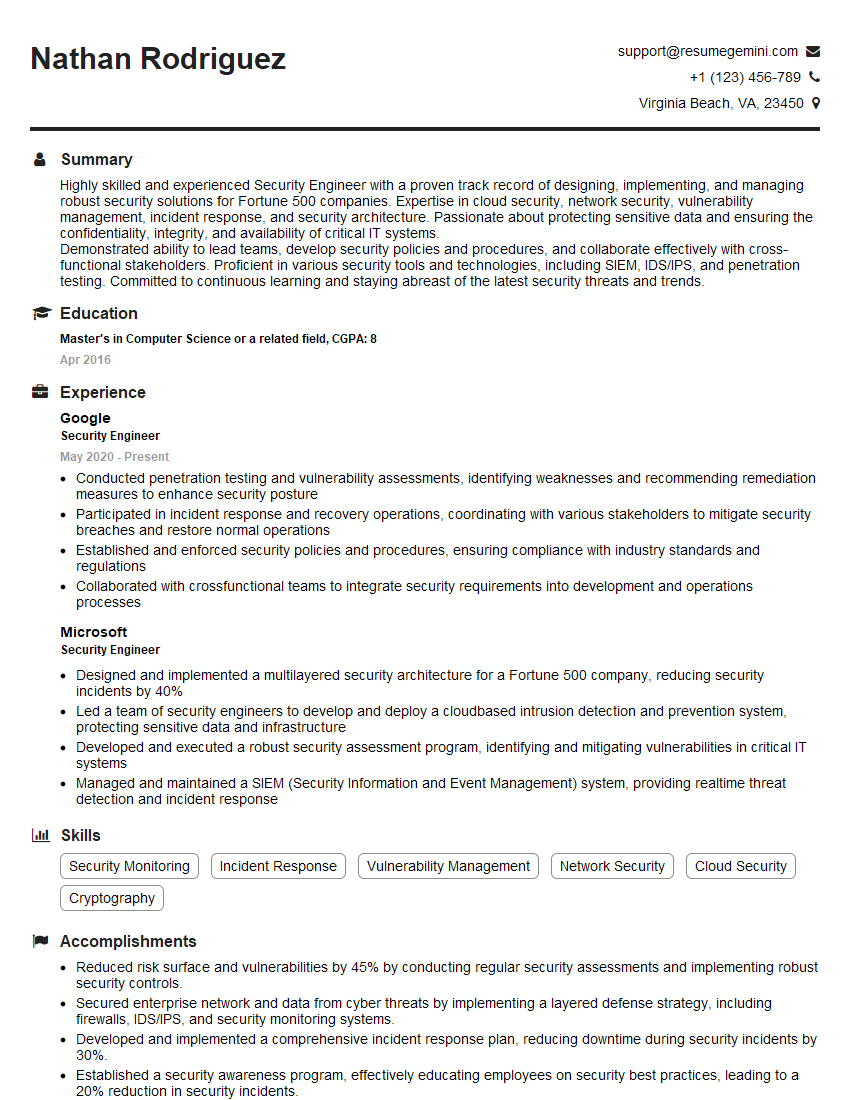
Security Engineer Resume Sample
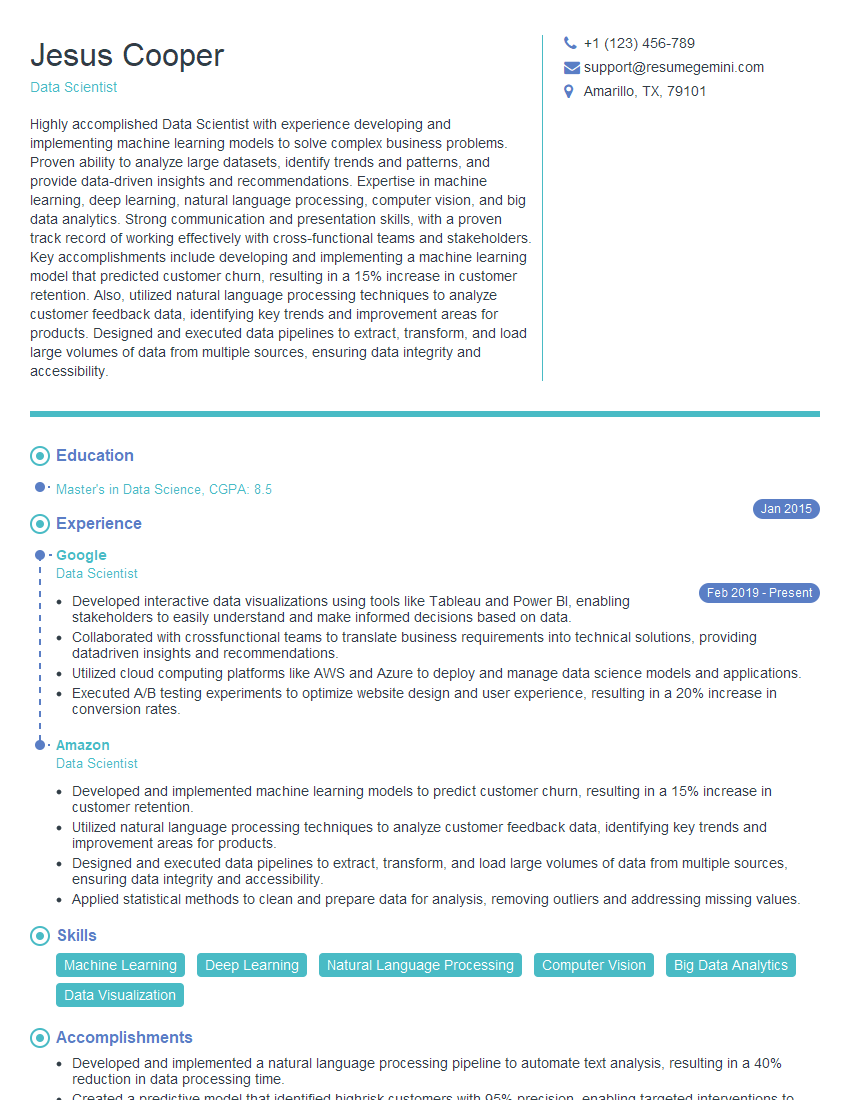
Data Scientist Resume Sample
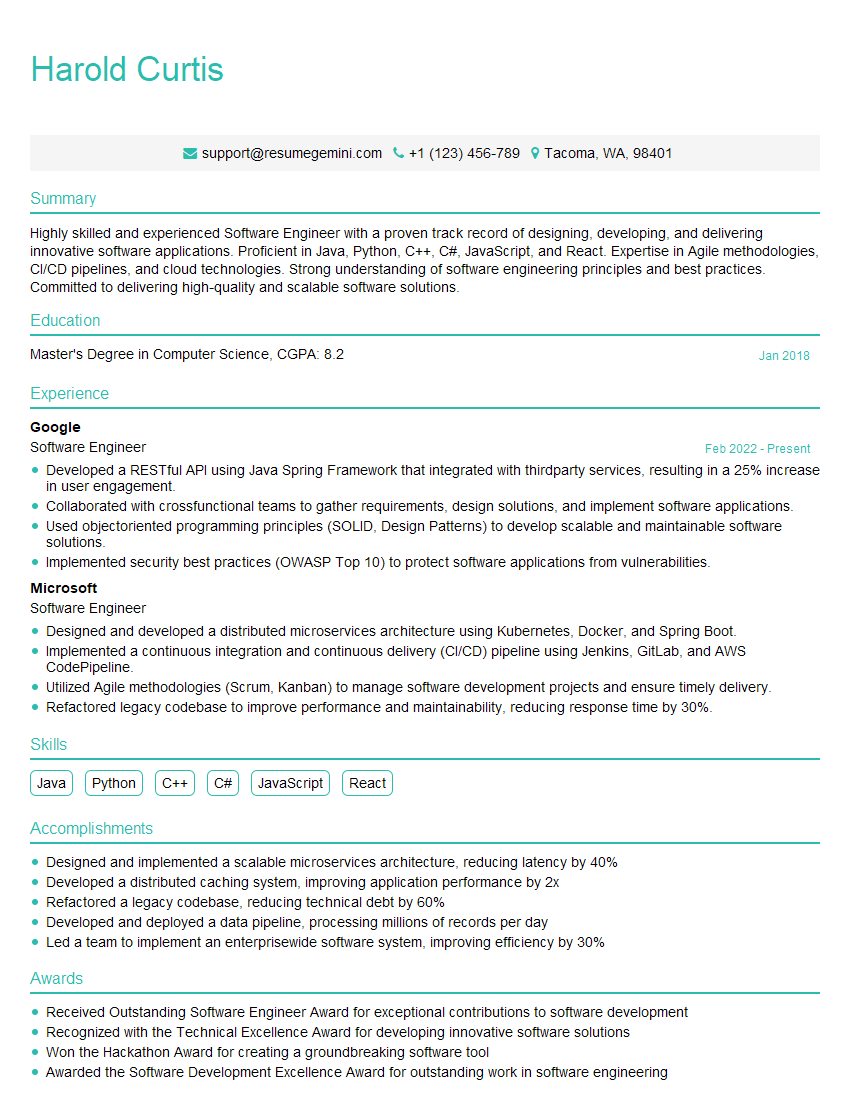
Software Engineer Resume Sample
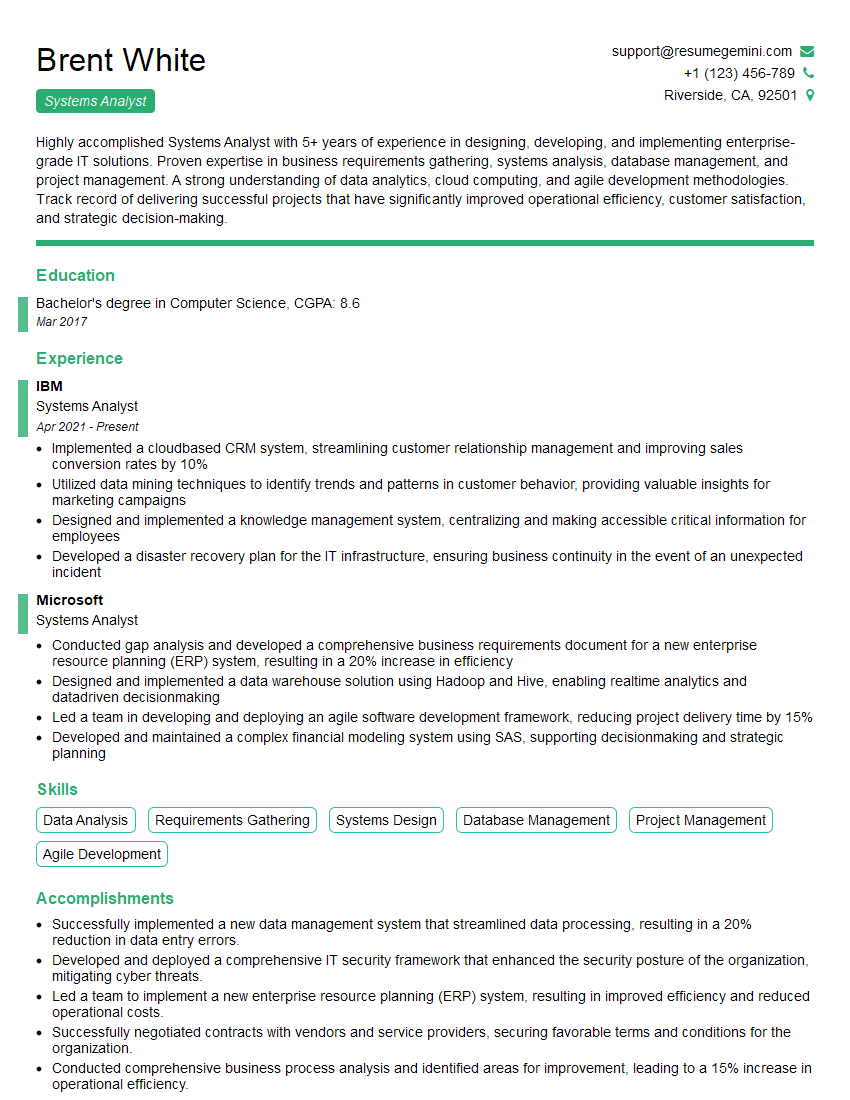
Systems Analyst Resume Sample
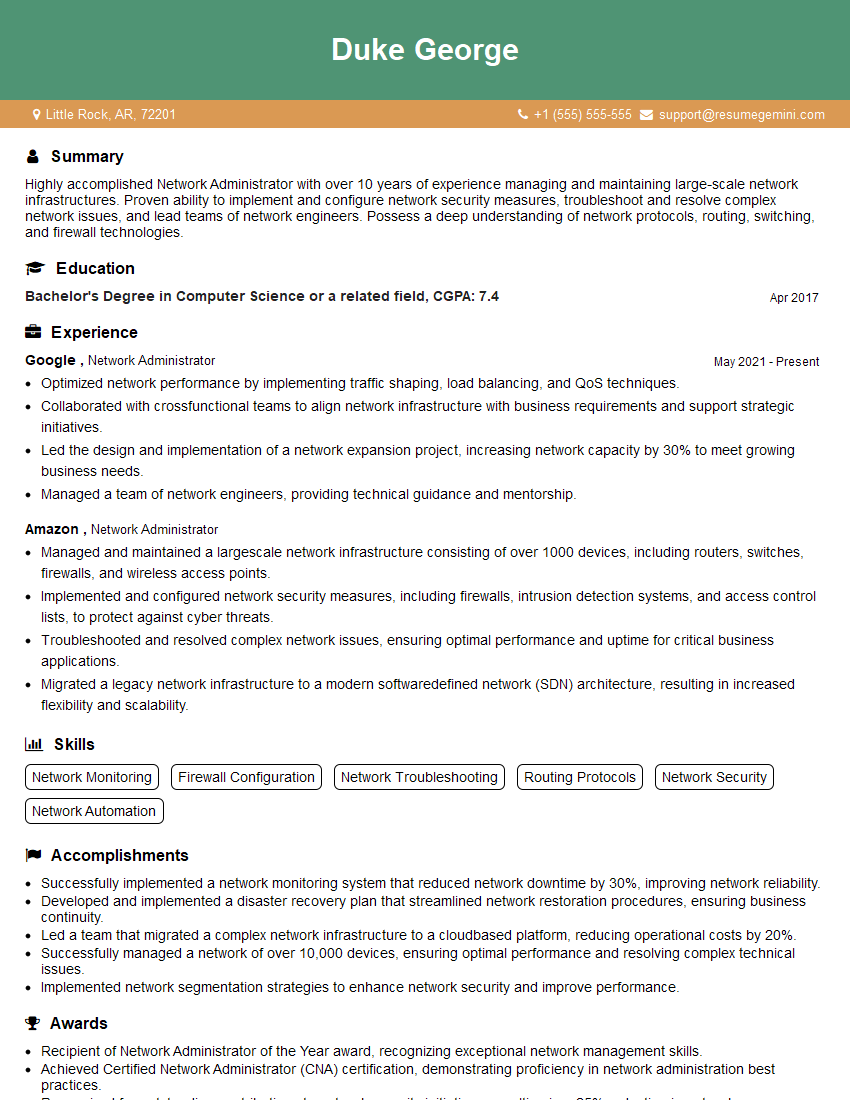
Network Administrator Resume Sample
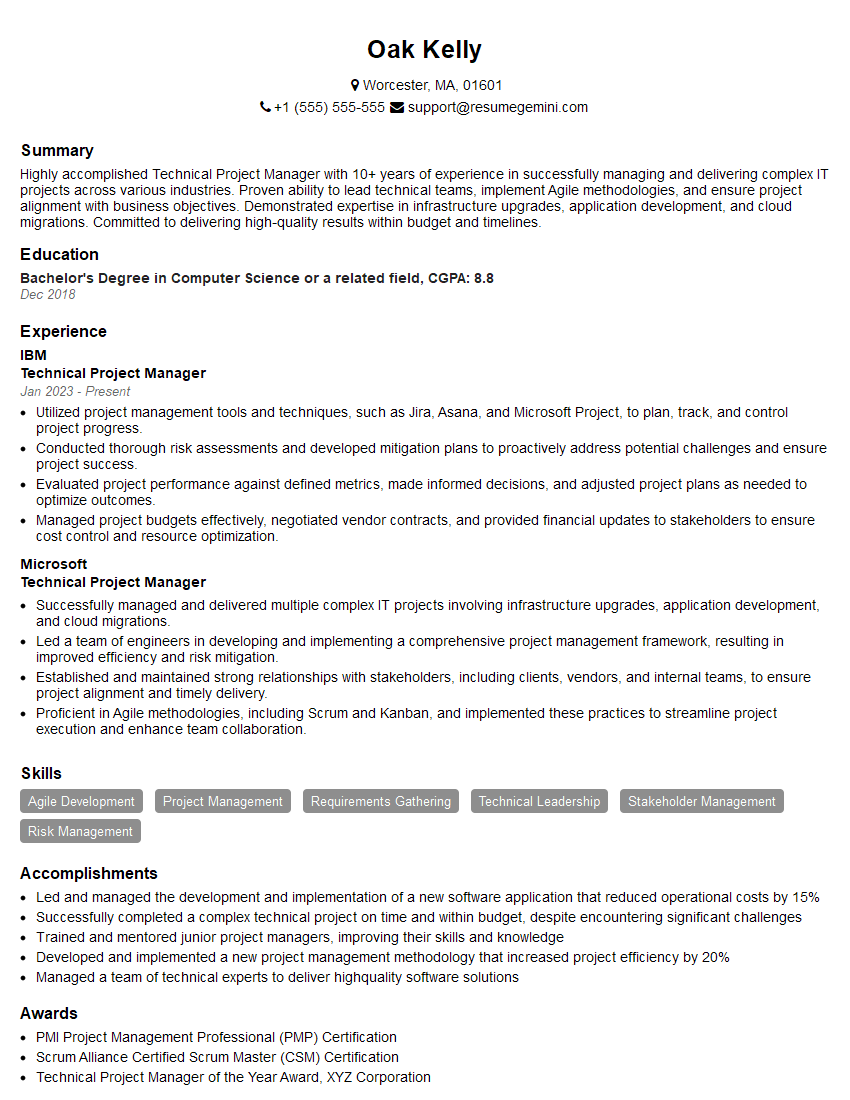
Technical Project Manager Resume Sample
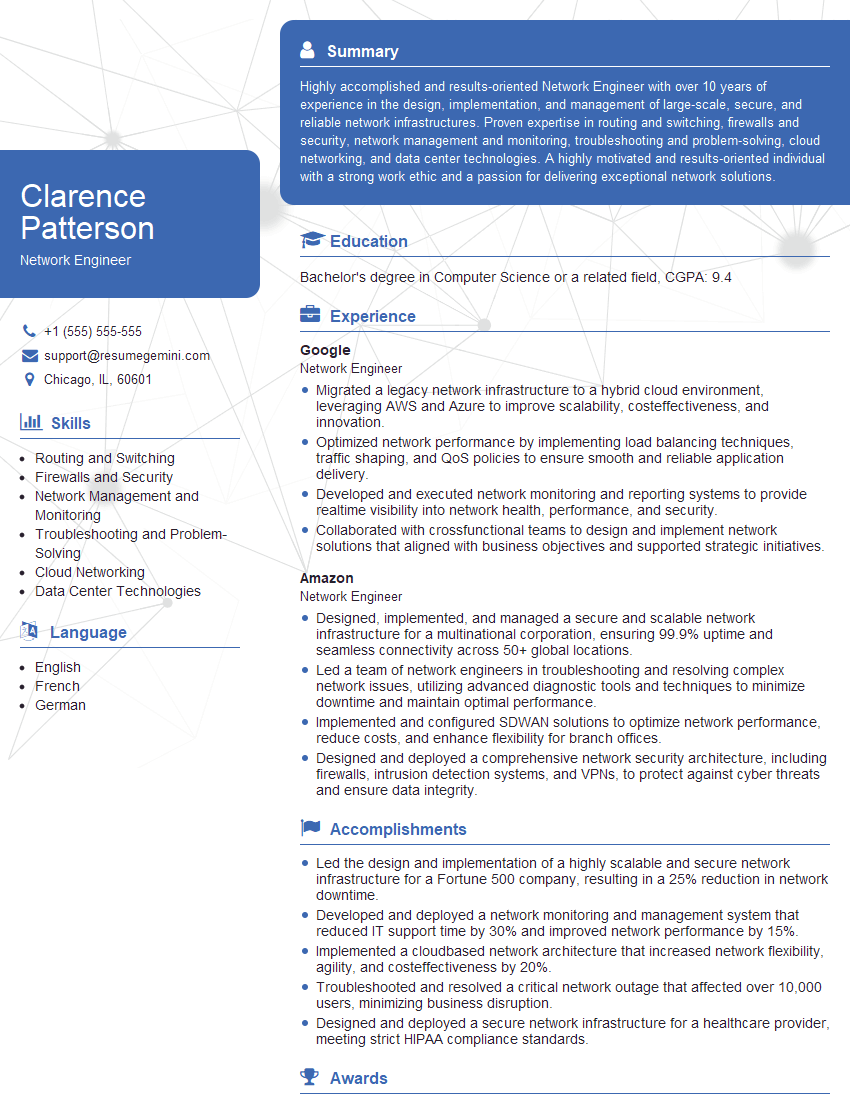
Network Engineer Resume Sample
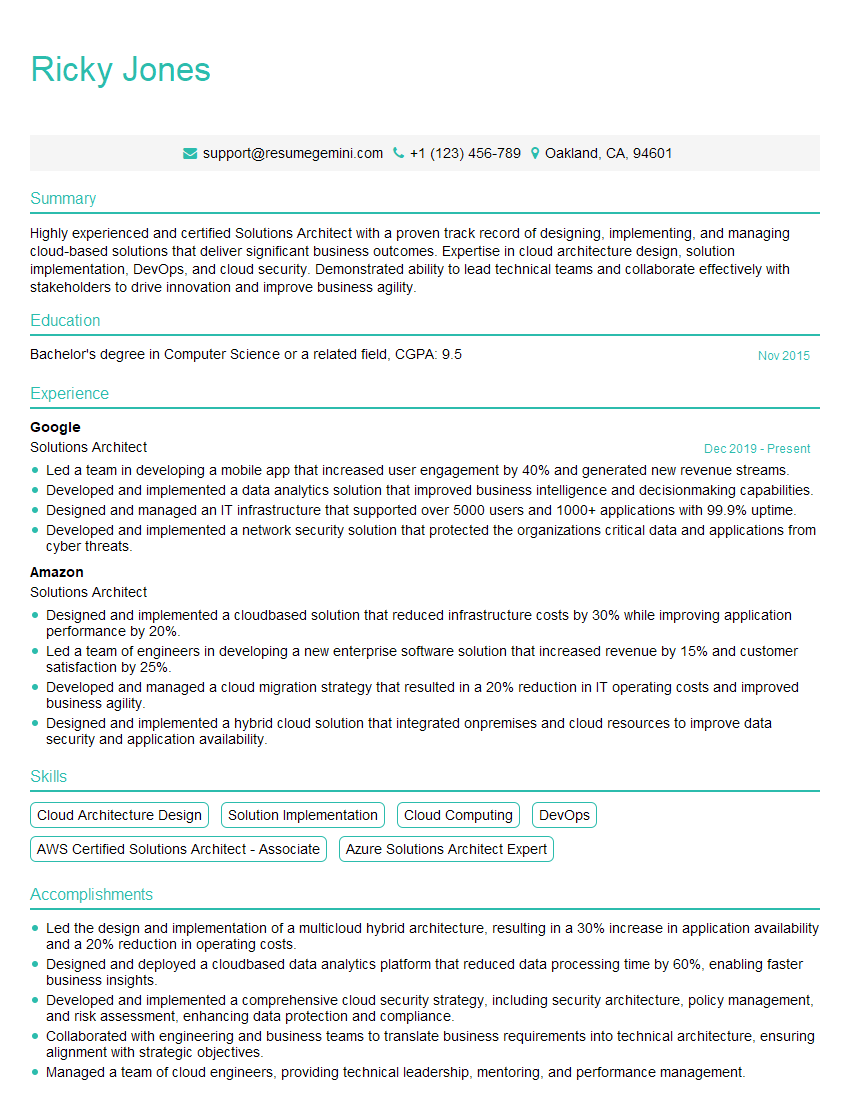
Solutions Architect Resume Sample
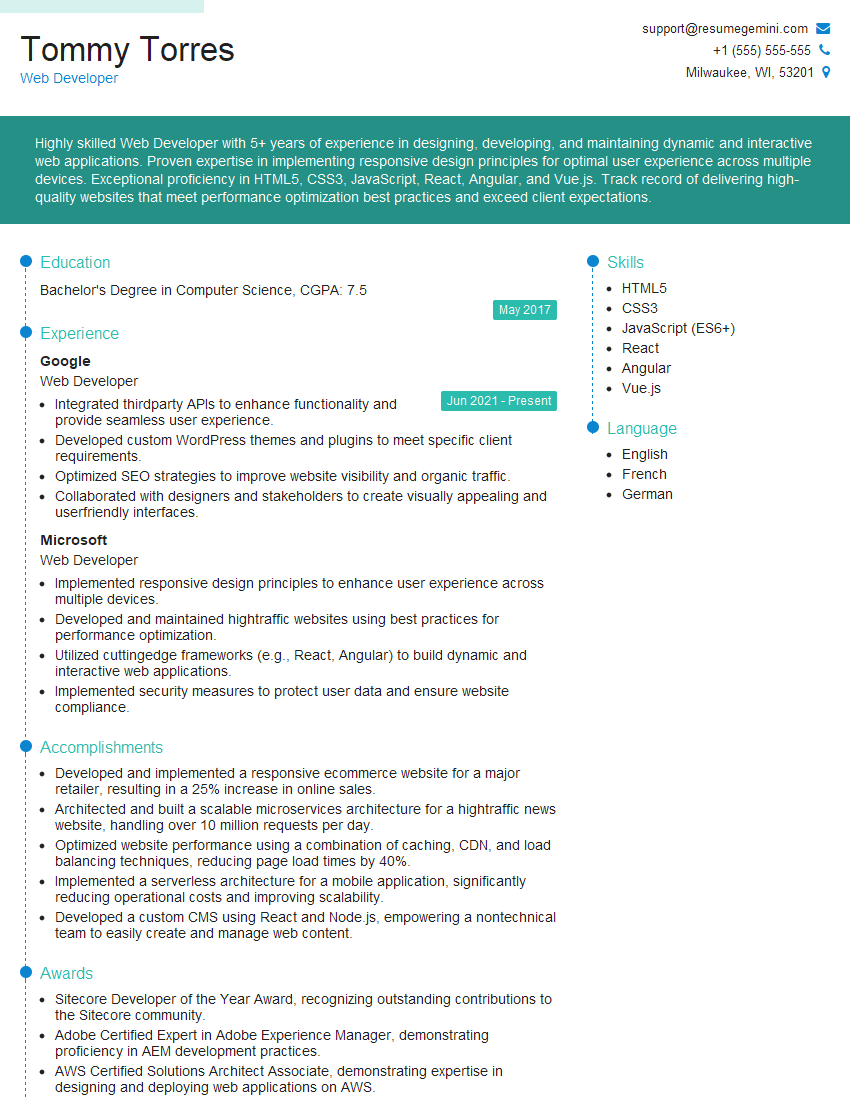
Web Developer Resume Sample
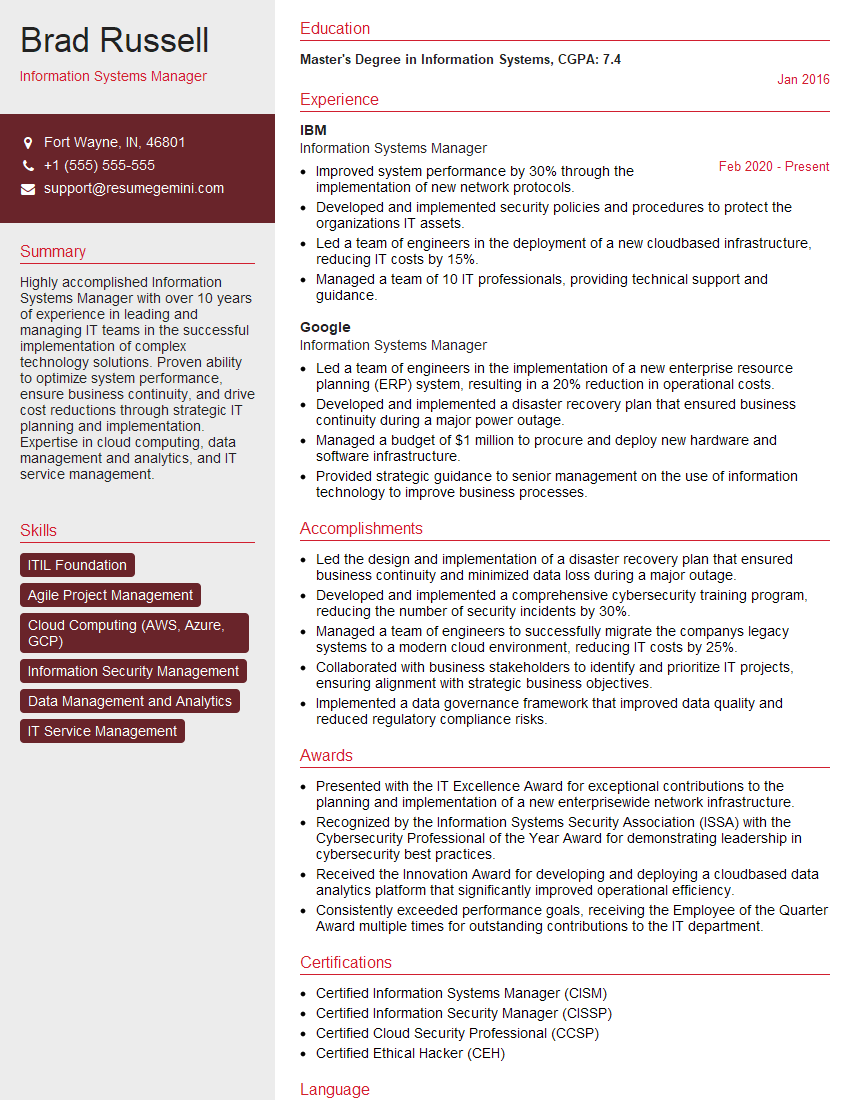
Information Systems Manager Resume Sample
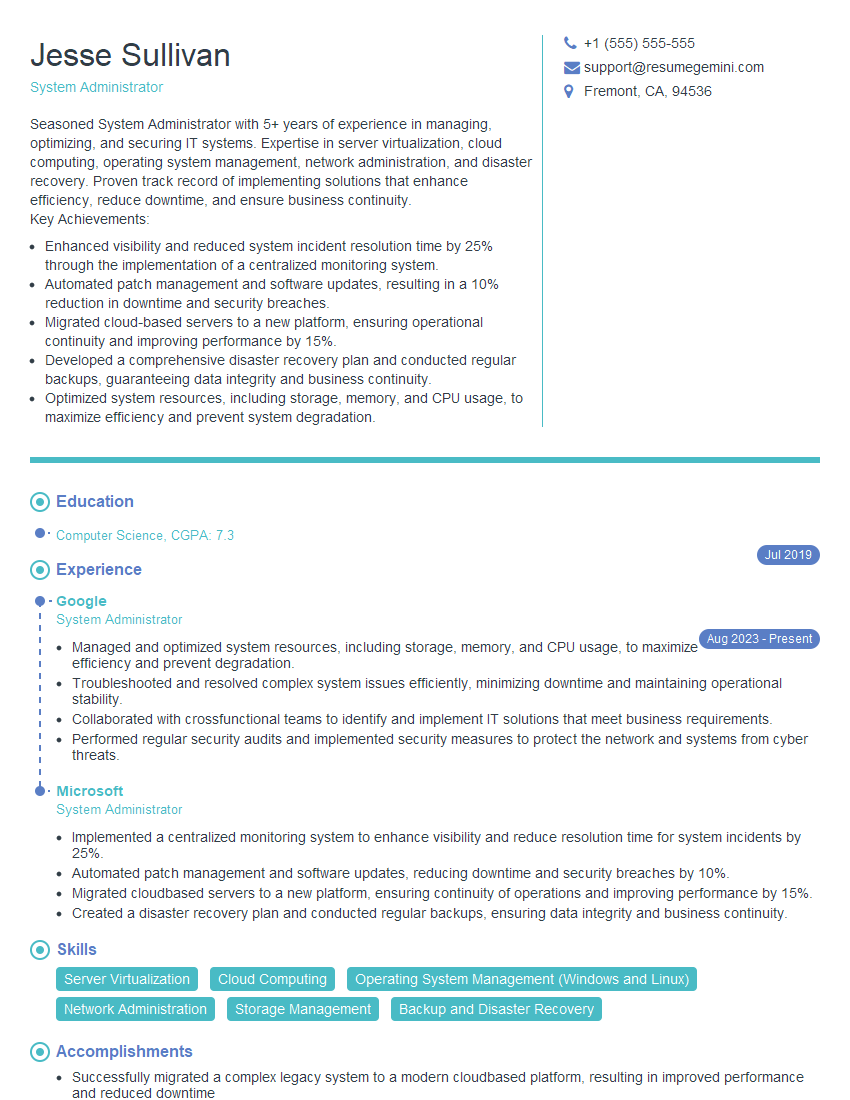
System Administrator Resume Sample
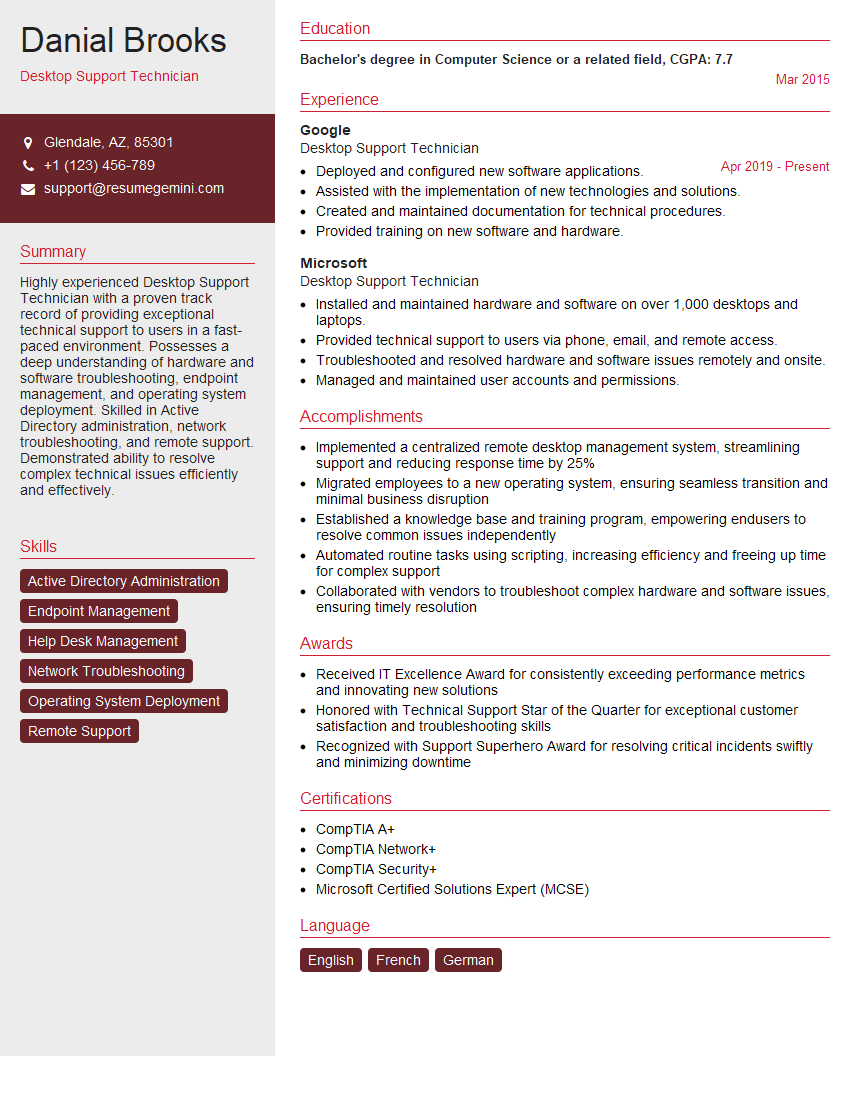
Desktop Support Technician Resume Sample
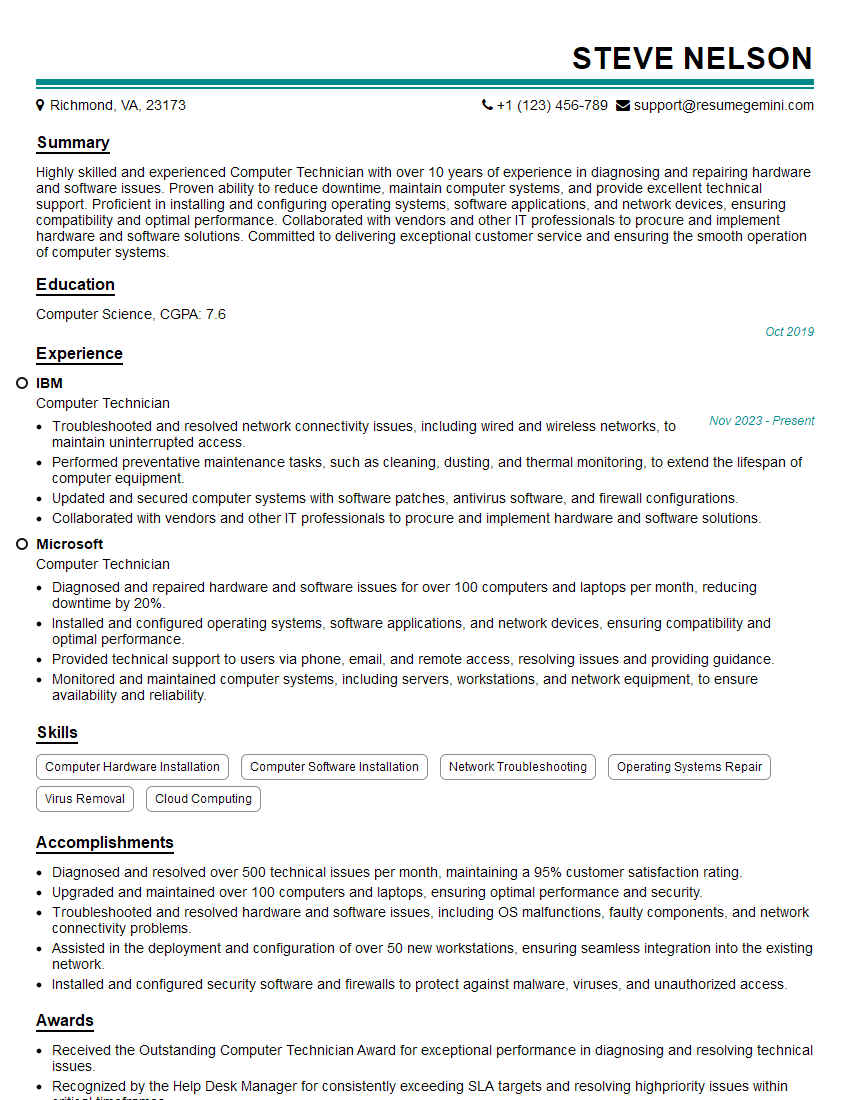
Computer Technician Resume Sample
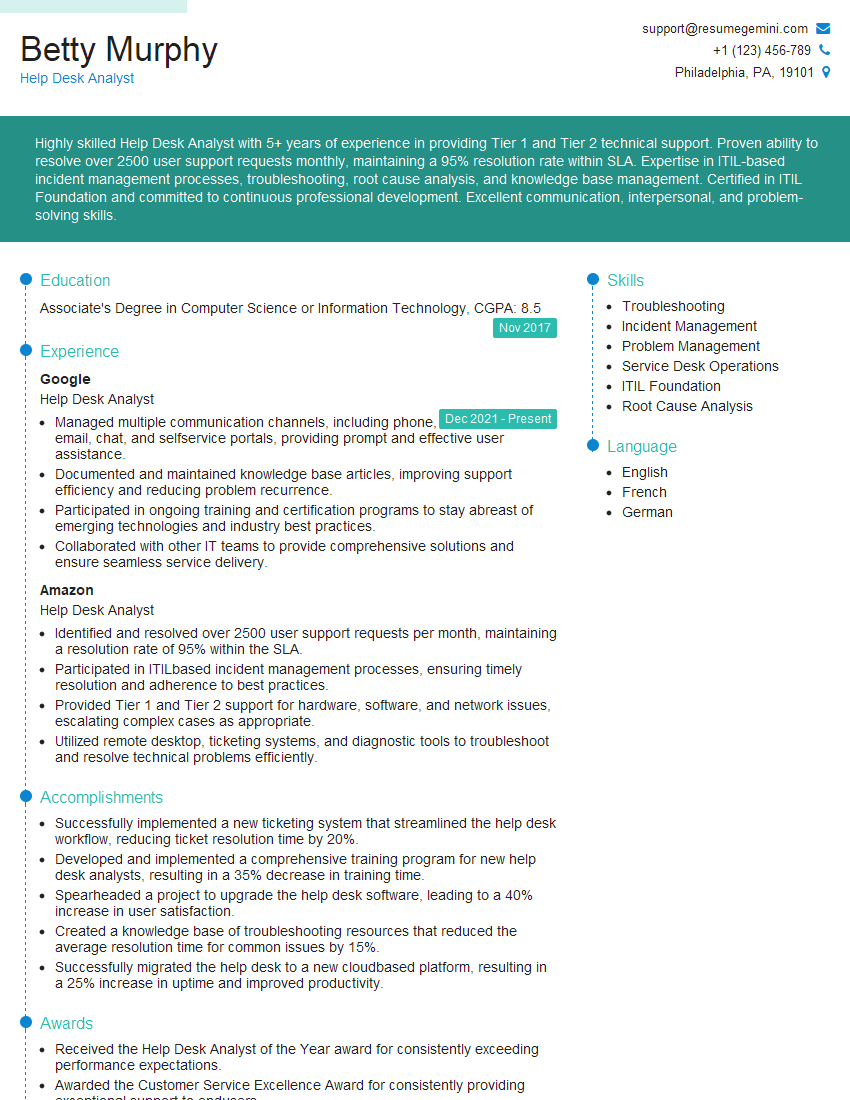
Help Desk Analyst Resume Sample

IT Manager Resume Sample
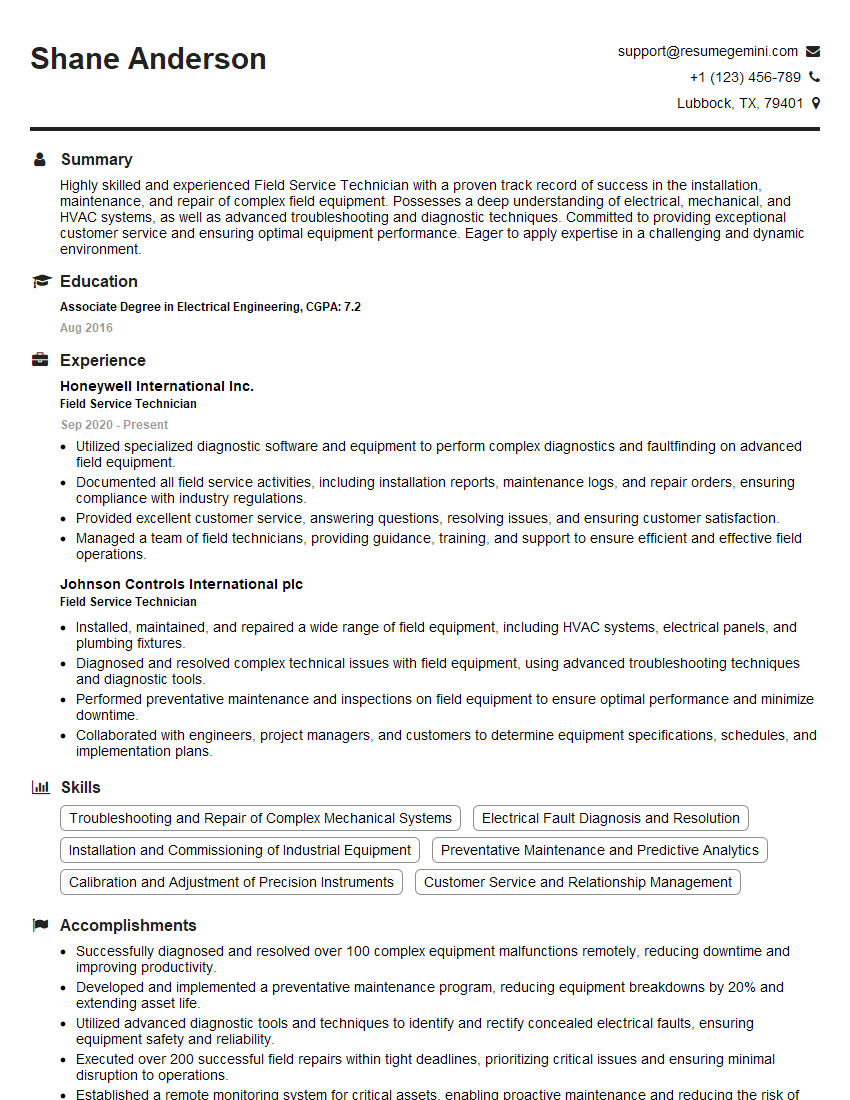
Field Service Technician Resume Sample

Technical Writer Resume Sample
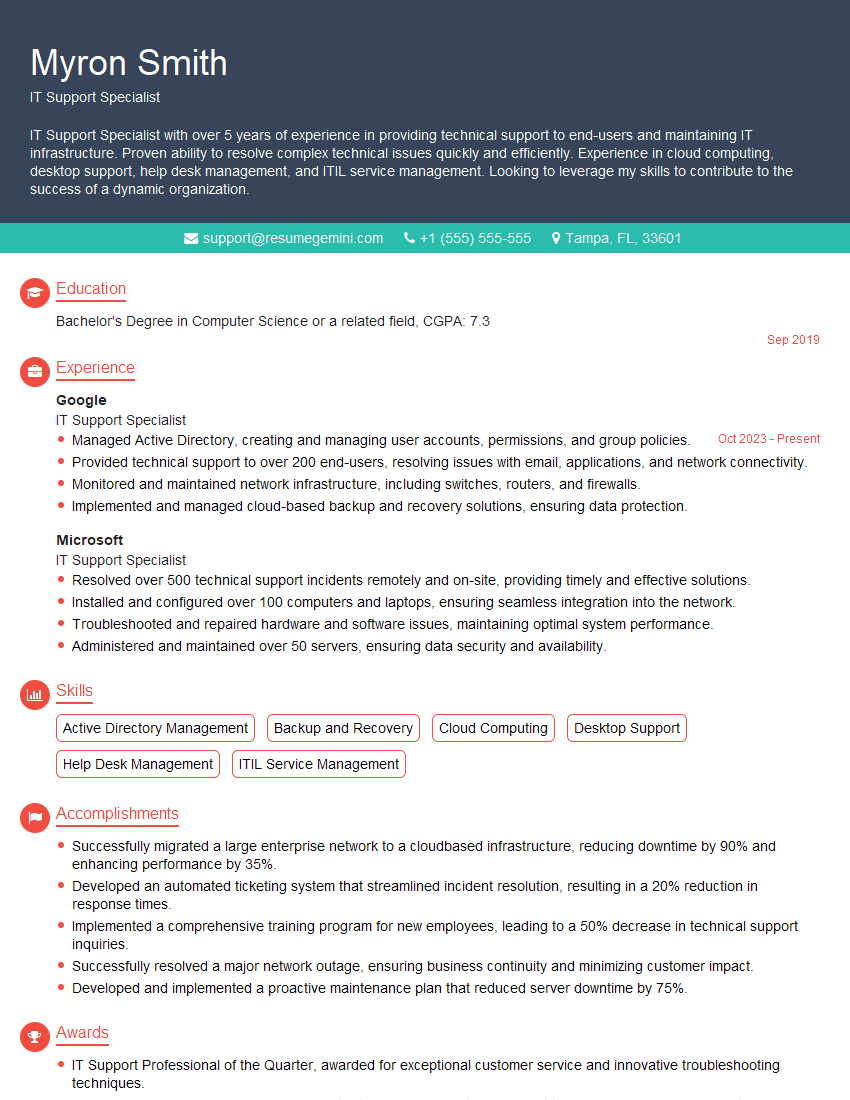
IT Support Specialist Resume Sample
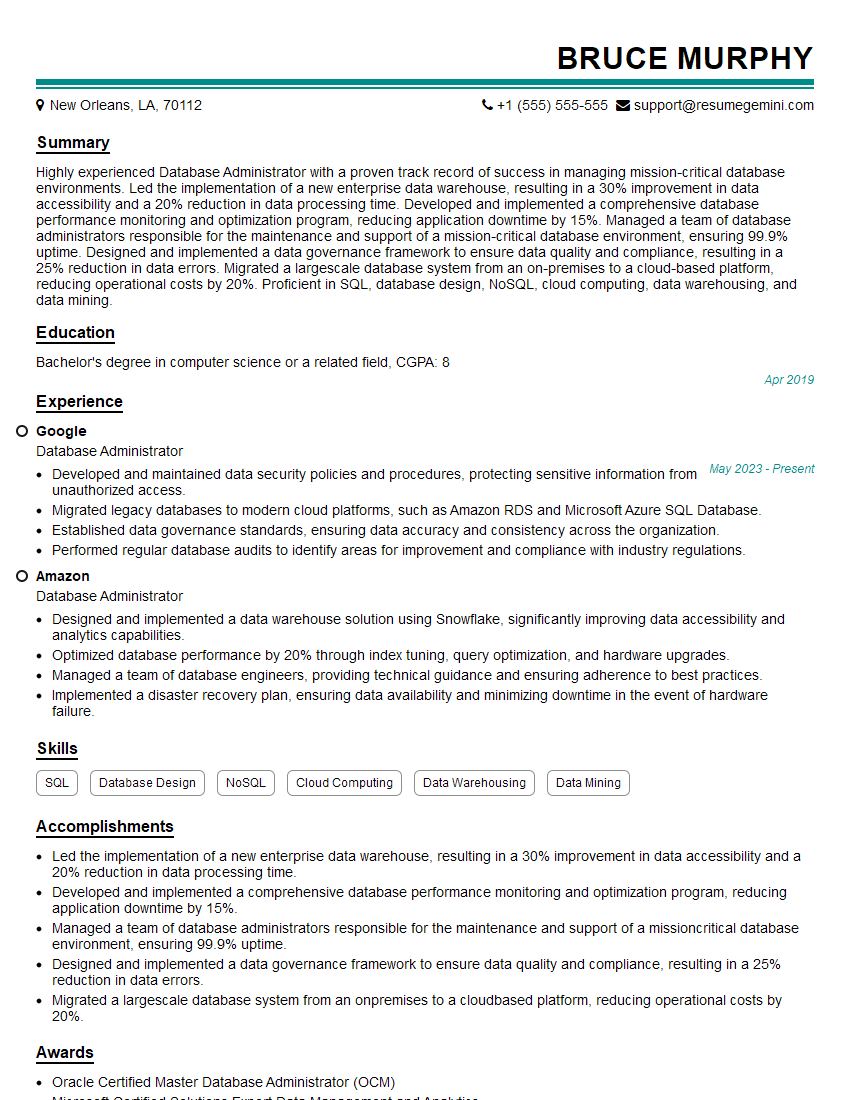
Database Administrator Resume Sample

DevOps Engineer Resume Sample
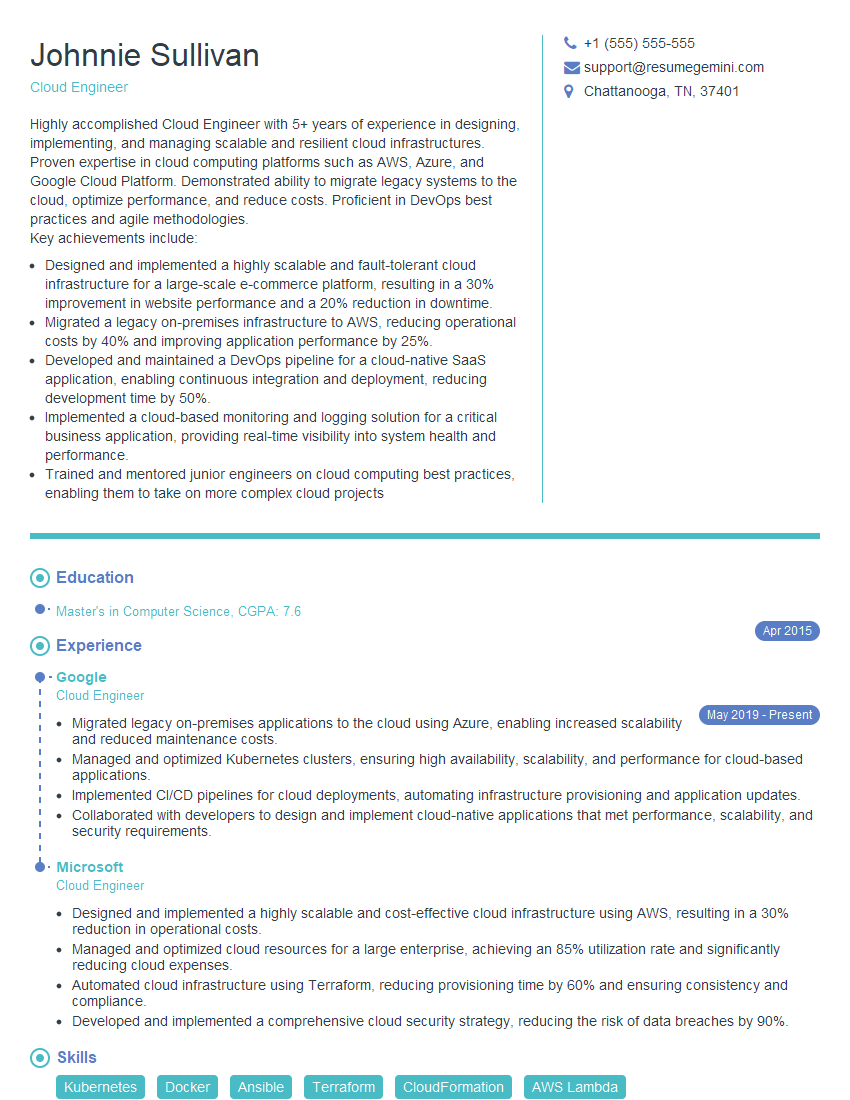
Cloud Engineer Resume Sample
- Security Engineer
- Data Scientist
- Software Engineer
- Systems Analyst
- Network Administrator
- Technical Project Manager
- Network Engineer
- Solutions Architect
- Web Developer
- Information Systems Manager
- System Administrator
- Desktop Support Technician
- Computer Technician
- Help Desk Analyst
- IT Manager
- Field Service Technician
- Technical Writer
- IT Support Specialist
- Database Administrator
- DevOps Engineer
- Cloud Engineer
Explore more articles
Users Rating of Our Blogs
Share Your Experience
We value your feedback! Please rate our content and share your thoughts (optional).
What Readers Say About Our Blog
hello,
Our consultant firm based in the USA and our client are interested in your products.
Could you provide your company brochure and respond from your official email id (if different from the current in use), so i can send you the client’s requirement.
Payment before production.
I await your answer.
Regards,
MrSmith
hello,
Our consultant firm based in the USA and our client are interested in your products.
Could you provide your company brochure and respond from your official email id (if different from the current in use), so i can send you the client’s requirement.
Payment before production.
I await your answer.
Regards,
MrSmith
These apartments are so amazing, posting them online would break the algorithm.
https://bit.ly/Lovely2BedsApartmentHudsonYards
Reach out at [email protected] and let’s get started!
Take a look at this stunning 2-bedroom apartment perfectly situated NYC’s coveted Hudson Yards!
https://bit.ly/Lovely2BedsApartmentHudsonYards
Live Rent Free!
https://bit.ly/LiveRentFREE
Interesting Article, I liked the depth of knowledge you’ve shared.
Helpful, thanks for sharing.
Hi, I represent a social media marketing agency and liked your blog
Hi, I represent an SEO company that specialises in getting you AI citations and higher rankings on Google. I’d like to offer you a 100% free SEO audit for your website. Would you be interested?