Are you ready to stand out in your next interview? Understanding and preparing for Element 3D interview questions is a game-changer. In this blog, we’ve compiled key questions and expert advice to help you showcase your skills with confidence and precision. Let’s get started on your journey to acing the interview.
Questions Asked in Element 3D Interview
Q 1. Explain the difference between pre-rendering and real-time rendering in Element 3D.
In Element 3D, pre-rendering and real-time rendering represent distinct approaches to generating 3D visuals. Pre-rendering, also known as offline rendering, involves calculating and generating the final image frame-by-frame before playback. This process is computationally intensive but allows for high-quality results with complex lighting, shadows, and effects. Think of it like baking a cake – you spend time preparing and baking, but the end result is a delicious, finished product. Real-time rendering, conversely, calculates and displays frames dynamically as the animation plays, much like a live video stream. It’s faster but often sacrifices some visual fidelity for performance. Imagine a live cooking show – you see the process unfold instantly, but the final product might not be as polished as a pre-rendered dish.
The choice between these methods depends largely on project requirements and hardware capabilities. Pre-rendering is ideal for high-quality animations, commercials, or visual effects shots where rendering time is less of a constraint. Real-time rendering is preferred for interactive applications, games, or situations demanding immediate feedback during the creative process. Element 3D offers a hybrid approach allowing for both workflows.
Q 2. How do you optimize Element 3D projects for performance?
Optimizing Element 3D projects for performance is crucial, especially when dealing with complex scenes. My strategy involves a multi-pronged approach:
- Reduce Polygon Count: High-poly models significantly impact rendering time. I always optimize models by reducing polygons where imperceptible to the viewer, using techniques like decimation. Think of it like using a lower resolution image; less detail, but faster load time.
- Utilize Proxies: For very complex scenes, I use proxies—lower-resolution representations of 3D models—during the initial stages of composition and animation. Switching to high-resolution models only during the final render saves considerable processing power.
- Efficient Materials: Complex materials with many maps increase rendering time. I opt for simpler shaders and textures whenever possible, carefully balancing visual fidelity with performance. Using less detailed textures at a distance is a great way to improve things.
- Layer Management: In complex projects, I strategically layer elements. Elements not visible in a given shot can be toggled off, improving rendering speed. Think of it like hiding layers in Photoshop to increase speed while working.
- Cache and Pre-renders: When possible, I leverage Element 3D’s caching mechanisms and pre-render elements to reduce processing during the final render. This is essentially pre-baking parts of the scene.
- Hardware Upgrade: Finally, for consistent performance, upgrading your hardware – particularly RAM and GPU – can significantly enhance rendering speeds. More powerful hardware is always appreciated.
Q 3. Describe your experience with Element 3D’s particle system.
Element 3D’s particle system is a powerful tool for creating realistic and stylized effects, from explosions and smoke to rain and snow. I’ve extensively used it in various projects. The system’s flexibility lies in its ability to customize numerous parameters, controlling particle size, shape, speed, lifespan, color, and more. For instance, I once used it to simulate a swarm of bees around a hive, meticulously adjusting parameters to achieve realistic movement and scattering behavior. I typically start by defining the emitter properties—location, shape, and emission rate. Then, I fine-tune the particle’s lifespan, velocity, and gravity to achieve the desired effect. I also often use noise and turbulence to add organic randomness and realism.
One key aspect is understanding the different particle types and their strengths. For example, using ‘volume’ particles can create realistic-looking smoke or clouds. The ability to map textures onto the particles adds additional control over visual appearance.
Q 4. How do you manage complex scenes in Element 3D?
Managing complex scenes in Element 3D demands a structured approach. My strategy relies heavily on organization and efficient scene management techniques. First, I meticulously organize my project’s assets into logical folders. Next, I utilize layers effectively to separate elements—characters, environments, effects—into manageable groups. This layering simplifies selecting, manipulating, and rendering specific parts of the scene. Think of it as organizing folders on your computer; it is less likely to cause frustration and will aid in the long run. Element 3D’s Null objects are extremely helpful in grouping and animating complex sets of objects.
Furthermore, I make extensive use of instancing to replicate elements without increasing the overall polygon count—a crucial aspect for performance optimization. Finally, I regularly save and backup my project files to prevent data loss. Regularly saving and backing up also keeps my sanity in check.
Q 5. Explain your workflow for creating realistic lighting in Element 3D.
Achieving realistic lighting in Element 3D is a crucial element in my workflow. I begin by understanding the scene’s context and the desired mood. I then strategically place and adjust different light sources—point lights, spotlights, area lights—to simulate natural or artificial illumination. I consider factors like light intensity, color temperature, and falloff to create a believable ambiance. For instance, in recreating a sunset scene, I’d use an area light with a warm color temperature to simulate the sun, and ambient lights to capture the diffuse lighting of the sky.
I heavily utilize environment maps to add realism by providing global illumination and reflections. I often experiment with different HDRI images (High Dynamic Range Images) to find one that best suits the scene’s atmosphere. Careful consideration of shadows is critical, ensuring they match the light source’s position and intensity. I’ll often tweak shadow softness and bias to create natural-looking shadows and avoid harsh edges.
Q 6. Describe your experience with camera tracking and compositing in Element 3D.
My experience with camera tracking and compositing in Element 3D is extensive. Camera tracking, the process of matching a 3D camera’s movement to a live-action video, is essential for seamlessly integrating CGI elements. I use Element 3D’s built-in camera tracker, which analyzes a video clip to determine camera movement. Accuracy is paramount; therefore, I ensure that the video features sufficient visual markers for accurate tracking. Poor tracking results in unrealistic integration.
Compositing involves blending Element 3D renders with other video or image elements. This often necessitates careful attention to color matching and masking. Element 3D integrates well with After Effects, allowing for advanced compositing workflows. I use tools like rotoscoping and keying to precisely isolate and integrate 3D elements into the final composition.
Q 7. How do you handle memory management in large Element 3D projects?
Memory management is a critical concern when working with large Element 3D projects. My approach centers on several key strategies. Firstly, I regularly purge unused assets from the project. Element 3D allows selectively removing unused assets; this improves overall project performance and reduces memory consumption. Secondly, I employ efficient modeling and texturing techniques. High-polygon count models and high-resolution textures consume vast amounts of RAM. Using optimized models and textures is key. This is where proxies become especially invaluable. Using them for the majority of the workflow then swapping to high quality models for final render saves a massive amount of RAM.
Thirdly, I use a systematic approach to scene organization, ensuring elements are grouped and layered efficiently. Keeping the scene structured, and only having elements in the scene that are being actively used drastically reduces the amount of data that needs to be processed.
Finally, I ensure sufficient RAM is available for my workstation. Increasing RAM capacity and using a 64-bit operating system are essential. This alone can drastically improve the performance of large projects.
Q 8. What are the advantages and disadvantages of using different render engines in Element 3D?
Element 3D offers a choice between its built-in renderer and various third-party render engines like Arnold and Redshift. The best choice depends heavily on the project’s demands and your priorities.
- Element 3D’s built-in renderer: Offers a good balance of speed and quality. It’s excellent for quick renders and simpler scenes. It’s easy to learn and use, making it ideal for beginners or projects with tight deadlines where speed is paramount. However, it may struggle with complex scenes or highly realistic materials, producing less photorealistic results compared to dedicated render engines.
- Arnold and Redshift: These are industry-standard, physically based renderers known for their ability to create incredibly realistic imagery. They excel in handling complex geometries, advanced lighting setups, and intricate material shaders. They offer significantly more control over the rendering process, allowing for fine-tuning of details for photorealism. The downside is that they require significantly more processing power and render times are considerably longer. Learning curves are also steeper.
In short: Choose the built-in renderer for speed and ease of use on simpler projects. Opt for Arnold or Redshift when photorealism and complex scenes are crucial, accepting longer render times and a steeper learning curve.
Q 9. Describe your experience with different Element 3D plugins.
I’ve worked extensively with several Element 3D plugins, each enhancing different aspects of the workflow. For example, I’ve used plugins for:
- Improved material libraries: These provide access to a wider range of pre-made materials, saving considerable time and effort in creating realistic textures. I’ve found these especially helpful for quickly populating scenes with diverse objects.
- Advanced lighting and effects: Plugins offering specialized lighting solutions, like volumetric lighting or advanced lens effects, dramatically enhance the realism of rendered images. One project involved using a plugin to create realistic fog effects, significantly improving the atmosphere of the rendered scene.
- Workflow enhancements: Some plugins streamline various aspects of the workflow, such as automating tasks or providing better organization tools. This has proven invaluable in larger projects, helping to maintain organization and efficiency.
The specific plugins I’ve utilized depend on the project requirements. The choice is largely determined by the desired level of realism, the complexity of the scene, and the available processing power.
Q 10. How do you troubleshoot rendering errors in Element 3D?
Troubleshooting rendering errors in Element 3D requires a systematic approach. My process usually involves these steps:
- Check the error log: Element 3D provides detailed error messages. Carefully reviewing these messages often pinpoints the exact cause of the problem, such as missing textures or incorrect material settings.
- Simplify the scene: Rendering errors can sometimes arise from overly complex scenes. Temporarily removing elements helps isolate the problematic component. This is akin to finding a faulty wire in an electrical system by disconnecting parts until the problem disappears.
- Verify material settings: Incorrect material settings are a common culprit. Double-check texture paths, shader parameters, and any other relevant settings.
- Check for memory issues: Rendering high-resolution images or complex scenes requires substantial RAM. Insufficient memory often leads to crashes or errors. Close unnecessary applications and consider reducing rendering resolution.
- Update drivers and software: Outdated graphics drivers or Element 3D itself can cause rendering problems. Regularly updating ensures compatibility and stability.
By systematically working through these steps, the majority of rendering errors can be identified and resolved efficiently.
Q 11. Explain your approach to creating realistic textures in Element 3D.
Creating realistic textures in Element 3D involves a multi-faceted approach. It’s not just about finding a suitable image; it’s about understanding how light interacts with surfaces.
- Using high-resolution images: Start with high-resolution images from sources like photo libraries or texture websites. The quality of the base image heavily influences the final result. Low-resolution images will always look pixelated, no matter how good your other settings are.
- Applying material maps: Utilizing various map types such as diffuse, normal, specular, and roughness maps enhances realism. Each map contributes to different aspects of the material’s appearance, allowing for fine-tuned control.
- Utilizing procedural textures: Procedural textures offer flexibility and control, allowing the creation of complex textures without relying solely on image-based maps. These are particularly useful when needing unique textures that can’t be found in libraries.
- Adjustment of parameters: Fine-tuning parameters within the material editor, such as glossiness, roughness, and normal map intensity, is crucial for achieving a convincing look. Experimentation is key here.
- Baking textures: In complex scenes, baking high-resolution textures from 3D models can significantly improve performance and detail.
Remember, realistic textures are rarely perfect copies of reality. The key is to create textures that look believable within the context of the scene.
Q 12. How familiar are you with Element 3D’s material editor?
I’m extremely familiar with Element 3D’s material editor. It’s the heart of creating realistic and stylized visuals. My understanding extends beyond simply applying pre-made materials; I’m proficient in creating custom shaders and manipulating the various parameters within the editor to achieve specific visual outcomes.
I understand the importance of different map types (diffuse, specular, normal, roughness, etc.) and how they interact to define the final appearance of a material. I can effectively utilize both image-based and procedural textures to build complex and realistic surface details. I can also troubleshoot issues arising from material assignments or texture mapping errors.
My experience includes creating materials ranging from simple plastics and metals to highly detailed organic materials like wood and skin. I regularly leverage the material editor’s features to create unique and compelling visuals tailored to specific project needs.
Q 13. Describe your experience with creating and animating characters in Element 3D.
My experience with character creation and animation in Element 3D is extensive. It generally involves several key steps:
- Modeling: Creating a high-quality 3D model of the character using appropriate polygon counts and topology for animation. This stage requires a deep understanding of anatomy and character design principles.
- Texturing: Applying detailed textures to the model, including skin, clothing, and hair. This requires a good grasp of texture painting techniques and understanding of subsurface scattering for realistic skin.
- Rigging: Setting up a robust skeleton and controlling the character’s movements. This includes creating joints, bones, and controls for animating various parts of the body.
- Animation: Bringing the character to life through keyframing and motion capture techniques. This requires understanding of animation principles and creating believable and fluid movements.
I’ve worked on projects ranging from stylized cartoon characters to more realistic human figures, adapting my approach to the specific requirements of each project. For example, one project involved creating a stylized character for a game, while another demanded a photorealistic animation of a human for a short film.
Q 14. How do you create convincing depth of field effects in Element 3D?
Creating convincing depth of field (DOF) effects in Element 3D is crucial for enhancing realism and directing the viewer’s attention. Element 3D offers various ways to achieve this:
- Using the built-in DOF effect: Element 3D’s built-in depth of field effect is relatively straightforward to use. You simply need to adjust the focus distance and aperture settings. This provides a quick and simple way to add DOF, but offers limited control.
- Utilizing post-processing effects: More advanced DOF control can be achieved through post-processing effects either within Element 3D or in a compositing software like After Effects. This allows for finer adjustments and more creative options, but requires more experience.
- Camera settings: The camera’s aperture setting directly influences the DOF effect. A smaller aperture (larger f-stop number) results in a greater depth of field, while a larger aperture (smaller f-stop number) results in a shallower depth of field.
The best approach depends on the desired level of control and the complexity of the scene. For simple scenes, the built-in effect suffices. For complex shots requiring more nuanced control and creative options, post-processing is preferred. Understanding how aperture, focal length, and focus distance interplay is key to mastering DOF effects.
Q 15. Explain your process for creating and applying shaders in Element 3D.
Creating and applying shaders in Element 3D involves understanding its material system. Element 3D uses a node-based material editor, allowing for highly customizable shaders. My process starts with identifying the desired visual effect. Is it a metallic surface, a glossy plastic, or something more abstract?
Next, I’ll select a base shader – a predefined shader template like the Standard Surface shader, which provides a good starting point with parameters for diffuse color, roughness, metallic, etc. From there, I manipulate these parameters and potentially add other nodes like Fresnel, Normal maps, or procedural textures to achieve the desired look. For instance, to create a realistic metal, I’d increase the metallic value, adjust roughness to a low setting, and likely use a Normal map to add surface detail.
If the Standard Surface shader isn’t sufficient, I might delve into more advanced techniques, such as creating custom shaders using code within the shader editor or importing custom shader files (if supported by the Element 3D version). I always meticulously test and iterate, tweaking parameters until the shader perfectly aligns with my artistic vision. This iterative approach ensures the final result is both visually appealing and computationally efficient. For example, I might need to simplify a complex shader to ensure smooth rendering times, especially in larger projects.
Career Expert Tips:
- Ace those interviews! Prepare effectively by reviewing the Top 50 Most Common Interview Questions on ResumeGemini.
- Navigate your job search with confidence! Explore a wide range of Career Tips on ResumeGemini. Learn about common challenges and recommendations to overcome them.
- Craft the perfect resume! Master the Art of Resume Writing with ResumeGemini’s guide. Showcase your unique qualifications and achievements effectively.
- Don’t miss out on holiday savings! Build your dream resume with ResumeGemini’s ATS optimized templates.
Q 16. How do you optimize the performance of Element 3D animations for web delivery?
Optimizing Element 3D animations for web delivery is crucial for ensuring smooth playback. My approach is multifaceted and focuses on reducing file size without sacrificing visual quality. This involves several key strategies:
- Lowering the render resolution: Rendering at a lower resolution (e.g., 720p instead of 1080p) significantly reduces file size without much perceptible quality loss, especially when the final output is viewed on smaller screens.
- Reducing the frame rate: Lowering the frame rate (e.g., from 30fps to 24fps) can substantially reduce file size. The human eye often doesn’t detect the difference, especially in less action-packed animations.
- Simplifying geometry and textures: Complex 3D models with many polygons or high-resolution textures heavily impact render times and file sizes. I’d optimize these by reducing the polygon count or using lower-resolution textures while maintaining visual fidelity. Tools like decimation can help achieve this without significant visual loss.
- Compression techniques: Utilizing appropriate video codecs (like H.264 or H.265) during the final export process ensures optimal compression, leading to smaller file sizes. Experimenting with different compression settings is often necessary to find the best balance between file size and quality.
- Using proxies: During the editing and animation process, using lower-resolution proxies of high-resolution assets can significantly speed up the workflow without impacting the final render.
I also prioritize using efficient shaders and avoiding unnecessary effects that add computational overhead without adding much visual value. This holistic approach ensures the final animation loads quickly and plays smoothly on various web browsers and devices.
Q 17. Describe your experience with motion tracking in Element 3D.
My experience with motion tracking in Element 3D primarily involves using it to integrate 3D elements into real-world footage. This often begins by capturing high-quality footage with sufficient camera movement and distinct features for tracking. I typically use Element 3D’s built-in motion tracking tools or integrate with a dedicated tracking software like PFTrack or Boujou, exporting the camera data to Element 3D.
The success of motion tracking relies heavily on the quality of the source footage and the accuracy of the tracking points. I pay close attention to the tracker’s error values and refine the tracking process as needed, often adding or removing tracking points to ensure the solution’s robustness. I use various techniques, such as using planar trackers for flat surfaces and point trackers for distinct features. Once the camera track is established, I use it to accurately place and animate 3D elements within the real-world scene, ensuring a seamless integration.
For example, I once used motion tracking to integrate a virtual building model into a time-lapse sequence of a city. The accuracy of the camera tracking was critical to ensure the virtual building’s perspective and movement were perfectly aligned with the actual footage. This process required meticulous attention to detail and multiple iterations to achieve a believable result.
Q 18. How do you manage and organize assets within an Element 3D project?
Managing and organizing assets in an Element 3D project is crucial, especially for larger projects. My strategy involves a hierarchical folder structure, mirroring the project’s structure. This typically includes folders for models, textures, shaders, animations, and other relevant assets. Each folder is clearly named and organized logically to avoid confusion.
Within these folders, I employ consistent naming conventions. This involves using clear and descriptive names, often incorporating a version number to track changes. For example, rather than ‘building.fbx’, I’d use ‘building_v02_final.fbx’. This allows me to quickly identify and locate specific assets.
I also utilize Element 3D’s asset management tools (if available) to create and link to assets within the scene. This helps maintain a structured and efficient workflow. Additionally, I maintain a separate master library folder that stores all frequently used assets and materials for future use.
Regular backups are essential to mitigate the risk of data loss. I implement a version control system (like Git-LFS, although the integration with Element 3D might require additional plugins) to track changes and allow rollback to previous versions. This disciplined approach ensures a smooth and well-organized workflow, regardless of project size or complexity.
Q 19. Explain your process for creating believable simulations (e.g., smoke, fire, water) in Element 3D.
Creating believable simulations in Element 3D, such as smoke, fire, or water, relies heavily on the use of particle systems and appropriate shaders. For smoke, I might utilize a particle system with volumetric rendering, adjusting parameters like particle density, size, and velocity to control the appearance and behavior. Sophisticated shaders can further enhance realism by simulating light scattering and absorption within the smoke volume.
Simulating fire is similar but often involves incorporating additional techniques. I might use a combination of particle systems for the flames and possibly a volume shader to create the glowing embers. Careful attention to color variations and particle animation is necessary to capture the flickering and dynamic nature of fire.
Water simulations often involve different techniques. These can range from simple animated geometry to more complex fluid simulations (if the Element 3D version supports it) or the use of displacement maps. The choice depends on the level of realism needed. Accurate shaders are crucial for rendering the surface reflection and refraction to achieve a believable appearance.
In all cases, I focus on achieving a balance between realism and performance. Highly detailed simulations can be computationally expensive, so I often optimize the parameters and use efficient rendering techniques to avoid slowing down the rendering process. It’s an iterative process that involves experimenting with various parameters and techniques until the simulation meets the artistic and performance requirements.
Q 20. How familiar are you with the use of masks and keyframes in Element 3D?
Masks and keyframes are fundamental tools in Element 3D for controlling the appearance and animation of objects. Masks are used to isolate specific regions of a 3D model or texture, allowing for selective effects or modifications. For example, I might use a mask to apply a specific material only to a portion of a character model or to isolate a specific region for animation purposes.
Keyframes define the state of an object at specific points in time, allowing for precise control over animation. I use keyframes to animate object position, rotation, scaling, material properties, and even particle system parameters. These are used to craft the animation, from simple transitions to complex character movements.
I often use masks and keyframes in conjunction. For instance, I might animate the opacity of a mask over time, creating a reveal or fade effect. Or, I might use keyframes to control the position of a mask, allowing it to follow a moving object. A practical example is creating realistic facial expressions – I’d use keyframes to animate blendshapes (if supported) and masks to refine the results.
Understanding the nuances of both masks and keyframes is paramount in creating polished animations and effects. Proficient use involves planning the animation carefully and strategically using keyframes to efficiently control the changes in the animation.
Q 21. Describe your experience integrating Element 3D renders with other software (e.g., After Effects).
Integrating Element 3D renders with other software, primarily After Effects, is a common part of my workflow. Element 3D often serves as the 3D rendering engine, while After Effects handles compositing, additional effects, and final adjustments. The most straightforward integration method involves rendering the 3D scene from Element 3D as image sequences (e.g., PNG or EXR) or a video file and importing these into After Effects.
For more seamless integration, I’d often use Element 3D’s export capabilities to output the animation as a multi-pass render. This allows for greater control in After Effects. Multi-pass rendering separates elements like diffuse, specular, and ambient occlusion into individual layers, providing greater control over compositing and post-processing in After Effects. This workflow provides the flexibility to refine each element individually and enhances the final product’s quality.
Using a composition system like this enables adding stylistic touches, such as color correction, lens flares, or adding elements like text or video effects that can enhance the final product. I’ve even used this approach to integrate live action footage and 3D effects.
Occasionally, more advanced integration might involve using plugins or scripts to directly link Element 3D and After Effects, allowing for real-time rendering or interactive manipulation. This workflow is highly efficient but requires greater technical expertise.
Q 22. How do you create and manage different layers in Element 3D?
Managing layers in Element 3D is fundamental to efficient workflow and complex scene organization. Think of layers like stacked transparent sheets; each holds different elements of your 3D scene. You create a new layer by clicking the ‘New Layer’ button in the Layer panel. This is similar to Photoshop or other image editing software. Each layer can be individually named, hidden, toggled for visibility, and adjusted in the z-axis (depth). This lets you easily manage complexity: For example, you might have one layer for your main character model, another for the environment, and a third for special effects like fire or particle systems. You can adjust layer opacity, enabling blending effects or subtle adjustments without affecting other layers. This non-destructive workflow allows for revisions and adjustments without requiring you to start from scratch.
Consider a scene with a car, a road, and trees. Separating them onto distinct layers allows easy selection and editing. Need to change the car’s color? Only the car layer needs adjusting. The trees and road remain unaffected. This layered approach significantly simplifies the management of complex scenes and is key to maintaining organized and efficient projects.
Q 23. Explain your approach to creating realistic reflections and refractions.
Achieving realistic reflections and refractions in Element 3D hinges on understanding and utilizing its material properties. Reflections are determined by the material’s reflectivity and the scene’s environment map, which acts as a mirror reflecting what surrounds the object. A higher reflectivity value will yield a brighter, more prominent reflection. Refractions are handled similarly, but use the material’s refractive index to control how light bends as it passes through transparent or translucent materials like glass. The refractive index dictates how much light bends.
To make things really pop, I often use environment maps that are high-resolution and reflect the scene accurately, such as HDRI images which contain rich lighting and reflection data. I also meticulously adjust the material parameters, paying close attention to roughness. Rough surfaces have blurry reflections while smooth surfaces produce crisp, sharp reflections. For example, a polished metal surface would have a high reflectivity and low roughness, whilst a piece of frosted glass would have a lower reflectivity and higher roughness, altering the clarity of the reflection. Using these tools, I can create anything from a realistic puddle to a shimmering crystal.
Q 24. How do you use and adjust the ambient occlusion settings in Element 3D?
Ambient occlusion simulates the darkening of surfaces where they’re close to other objects, adding depth and realism to scenes. In Element 3D, you access this setting within a material’s properties, often found under a ‘Lighting’ or ‘Advanced’ tab. The key settings are typically the ‘Strength’ slider, which controls how dark the occlusion effect will be, and the ‘Radius’ slider, defining the distance over which the occlusion effect is calculated; a larger radius can result in more subtle, softer occlusion.
I usually start with a moderate strength, experimenting with the radius to see what best captures the subtle shadows and enhances the perceived depth. For example, if I’m working on a close-up shot of a complex mechanical part, a slightly larger radius would be effective to accurately represent the nuances of shadow and depth. Conversely, a low radius with a strong ambient occlusion effect can be used to create a more stylistic, comic-book style rendering. The ‘Samples’ setting affects render times; more samples yield more accurate but slower results. Finding the right balance between quality and render time is a constant consideration, similar to managing resolution in other software.
Q 25. Describe your understanding of different camera projection types in Element 3D.
Element 3D offers several camera projection types, impacting how the scene is viewed. The most common are Perspective and Orthographic. Perspective projection mimics human vision, with objects appearing smaller as they move further away, creating depth and realism. Orthographic projection, in contrast, projects objects without perspective; objects stay the same size regardless of distance, resulting in a more technical, blueprint-like view.
Perspective is often preferred for cinematic renders and realistic visualizations, while orthographic is useful for architectural renderings, technical illustrations, or detailed shots of objects where accurate size representation across the frame is paramount. Choosing the appropriate projection depends entirely on the desired look and purpose of the render. For example, showing a building from a distance benefits from perspective; an architectural floor plan would use orthographic.
Q 26. How do you achieve a specific color grading style in Element 3D?
Color grading in Element 3D is usually done post-render, often within a separate color grading application, but you can use tools within Element 3D to achieve some degree of color control. You can adjust the overall color temperature and tint of your scene. The lighting settings greatly impact the final color, and the material colors themselves will affect the rendered output. Element 3D doesn’t offer the same extensive color grading tools as dedicated applications like DaVinci Resolve or Adobe Premiere Pro, however, it allows for some fine-tuning before moving on to post-production.
To achieve a specific style, I may start by adjusting the light sources’ color temperature to establish a base mood – cool blues for a colder feel, warm oranges and yellows for a warmer one. Then, I’d adjust material colors to complement this mood. Finally, if needed, I render the scene out to an image format (like an EXR or PNG) and apply final color grading in dedicated software such as Photoshop or After Effects, offering more granular control and fine tuning, to achieve the final artistic look.
Q 27. What are some of the limitations of Element 3D, and how do you work around them?
While Element 3D is powerful, it has limitations. One major constraint is its relative lack of advanced hair and fur simulation compared to dedicated packages like XGen or Maya. Another area is the complexity of certain simulations. Very complex fluid simulations, for instance, can be quite taxing and might be better suited to specialist software. Finally, the rendering engine, while highly capable, can still encounter performance bottlenecks with extremely complex scenes.
To address these, I often employ a hybrid approach. For instance, if I need realistic hair, I might model it in a different package and import the result into Element 3D. Complex simulations could be pre-rendered or done in dedicated software and composited into the final render. By understanding and preparing for these limitations, I can achieve my creative vision without being unduly hindered.
Q 28. Describe your experience with rendering and exporting different file formats from Element 3D.
Rendering and exporting from Element 3D is straightforward. The software supports various formats such as PNG, JPG, TIFF, EXR, and more. EXR is preferred for its high dynamic range, preserving more information for post-production color grading and compositing. JPG and PNG are more common for final delivery to clients who won’t be doing further manipulation.
The rendering process itself involves selecting the desired resolution and output format, setting up anti-aliasing for smooth edges, and choosing render settings to balance quality and rendering time. My experience includes generating renders for various purposes – high-resolution stills for print media, animation sequences for film, and low-resolution previews for quick client feedback. Understanding the strengths and limitations of each format helps me optimize renders for their intended use. For example, a high-quality EXR will be used for high-end film and VFX, whereas a compressed JPG is suitable for web and social media.
Key Topics to Learn for Your Element 3D Interview
- 3D Composition and Workflow: Understanding the core principles of compositing within Element 3D, including layering, masking, and blending modes. Practical application: Explain how you’d achieve a specific visual effect using these tools.
- Camera Tracking and 3D Space: Mastering camera tracking techniques and working effectively within a 3D environment. Practical application: Describe a project where you successfully integrated 2D footage into a 3D scene.
- Material and Lighting: Proficiency in creating and manipulating materials, understanding lighting principles (key, fill, rim lighting etc.) and their impact on the final render. Practical application: Explain your approach to lighting a complex scene for optimal realism.
- Particle Systems and Simulations: Familiarity with creating and manipulating particle effects within Element 3D for dynamic visuals. Practical application: Describe how you would create a specific particle effect (e.g., smoke, dust, sparks).
- Advanced Techniques (Optional): Explore advanced concepts such as expressions, scripting, and integration with other software. Practical application: Discuss your experience (if any) using expressions or scripting to automate tasks or create custom effects.
- Troubleshooting and Problem Solving: Demonstrate your ability to identify and resolve technical challenges encountered during compositing and 3D work. Practical application: Describe a challenging situation you faced and how you overcame it.
Next Steps
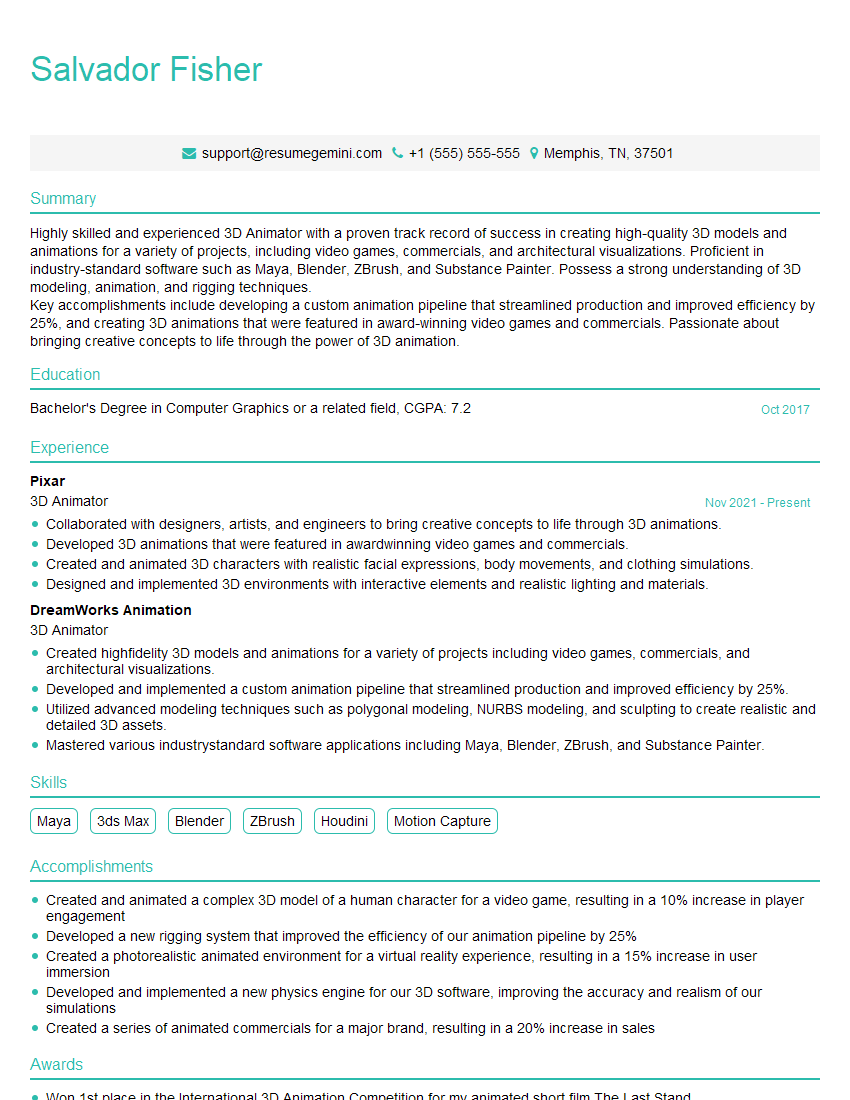
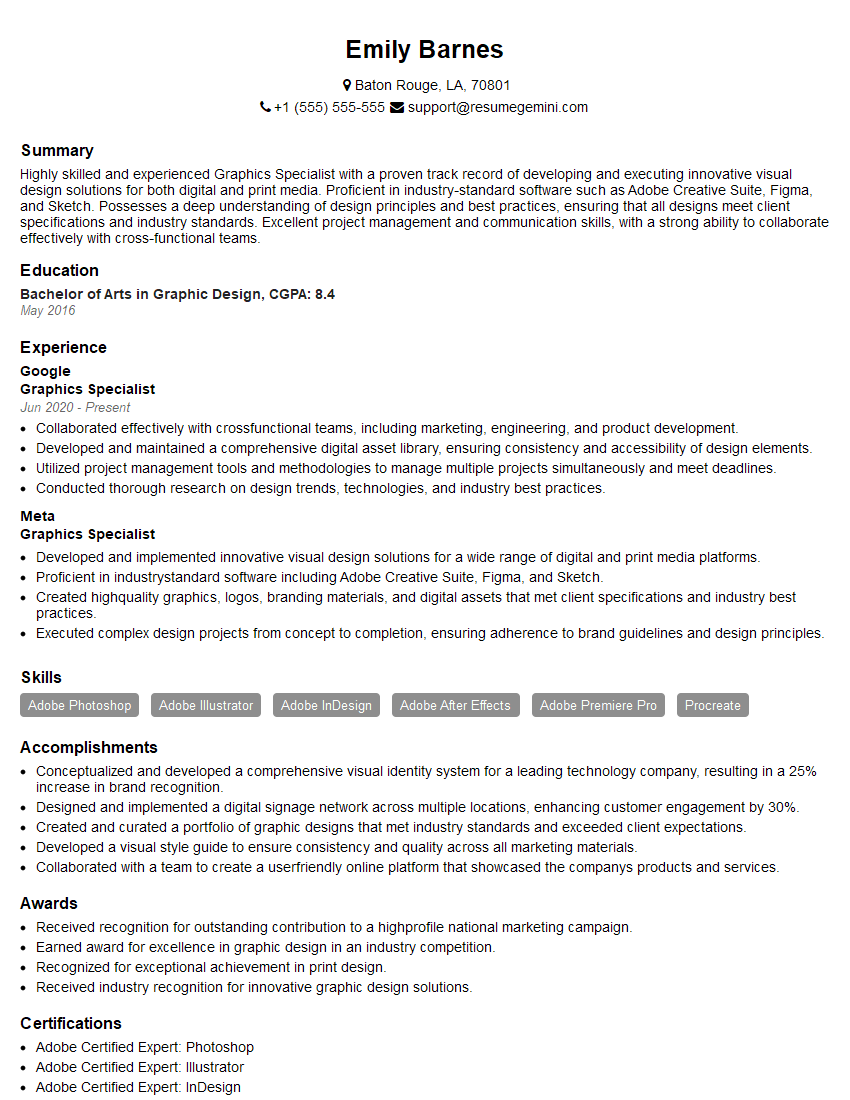
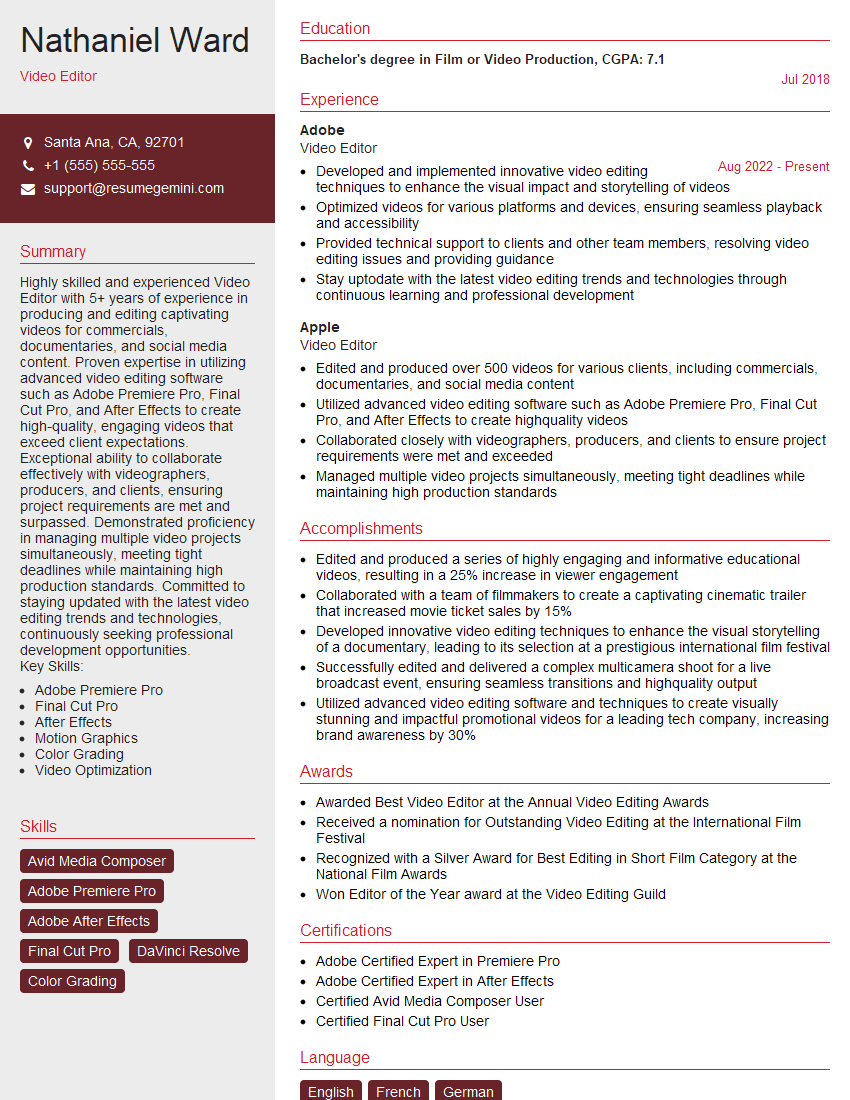
Mastering Element 3D opens doors to exciting career opportunities in visual effects, motion graphics, and advertising. A strong understanding of this software is highly sought after by studios and companies worldwide. To maximize your chances of landing your dream job, creating an ATS-friendly resume is crucial. This ensures your skills and experience are effectively highlighted to potential employers. We recommend using ResumeGemini, a trusted resource for building professional and impactful resumes. ResumeGemini provides examples of resumes tailored to Element 3D, helping you showcase your expertise and land that interview.




Explore more articles
Users Rating of Our Blogs
Share Your Experience
We value your feedback! Please rate our content and share your thoughts (optional).
What Readers Say About Our Blog
hello,
Our consultant firm based in the USA and our client are interested in your products.
Could you provide your company brochure and respond from your official email id (if different from the current in use), so i can send you the client’s requirement.
Payment before production.
I await your answer.
Regards,
MrSmith
hello,
Our consultant firm based in the USA and our client are interested in your products.
Could you provide your company brochure and respond from your official email id (if different from the current in use), so i can send you the client’s requirement.
Payment before production.
I await your answer.
Regards,
MrSmith
These apartments are so amazing, posting them online would break the algorithm.
https://bit.ly/Lovely2BedsApartmentHudsonYards
Reach out at [email protected] and let’s get started!
Take a look at this stunning 2-bedroom apartment perfectly situated NYC’s coveted Hudson Yards!
https://bit.ly/Lovely2BedsApartmentHudsonYards
Live Rent Free!
https://bit.ly/LiveRentFREE
Interesting Article, I liked the depth of knowledge you’ve shared.
Helpful, thanks for sharing.
Hi, I represent a social media marketing agency and liked your blog
Hi, I represent an SEO company that specialises in getting you AI citations and higher rankings on Google. I’d like to offer you a 100% free SEO audit for your website. Would you be interested?