Feeling uncertain about what to expect in your upcoming interview? We’ve got you covered! This blog highlights the most important Microsoft Certified Azure Administrator Associate interview questions and provides actionable advice to help you stand out as the ideal candidate. Let’s pave the way for your success.
Questions Asked in Microsoft Certified Azure Administrator Associate Interview
Q 1. Explain the different Azure deployment models.
Azure offers two primary deployment models: the classic deployment model and the Azure Resource Manager (ARM) deployment model. Think of it like building a house – the classic model is like building room by room without a master plan, while ARM is like using blueprints for a structured, organized build.
- Classic Deployment Model: This older model uses a simpler portal interface and is less organized. It’s generally discouraged for new deployments due to limitations in resource management and automation. Imagine trying to build a complex house adding rooms one at a time, without considering plumbing or electrical needs until much later. This can lead to inconsistencies and inefficiencies.
- Azure Resource Manager (ARM) Deployment Model: This is the recommended approach for deploying and managing Azure resources. It uses JSON or Bicep templates to define infrastructure as code, enabling automation, version control, and simplified management. It’s like having architectural plans – every element is considered, allowing for a consistent and manageable outcome. You can easily replicate the deployment to different environments, and modifications are much more controlled.
In summary, ARM is the modern, efficient, and preferred method for managing Azure resources due to its scalability, automation capabilities, and improved organization.
Q 2. Describe the different Azure storage services and their use cases.
Azure offers a variety of storage services, each designed for specific needs. Choosing the right one depends on your data’s characteristics (structure, size, access frequency) and your application’s requirements.
- Blob Storage: For unstructured data like images, videos, and documents. Imagine storing all your company’s marketing materials – brochures, images, etc. Blob storage is perfect for this.
- File Storage: Provides file shares accessible through SMB (Server Message Block) protocol, similar to a network file share. Useful for applications requiring traditional file sharing capabilities. Think of it like a centralized network drive, allowing multiple users to access and modify files simultaneously.
- Queue Storage: Stores messages to enable asynchronous communication between applications. Imagine an online store where orders need to be processed by various services. Queue storage acts as a buffer, ensuring orders are processed reliably, one by one.
- Table Storage: NoSQL database service storing structured NoSQL data in tables. Excellent for storing large volumes of semi-structured data that you need to query quickly. An example is storing user profile data with flexible schema.
- Disk Storage: Persistent storage volumes that can be attached to Virtual Machines (VMs). Think of it as the hard drive of your VM; essential for storing the operating system and applications.
Selecting the appropriate storage service is crucial for cost optimization and performance. Each service is optimized for different access patterns and data types. Understanding the strengths of each is key to designing efficient and cost-effective Azure solutions.
Q 3. How do you manage Azure virtual machines?
Managing Azure VMs involves a variety of tasks, all accessible through the Azure portal, Azure CLI, or PowerShell. Key aspects include:
- Creation and Deployment: You can create VMs from scratch, using custom images or Azure’s pre-built images (like Windows Server or Ubuntu). ARM templates automate this process, allowing for consistent, repeatable deployments.
- Configuration and Management: Once deployed, you can configure networking, security, storage, and other settings. This includes managing operating system updates, installing applications, and configuring firewall rules.
- Scaling: You can easily scale your VM resources up or down based on demand. This is vital for handling fluctuating workloads, ensuring optimal performance while avoiding wasted resources.
- Monitoring and Troubleshooting: Azure provides comprehensive monitoring tools (Azure Monitor) to track VM performance and identify potential issues. Diagnostics tools and logs help troubleshoot problems quickly.
- High Availability and Disaster Recovery: Implementing strategies like Availability Sets or Virtual Machine Scale Sets ensure high availability and prevent single points of failure. Azure’s disaster recovery features allow you to replicate your VMs to a secondary region for business continuity.
- Security: Secure your VMs by implementing features like Network Security Groups (NSGs), Azure Security Center, and regular security patching.
Effective VM management requires a blend of planning, automation, and proactive monitoring to ensure optimal performance, security, and cost-effectiveness.
Q 4. What are Azure Resource Groups and why are they important?
Azure Resource Groups are containers that hold related Azure resources. Think of them as logical groupings of assets. They are essential for organization, management, and automation.
- Organization: Grouping resources simplifies management by allowing you to organize resources by project, environment (development, test, production), or department. Imagine having different resource groups for a website’s front-end, back-end, and database.
- Access Control: You can manage access control at the resource group level, simplifying permissions management. This allows for granular control over who can access and modify specific groups of resources.
- Lifecycle Management: You can easily deploy, update, and delete entire groups of resources at once. This is particularly useful for automating deployments and simplifying the process of decommissioning resources.
- Cost Management: Resource Groups allow you to monitor and manage costs at a granular level. You can easily identify the cost of each project or service by monitoring its corresponding resource group.
In short, Resource Groups are a fundamental organizational and management tool in Azure. They’re essential for efficient resource management, streamlined deployment, and improved governance.
Q 5. Explain Azure Active Directory (Azure AD) and its role in Azure.
Azure Active Directory (Azure AD) is Microsoft’s cloud-based identity and access management (IAM) service. It’s the central hub for managing user identities and controlling access to Azure resources and other Microsoft cloud services.
- Identity Management: Azure AD manages user accounts, groups, and permissions. It provides a single sign-on (SSO) experience, allowing users to access multiple applications with one set of credentials.
- Access Control: It manages access to Azure resources through Role-Based Access Control (RBAC), allowing you to grant specific permissions to users or groups based on their roles and responsibilities. This enhances security by limiting access to only what’s necessary.
- Application Integration: Azure AD integrates with many SaaS (Software as a Service) applications, enabling SSO and simplified access management for cloud-based applications. It centralizes identity management, reducing the need to manage credentials for each individual application.
- Security: Azure AD provides robust security features like multi-factor authentication (MFA) to protect against unauthorized access. Features like conditional access policies allow for adaptive security based on factors such as location and device.
Azure AD is fundamental to secure access to Azure resources and other Microsoft cloud services, providing a centralized and scalable identity management solution.
Q 6. How do you monitor and troubleshoot Azure resources?
Monitoring and troubleshooting Azure resources is critical for ensuring high availability and performance. Azure offers several tools and strategies:
- Azure Monitor: A comprehensive monitoring service providing logs, metrics, and alerts. You can set up custom dashboards to track key performance indicators (KPIs) and receive alerts for critical events.
- Azure Log Analytics: Allows you to query logs from various Azure services to identify trends, diagnose issues, and perform capacity planning. Powerful querying capabilities allow for complex analysis.
- Diagnostic Settings: Configure diagnostic settings on resources to send logs and metrics to storage accounts, Log Analytics, or Event Hubs. This allows for centralized log management and analysis.
- Resource Health: Provides real-time status information about Azure resources and any reported issues. This is a quick way to check the overall health of your resources.
- Azure Advisor: Provides recommendations for improving the security, performance, and cost-efficiency of your Azure resources. It identifies potential areas for optimization.
Effective troubleshooting involves analyzing logs, monitoring metrics, and using Azure’s built-in tools to pinpoint the root cause of problems. A proactive approach, using Azure Monitor alerts and proactive analysis, significantly minimizes downtime and improves resource performance.
Q 7. Describe different Azure networking components (VNETs, Subnets, NSGs).
Azure networking provides the backbone for connectivity and communication within your Azure environment. Key components include:
- Virtual Networks (VNETs): A logically isolated section of the Azure cloud dedicated to your resources. Think of it as a private network within Azure, providing isolation and security.
- Subnets: Subdivisions within a VNET, allowing you to segment your network based on function or security requirements. This provides granular control over network access and enhances security.
- Network Security Groups (NSGs): Firewall rules applied to subnets or individual VMs, controlling network traffic based on source, destination, port, and protocol. They act as virtual firewalls, protecting your resources from unauthorized access.
- Azure Load Balancer: Distributes network traffic across multiple VMs, enhancing availability and scalability. This improves performance and resilience by preventing single points of failure.
- Azure VPN Gateway: Provides secure connectivity between your on-premises network and Azure, allowing you to extend your network into the cloud securely.
Properly configuring these components is crucial for network security, performance, and scalability. Designing a secure and efficient Azure network requires careful planning and consideration of your application’s requirements.
Q 8. What are Azure Availability Zones and Availability Sets?
Azure Availability Zones and Availability Sets are both crucial for building highly available applications in Azure, but they operate at different levels and offer different types of redundancy.
Availability Sets are a grouping of virtual machines (VMs) within a single Azure region. Azure ensures that the VMs within an Availability Set are distributed across multiple fault domains and update domains. A fault domain represents a physical location within an Azure datacenter, while an update domain represents a logical grouping of hardware that can be updated at the same time. If one fault domain fails, VMs in other fault domains will remain operational. Similarly, planned maintenance will affect only one update domain at a time, minimizing downtime. Think of it like spreading your eggs across several baskets within the same room – if one basket tips over, the others are safe.
Availability Zones provide a higher level of redundancy. They are physically separate locations within an Azure region. Each Availability Zone has independent power, cooling, and networking. Deploying VMs across multiple Availability Zones ensures that even a major datacenter outage won’t affect all your VMs. This is like spreading your eggs across different rooms in the same building – even if one room suffers catastrophic damage, the eggs in the other rooms remain safe. To achieve high availability across Availability Zones, you’ll typically use Azure services like Azure Traffic Manager or Azure Load Balancer to direct traffic to healthy VMs across different Availability Zones.
In short: Availability Sets provide redundancy within a region, while Availability Zones provide redundancy across physically separate locations within a region. You might use both – an Availability Set within each Availability Zone – for maximum protection.
Q 9. Explain Azure Backup and Recovery services.
Azure Backup and Recovery Services offer comprehensive backup and disaster recovery capabilities for various Azure and on-premises workloads. The service is based on a software-as-a-service (SaaS) model, meaning you don’t need to manage the underlying infrastructure.
Key components include:
- Azure Backup: Protects various data sources, including VMs, databases (SQL, MySQL, PostgreSQL), files and folders (using Azure Backup Agent), and Azure services like Azure SQL Database.
- Azure Site Recovery: Enables disaster recovery for on-premises VMs, Azure VMs, and other cloud-based VMs. It replicates data to a secondary location, providing the ability to failover to that location in case of a disaster.
Features include:
- Incremental backups: Only changes are backed up, reducing storage and bandwidth consumption.
- Point-in-time recovery: Restore your data to a specific point in time, minimizing data loss.
- Geo-redundant storage: Your backups are replicated to a secondary region for enhanced protection against regional outages.
- Automated backups: Schedule regular backups to automate the backup process and ensure data protection.
Imagine you’re a bank. Azure Backup acts as your secure vault, safeguarding your valuable transaction data. Azure Site Recovery ensures that if your main branch is damaged, you can seamlessly operate from a secondary location, minimizing disruption to customer services.
Q 10. How do you manage Azure subscriptions and billing?
Managing Azure subscriptions and billing involves several key aspects. It’s crucial to maintain a clear understanding of costs and optimize resource utilization.
Subscription Management:
- Azure portal: The primary interface for managing subscriptions, including creating, deleting, and modifying properties.
- Azure CLI and PowerShell: Automate subscription management tasks through scripting.
az account listandGet-AzSubscriptionare examples of commands to retrieve subscription information. - Role-Based Access Control (RBAC): Assign appropriate permissions to users and groups to manage specific resources within a subscription.
- Cost Management: Monitor resource usage and costs using Azure Cost Management + Billing. Set up budgets and alerts to avoid unexpected expenses.
- Cost optimization: Regularly review resource utilization. Consider using Azure Reserved Instances or Azure Savings Plans to reduce costs for consistently used resources.
Billing Management:
- Payment methods: Set up various payment methods like credit cards or invoices.
- Invoices and billing statements: Regularly review invoices to track expenses.
- Billing alerts: Configure alerts to notify you about exceeding budget thresholds.
- Azure Cost Management: This provides detailed insights into spending, helping you identify areas for cost optimization.
Effective subscription and billing management ensures that resources are utilized efficiently, and costs are under control. It’s like managing your personal finances – regular monitoring, budgeting, and planned spending are essential.
Q 11. Describe different Azure security best practices.
Azure security is a shared responsibility model, where Microsoft is responsible for securing the underlying infrastructure, while you are responsible for securing your data and applications running on it. Here are some best practices:
- Implement RBAC: Grant least privilege access to users and services. This prevents unauthorized access to sensitive data and resources.
- Secure network configurations: Utilize virtual networks (VNets), subnets, network security groups (NSGs), and Azure Firewall to control network access. Employ secure protocols like HTTPS and restrict access using IP restrictions.
- Use Azure Key Vault: Store and manage cryptographic keys, certificates, and other secrets securely. Never hardcode sensitive information in your code.
- Implement regular patching and updates: Regularly update your operating systems and applications to patch known vulnerabilities. Azure provides automated patching for many services.
- Enable Azure Security Center: This provides threat detection and vulnerability assessment capabilities, enhancing your security posture.
- Monitor and log security events: Regularly monitor security logs and audit trails to detect and respond to suspicious activities. Use Azure Monitor and Azure Sentinel for comprehensive monitoring and threat intelligence.
- Data encryption: Encrypt data at rest and in transit using Azure Disk Encryption, Azure Storage Encryption, and HTTPS.
- Regular security assessments: Conduct regular penetration testing and vulnerability assessments to identify potential security weaknesses.
Think of your Azure environment as a castle. You need strong walls (network security), a vigilant guard (security monitoring), a secure vault (Azure Key Vault), and regular inspections (security assessments) to protect your precious assets.
Q 12. How do you implement and manage Azure policies?
Azure Policy is a governance tool that allows you to define, assign, and manage policies across your Azure environment. Policies help enforce organizational standards, improve security, and ensure compliance.
Implementation:
- Define policies: Use built-in policies or create custom policies using JSON. A policy defines a rule and effect, such as requiring encryption for storage accounts or enforcing tagging conventions.
- Assign policies: Assign policies to scopes such as management groups, subscriptions, or resource groups. This determines the range of resources the policy applies to.
- Enforce compliance: Policies can be configured to prevent non-compliant resource deployments. This ensures that only resources conforming to the defined rules are created.
- Remediation: Azure Policy allows you to automatically remediate non-compliant resources. This can automate tasks such as adding tags or applying encryption.
Management:
- Azure portal: The primary interface for managing policies, including creating, assigning, and evaluating policy compliance.
- Azure CLI and PowerShell: Automate policy management through scripting.
- Policy compliance evaluations: Regularly review policy compliance reports to identify and address any non-compliant resources.
Imagine you’re a construction company building skyscrapers. Azure Policy acts as your building code, ensuring that all structures adhere to safety and quality standards, preventing potential disasters.
Q 13. Explain the concept of Azure automation.
Azure Automation allows you to automate various administrative tasks in your Azure environment. This reduces manual effort, improves efficiency, and enhances consistency.
Key features include:
- Runbooks: These are scripts (PowerShell, Python, etc.) that automate tasks such as VM provisioning, database backups, and security updates. They’re executed in Azure’s controlled environment.
- Hybrid Runbook Workers: These extend automation to on-premises environments. This enables managing both cloud and on-premises resources through a single automation solution.
- Scheduled tasks: Runbooks can be scheduled to execute automatically at regular intervals.
- Webhooks: Trigger runbooks based on events from other services. This allows for integration and automation across your entire IT infrastructure.
- State Configuration: This feature ensures that your Azure resources remain in the desired state by automatically making the necessary changes.
Use Cases:
- Infrastructure as Code (IaC): Automate the creation and management of your Azure infrastructure.
- Patch management: Automate the patching process for your VMs and applications.
- Backup and recovery: Automate backup and recovery processes.
- Log management: Automate the collection and analysis of logs.
Think of Azure Automation as a robotic workforce diligently performing repetitive tasks, freeing up your human team to focus on more strategic initiatives.
Q 14. What are Azure Logic Apps and their uses?
Azure Logic Apps are a serverless integration platform that allows you to create and manage workflows without managing the underlying infrastructure. They’re visually designed using a drag-and-drop interface, making it easy to connect different services and automate processes.
Uses:
- Workflow automation: Automate tasks such as processing orders, sending emails, updating databases, and responding to events.
- Application integration: Connect different applications and services, including SaaS applications, on-premises systems, and APIs.
- Data integration: Integrate data from various sources and transform data into a usable format.
- Business process automation: Automate complex business processes such as approvals, invoice processing, and customer onboarding.
Example: Imagine an e-commerce store. A Logic App could be designed to automatically process orders: when a new order is placed (trigger), it sends an email confirmation to the customer, updates the inventory database, and notifies the shipping department (actions).
Logic Apps simplify integration and automation, freeing developers from tedious coding and infrastructure management. It’s like having a digital assistant that orchestrates tasks seamlessly across your systems.
Q 15. How do you manage Azure virtual networks?
Managing Azure Virtual Networks (VNets) involves several key aspects, from initial creation and configuration to ongoing maintenance and security. Think of a VNet as a dedicated, isolated network in Azure, providing a foundation for deploying and connecting your cloud resources. You manage them through the Azure portal, PowerShell, or Azure CLI.
- Creation and Configuration: You start by defining the address space (a range of IP addresses), adding subnets (smaller logical divisions within the VNet), and specifying the location. You can also configure VPN gateways or ExpressRoute connections to extend your on-premises network to Azure.
- Subnet Management: Subnets are crucial for organizing your network. Each subnet can host specific types of resources, like web servers or databases, promoting better security and management. You can assign different subnet sizes based on your needs, and configure Network Security Groups (NSGs) for granular access control.
- Network Security Groups (NSGs): NSGs are like firewalls, controlling inbound and outbound network traffic to your subnets. They work by defining rules based on source/destination IP addresses, ports, and protocols. You can set up NSGs to allow only necessary traffic, enhancing the security of your VNet. Example: Allowing only HTTPS traffic to your web servers on a specific subnet.
- Virtual Network Peering: This allows you to connect two separate VNets, facilitating communication between resources in different networks without exposing them to the public internet. It’s ideal for isolating environments while enabling secure internal communication.
- Monitoring and Troubleshooting: Azure Monitor provides tools to track network performance, identify bottlenecks, and analyze traffic patterns. You can use Network Watcher to diagnose connectivity issues and perform advanced diagnostics.
For example, imagine you’re setting up a three-tier application (web, app, database). You’d create a VNet with separate subnets for each tier, applying NSGs to restrict access based on the application’s security requirements. This approach isolates the tiers and enhances security.
Career Expert Tips:
- Ace those interviews! Prepare effectively by reviewing the Top 50 Most Common Interview Questions on ResumeGemini.
- Navigate your job search with confidence! Explore a wide range of Career Tips on ResumeGemini. Learn about common challenges and recommendations to overcome them.
- Craft the perfect resume! Master the Art of Resume Writing with ResumeGemini’s guide. Showcase your unique qualifications and achievements effectively.
- Don’t miss out on holiday savings! Build your dream resume with ResumeGemini’s ATS optimized templates.
Q 16. Describe different Azure load balancing options.
Azure offers several load balancing options to distribute network traffic across multiple virtual machines, ensuring high availability and scalability. The choice depends on your application’s needs and architecture.
- Azure Load Balancer: This is a Layer 4 (Transport Layer) load balancer, working at the TCP and UDP levels. It distributes traffic based on IP addresses and ports. It’s ideal for stateless applications where session persistence isn’t required.
- Azure Application Gateway: This is a Layer 7 (Application Layer) load balancer, providing more advanced features like URL-based routing, cookie-based session affinity, and Web Application Firewall (WAF) protection. It’s suited for stateful applications and those needing more sophisticated routing rules.
- Azure Traffic Manager: This isn’t strictly a load balancer, but a DNS-based traffic management solution. It directs traffic to different endpoints (like different Azure regions or data centers) based on various health probes and load balancing algorithms. It’s crucial for high availability and disaster recovery.
Consider a scenario with a web application. You might use Azure Load Balancer to distribute traffic across multiple web server VMs. If your app requires session persistence (like shopping carts), you’d use Azure Application Gateway, which can maintain user sessions across different servers. Azure Traffic Manager would direct users to the nearest available data center, ensuring optimal performance and resilience.
Q 17. Explain the difference between Azure PaaS and IaaS.
Azure offers two primary deployment models: Infrastructure as a Service (IaaS) and Platform as a Service (PaaS). The key difference lies in the level of management responsibility.
- IaaS (Infrastructure as a Service): With IaaS, you manage the virtual machines, operating systems, middleware, databases, and applications. It provides the most control and flexibility but requires more hands-on management. Think of it as renting a server—you manage everything on it. Examples include Azure Virtual Machines and Azure Storage Accounts.
- PaaS (Platform as a Service): With PaaS, Azure manages the underlying infrastructure (operating system, servers, networking), leaving you to focus on your applications and data. This simplifies management and reduces operational overhead, enabling faster deployment and scaling. Examples include Azure App Service, Azure SQL Database, and Azure Cosmos DB.
Imagine building a website. With IaaS, you’d manage all aspects—the servers, databases, and the web application code itself. With PaaS (like Azure App Service), you simply upload your code, and Azure handles the rest. PaaS is generally quicker and easier to manage for simpler applications, while IaaS offers greater control for complex or specialized needs.
Q 18. How do you secure Azure resources using Azure Key Vault?
Azure Key Vault is a managed service that helps you safeguard cryptographic keys, certificates, and secrets. It’s essential for securing your Azure resources and applications.
- Storing Secrets: You can securely store sensitive information like connection strings, API keys, and passwords within Key Vault, preventing them from being hardcoded in your applications.
- Managing Certificates: Key Vault simplifies certificate management, automating tasks like renewal and revocation. You can directly integrate Key Vault with your applications to retrieve certificates without compromising security.
- Protecting Keys: It provides a secure location to store cryptographic keys used for encryption and decryption, ensuring data confidentiality and integrity.
- Access Control: Key Vault uses Role-Based Access Control (RBAC) to grant fine-grained permissions, controlling who can access specific secrets or keys.
For example, you might store the connection string for your database in Key Vault. Your application would then retrieve the connection string from Key Vault at runtime, preventing it from being exposed in your codebase. This significantly improves security by minimizing the risk of accidental exposure of sensitive information.
Q 19. What are Azure Monitor and Azure Log Analytics?
Azure Monitor and Azure Log Analytics are integral parts of Azure’s monitoring and logging capabilities.
- Azure Monitor: This is a comprehensive monitoring service collecting and analyzing telemetry data from various Azure resources. It provides dashboards for visualizing key metrics, enabling proactive identification of performance issues and potential problems.
- Azure Log Analytics: This is a query language and a tool within Azure Monitor allowing you to analyze logs from various sources. It uses a powerful query language to search, filter, and aggregate log data, helping to identify trends, anomalies, and insights. Log Analytics helps you perform root-cause analysis of problems. You can use it to correlate events from different sources and uncover patterns that would be difficult to identify manually.
Imagine your web application experiencing slow response times. Azure Monitor would show you relevant metrics (CPU utilization, network latency, etc.), and you could use Azure Log Analytics to analyze application logs for errors or performance bottlenecks.
Q 20. Describe the process of creating and managing Azure virtual machines.
Creating and managing Azure virtual machines (VMs) is a fundamental task for any Azure administrator. The process involves several steps, from initial provisioning to ongoing maintenance.
- VM Creation: You start by selecting the VM size (based on CPU, memory, and storage requirements), the operating system image (Windows or Linux), and the resource group where the VM will reside. You’ll also choose the region for optimal performance and latency.
- Networking: You need to select a virtual network and subnet for the VM, configuring network security groups (NSGs) to control inbound and outbound traffic. You might also need to configure public IP addresses to access the VM from the internet.
- Storage: You select storage accounts for the VM’s operating system disk and any additional data disks. Different storage types offer varying performance and cost levels.
- Deployment: You can deploy VMs using the Azure portal, Azure CLI, or ARM templates. ARM templates are ideal for automating the creation and configuration of multiple VMs in a consistent way.
- Management: Once deployed, you can manage VMs through the Azure portal, performing tasks like scaling, updating, restarting, backing up, and restoring.
For example, if you need to deploy a web server, you’d create a VM using a suitable image (e.g., Windows Server), configure the network settings, and link it to storage. You could script this process using ARM templates to easily reproduce the setup in other environments.
Q 21. Explain the different Azure pricing models.
Azure’s pricing models are diverse, designed to cater to different needs and usage patterns. Understanding these models is crucial for effective cost management.
- Pay-as-you-go: This is the most common model, where you pay only for the resources you consume, offering flexibility and scalability. You are charged based on the resources used, like compute time, storage, and bandwidth. This model is ideal for development and testing and fluctuating workloads.
- Reserved Instances: These offer significant discounts if you commit to using specific resources for a longer period. It’s cost-effective for workloads with consistent and predictable usage patterns.
- Azure Hybrid Benefit: This allows you to apply existing on-premises Windows Server licenses to reduce the cost of Azure VMs running Windows Server.
- Azure Spot Instances: These are surplus compute capacity offered at significantly discounted prices. They’re ideal for fault-tolerant applications that can handle interruptions, like batch processing.
For instance, if you have a production application requiring 24/7 uptime, Reserved Instances might be beneficial. For less critical tasks that can tolerate downtime, Azure Spot Instances could help reduce costs significantly.
Q 22. How do you implement and manage Azure storage accounts?
Managing Azure Storage Accounts involves several key steps. First, you need to create a storage account, selecting the appropriate replication type (Locally Redundant Storage (LRS), Geo-Redundant Storage (GRS), etc.) based on your business continuity and disaster recovery needs. LRS is cheapest and best for non-critical data, while GRS offers better redundancy. Then, you choose the performance tier (Standard, Premium, or Blob Storage tiers) based on your workload requirements. Premium offers better performance for I/O-intensive applications.
Once the account is created, you can manage various storage services like Blobs (for unstructured data like images and videos), Queues (for asynchronous messaging), Tables (for structured NoSQL data), and Files (for file shares in the cloud). Access control is crucial; you achieve this using Shared Access Signatures (SAS), Role-Based Access Control (RBAC), or Azure Active Directory (Azure AD) integration. Monitoring storage account metrics (like storage usage, transactions, and latency) is vital for performance optimization and cost management. You can set up alerts to proactively address potential issues. Consider using Azure Storage Explorer for easier management and troubleshooting of your storage accounts.
Example: Imagine you’re building a web application that needs to store user-uploaded images. You’d create a general-purpose v2 storage account with LRS for cost-effectiveness and configure a container within the account to store the images. You’d then use appropriate SDKs (e.g., Azure Storage SDK for .NET) to upload and retrieve images, ensuring proper access control.
Q 23. What are Azure Functions and their use cases?
Azure Functions are serverless compute services that let you run code without managing servers. You simply upload your code (in various languages like C#, Java, JavaScript, Python), and Azure handles the infrastructure, scaling, and maintenance. They’re event-driven, meaning they execute code in response to triggers, such as HTTP requests, timer intervals, or messages from queues.
Use Cases:
- Backend API: Create REST APIs without managing web servers.
- Image Processing: Process uploaded images automatically when they are stored in blob storage.
- Data Integration: Move data between different services (e.g., from a database to a data lake).
- Scheduled Tasks: Automate tasks like sending emails or generating reports.
- IoT Hub Integration: Process data from IoT devices.
Example: Let’s say you have an application that requires processing images uploaded by users. You could create an Azure Function triggered by blob storage. Whenever a new image is uploaded to a specific container, the function is automatically invoked, processing the image (resizing, watermarking, etc.), and saving the processed image to another container.
Q 24. How do you manage Azure disks (HDD, SSD)?
Managing Azure disks (HDD and SSD) involves several steps. You can create managed disks directly from the Azure portal or using Azure CLI or PowerShell. Managed disks are easier to manage than unmanaged disks because Azure handles the underlying infrastructure. You choose the disk type (HDD for cost-effectiveness or SSD for performance), size, and performance tier (Standard or Premium) based on your application’s needs.
You can attach disks to virtual machines (VMs) during VM creation or later. You can also create snapshots of disks for backup and disaster recovery. Snapshots are point-in-time copies that you can use to create new disks. Azure offers different caching options for disks, affecting performance and cost; this needs careful consideration during disk creation. Monitoring disk I/O, latency, and throughput is critical for performance tuning. Finally, you can detach and delete disks as needed, freeing up resources and reducing costs.
Example: If you have a database server VM requiring high performance, you’d create a Premium SSD disk to ensure fast I/O operations. For less demanding workloads, a Standard HDD disk might suffice. Regularly taking snapshots protects against data loss.
Q 25. Explain how to troubleshoot connectivity issues in Azure.
Troubleshooting connectivity issues in Azure requires a systematic approach. First, verify the VM’s network configuration: check the network interface card (NIC) settings (IP address, subnet, and default gateway), ensure the VM is connected to a virtual network (VNet), and that the network security group (NSG) allows the necessary inbound and outbound traffic. Use the nsg command in Azure CLI to review NSG rules.
Next, check the VNet’s configuration: ensure it’s properly configured with subnets and routing. Check for any routing issues using Azure portal network watcher. Ping the VM from another VM in the same VNet or from the internet (if appropriate) to test basic connectivity. Use the ipconfig /all command (inside the VM) to check IP address and DNS server. If connectivity problems persist, review the Azure portal for any network alerts or errors, checking the event logs in the VM. Tools like Azure Network Watcher can provide insights into packet capture and network performance. You should also consider checking for any issues with load balancers or application gateways if they are in use.
Example: If a VM can’t connect to the internet, you’d first check the NSG rules to ensure they allow outbound traffic on port 80 and 443. If the problem is internal, check the routing tables within the VNet and ensure proper communication between subnets.
Q 26. What are Azure Traffic Manager and its benefits?
Azure Traffic Manager is a DNS-based traffic load balancer that distributes traffic across multiple endpoints (e.g., VMs, web apps). It offers high availability and scalability by directing users to the most appropriate endpoint based on defined traffic routing methods.
Benefits:
- High Availability: Ensures your application remains accessible even if some endpoints fail.
- Scalability: Easily scale your application by adding more endpoints.
- Geographic Distribution: Route traffic to endpoints closest to the user, reducing latency.
- Traffic Management: Control traffic flow using various routing methods (performance, weighted, geographic, priority).
- Easy Management: Configure and manage traffic routing through the Azure portal or CLI.
Example: Imagine you have a web application with multiple instances across different regions. You could use Azure Traffic Manager to distribute traffic geographically, routing users to the closest instance, improving performance and reducing latency.
Q 27. Describe different Azure deployment strategies (Blue/Green, Canary).
Azure offers various deployment strategies for ensuring zero downtime during deployments. Two popular methods are Blue/Green and Canary deployments:
Blue/Green Deployment: You maintain two identical environments: a ‘blue’ (production) environment and a ‘green’ (staging) environment. You deploy the new application version to the green environment. Once testing is complete, you switch traffic from blue to green, making the new version live. If issues arise, you quickly switch back to blue. This minimizes downtime and risk.
Canary Deployment: You gradually roll out the new application version to a small subset of users (the ‘canary’). You monitor the performance and stability of the new version with this subset before fully deploying it to all users. This allows you to identify and address issues early, mitigating risks associated with a full deployment.
Both strategies require careful planning, infrastructure setup (using tools like Azure DevOps or GitHub Actions for automation), and robust monitoring to ensure a smooth transition. The choice between these strategies depends on factors such as application complexity, risk tolerance, and the desired level of control.
Q 28. How do you implement and manage Azure virtual desktops?
Azure Virtual Desktop (AVD) provides virtualized Windows desktops and applications to users. Implementation involves several steps: first, you create a host pool, which is a collection of virtual machines that will host the virtual desktops or applications. Then, you create application groups, which group applications to be published to users. You can use Session Host VMs that run Windows Server or personal VMs. Next, you need to set up the necessary networking components (including virtual networks, subnets, network security groups), storage accounts for persistent data, and optionally, a load balancer for distributing user connections. Finally, you configure user access through Azure AD.
Management includes monitoring resource utilization (CPU, memory, disk I/O) of the session hosts, managing user profiles and settings, scaling the host pool to meet demand, applying updates and patches to the VMs, and configuring security settings. AVD provides tools for centralized management and monitoring of the entire virtual desktop infrastructure, making it easier to administer and troubleshoot problems. Proper planning for storage, network bandwidth, and user licensing is crucial for a successful AVD implementation.
Example: A company might use AVD to provide virtual desktops to its employees, allowing them to access company resources from any device securely. They would create a host pool with sufficient VMs, publish required applications, and manage user access through Azure AD.
Key Topics to Learn for Microsoft Certified Azure Administrator Associate Interview
- Azure Core Services: Understanding the fundamental services like virtual machines, virtual networks, storage accounts, and resource groups. Practical application: Designing a highly available and scalable web application architecture.
- Compute: Deep dive into virtual machines (VM), including different VM sizes, scaling options, and deployment methods. Practical application: Troubleshooting VM performance issues and optimizing resource utilization.
- Networking: Mastering virtual networks, subnets, network security groups (NSGs), and load balancers. Practical application: Configuring secure and efficient network connectivity between different Azure resources.
- Storage: Exploring various storage options like blobs, queues, tables, and files. Practical application: Designing a robust and cost-effective storage solution for different data types.
- Security: Implementing security best practices, including role-based access control (RBAC), Azure Active Directory (Azure AD) integration, and security center configurations. Practical application: Securing Azure resources from unauthorized access and mitigating potential threats.
- Monitoring and Logging: Utilizing Azure Monitor for performance monitoring, troubleshooting, and log analysis. Practical application: Setting up alerts and dashboards to proactively identify and address performance bottlenecks.
- High Availability and Disaster Recovery: Designing highly available and disaster-recoverable solutions using features like availability sets, availability zones, and geo-replication. Practical application: Implementing a robust disaster recovery plan to minimize downtime in case of outages.
- Cost Management: Understanding and optimizing Azure costs through various strategies and tools. Practical application: Implementing cost optimization strategies to reduce unnecessary expenses.
- Deployment and Automation: Leveraging Azure Resource Manager (ARM) templates and Azure DevOps for infrastructure-as-code (IaC). Practical application: Automating the deployment and management of Azure resources.
- Troubleshooting and Problem Solving: Developing strong troubleshooting skills to effectively diagnose and resolve issues in Azure environments. Practical application: Utilizing Azure portal, Azure CLI, and PowerShell for troubleshooting.
Next Steps
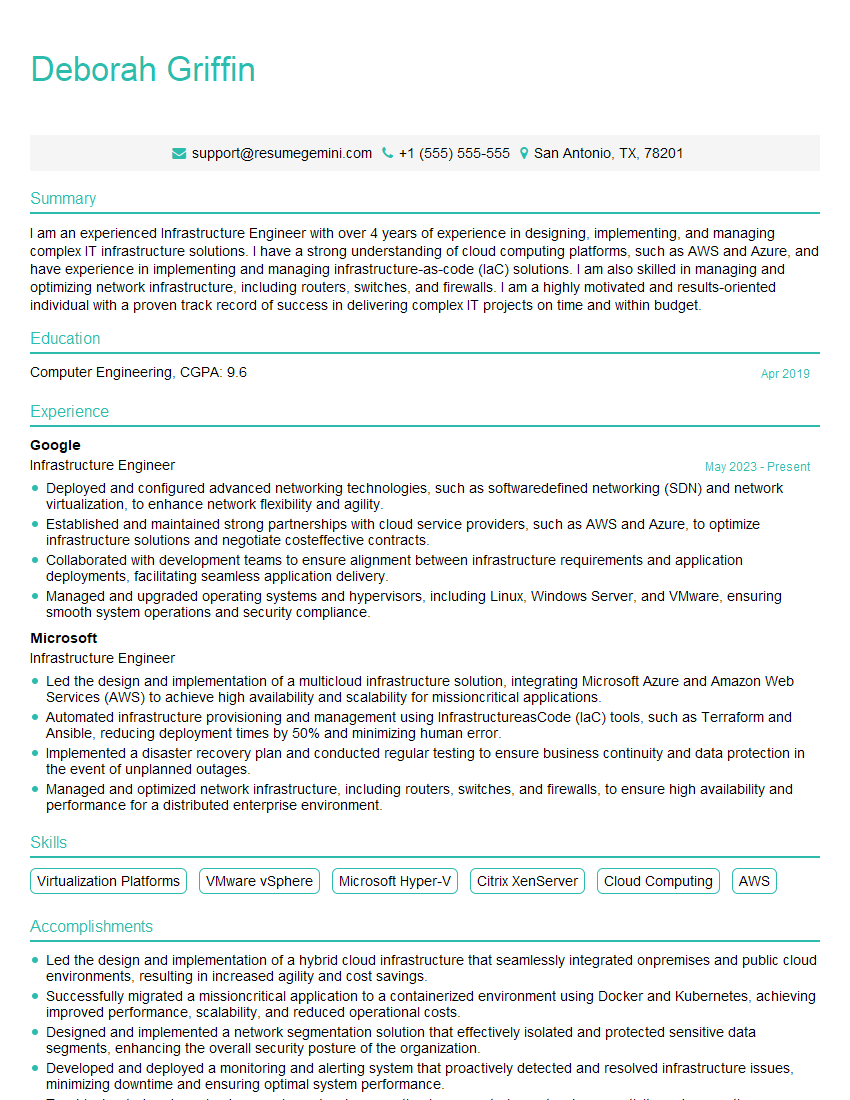
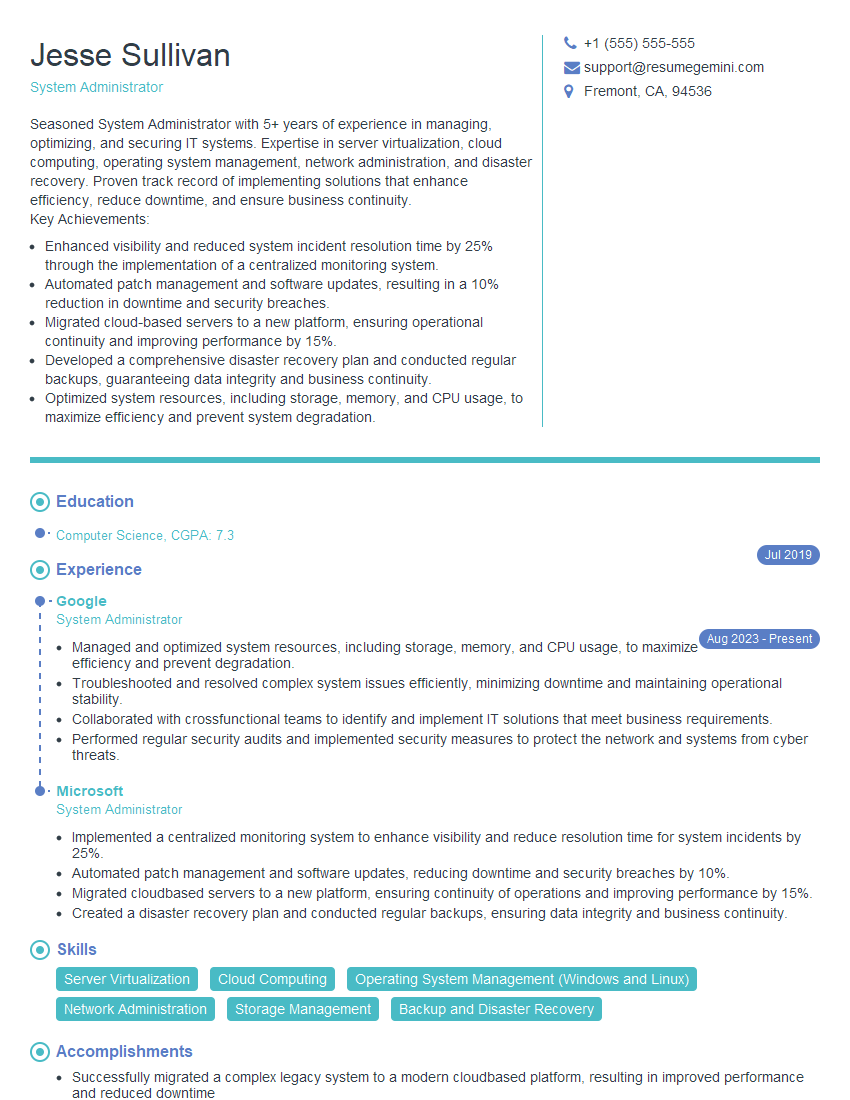
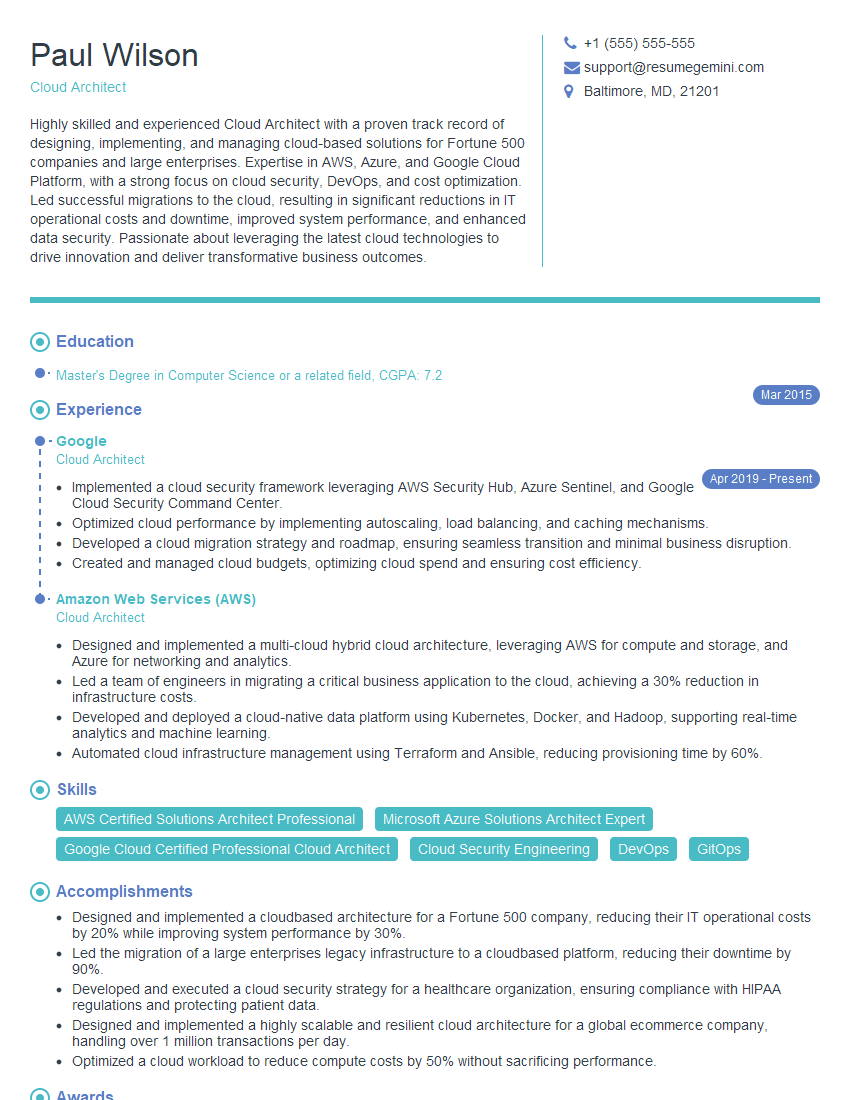
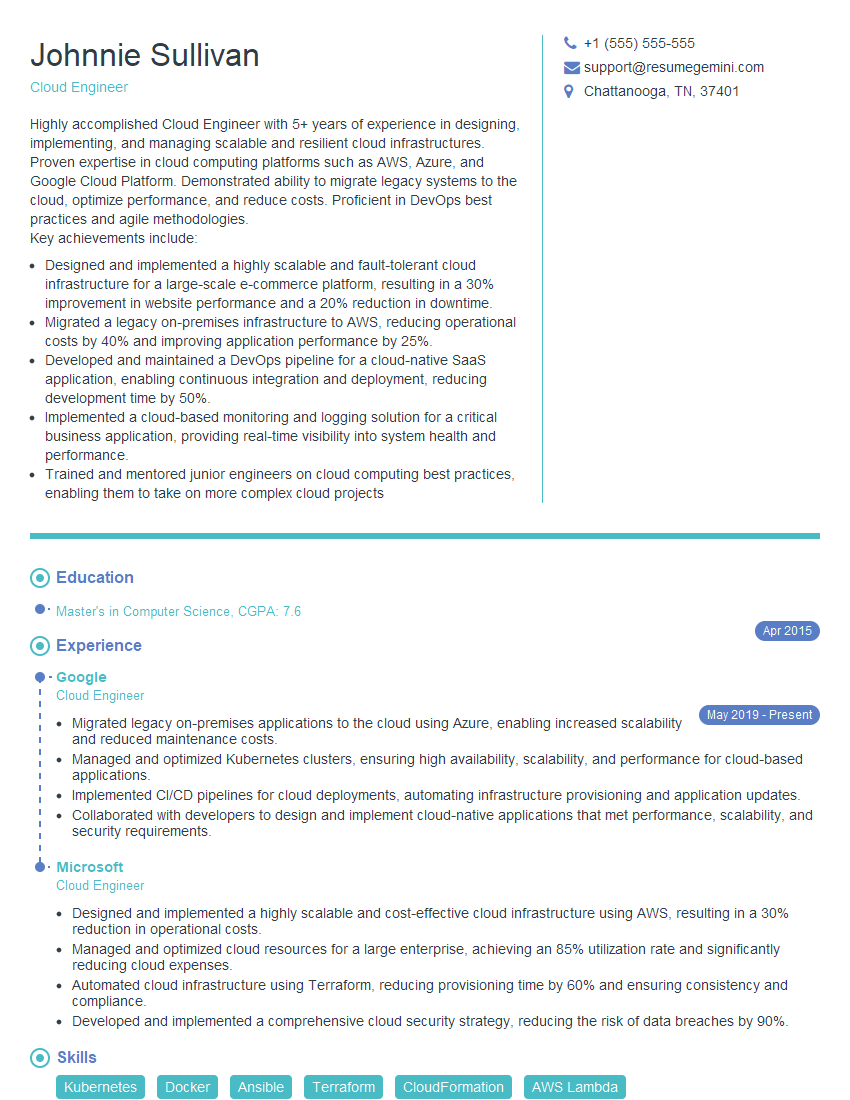
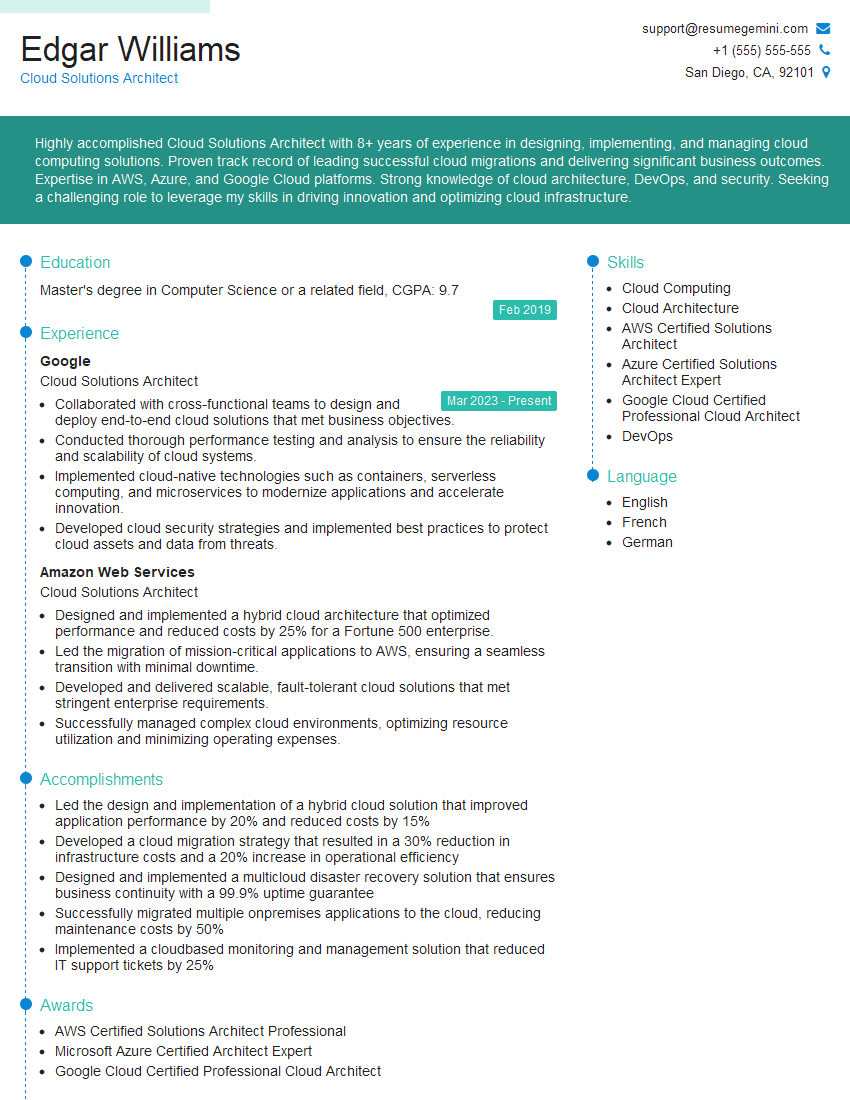
Mastering the Microsoft Certified Azure Administrator Associate certification significantly boosts your career prospects, opening doors to high-demand roles with competitive salaries. To maximize your job search success, crafting an ATS-friendly resume is crucial. ResumeGemini is a trusted resource to help you build a professional and impactful resume that highlights your Azure skills effectively. Examples of resumes tailored to the Microsoft Certified Azure Administrator Associate certification are available to guide you through the process. Invest time in creating a strong resume – it’s your first impression to potential employers.

Explore more articles
Users Rating of Our Blogs
Share Your Experience
We value your feedback! Please rate our content and share your thoughts (optional).
What Readers Say About Our Blog
Amazing blog
hello,
Our consultant firm based in the USA and our client are interested in your products.
Could you provide your company brochure and respond from your official email id (if different from the current in use), so i can send you the client’s requirement.
Payment before production.
I await your answer.
Regards,
MrSmith
hello,
Our consultant firm based in the USA and our client are interested in your products.
Could you provide your company brochure and respond from your official email id (if different from the current in use), so i can send you the client’s requirement.
Payment before production.
I await your answer.
Regards,
MrSmith
These apartments are so amazing, posting them online would break the algorithm.
https://bit.ly/Lovely2BedsApartmentHudsonYards
Reach out at BENSON@LONDONFOSTER.COM and let’s get started!
Take a look at this stunning 2-bedroom apartment perfectly situated NYC’s coveted Hudson Yards!
https://bit.ly/Lovely2BedsApartmentHudsonYards
Live Rent Free!
https://bit.ly/LiveRentFREE
Interesting Article, I liked the depth of knowledge you’ve shared.
Helpful, thanks for sharing.
Hi, I represent a social media marketing agency and liked your blog
Hi, I represent an SEO company that specialises in getting you AI citations and higher rankings on Google. I’d like to offer you a 100% free SEO audit for your website. Would you be interested?