Unlock your full potential by mastering the most common Photographic Software Proficiency interview questions. This blog offers a deep dive into the critical topics, ensuring you’re not only prepared to answer but to excel. With these insights, you’ll approach your interview with clarity and confidence.
Questions Asked in Photographic Software Proficiency Interview
Q 1. Explain the difference between destructive and non-destructive editing.
Destructive editing permanently alters the original image file. Think of it like writing in pen – you can’t easily erase your changes. Non-destructive editing, on the other hand, keeps the original image intact. Adjustments are made using layers, masks, and adjustment layers, so you can always revert to the original state. It’s like writing in pencil – you can easily erase and change your work.
For example, directly adjusting the brightness of an image using the Brightness/Contrast tool is destructive. The pixel values are changed permanently. Conversely, using a Brightness/Contrast adjustment layer allows you to adjust brightness without affecting the original image data; you can modify, delete, or even change the adjustment layer’s settings at any time.
Q 2. Describe your experience with Photoshop’s layer masks.
Layer masks are one of my most frequently used tools in Photoshop. They allow for incredibly precise control over edits, enabling me to selectively apply adjustments or effects to specific areas of an image without affecting other parts. I often use them for compositing, retouching, and isolating elements. Imagine you want to remove a person from a busy street scene. A layer mask allows you to mask (hide) the person while leaving the rest of the image untouched. You can paint with black to hide areas and white to reveal them, achieving seamless integration.
For example, when retouching a portrait, I might create a layer mask to selectively smooth skin blemishes, leaving the rest of the image texture intact. This allows for a more natural-looking result compared to global adjustments.
Q 3. How do you manage color profiles in your workflow?
Color profile management is critical for maintaining color accuracy throughout the entire workflow, from capture to print. I always work in a consistent color space, usually Adobe RGB (1998) for maximum color range during editing, and convert only at the final output stage. This prevents color shifts and ensures consistent color representation across different devices.
My workflow starts with ensuring my camera is set to the correct color space. Then, I embed the color profile in my images upon import and meticulously check the profile settings before exporting for print or web. For web, I typically convert to sRGB which most web browsers support and is optimized for screen display.
Q 4. What are your preferred methods for retouching skin blemishes?
I prefer non-destructive methods for retouching skin blemishes. My go-to techniques usually involve using the Healing Brush Tool, the Spot Healing Brush Tool, and the Clone Stamp Tool in combination with layer masks for precise control. I avoid over-smoothing, aiming for a natural look that preserves skin texture.
For example, I might use the Spot Healing Brush Tool to quickly remove small blemishes, then use the Healing Brush to blend larger areas, always sampling from similar skin tones to maintain consistency. Finally, I use a layer mask to refine the edges and ensure a smooth, natural transition.
Q 5. Explain your approach to optimizing images for web use.
Optimizing images for web use involves reducing file size without compromising visual quality. My approach involves a multi-pronged strategy focusing on format, dimensions, compression, and sharpening. I typically use the JPEG format for photographs, balancing quality with file size. I carefully choose dimensions appropriate for the intended use (e.g., smaller for thumbnails, larger for hero images). I then carefully adjust the compression level to find the sweet spot between file size and visual quality. Finally, I use subtle sharpening to improve the image’s crispness on screens.
I also utilize tools like Photoshop’s ‘Save for Web (Legacy)’ feature to optimize images directly for web use, allowing for previewing various settings and file size implications before saving.
Q 6. How do you handle large batches of images for processing?
For large batches of images, I rely heavily on Photoshop’s Actions and Batch Processing capabilities. I create custom actions that automate repetitive editing tasks such as resizing, color correction, and sharpening. Then, I use the Batch Processing feature to apply these actions to multiple images simultaneously. This drastically reduces processing time and ensures consistency across all images.
Additionally, I use tools like Adobe Lightroom to import, organize, and perform initial adjustments on large image sets before selectively moving images to Photoshop for more intricate edits. This workflow significantly improves efficiency.
Q 7. What are the benefits of using smart objects in Photoshop?
Smart Objects are a powerful feature in Photoshop, providing a significant advantage in non-destructive editing. They allow you to embed high-resolution images or vector graphics within a Photoshop document without permanently rasterizing them. This is incredibly useful because you can scale, transform, or apply filters to a Smart Object without losing image quality, as opposed to a normal layer which would cause pixelation when scaled up, for example.
Imagine creating a logo for a client. If you save the logo as a Smart Object, you can freely resize or rotate it during the project without compromising the original vector-based sharpness. Changes are automatically saved, ensuring a clean and efficient workflow.
Q 8. Describe your experience with Lightroom’s catalog system.
Lightroom’s catalog system is the heart of its workflow. It’s essentially a non-destructive database that stores all your image information – metadata, adjustments, and previews – without modifying the original files. Think of it like a librarian meticulously organizing a vast collection of books, allowing you quick access and manipulation without altering the original texts. This ensures that your original RAW files remain pristine, preserving maximum image quality for future editing or adjustments.
My experience includes extensively utilizing the catalog to organize thousands of images across various projects, using keywords, color labels, and star ratings to efficiently search and retrieve specific photos. I leverage collections for project-based organization, allowing me to group images logically and easily share specific selections with clients. For example, I recently used the catalog to manage images from a wedding shoot, creating separate collections for portraits, candid shots, and details, significantly speeding up my post-processing workflow.
Q 9. How do you use Lightroom’s adjustments brushes effectively?
Lightroom’s Adjustment Brush is a powerful tool for making localized edits. Instead of globally affecting the entire image, it lets you selectively apply adjustments like exposure, contrast, saturation, or clarity to specific areas. It’s like having a virtual paintbrush that precisely targets your edits. Effective use involves a combination of precise brushwork and thoughtful masking.
My approach starts with carefully selecting the brush size and feathering, ensuring smooth transitions between the edited and unedited areas. I often use the Auto Mask feature for greater precision, which intelligently detects edges and confines the brush stroke to the desired area. For more complex selections, I utilize the brush’s masking capabilities, creating and refining masks to further fine-tune the effect. For instance, when retouching a portrait, I’ll carefully use the adjustment brush to brighten the eyes, selectively reduce blemishes, and add a touch of sharpness to enhance detail, all without affecting the surrounding skin tones.
Q 10. Explain your workflow for creating HDR images.
Creating HDR (High Dynamic Range) images involves merging multiple exposures of the same scene to capture a greater range of tones than a single image can handle. This technique is ideal for scenes with high contrast, like landscapes with bright skies and dark shadows.
My workflow begins with shooting a bracketed series of images at different exposures, usually three to five shots. Then, I import these images into Lightroom or Photoshop and use HDR merging tools, either within Lightroom or by using Photomatix Pro. This software aligns and merges the exposures, creating a composite image with expanded dynamic range. Following this, I perform some careful tonal adjustments, often within Lightroom, to refine the overall look, paying attention to maintaining natural-looking highlights and shadows. I would avoid over-processing for an unnatural, ‘too-perfect’ look; subtlety is key to believable HDR images. For example, when photographing a sunset over a mountain range, the HDR process allows me to capture both the details in the bright sky and the shadowed valleys, resulting in a richer, more dynamic image.
Q 11. What are your go-to tools for removing unwanted objects from photos?
Removing unwanted objects from photos often requires a combination of tools. In Lightroom, the Spot Removal tool is excellent for smaller blemishes or distractions. For more complex situations, I prefer Photoshop’s Content-Aware Fill.
Lightroom’s Spot Removal tool is intuitive, letting you easily sample surrounding areas to seamlessly fill in imperfections. For larger objects or those requiring more intricate retouching, Photoshop’s Content-Aware Fill excels. This tool intelligently analyzes the surrounding image data and seamlessly fills the selected area. Often, I’ll combine the cloning and healing brushes within Photoshop for greater control over the retouching process. For example, removing a distracting person from a landscape photo requires careful cloning and healing to blend the replacement seamlessly with the background and maintain texture consistency.
Q 12. How do you utilize Photoshop’s healing tools?
Photoshop’s healing tools are indispensable for retouching. The Spot Healing Brush, Healing Brush, and Patch Tool each offer different approaches to seamlessly blend areas needing correction.
The Spot Healing Brush automatically samples surrounding pixels to fix blemishes, a quick and efficient solution for minor imperfections. The Healing Brush allows more control, letting you manually select a source area for blending, perfect for larger or more complex areas. Finally, the Patch Tool lets you select a problem area and drag it to a clean source area to replace it. I choose the appropriate tool based on the complexity of the correction, the size of the imperfection, and the surrounding texture. The key is to blend seamlessly, maintaining the natural look and feel of the image. Imagine removing a scratch on an antique photo; this is where Photoshop’s healing tools really shine, blending the repair seamlessly with the image’s existing texture and tone.
Q 13. Explain your experience with image sharpening techniques.
Image sharpening is crucial for enhancing detail and clarity. It’s a delicate balance – over-sharpening introduces artifacts and a harsh look, while under-sharpening leaves the image looking soft. I typically use a combination of sharpening techniques.
My workflow often involves sharpening at multiple stages. In Lightroom, I use the sharpening slider for a subtle initial sharpening of the entire image. Then, in Photoshop, I leverage the Unsharp Mask filter for more precise control, adjusting the Amount, Radius, and Threshold parameters to fine-tune the sharpening effect based on the image’s details. High-frequency sharpening may be applied selectively to areas requiring increased definition, focusing on edges and textures. Understanding the effect of radius and threshold settings is crucial for achieving a natural, not artificial, sharpening effect. For example, when editing a landscape, I’ll slightly sharpen the distant mountains to provide more clarity and definition, while avoiding over-sharpening on textures like foliage which may produce unwanted artifacts.
Q 14. Describe your proficiency in using adjustment layers.
Adjustment layers in Photoshop are a non-destructive way to apply edits to an image. Unlike direct edits, they allow for easy modification and adjustment without altering the original pixel data. This flexibility is invaluable for creative experimentation and workflow efficiency. Think of it like having overlays that you can adjust at any time without permanently affecting your base image.
I extensively utilize adjustment layers such as Curves, Levels, Hue/Saturation, and Color Balance to manage overall color, contrast, and tone. I also utilize blending modes and masks to selectively target specific areas for adjustments. This approach greatly simplifies the process, allows for non-destructive editing, and facilitates efficient experimentation. For example, when adjusting color in a portrait photo, I’ll employ separate adjustment layers for skin tones, clothing, and background, using layer masks to control their effect on specific areas. This allows selective adjustments to each element without impacting the other aspects of the image. This keeps my workflow organized, easily revisable, and prevents accidental alteration of my original image.
Q 15. What are your preferred methods for creating panoramas?
Creating stunning panoramas involves carefully stitching multiple overlapping images together. My preferred methods leverage the power of dedicated software like Adobe Photoshop and Lightroom, which offer robust tools for seamless panorama creation. I typically use the photo merge function within these programs. This often involves shooting a series of overlapping images, ensuring consistent overlap (around 30-40%) for optimal results. The software automatically analyzes the images, identifies common points, and stitches them together. However, I always manually review the result, correcting any distortions or blending issues as needed. For more complex panoramas, or when dealing with challenging lighting conditions, I might utilize third-party plugins designed for panorama stitching, offering advanced features such as lens correction and perspective control. In scenarios where precise alignment is critical, I might even utilize control points manually to guide the stitching process. This ensures optimal alignment and minimizes artifacts in the final panorama.
Think of it like building a large jigsaw puzzle: each image is a piece, and the software helps put it all together. The key is having the right pieces (images) and the right tools (software) for a perfect fit.
Career Expert Tips:
- Ace those interviews! Prepare effectively by reviewing the Top 50 Most Common Interview Questions on ResumeGemini.
- Navigate your job search with confidence! Explore a wide range of Career Tips on ResumeGemini. Learn about common challenges and recommendations to overcome them.
- Craft the perfect resume! Master the Art of Resume Writing with ResumeGemini’s guide. Showcase your unique qualifications and achievements effectively.
- Don’t miss out on holiday savings! Build your dream resume with ResumeGemini’s ATS optimized templates.
Q 16. How do you create and use actions in Photoshop?
Actions in Photoshop are essentially automated sequences of steps. They’re incredibly efficient for repetitive tasks, saving me significant time and effort. To create an action, I start by opening the Actions panel (Window > Actions). Then, I click the ‘Create New Set’ button to organize my actions into sets (like one for retouching and one for batch processing). Next, I click the ‘Create New Action’ button, give it a descriptive name, and start recording my steps. Every step I take in Photoshop – from adjusting levels to applying a filter – is recorded. Once finished, I click the ‘Stop’ button. Now I can easily apply that action to multiple images simply by selecting the action and clicking the ‘Play’ button. This is particularly helpful for tasks like batch resizing, applying watermarks, or implementing a specific color grading style across many images. I often use actions to automate complex edits, allowing me to maintain consistency across projects and significantly increase my workflow efficiency.
For instance, I might create an action to convert an image to black and white, adjust the contrast, and sharpen it. This saves me the time of manually performing these steps for each image, speeding up post-processing immensely.
Q 17. Explain your experience with RAW image processing.
RAW image processing is fundamental to my workflow. RAW files contain significantly more image data than JPEGs, offering greater flexibility in post-processing. My experience involves using Adobe Camera Raw (ACR) and Lightroom primarily, which provide exceptional control over aspects like exposure, white balance, and color grading. I utilize RAW processing to recover detail in underexposed or overexposed areas, correct lens distortions, and refine the overall image quality. The non-destructive nature of RAW editing is especially crucial, as it allows me to experiment with different adjustments without permanently altering the original image data. This iterative approach lets me fine-tune the image until I achieve the desired result, and it’s invaluable for professional work where image quality and preservation of source material is paramount.
For example, I might shoot an image on a sunny day that has both bright highlights and dark shadows. By using RAW processing, I can recover details in both areas that would otherwise be lost in a JPEG. I can also fine-tune the white balance to achieve a more natural look and adjust the colors to enhance the mood and feel of the image.
Q 18. What are the advantages of using Adobe Camera Raw?
Adobe Camera Raw (ACR) offers several key advantages for professional image editing. First, its non-destructive editing ensures that original RAW files remain untouched, allowing for experimentation and iterative adjustments. Second, it offers extensive control over image parameters such as exposure, contrast, white balance, and sharpness, enabling fine-tuning for optimal results. Third, ACR’s advanced tools for lens correction, distortion correction, and chromatic aberration removal are essential for achieving high-quality, professional images. Fourth, its compatibility across Adobe’s Creative Cloud suite makes it a seamless part of the overall workflow. Fifth, its ability to handle large batches of RAW files efficiently is a boon for photographers managing large volumes of images. ACR’s intuitive interface and powerful capabilities combine to make it an indispensable tool for achieving high-quality and consistent results in professional photography.
Imagine trying to paint a picture with only a few limited brushes. ACR provides a comprehensive palette of tools, allowing for intricate details and precise control over the final image.
Q 19. How do you manage color consistency across multiple images?
Maintaining color consistency across multiple images is crucial for professional projects. My approach involves several key steps. First, I shoot in RAW format to preserve maximum color information. Second, I carefully manage white balance during the shooting process to ensure consistency between images. In post-processing, I utilize the tools in Adobe Camera Raw or Lightroom to refine white balance and make adjustments for overall color temperature and tint. This might involve using a gray card or other color reference tools for more precise control. Third, I often employ color profiles or color grading techniques to create a harmonious palette across all images. Finally, I review the images side-by-side, making minor adjustments as needed to ensure a seamless and consistent look. Consistent color across images ensures visual harmony and professionalism in any project, especially crucial for things like photo albums, websites, and presentations.
Think of it like painting a series of pictures that must all complement each other. By using consistent colors and tones, we achieve a cohesive and visually pleasing result.
Q 20. Explain your understanding of color spaces (RGB, CMYK).
Understanding color spaces like RGB and CMYK is fundamental for any photographer. RGB (Red, Green, Blue) is an additive color model used for displays like monitors and screens. It mixes different intensities of red, green, and blue light to create a wide range of colors. CMYK (Cyan, Magenta, Yellow, Key/Black) is a subtractive color model used for print. It works by subtracting colors from white light using inks of cyan, magenta, yellow, and black. The key difference lies in how colors are produced: RGB adds light, while CMYK subtracts it. This means an image that looks vibrant on screen might appear duller when printed if the color space isn’t properly managed. I always ensure that I’m working in the appropriate color space for the intended output – RGB for screen and CMYK for print – to avoid color mismatches and ensure the final product matches my vision.
To illustrate, imagine a bright red apple. On a screen (RGB), it’s created by combining red light at full intensity. In print (CMYK), that same red is produced by subtracting the complementary colors (cyan, yellow, and some black) from white. Knowing this distinction is essential for color accuracy in final output.
Q 21. How do you optimize images for print?
Optimizing images for print requires a different approach than for screen. I start by ensuring that the image is in the correct CMYK color space, converting from RGB if necessary. Next, I check the resolution; for high-quality prints, a minimum of 300 DPI (dots per inch) is generally recommended. I then sharpen the image appropriately for print, using techniques that account for the printing process; over-sharpening for print can sometimes lead to undesirable results. I carefully manage the contrast and color balance to ensure that colors translate accurately onto the paper. Finally, I check the file size and format. JPEG is often preferred for its balance of file size and quality, but TIFF offers lossless compression for the highest quality. It’s crucial to choose file size based on the printer’s capabilities and the desired print size; overly large files can lead to processing issues, whereas files too small can lack detail.
For example, a landscape image intended for a large poster needs much higher resolution and file size than a small image for a greeting card. It requires a methodical approach to guarantee the print quality matches the digital preview.
Q 22. Describe your experience with image resizing techniques.
Image resizing is a crucial aspect of photographic post-processing, impacting both image quality and file size. It involves scaling an image to a different dimension, either enlarging or reducing it. The key is to choose the right technique to minimize quality loss, especially when downscaling.
My experience encompasses various methods, including:
- Bicubic Resampling: This is a sophisticated algorithm that produces smoother results than simpler methods, especially when enlarging. It’s my go-to method for most resizing tasks, offering a good balance between speed and quality. It interpolates pixel values based on a weighted average of surrounding pixels.
- Bilinear Resampling: A faster but less accurate method, ideal for situations where speed is prioritized over absolute quality. It’s suitable for quick previews or situations where minor quality loss is acceptable.
- Nearest Neighbor Resampling: This method simply copies the nearest pixel’s value, resulting in a blocky appearance, especially noticeable when enlarging. I use this sparingly, mainly for very small images or when preserving sharp edges is paramount (e.g., vector graphics).
For example, when preparing images for web use, I’d typically downscale them using bicubic resampling to reduce file size without significant quality degradation. For print, however, I might use bicubic or even a more specialized sharpening technique to ensure the image remains crisp at larger sizes.
Q 23. How do you handle different file formats (JPEG, TIFF, PNG)?
Handling different file formats is essential for seamless workflow. Each format has its strengths and weaknesses:
- JPEG (Joint Photographic Experts Group): A lossy format ideal for web use due to its small file sizes. I primarily use it for web-optimized images because of its excellent compression. However, excessive compression can lead to artifacts, especially in areas with fine detail. I always strive for a balance between file size and quality.
- TIFF (Tagged Image File Format): A lossless format that preserves all image data. This is my preferred format for archival purposes and high-quality prints, where maintaining maximum image quality is critical. However, the file sizes can be substantially larger than JPEGs.
- PNG (Portable Network Graphics): A lossless format suitable for images with sharp lines, text, or transparency. PNGs are excellent for logos, graphics, and images with sharp edges that need to retain detail. I use PNGs when transparency is required, like creating watermarks or incorporating images into designs.
My workflow involves choosing the appropriate format based on the intended use. For example, client deliverables for print would be TIFFs, while images for a website are usually optimized JPEGs.
Q 24. What are your strategies for efficient workflow management?
Efficient workflow management is key to productivity. My strategy relies on a combination of organizational techniques and software features:
- File Organization: I use a hierarchical folder system for projects, dating images with metadata, and using descriptive filenames. This makes locating specific files incredibly easy.
- Keywording & Metadata: Adding keywords and metadata (like location, subject, date, etc.) helps me find images quickly using Lightroom’s powerful search functionality.
- Non-Destructive Editing: I always work non-destructively, meaning edits are recorded as instructions rather than changing the original image data. This allows me to easily revert to earlier versions if needed. This is especially helpful in collaborative projects.
- Color Coding: I often use color labels in Lightroom to categorize images based on status (e.g., selected, rejected, edited).
- Automation: Using batch processing features in Lightroom or Photoshop streamlines repetitive tasks, saving considerable time.
Imagine working on a large wedding shoot; a well-organized workflow would involve culling, rating, keywording, and applying basic edits to thousands of images efficiently using batch processing and collections.
Q 25. Describe your experience with using plugins or extensions.
Plugins and extensions significantly enhance the capabilities of image editing software. My experience includes using various plugins for both Photoshop and Lightroom. For example:
- Noise Reduction Plugins: Topaz Denoise AI and Nik Collection’s Dfine are invaluable for cleaning up noise in high ISO images. They offer superior noise reduction algorithms compared to the built-in tools.
- Sharpening Plugins: Topaz Sharpen AI or similar plugins provide advanced sharpening algorithms, offering more control and better results than standard sharpening techniques.
- Lens Correction Plugins: Plugins like Lightroom’s built-in lens correction or dedicated lens profile plugins correct for lens distortion and vignetting. This ensures images are geometrically accurate and evenly exposed.
- HDR Merging Plugins: These plugins combine multiple exposures of the same scene to create high dynamic range (HDR) images with broader tonal range and detail.
I carefully select plugins based on their reliability, performance, and integration with my workflow. Choosing the right plugin can drastically improve efficiency and image quality.
Q 26. How do you troubleshoot common image editing problems?
Troubleshooting is a vital skill. My approach involves systematic investigation:
- Identify the Problem: Clearly define the issue – is it a color problem, a sharpness issue, or something else? Examine the image carefully to understand the nature of the defect.
- Isolate the Cause: Try to pinpoint the root cause. Was it a camera setting, a software glitch, or an issue with the image file itself? Checking metadata can be helpful here.
- Test Solutions: Try different solutions incrementally. Start with simple fixes before resorting to complex techniques. For example, if you have a color cast, try adjusting white balance first before considering more advanced color correction.
- Seek Assistance: If the problem persists, online forums or specialized support communities can be helpful in finding solutions.
For instance, if an image is blurry, I’d check for motion blur (camera shake), focus issues (check focus points), or diffraction (caused by a very small aperture). I’d then use sharpening tools carefully to improve the image.
Q 27. What is your experience with batch processing in Lightroom?
Lightroom’s batch processing is incredibly powerful for efficient editing. I regularly use it to apply consistent edits to large sets of images. This includes:
- Developing Settings: Applying the same white balance, exposure, contrast, and other adjustments to multiple images simultaneously.
- Keywords & Metadata: Adding keywords or metadata (location, date, etc.) to a large number of images in one go.
- Image Export: Exporting images in a consistent format (JPEG, TIFF, etc.) with predefined size and quality settings.
- Watermarking: Adding watermarks to multiple images to protect copyright.
- Image Sharpening: Applying sharpening to images using consistent settings.
For example, when processing photos from a product photoshoot, I can easily batch-process all the images to ensure consistent color grading, sharpness, and size for the website. It saves hours compared to manually editing each image.
Q 28. What are your preferred methods for exporting images?
My preferred methods for exporting images depend on the intended use and the desired file size and quality. The key is to balance quality and file size effectively.
- JPEG for Web: For web use, I export JPEGs with optimized quality settings (around 80-90% quality typically) to balance file size and image quality. I’ll usually resize images to appropriate dimensions for web display.
- TIFF for Print: For high-quality prints, I export TIFFs to retain maximum image data. The resolution will usually be much higher than for web use.
- PNG for Transparency: If transparency is required (e.g., logos or watermarks), I’ll export PNGs.
- Metadata: I always embed necessary metadata (copyright information, keywords, etc.) into the exported images.
- File Naming Conventions: I use consistent file naming conventions when exporting, often including date, project name, and image number for easy organization.
My export settings are always tailored to the specific needs of the project. For example, images for a high-resolution print would require a much higher resolution and different file format than images intended for a social media post.
Key Topics to Learn for Photographic Software Proficiency Interview
- Image Editing Fundamentals: Mastering tools for cropping, resizing, color correction, and retouching. Understanding color spaces (RGB, CMYK) and their implications.
- Layer Management & Masking: Practical application of layers, masks, and blending modes for complex image manipulations and non-destructive editing. Troubleshooting common layer issues.
- Raw File Processing: Understanding the advantages of shooting in RAW format and proficiently using software to adjust exposure, white balance, and other parameters. Optimizing image quality from raw files.
- Workflow Optimization: Developing efficient workflows for batch processing, organizing files, and managing large image libraries. Understanding the importance of non-destructive editing.
- Advanced Techniques: Exploring specialized tools for tasks such as HDR imaging, panorama stitching, focus stacking, and retouching techniques for portraits and product photography. Demonstrating understanding of advanced features.
- Software-Specific Knowledge: Deep understanding of the chosen software (e.g., Adobe Photoshop, Lightroom, Capture One) including shortcuts, advanced features, and troubleshooting common errors. Showcase your expertise in a specific software.
- Image Sharpening & Noise Reduction: Understanding the principles and techniques for effectively sharpening images and reducing noise without introducing artifacts. Demonstrating a practical understanding of image quality.
- File Formats & Compression: Knowledge of various image file formats (JPEG, TIFF, PNG) and their applications. Understanding the trade-offs between file size and image quality. Practical application of compression techniques.
Next Steps
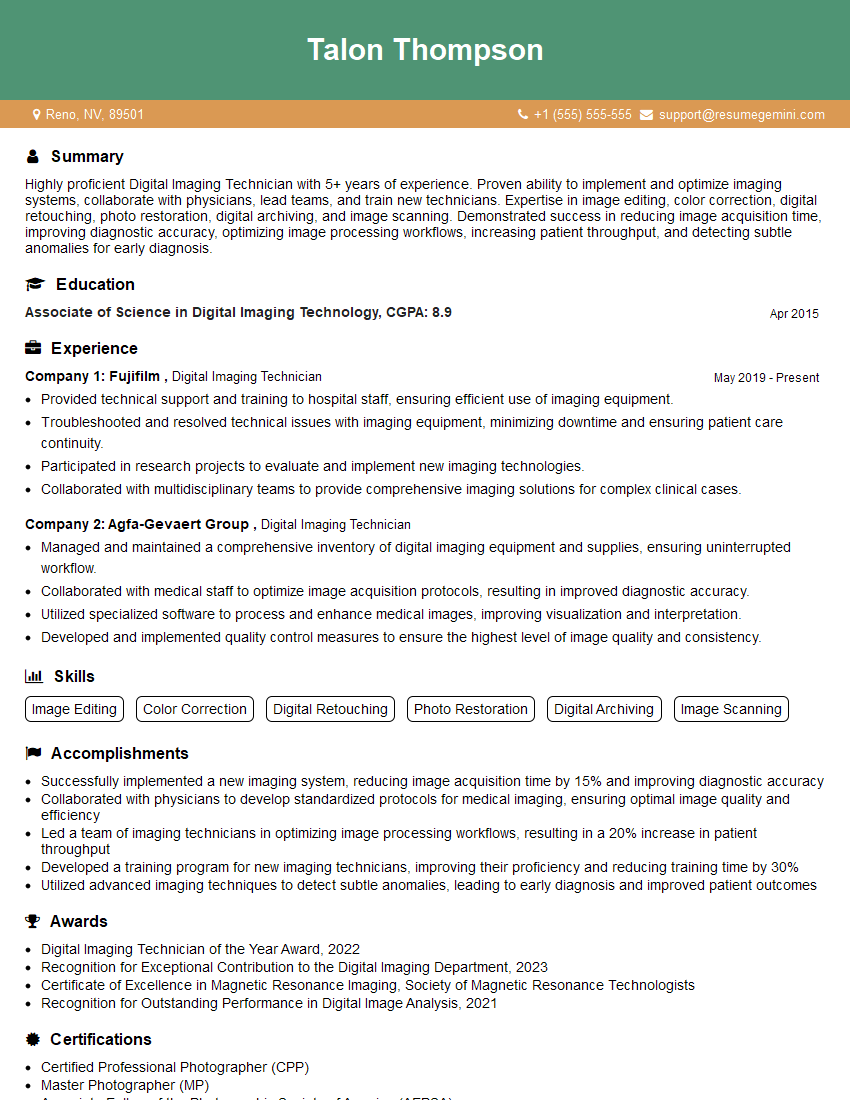
Mastering photographic software proficiency is crucial for career advancement in many creative fields. A strong command of these tools demonstrates your technical skills and opens doors to exciting opportunities. To maximize your job prospects, it’s essential to present your skills effectively. Create an ATS-friendly resume that highlights your abilities and experience. ResumeGemini is a trusted resource to help you build a professional and impactful resume that grabs recruiters’ attention. Examples of resumes tailored to Photographic Software Proficiency are available to guide you.
Explore more articles
Users Rating of Our Blogs
Share Your Experience
We value your feedback! Please rate our content and share your thoughts (optional).
What Readers Say About Our Blog
Amazing blog
hello,
Our consultant firm based in the USA and our client are interested in your products.
Could you provide your company brochure and respond from your official email id (if different from the current in use), so i can send you the client’s requirement.
Payment before production.
I await your answer.
Regards,
MrSmith
hello,
Our consultant firm based in the USA and our client are interested in your products.
Could you provide your company brochure and respond from your official email id (if different from the current in use), so i can send you the client’s requirement.
Payment before production.
I await your answer.
Regards,
MrSmith
These apartments are so amazing, posting them online would break the algorithm.
https://bit.ly/Lovely2BedsApartmentHudsonYards
Reach out at BENSON@LONDONFOSTER.COM and let’s get started!
Take a look at this stunning 2-bedroom apartment perfectly situated NYC’s coveted Hudson Yards!
https://bit.ly/Lovely2BedsApartmentHudsonYards
Live Rent Free!
https://bit.ly/LiveRentFREE
Interesting Article, I liked the depth of knowledge you’ve shared.
Helpful, thanks for sharing.
Hi, I represent a social media marketing agency and liked your blog
Hi, I represent an SEO company that specialises in getting you AI citations and higher rankings on Google. I’d like to offer you a 100% free SEO audit for your website. Would you be interested?