Interviews are opportunities to demonstrate your expertise, and this guide is here to help you shine. Explore the essential Red Hat Certified Engineer (RHCE) interview questions that employers frequently ask, paired with strategies for crafting responses that set you apart from the competition.
Questions Asked in Red Hat Certified Engineer (RHCE) Interview
Q 1. Explain the differences between hard links and symbolic links.
Hard links and symbolic links are both ways to create references to files, but they differ fundamentally in how they store this reference. Think of it like having multiple copies of a key to the same door. A hard link is like having multiple physical keys – they all unlock the same door. A symbolic link is like having a note that says ‘This key unlocks the door in room 201’ – the note itself isn’t the key, but it directs you to the actual key.
Hard Links: A hard link creates an additional directory entry that points to the same inode (index node) as the original file. This means multiple names can refer to the same data on the disk. Deleting one hard link doesn’t affect the others, as long as at least one hard link still exists. Crucially, hard links cannot point to directories, only files. They also must reside on the same filesystem.
Symbolic Links (or symlinks): A symbolic link, or soft link, is a separate file that contains the path to another file or directory. It’s like a shortcut. Deleting a symlink doesn’t affect the target file; however, if you delete the target file, the symlink becomes broken.
- Key Differences Summarized:
- Hard Links: Multiple names for the same inode; cannot point to directories; cannot cross filesystems; deleting one doesn’t delete the data.
- Symbolic Links: A separate file containing a path; can point to files or directories; can cross filesystems; deleting doesn’t delete the target file, only the link.
Example: Let’s say you have a file named important_document.txt. Creating a hard link would result in another file, say backup.txt, that is essentially the same file under a different name. Changing the content of either file changes the other. A symbolic link, shortcut.txt, would contain a path to important_document.txt. Deleting shortcut.txt would leave important_document.txt untouched.
Q 2. How do you troubleshoot network connectivity issues in RHEL?
Troubleshooting network connectivity issues in RHEL involves a systematic approach, combining command-line tools and network configuration checks. I’d start with the basics and progressively move to more advanced diagnostics.
- Check the Physical Connection: Make sure cables are securely connected to both the machine and the network infrastructure.
- Verify IP Configuration: Use
ip addr showto check the IP address, subnet mask, and default gateway. Is the IP address assigned correctly? Are the subnet mask and gateway correct? If using DHCP, ensure the DHCP service is running and the network configuration is set up to obtain an IP address automatically. - Ping the Gateway: Use
pingto see if you can reach the default gateway. This tests the basic connectivity to your local network. If it fails, there’s a problem within your local network segment. - Ping External Hosts: If the gateway ping succeeds, try pinging a known external host like
google.com(ping google.com). Failure here indicates a problem beyond your local network, potentially a DNS or internet connectivity issue. - Check DNS Resolution: Use
nslookup google.comto verify that your system can resolve domain names to IP addresses. Problems here indicate a DNS configuration issue. - Examine Network Logs: Check system logs (typically
/var/log/messagesorjournalctl) for any network-related errors or warnings. These logs provide valuable clues. - Check Firewall: Ensure that firewalld (or iptables) isn’t blocking the necessary ports. Use
firewall-cmd --list-allto view the firewall rules. If needed, temporarily disable the firewall (sudo firewall-cmd --state=off) for troubleshooting (remember to re-enable it afterward!). - Test with a different cable or network port: Rule out faulty cabling or network interface issues.
- traceroute/tracert: Use
traceroute(ortracerton Windows) to trace the path packets take to a remote host. This helps identify points of failure along the network path. A lack of response from multiple hops could indicate routing problems or network outages.
Each step helps isolate the problem. By methodically working through this checklist, I can pinpoint the root cause of network connectivity issues quickly and efficiently.
Q 3. Describe your experience with LVM (Logical Volume Management).
I have extensive experience working with LVM (Logical Volume Management) in RHEL environments. LVM provides a flexible and powerful way to manage disk space, allowing for dynamic resizing of volumes and improved disk utilization. I’ve used it in various contexts, from setting up new systems to extending existing volumes without downtime.
My experience includes:
- Creating Physical Volumes (PVs): I’m proficient in using
pvcreateto convert physical hard drives or partitions into LVM PVs, ready for use within an LVM environment. - Creating Volume Groups (VGs): I understand the importance of grouping PVs into VGs using
vgcreate. This provides a logical grouping of storage that can be used to create LVs. - Creating Logical Volumes (LVs): I frequently use
lvcreateto carve out LVs from a VG, which are then formatted with filesystems (like ext4, XFS, etc.) and mounted. This allows for flexible allocation of space and the ability to adjust volumes as needed. - Extending Logical Volumes: A key aspect of my LVM experience is extending LVs using
lvextendandresize2fs(orxfs_growfsfor XFS) to accommodate growing data needs. This is crucial for minimizing downtime in production environments. - Reducing Logical Volumes: I’ve utilized
lvreduceandresize2fs(orxfs_growfsfor XFS) to shrink LVs where appropriate, reclaiming space if required. - Managing Snapshots: I have experience creating and managing snapshots using
lvcreate -sto provide point-in-time copies of LVs, essential for backups and disaster recovery.
For example, in a recent project, we needed to expand the database server’s storage capacity. Using LVM, I was able to add a new hard drive, convert it to a PV, extend the existing VG to incorporate the new PV, and then extend the LV where the database resided, all while the server remained online and fully operational. This minimized disruption to our users and demonstrated the benefits of LVM’s flexibility.
Q 4. How do you manage user accounts and permissions in RHEL?
User account and permission management in RHEL is critical for system security and stability. This involves several key commands and practices.
Creating User Accounts: I use the useradd command to create new accounts, specifying options such as the user’s home directory, shell, and supplementary groups. For example: sudo useradd -m -g users -s /bin/bash newuser creates a new user named newuser, creates a home directory, assigns them to the users group, and sets their shell to bash.
Managing User Passwords: passwd is used to set or change user passwords. For security, it’s essential to enforce strong password policies using tools like chage (for setting password expiry and minimum age).
Modifying User Groups: The usermod command allows modification of existing user accounts, including group memberships using the -a -G options (adding to groups) and the -G option (setting primary groups). groupadd and groupmod handle group creation and modification.
Setting File Permissions: Using chmod to control read, write, and execute permissions (rwx) for files and directories is essential. I am proficient in using both octal and symbolic notations (e.g., chmod 755 myfile or chmod u=rwx,g=rx,o=r myfile). chown changes file ownership.
Managing Access Control Lists (ACLs): For more fine-grained control than standard Unix permissions, I use ACLs, managed with the setfacl and getfacl commands to specify permissions for individual users or groups beyond the standard owner, group, and others.
Security Considerations: I always adhere to security best practices, regularly reviewing user accounts for unnecessary privileges, ensuring password complexity, and utilizing sudo for privileged actions instead of granting direct root access.
Q 5. Explain the role of init scripts and systemd in RHEL.
Init scripts and systemd are both used to manage services and processes in RHEL, but represent different generations of system initialization. Init scripts, the older method, are based on the System V init system, whereas systemd is a more modern and sophisticated init system.
Init Scripts: These are shell scripts typically located in /etc/init.d. They define how a service starts, stops, and restarts. They utilize start, stop, and restart functions. They rely on run levels to define which services are started during boot based on the target runlevel (e.g., 3 for multi-user, 5 for graphical mode). While functional, they can be complex to manage, especially with a large number of services.
Systemd: Systemd is a more modern approach which uses a more structured approach for service management using unit files (typically found in /etc/systemd/system/). These files define dependencies, start-up actions, and other behaviors in a more declarative format. Systemd manages services using units, targets, and sockets. Systemd improves parallel starting of services, service dependencies handling, and provides detailed status monitoring using systemctl.
Key Differences Summarized:
- Init Scripts: Older technology; shell scripts; run levels; sequential service startup; less efficient.
- Systemd: Modern technology; declarative unit files; targets; parallel service startup; more efficient and feature-rich; better dependency management.
In modern RHEL versions, systemd has largely replaced init scripts. Although older systems still use init scripts, new services are usually managed using systemd. Understanding both is valuable for working with older and newer RHEL systems.
Q 6. How do you configure and manage firewalld?
Firewalld is a dynamic firewall management tool in RHEL. It’s a more user-friendly and flexible alternative to iptables, offering zone-based configuration and a rich command-line interface.
Basic Configuration: Firewalld manages network traffic through zones. The default zones include:
public: Generally restrictive, suitable for external networks.internal: More permissive, appropriate for internal networks.dmz: A demilitarized zone for servers exposed to the internet, requiring careful configuration.trusted: Highly permissive, for trusted internal networks.block: Drops all traffic.
I use firewall-cmd to manage firewalld. For example, to add an SSH port rule to the public zone:
sudo firewall-cmd --permanent --add-port=22/tcp --zone=publicThe --permanent flag makes the change persistent across reboots. To reload the firewall after making changes: sudo firewall-cmd --reload
Managing Zones: Zones can be listed using firewall-cmd --list-all-zones. Services can be added to zones (e.g., firewall-cmd --permanent --add-service=http --zone=public for HTTP traffic). It’s crucial to understand the implications of adding services and ports, ensuring you only open what’s necessary for security.
Advanced Configuration: I’m comfortable using rich features like creating custom zones, defining more complex rules using rich syntax, adding rich rules to manage specific traffic based on source and destination, and using the firewalld API to integrate it with other system components.
Troubleshooting: When troubleshooting, I check the firewall status using firewall-cmd --state and list the active rules to pinpoint potential blockages. The journal logs can contain valuable diagnostic information.
Q 7. Describe your experience with different RAID levels.
RAID (Redundant Array of Independent Disks) levels provide different levels of data redundancy and performance. My experience includes configuring and managing several RAID levels within RHEL systems, each offering unique trade-offs.
RAID 0 (Striping): Data is striped across multiple disks. This improves performance significantly because read/write operations can happen in parallel, but offers no redundancy. If one disk fails, all data is lost. This is best suited for non-critical data where performance is paramount. I use RAID0 only when data loss is acceptable and performance is the highest priority.
RAID 1 (Mirroring): Data is mirrored across two or more disks. This provides excellent redundancy; if one disk fails, the data is still available from the mirror. Performance isn’t as high as RAID 0 because of the overhead involved in writing to multiple disks. RAID 1 is excellent for critical data where redundancy is critical.
RAID 5 (Striping with Parity): Data is striped across multiple disks, with parity information distributed across all disks. It offers both performance and redundancy. A single disk failure can be tolerated without data loss, provided the parity can be calculated successfully. However, if two disks fail, data is lost.
RAID 6 (Striping with Double Parity): Similar to RAID 5, but with double parity, allowing for the tolerance of two simultaneous disk failures. Offers good redundancy, good performance, but requires more disks compared to RAID5. I use RAID 6 in situations requiring the highest level of redundancy (but not quite mirroring).
RAID 10 (Mirrored Stripes): Combines striping and mirroring. Disks are mirrored and then striped. Provides great performance and high redundancy. Two disk failures are required to cause data loss (one mirror per stripe). This level offers both high performance and high redundancy, but at a higher cost and complexity.
Choosing the right RAID level depends on the specific needs of the system. Factors to consider include the importance of the data, the desired performance levels, and the number of disks available. I always carefully weigh these factors before choosing a RAID level for a given application.
Q 8. How do you monitor system performance in RHEL?
Monitoring system performance in RHEL involves utilizing a suite of built-in tools and utilities. Think of it like checking your car’s dashboard – you need various gauges to understand the whole picture. We primarily use tools like top (real-time process viewer), htop (interactive process viewer, offering a more user-friendly interface than top), iostat (I/O statistics), vmstat (virtual memory statistics), and sar (System Activity Reporter, providing historical performance data). Each tool provides a different perspective: top shows CPU and memory usage by individual processes, iostat reveals disk I/O performance, and vmstat gives insights into memory swapping and paging activity. sar is particularly valuable for analyzing trends over time, helping identify recurring performance bottlenecks. For a more comprehensive overview, tools like netstat (network connections) and ss (a more modern alternative to netstat) are useful in pinpointing network-related issues that might be impacting performance. Finally, graphical tools like Cockpit provide a user-friendly dashboard summarizing key performance metrics.
For example, if I notice consistently high CPU usage from top, I might investigate further by looking at the specific processes consuming the most resources. Similarly, if iostat shows high disk I/O wait times, I would examine disk space, disk health, and potential file system issues.
Q 9. Explain the process of installing and configuring RHEL.
Installing and configuring RHEL is a straightforward process, but the specifics depend on whether you’re using a minimal installation or a more customized approach. Imagine building with LEGOs; a minimal installation provides the basic bricks, while a customized one includes many specialized pieces. The process generally involves obtaining an installation media (DVD, USB drive, or network installation), booting from the media, and then following the on-screen instructions. This includes partitioning the hard drive (deciding where the operating system and data will reside), choosing the appropriate installation type (server, workstation, etc.), and setting the root password. Post-installation, configuration involves network setup (IP address, hostname, DNS settings – crucial for connectivity), user and group management (controlling access to system resources), and software installation (installing necessary applications and packages using yum or dnf, Red Hat’s package manager). Security hardening often involves configuring SELinux (Security-Enhanced Linux), configuring firewalld (managing network access control), and implementing appropriate user permissions. I’ve often found setting up automated tasks using systemd timers and services to be crucial for maintaining system health and automating repetitive administrative tasks.
#Example of installing a package using dnf: sudo dnf install httpdQ 10. How do you manage disk quotas?
Managing disk quotas involves setting limits on the amount of disk space users or groups can consume. Think of it as assigning a specific budget to each user for their data storage. This is crucial for preventing a single user from hogging all the available space and impacting system performance or the ability of other users to store their data. The quota command-line tool is the primary method for managing disk quotas in RHEL. This involves enabling quota support for the relevant file systems (using quotaon), setting soft and hard limits for users (using edquota), and monitoring quota usage (using repquota). The soft limit represents a warning threshold, while the hard limit is the absolute maximum. Exceeding the hard limit typically prevents the user from writing further data. Regular monitoring using repquota is essential to proactively identify users approaching their quota limits. In a practical scenario, this prevents system slowdowns caused by filled disks, ensures fair resource allocation across users, and prevents data loss if a user’s disk space is exhausted.
# Example: Setting a soft limit of 10GB and a hard limit of 15GB for user 'john': sudo edquota -u johnQ 11. Describe your experience with SSH key authentication.
SSH key authentication provides a more secure alternative to password-based authentication. Instead of relying on easily guessable or crackable passwords, it uses a cryptographic key pair. Imagine a physical key and lock; one part (the private key) is kept secret by the user, while the other (the public key) is distributed to the servers you want to access. The process usually involves generating a key pair using ssh-keygen, copying the public key to the authorized_keys file on the remote server, and then using the private key to authenticate without a password. This eliminates the risks associated with password breaches and allows for automated scripting and secure access without manual intervention. In a professional setting, I regularly use SSH keys for server administration, automating deployments through scripts and secure remote access from various locations. I have extensive experience managing SSH keys for a team environment, with strategies for key rotation and secure key distribution.
#Example: Generating an SSH key pair: ssh-keygenQ 12. How do you troubleshoot boot problems in RHEL?
Troubleshooting boot problems in RHEL requires a systematic approach. It’s like diagnosing a car’s starting issue; you need to check multiple components. First, check the system logs (typically located in /var/log/) for error messages during boot. Pay close attention to the last messages before the system halted. These often pinpoint the source of the problem. Next, consider the boot process itself: Is the system even reaching the GRUB bootloader? If not, there might be issues with the boot device (hard drive, SSD), its cabling, or the BIOS/UEFI settings. If GRUB loads but the system fails to boot, it might be a kernel panic, a driver issue, or a problem with the root file system. In these cases, booting into single-user mode (by adding ‘single’ to the boot parameters in GRUB) can provide access to a minimal environment to troubleshoot the problem without fully booting the system. If the problem is a corrupted file system, using fsck (filesystem check) can attempt to repair it. If the problem persists, consider using a live CD or USB to boot the system and investigate file system integrity and boot partition structure. I’ve successfully resolved numerous boot issues by meticulously examining boot logs and taking a methodical approach, often resulting in faster recovery times for critical servers.
Q 13. Explain your experience with SELinux and how to troubleshoot SELinux issues.
SELinux (Security-Enhanced Linux) is a mandatory access control system that enhances security in RHEL. Think of it as a sophisticated security guard that meticulously checks permissions before allowing any action. It operates by enforcing policies that define which processes are allowed to access which resources. While highly beneficial, SELinux can also cause unexpected application failures due to overly restrictive policies. Troubleshooting SELinux issues typically involves identifying the affected processes and analyzing SELinux logs (located in /var/log/audit/audit.log). Tools like ausearch and audit2why are invaluable for deciphering these logs and understanding why SELinux denied an access request. To resolve the issue, you can temporarily disable SELinux (not recommended for production) to see if it resolves the problem, or modify the SELinux policies to grant the necessary permissions. This can involve creating a more permissive policy or using setsebool to temporarily or permanently adjust specific boolean settings. It’s also crucial to understand the context of the problem. Is it a specific application failing? Is there a configuration error? Understanding the root cause is key before making changes to SELinux policy.
For instance, I once encountered a web application that couldn’t write files due to SELinux restrictions. By using ausearch, I identified the exact SELinux rule causing the denial. Then I used setsebool to temporarily enable the necessary permission, allowing the application to work. Later, I worked with the developers to refine the application’s configuration for better SELinux compatibility and remove the need for the temporary change.
Q 14. How do you manage and configure networking using NetworkManager?
NetworkManager is a user-friendly tool for managing network connections in RHEL. It simplifies the task of setting up and configuring network interfaces, offering a more convenient alternative to manual configuration of network files. Using NetworkManager, you can configure wired and wireless connections, define static or DHCP IP addresses, and manage VPN connections – all through a graphical interface or the command line using the nmcli command. For example, configuring a wired connection typically involves selecting the network interface, specifying the IP address, subnet mask, gateway, and DNS servers. Wireless connections require selecting the Wi-Fi network, entering the security key if needed, and choosing a connection mode (e.g., infrastructure mode). VPN configurations can be imported from various providers or manually configured. NetworkManager manages the network interfaces dynamically; it automatically activates and deactivates connections based on the system’s state and user actions. This is very useful in a dynamic environment where multiple users and network connections may need to coexist, and allows for easy configuration and management of diverse network scenarios such as connection to company VPNs or use of multiple network interfaces.
#Example using nmcli to show active network connections: nmcli con showQ 15. Describe your experience with virtual machines and virtualization technologies.
Virtualization technologies, like KVM (Kernel-based Virtual Machine) which is native to RHEL, allow us to run multiple virtual machines (VMs) on a single physical host. This is incredibly efficient in terms of resource utilization and cost savings. My experience spans from setting up basic VMs with virt-manager to managing complex clusters with tools like libvirt and virt-install. I’ve worked with various VM configurations, optimizing resource allocation (CPU, memory, storage) based on the specific workload. For example, I once optimized a database server VM by dedicating specific CPU cores and adjusting memory ballooning settings, resulting in a 20% performance improvement. I’m also proficient in managing VM snapshots, live migration between hosts, and dealing with VM storage using both local storage and networked storage solutions like iSCSI or NFS.
Beyond KVM, I have experience with other hypervisors, though my expertise lies in KVM’s integration with RHEL. Understanding the nuances of different hypervisors and their management tools allows for flexible and efficient server infrastructure design.
Career Expert Tips:
- Ace those interviews! Prepare effectively by reviewing the Top 50 Most Common Interview Questions on ResumeGemini.
- Navigate your job search with confidence! Explore a wide range of Career Tips on ResumeGemini. Learn about common challenges and recommendations to overcome them.
- Craft the perfect resume! Master the Art of Resume Writing with ResumeGemini’s guide. Showcase your unique qualifications and achievements effectively.
- Don’t miss out on holiday savings! Build your dream resume with ResumeGemini’s ATS optimized templates.
Q 16. How do you perform backups and restores in RHEL?
RHEL offers several ways to perform backups and restores, ranging from simple command-line tools to sophisticated enterprise-grade solutions. For simple backups, rsync is a powerful and versatile option, allowing for incremental backups and efficient data transfer. For instance, a command like rsync -avz /etc/ /backup/etc/ would create an archive copy of the /etc directory. However, for mission-critical systems, a robust solution like Bacula or Amanda is often preferred. These solutions provide features such as scheduling, data compression, and offsite backup capabilities. They also offer sophisticated restore options.
The choice of method depends on factors like the size of the data, frequency of backups, recovery time objectives (RTO), and recovery point objectives (RPO). In a previous role, we used Bacula to manage backups for a large web server farm, scheduling daily incremental backups and weekly full backups to tape and a remote storage location. This ensured fast restores and minimized data loss in case of a disaster.
Q 17. Explain your experience with scripting (Bash, Python).
I’m proficient in both Bash and Python scripting. Bash is my go-to for system administration tasks due to its tight integration with the Linux environment. I often use Bash for automating repetitive tasks, such as user account management, log parsing, and system monitoring. For example, I’ve written scripts to automate the creation of users with specific permissions, or to check the status of critical services and send email alerts if a service fails.
Python offers a more powerful and structured approach, particularly for complex tasks and data processing. I leverage Python’s libraries for network automation, data analysis, and interacting with APIs. I’ve used Python to create scripts that automate tasks like deploying applications, monitoring system performance metrics, or processing large log files to identify trends. I find Python particularly useful for tasks needing more sophisticated error handling and data manipulation than what’s typically possible with Bash alone.
Q 18. How do you automate tasks using Ansible or other automation tools?
Ansible is my preferred automation tool. Its agentless architecture, YAML-based configuration, and idempotency features make it ideal for managing large numbers of servers. Ansible playbooks allow me to define tasks in a human-readable format and automate complex deployments and configurations. For example, a simple playbook could be created to install and configure a web server across multiple machines, ensuring consistency and reducing manual effort.
--- - hosts: webservers become: true tasks: - name: Install Apache apt: name: apache2 state: present - name: Start Apache service: name: apache2 state: started enabled: yes
Beyond Ansible, I have experience with other tools, such as Puppet and Chef, but Ansible’s simplicity and ease of use make it my preferred choice for most automation tasks. The ability to easily test and roll back changes is crucial for maintaining system stability.
Q 19. Describe your experience with containerization technologies like Docker.
My experience with Docker centers around building, deploying, and managing containerized applications. I’m comfortable with building custom Docker images using Dockerfiles, pushing them to registries (like Docker Hub), and orchestrating container deployments with tools like Docker Compose or Kubernetes (though my Kubernetes experience is less extensive than my Docker experience). I understand the importance of container security, image optimization, and the benefits of using containers for application portability and scalability. I’ve used Docker to create consistent development environments and simplify the deployment of applications across different systems.
For example, I once used Docker to containerize a complex microservice application, significantly simplifying deployment and testing across development, staging, and production environments. This significantly reduced deployment issues and improved overall efficiency.
Q 20. How do you manage logs in RHEL?
Log management in RHEL involves leveraging tools like journalctl (for systemd journals), syslog, and centralized logging solutions such as ELK stack (Elasticsearch, Logstash, Kibana) or Graylog. journalctl provides a powerful interface for viewing and filtering system logs. For instance, journalctl -xe shows the last system errors. The syslog daemon collects messages from various applications and services and typically logs them to files in /var/log.
For large-scale environments, a centralized logging system is crucial for monitoring, troubleshooting, and security analysis. These systems allow for real-time log monitoring, aggregation, and analysis, often incorporating features like alerting and dashboards. I’ve had experience setting up and managing ELK stack deployments, creating dashboards to visualize log data, and setting up alerts to notify administrators of critical events.
Q 21. Explain your experience with kernel modules.
Kernel modules are loadable pieces of code that extend the Linux kernel’s functionality. They allow for adding drivers for hardware devices or implementing new functionalities without recompiling the entire kernel. I have experience compiling and installing kernel modules, troubleshooting module loading issues, and managing module dependencies. Tools like modprobe and lsmod are frequently used to manage modules. I’ve worked with various types of kernel modules, including drivers for network cards, storage controllers, and other peripheral devices.
Troubleshooting kernel module issues requires a strong understanding of the kernel, module loading process, and debugging techniques. For example, if a device isn’t recognized after installing a new module, I’d investigate the system logs (using dmesg or journalctl) for error messages, verify that the module is loaded correctly with lsmod, and check for any dependencies that might be missing. This kind of experience ensures system stability and helps resolve critical hardware or software problems efficiently.
Q 22. How do you troubleshoot kernel panics?
Kernel panics, also known as system crashes, are catastrophic failures of the Linux kernel. Troubleshooting them requires a systematic approach. The first step is always to gather information. This typically starts with examining the kernel panic message itself, usually found in the system log (/var/log/messages or /var/log/kern.log) or on the console if the panic occurred directly on the physical machine. The message often indicates the cause, such as a hardware failure, driver issue, or memory problem.
Next, analyze the log entries leading up to the panic. Look for error messages, unusual resource consumption, or warnings that might have foreshadowed the crash. Check for low disk space, high memory usage, or hardware errors reported by dmesg. dmesg will show the boot and hardware information as well.
Once you’ve collected the relevant logs, use tools like lsmod to examine loaded kernel modules. This can help identify problematic drivers. If the problem is hardware-related, running tests like memtest86+ (for RAM) can help diagnose the root cause. After identifying the cause, the solution might involve updating drivers, replacing faulty hardware, or even reinstalling the operating system as a last resort. In a production environment, taking regular backups is crucial to minimizing downtime during such incidents.
For example, a kernel panic due to a failing hard drive will often include messages related to I/O errors in the logs. Similarly, a memory problem might show up as random crashes and memory allocation errors leading up to the panic. Using this information, a targeted response can be developed. Regularly checking system logs is also a great preventative measure.
Q 23. Describe your experience with NFS or Samba.
I have extensive experience with both NFS (Network File System) and Samba. NFS is a distributed file system protocol, primarily used in UNIX-like environments, allowing clients to access files over a network as if they were local. Samba, on the other hand, is a suite of programs that implements the SMB/CIFS protocol, enabling file and print sharing between Linux and Windows systems.
With NFS, I’ve worked on configuring servers and clients, managing exports using /etc/exports, and optimizing performance through tuning options like async and rsize/wsize. I’ve also tackled troubleshooting issues like NFS timeouts, mount failures, and permission problems using tools like rpcinfo, showmount, and nfsstat.
In the context of Samba, my experience includes setting up Samba servers, managing user shares, configuring security options (like password authentication or Kerberos), and managing the Samba configuration files (smb.conf). Troubleshooting involved dealing with issues like authentication failures, access control problems, and performance bottlenecks using the Samba tools.
For instance, I once resolved an NFS performance issue by identifying a bottleneck on the network using tcpdump and then strategically adjusting network configurations and NFS server settings for optimal performance. In another instance, I resolved a Samba access issue by pinpointing the problem to incorrect permissions in the smb.conf file and then correcting the access control lists (ACLs).
Q 24. How do you configure and manage cron jobs?
Cron jobs are scheduled tasks that automate repetitive operations in Linux. They’re defined in crontabs, which are essentially text files containing commands to be executed at specific times. Each line in a crontab represents a single job. The crontab format uses six fields: minute (0-59), hour (0-23), day of month (1-31), month (1-12), day of week (0-6, 0=Sunday), and the command to be executed.
Managing cron jobs involves editing the crontab using the crontab -e command. This opens the crontab in a text editor (usually vi or nano). Adding a new job involves creating a new line with the appropriate time specification and the command. For example, to run a script every day at 3 AM, you would add a line like this:
0 3 * * * /path/to/script.shCron jobs can be viewed using crontab -l, and deleted by editing the crontab file and removing the relevant line. For more complex scheduling requirements, one can use the at command for one-time scheduled tasks, or use a more sophisticated scheduling system, like Ansible or Puppet, for managing cron jobs across multiple systems in a larger infrastructure.
For example, I once set up a daily cron job to back up a database at 2 AM, ensuring business continuity and data protection. Using cron jobs for tasks like backups, log rotation, and system maintenance is a vital component of effective system administration.
Q 25. Explain your understanding of different file systems (ext4, xfs, etc.).
Linux uses various file systems, each with its own strengths and weaknesses. ext4 is a widely used journaling file system, offering good performance and reliability. It’s the default file system on many Red Hat systems. XFS is another high-performance journaling file system, particularly suitable for large files and file systems (often used on servers), known for its scalability and reliability. Other file systems include btrfs (a copy-on-write file system, supporting features like snapshots and RAID), and vfat (used for compatibility with Windows systems).
The choice of file system depends on the specific needs of a system. ext4 is generally a good all-around choice for most servers and desktops due to its balance of performance and reliability. XFS excels in environments with extremely large files or high I/O demands, like databases and storage servers. btrfs presents unique capabilities but may be less mature than ext4 or XFS, so the choice depends on risk tolerance for possible future issues with this filesystem.
I’ve worked with all of these file systems and have experienced scenarios where choosing the right file system was crucial for optimal system performance. For instance, selecting XFS for a database server resulted in significantly improved I/O performance compared to using ext4. Understanding the characteristics of each file system is key to making informed decisions in system design and administration.
Q 26. How do you secure a RHEL server?
Securing a RHEL server involves a multi-layered approach. It starts with basic hardening measures, such as disabling unnecessary services, regularly updating the system with security patches (using yum update or dnf update), and using a strong firewall (like firewalld) to restrict network access. This prevents unneeded daemons running and listening on ports.
Strong password policies are essential. Use a password manager to handle complex passwords. Enable SSH key authentication instead of password authentication for remote access, significantly improving security. Restrict root login remotely.
Regular security audits are vital. Tools like Lynis or OpenSCAP can help identify vulnerabilities and misconfigurations. Implementing SELinux (Security-Enhanced Linux) provides mandatory access control, enhancing security by enforcing policies that restrict what processes and users can do. Regular backups and disaster recovery planning are crucial for business continuity, allowing recovery from potential security incidents. Rotating logs and setting up intrusion detection systems is also part of a robust security plan.
For example, I once secured a server by disabling unnecessary services, implementing a firewall to allow only essential network traffic, configuring SSH key authentication, and setting up regular security audits using Lynis. The outcome was a much more secure and resilient system, protecting it from a multitude of potential threats.
Q 27. Describe your experience with troubleshooting DNS issues.
Troubleshooting DNS issues often involves a systematic process. Start by checking the DNS server’s configuration files (like named.conf for BIND) to ensure that the zone files are correctly configured and that the server is listening on the correct interfaces. Use the nslookup or dig commands to test DNS resolution. These commands allow testing forward and reverse lookups. nslookup is simpler, while dig provides more detailed output.
If the DNS server itself is working correctly, but clients cannot resolve names, check the network configuration of the client machines. Ensure that the correct DNS servers are specified in the network settings. Check for firewall rules that might be blocking DNS traffic. Tools such as tcpdump or Wireshark can analyze network packets to determine if there is a network connectivity problem or other issue causing DNS failures.
Common issues include incorrect zone files, incorrect DNS server configurations on the clients, network connectivity problems, and DNS server overload. If there is a DNS server overload, scaling the DNS infrastructure using DNS load balancers might be necessary. Using network monitoring tools can aid in tracking down the root cause of the problem quickly.
In one instance, I resolved a DNS resolution issue by identifying a misconfigured zone file on the DNS server resulting in an incorrect A record. Another time, a firewall rule was the culprit, blocking DNS queries from clients.
Q 28. How do you manage and monitor system resources using top, htop, etc.?
top and htop are interactive system monitoring tools that provide real-time information about system resource usage. top displays a dynamic real-time view of processes, memory usage, CPU activity, and load averages. htop is an improved, interactive version of top offering a more user-friendly interface with a dynamic visual representation of CPU and memory use.
These tools are invaluable for identifying performance bottlenecks. For example, top can highlight processes consuming excessive CPU or memory, allowing administrators to investigate and resolve performance issues. You can sort processes by CPU usage, memory usage, and other metrics. The output of top and htop provides various metrics such as CPU usage, memory usage (both physical and swap), load average, and running processes. Understanding these metrics helps to determine if the system is overloaded or if there are any resource starvation issues.
Other tools like iostat and vmstat provide more detailed information on disk I/O and memory usage respectively. Using these tools in combination provides a comprehensive view of system resource utilization, allowing for proactive management and performance tuning. In my work, I’ve often used top and htop to identify CPU-bound or memory-bound processes in order to then tune systems or add more resources to handle the load.
Key Topics to Learn for Red Hat Certified Engineer (RHCE) Interview
- System Administration Fundamentals: Mastering user and group management, file system manipulation, and basic system security configurations. This forms the bedrock of your RHCE knowledge.
- Networking: Understanding networking concepts like IP addressing, routing, and network services (DNS, DHCP). Be prepared to discuss practical troubleshooting scenarios related to network connectivity.
- Shell Scripting: Demonstrate proficiency in writing efficient and robust shell scripts for automation and system administration tasks. Expect questions on scripting best practices and debugging techniques.
- Security Hardening: Discuss your knowledge of securing Linux systems, including firewall configuration (firewalld), SSH key management, and SELinux. Explain how to implement and troubleshoot security measures.
- Logical Volume Management (LVM): Be prepared to explain LVM concepts, including volume groups, logical volumes, and snapshot management. Practical experience with LVM operations is crucial.
- Troubleshooting and Problem Solving: Showcase your ability to diagnose and resolve common system issues using various tools and techniques. Emphasize your systematic approach to troubleshooting.
- Service Management: Understand how to manage system services using systemd, including starting, stopping, and managing service dependencies. Be ready to discuss service configuration files and log analysis.
- Kernel Modules: Demonstrate understanding of kernel modules, their loading and unloading, and troubleshooting module-related issues. This shows a deeper understanding of system internals.
- Virtualization (KVM): If your experience includes KVM, be prepared to discuss its administration and management, including creating and managing virtual machines.
- High Availability and Clustering: While not always a core requirement, familiarity with high-availability concepts and clustering solutions (like Pacemaker) is a significant plus.
Next Steps
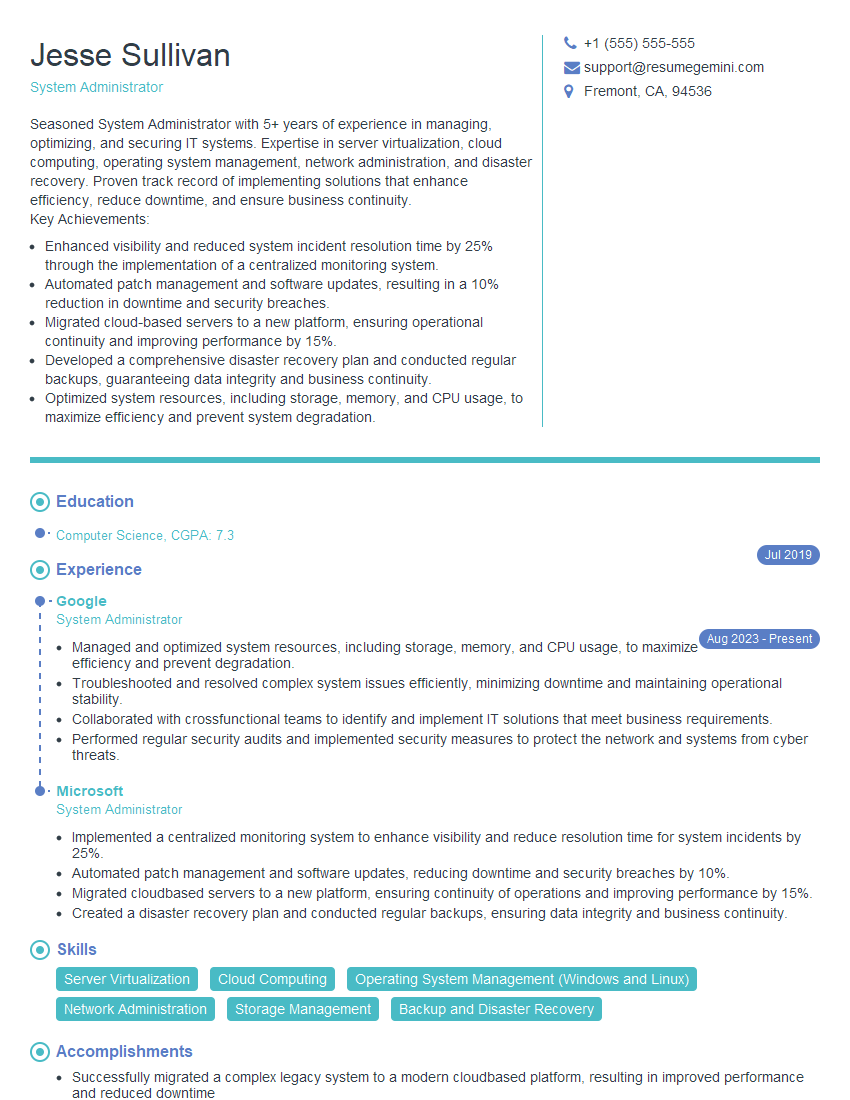
Mastering the Red Hat Certified Engineer (RHCE) exam significantly boosts your career prospects in system administration and opens doors to high-demand roles. To maximize your job search success, it’s essential to create a resume that effectively highlights your skills and experience to Applicant Tracking Systems (ATS). ResumeGemini is a trusted resource for building professional, ATS-friendly resumes. They offer examples specifically tailored for Red Hat Certified Engineer (RHCE) candidates, helping you present your qualifications in the best possible light. Take the next step towards your dream career – build a winning resume today!


Explore more articles
Users Rating of Our Blogs
Share Your Experience
We value your feedback! Please rate our content and share your thoughts (optional).
What Readers Say About Our Blog
Amazing blog
hello,
Our consultant firm based in the USA and our client are interested in your products.
Could you provide your company brochure and respond from your official email id (if different from the current in use), so i can send you the client’s requirement.
Payment before production.
I await your answer.
Regards,
MrSmith
hello,
Our consultant firm based in the USA and our client are interested in your products.
Could you provide your company brochure and respond from your official email id (if different from the current in use), so i can send you the client’s requirement.
Payment before production.
I await your answer.
Regards,
MrSmith
These apartments are so amazing, posting them online would break the algorithm.
https://bit.ly/Lovely2BedsApartmentHudsonYards
Reach out at BENSON@LONDONFOSTER.COM and let’s get started!
Take a look at this stunning 2-bedroom apartment perfectly situated NYC’s coveted Hudson Yards!
https://bit.ly/Lovely2BedsApartmentHudsonYards
Live Rent Free!
https://bit.ly/LiveRentFREE
Interesting Article, I liked the depth of knowledge you’ve shared.
Helpful, thanks for sharing.
Hi, I represent a social media marketing agency and liked your blog
Hi, I represent an SEO company that specialises in getting you AI citations and higher rankings on Google. I’d like to offer you a 100% free SEO audit for your website. Would you be interested?