Interviews are more than just a Q&A session—they’re a chance to prove your worth. This blog dives into essential Test Management Tools (e.g., Jira, TestLink) interview questions and expert tips to help you align your answers with what hiring managers are looking for. Start preparing to shine!
Questions Asked in Test Management Tools (e.g., Jira, TestLink) Interview
Q 1. Explain the difference between Jira and TestLink.
Jira and TestLink are both popular tools for managing software testing, but they serve different primary purposes. Jira is a broader project and issue tracking tool that can be adapted for test management, while TestLink is specifically designed for test management tasks. Think of it like this: Jira is a Swiss Army knife, capable of many things, including test management; TestLink is a dedicated, finely-tuned tool specifically crafted for testing.
Jira excels in managing the entire software development lifecycle (SDLC), including bug tracking, task assignment, and project planning. Its strength lies in its flexibility and integration capabilities. TestLink, on the other hand, focuses solely on test management aspects such as creating, organizing, and executing test cases, tracking test results, and generating reports specific to testing activities. It’s less flexible but more specialized for its core functionality.
- Jira: Powerful, versatile, better for integrated project management incorporating testing.
- TestLink: Specialized, dedicated test management, easier to use for solely test-related tasks.
Q 2. How do you create and manage test cases in Jira?
Creating and managing test cases in Jira typically involves using Jira issues, often of type ‘Test’. You can configure a custom workflow to reflect your testing process. There’s no dedicated Test Case module as seen in TestLink, so we leverage Jira’s flexibility.
Step-by-Step:
- Create a Test Issue: Create a new Jira issue, selecting the ‘Test’ issue type (or a similar custom type). Fill in details such as summary, description (test case steps), expected results, and assign it to a tester.
- Organize Test Cases: Use Jira’s features to organize test cases. This can be done through labels, components, versions, or by creating custom fields for categories and test case priorities.
- Link Test Cases to User Stories/Bugs: Use Jira’s linking feature to connect test cases to corresponding user stories or bugs. This provides traceability and ensures complete test coverage. For example, you link a test case to a user story by mentioning the issue key (e.g., ‘TST-123’ links to ‘US-456’).
- Manage Test Case Versions: As test cases evolve, utilize Jira’s versioning system to track changes and maintain different versions of the test case.
- Utilize Add-ons: To enhance Jira’s test case management capabilities, consider using plugins like Xray or Zephyr for Jira, which provide more advanced test management features.
Q 3. Describe your experience using Jira’s issue tracking system.
My experience with Jira’s issue tracking system is extensive. I’ve used it across multiple projects, ranging from small-scale web applications to large-scale enterprise systems. I’ve successfully implemented custom workflows to manage different types of issues, including bugs, tasks, and, significantly, test cases (either natively or via add-ons). I regularly use Jira’s search functionality and filters to track issues, prioritize them based on severity and urgency, and monitor progress. In one project, I improved our team’s bug resolution time by 20% by streamlining our issue tracking and prioritization processes within Jira.
For example, I configured a workflow where bugs are first reported and assigned to developers, then reviewed by testers after fixing. This workflow incorporated automated transitions and notifications to keep all stakeholders informed.
Q 4. How do you utilize Jira’s reporting features for test management?
Jira’s reporting features are invaluable for test management. They allow us to track testing progress, identify bottlenecks, and measure the effectiveness of our testing efforts. I primarily use Jira’s built-in reports and dashboards, creating custom charts to visually represent key metrics.
- Progress Tracking: I use burned-down charts to monitor the progress of test execution against planned timelines.
- Defect Analysis: I create reports showing the number of bugs found per module or severity level, helping to pinpoint areas needing more attention.
- Test Coverage: With proper linking between user stories and test cases, I can generate reports indicating the test coverage for each feature or component.
- Custom Dashboards: I create custom dashboards displaying critical metrics such as the number of open and closed bugs, test case execution status, and overall test completion percentage. This allows for a quick overview of the project’s testing health.
In addition, using add-ons like eazyBI or Tableau, provides more advanced reporting capabilities for analyzing test data from Jira.
Q 5. How do you integrate Jira with other testing tools?
Jira’s integration capabilities are a key strength. I’ve integrated it with numerous testing tools, enhancing the overall testing workflow. The most common methods include:
- Direct API Integration: Many testing tools offer APIs that allow for direct data exchange with Jira. For example, you could automatically create Jira issues from failed automated tests run in tools like Selenium or JUnit. This creates seamless traceability between automated testing results and Jira issue tracking.
- Add-ons and Plugins: The Atlassian Marketplace provides numerous add-ons that facilitate integration with other tools. For example, plugins allow for direct import/export of test cases between TestLink and Jira, or for integrating with CI/CD pipelines.
- Import/Export Capabilities: Jira’s import/export functionalities allow for the transfer of data from other tools in various formats (e.g., CSV, XML). However, this method is less efficient than direct integration.
For example, I integrated Jira with a CI/CD pipeline, triggering the creation of a Jira bug when automated tests fail during a build. This automated workflow saved our team significant time and effort.
Q 6. Explain TestLink’s test plan management capabilities.
TestLink’s test plan management is its core strength. It allows for detailed organization and planning of testing activities. Unlike Jira, which requires leveraging its issue tracking system to manage tests, TestLink provides a structured approach to test plans and execution.
Key features include:
- Test Plan Creation: Create a test plan, define its scope, objectives, and assign testers. You can specify timelines, milestones, and resources.
- Test Specification Creation: Organize test cases within a test plan. It allows for easy grouping of test cases and version control.
- Test Suite Management: Group similar test cases into test suites to improve organization and facilitate reusable test suites across multiple plans.
- Requirement Linking (optional): Some TestLink implementations allow linking test cases to requirements. This shows which requirements have been tested and helps ensure test coverage.
- Test Plan Reporting: Generate reports on test plan progress, test case execution status, and overall test results.
In essence, TestLink’s test plan management provides a dedicated environment for planning, structuring, and executing tests, offering a more focused approach than the versatile but less specialized Jira.
Q 7. How do you manage test executions in TestLink?
TestLink simplifies test execution management. Testers can easily access assigned test cases within a test plan and record results directly within the system.
Key aspects of test execution in TestLink:
- Test Execution Management: Assign test cases to testers. Testers execute tests and record results (passed, failed, blocked, etc.).
- Bug Reporting (Integration): TestLink often integrates with bug tracking systems (like Jira). When a test fails, the tester can directly create a bug report in the integrated bug tracker.
- Test Case Status Tracking: TestLink dynamically tracks the status of each test case, displaying overall test execution progress within the test plan.
- Reporting and Analysis: Generate comprehensive reports summarizing test execution results, including detailed information about failed tests and overall test coverage.
For example, after assigning test cases, a tester logs into TestLink, executes the test cases, and updates the status and any relevant details for each case. This creates a clear and centralized record of test execution, allowing for easy tracking and analysis of test results. If a test fails, a bug report might be instantly filed in an integrated bug tracker like Jira.
Q 8. Describe your experience with TestLink’s reporting and analytics.
TestLink’s reporting and analytics capabilities are quite robust, offering a comprehensive overview of your testing process. It provides various reports, customizable to your needs, that visualize test execution progress, defect densities, and overall test coverage. For instance, you can generate reports showcasing the number of passed, failed, and blocked test cases, broken down by test plan, test suite, or even individual testers. These reports are invaluable for identifying areas needing attention and for demonstrating testing progress to stakeholders. Think of them as a dashboard showing the health of your testing efforts. Beyond standard reports, TestLink offers custom reporting options, allowing you to generate data specific to your testing strategy. For example, you might create a custom report that shows the execution time for each test case to identify potential performance bottlenecks. The key is understanding the available options and tailoring them to track the metrics that are most critical to your project’s success.
Q 9. How do you handle test case versioning in TestLink?
TestLink handles test case versioning through a straightforward revision system. Every time you modify a test case – be it updating the steps, expected results, or preconditions – TestLink creates a new version. This allows you to track changes over time and revert to previous versions if needed. Imagine a scenario where a test case needs to be adjusted due to a change in the application’s functionality. Instead of overwriting the original, you can create a new version, preserving the older iteration. This is incredibly useful for auditing and understanding the evolution of your test cases, ensuring traceability and maintaining a clear history of changes. You can easily access previous versions and compare them, providing valuable insight into the rationale behind modifications and helping in debugging or identifying unintended consequences of updates.
Q 10. How do you use TestLink to track test execution progress?
TestLink allows you to track test execution progress in several ways. The most straightforward is through its built-in execution management features. You assign test cases to testers, who then mark them as executed, passed, failed, or blocked. TestLink automatically aggregates this data, providing real-time dashboards showing the overall progress of your test plans and test suites. Think of it as a live progress bar for your testing effort. This granular level of tracking helps you identify bottlenecks, delays, and potential issues early on. The platform also provides various reporting features to visualize this progress, allowing for easy monitoring and proactive identification of areas requiring more attention. For example, if a large number of test cases are marked as blocked, it indicates a potential roadblock needing immediate attention and resolution.
Q 11. What are the advantages and disadvantages of using Jira for test management?
Jira, while not a dedicated test management tool, is frequently used for this purpose due to its flexibility and integration capabilities.
- Advantages: Jira’s strength lies in its comprehensive issue tracking and workflow management. It excels at bug tracking, allowing for seamless integration with development processes. Its Kanban boards and customizable workflows make it easy to manage the testing lifecycle and track progress. Plus, the extensive plugin ecosystem adds further test management functionality.
- Disadvantages: Jira’s flexibility can be a double-edged sword. Setting up an effective test management system in Jira often requires significant customization and configuration, potentially leading to increased complexity. It lacks some dedicated test management features found in specialized tools like TestLink, such as detailed test case versioning or robust reporting specifically tailored for test data.
In essence, Jira’s effectiveness as a test management tool depends heavily on how well it’s configured and integrated into the existing workflow.
Q 12. What are the advantages and disadvantages of using TestLink for test management?
TestLink is a dedicated test management tool offering specific features designed for testing teams.
- Advantages: TestLink provides a comprehensive set of features tailored to test management, including detailed test case design, version control, execution tracking, and reporting. It simplifies test planning, execution, and analysis. Its focus allows for a smoother and more intuitive workflow for testing activities.
- Disadvantages: TestLink can feel less flexible than Jira. Customization options might be limited compared to Jira’s plugin ecosystem. Also, its integration with other tools, particularly development tools, can be more challenging to set up compared to the seamless integration usually offered by Jira.
Ultimately, TestLink’s effectiveness hinges on the project’s need for dedicated test management functionality versus a more generalized project management approach.
Q 13. How do you prioritize bugs in Jira?
Prioritizing bugs in Jira usually involves a combination of factors, often leveraging Jira’s built-in features. A common approach involves using priority levels (e.g., Critical, Major, Minor, Trivial) combined with severity levels (e.g., Blocker, Critical, Major, Minor). Critical bugs that severely impact the system’s functionality are prioritized first. We also consider the impact on the user experience and business goals. Jira’s workflow and Kanban boards are instrumental in visually tracking prioritized bugs, ensuring the most critical issues are addressed immediately. Workflows can be customized to route bugs through different teams or individuals based on their priority. For example, critical bugs might automatically be assigned to the development team’s lead and escalated for immediate attention.
Q 14. How do you manage test environments using Jira or TestLink?
Managing test environments in Jira or TestLink is typically done indirectly. Neither tool directly manages the environments themselves; instead, they help manage the information related to those environments. In Jira, you might create custom fields in your issue types (bugs, test cases etc.) to document environment details such as the environment name, operating system, browser versions, and database versions. In TestLink, similar information can be included within test plans or test suites descriptions. This allows you to associate specific test cases or bugs with particular test environments, providing context and traceability. A consistent naming convention for environments and careful documentation are crucial for avoiding confusion. This approach ensures that all information related to the test environment is clearly linked to the relevant tests and issues, thus improving transparency and overall test management. External documentation, such as a Wiki page, can also be used to centrally manage environment configurations, which can be linked to from Jira or TestLink, for a comprehensive approach.
Q 15. Describe your experience with customizing Jira workflows for testing.
Customizing Jira workflows for testing involves tailoring the default Jira process to match our specific testing needs. This often includes adding, removing, or modifying statuses, transitions, and screens. For example, a standard Jira workflow might have ‘Open’, ‘In Progress’, ‘Done’ statuses. For testing, we might add statuses like ‘Ready for Testing’, ‘Testing in Progress’, ‘Blocked’, ‘Retest Required’, and ‘Test Passed’. Each status represents a specific phase in the testing lifecycle. We then define transitions between these statuses, specifying who can perform the transition and what conditions must be met. We might also customize screens to display only the relevant fields for each status. For instance, the ‘Ready for Testing’ screen might show the linked requirements and test cases, while the ‘Test Passed’ screen might display the test results. This makes tracking and managing the testing process much smoother. I’ve extensively worked on creating Jira workflows for different testing methodologies – waterfall, Agile, and DevOps – adapting the workflows to suit the unique needs of each project.
Imagine building a house. The default workflow might only have ‘Start’ and ‘Finish’. We need more stages, like ‘Foundation’, ‘Framing’, ‘Plumbing’, etc., each with its own specific tasks and checks. Customizing the Jira workflow is like defining those stages and checks for the testing process.
Career Expert Tips:
- Ace those interviews! Prepare effectively by reviewing the Top 50 Most Common Interview Questions on ResumeGemini.
- Navigate your job search with confidence! Explore a wide range of Career Tips on ResumeGemini. Learn about common challenges and recommendations to overcome them.
- Craft the perfect resume! Master the Art of Resume Writing with ResumeGemini’s guide. Showcase your unique qualifications and achievements effectively.
- Don’t miss out on holiday savings! Build your dream resume with ResumeGemini’s ATS optimized templates.
Q 16. How do you ensure traceability between requirements, test cases, and defects in Jira or TestLink?
Traceability is crucial for ensuring that all requirements are tested and that defects are linked back to their root cause. In Jira or TestLink, we establish this traceability through linking. In Jira, we can link requirements (usually managed in a Confluence page or another Jira project) to test cases using the issue linking feature. This creates a direct connection, allowing us to see which test cases cover which requirements. When a defect is found, we link it to the relevant test case and subsequently to the requirement. Similarly, in TestLink, test cases can be associated with requirements, and defects (or bugs) can be linked to specific test cases, facilitating comprehensive traceability. Regular checks are performed to ensure all requirements have corresponding test cases and all defects are appropriately linked. Reports can then be generated to illustrate this traceability visually. This helps to show complete test coverage and aids in quicker root-cause analysis.
Think of it as a chain: Requirements are the first link, Test Cases are the next, and Defects are the last. Breaking one link breaks the chain, making it harder to understand the overall flow and quality. Proper linking ensures a complete chain.
Q 17. Explain your process for generating test reports from Jira or TestLink.
Generating test reports from Jira and TestLink involves leveraging their built-in reporting features, or using external tools. Jira offers various report types, including burndown charts, velocity charts (for Agile projects), and custom reports created using JQL (Jira Query Language). We can configure these reports to showcase test case execution status, defect counts, test coverage, and other relevant metrics. TestLink provides similar functionalities, offering reports on test plan execution, test case execution history, and defect tracking. In more complex scenarios, we might use third-party reporting tools that can integrate with Jira or TestLink to pull data and generate customized reports with more advanced visualizations. The choice of reporting tool depends on the complexity of our reporting needs and the level of customization required.
For instance, we might generate a report showing the percentage of test cases executed, the number of defects found categorized by severity, and the overall test coverage percentage for a specific sprint. A well-structured report makes presenting our findings and demonstrating progress simple.
Q 18. How do you handle multiple projects concurrently using Jira or TestLink?
Managing multiple projects concurrently in Jira or TestLink involves effective organization and prioritization. In Jira, we leverage project structures and filters to separate projects and manage tasks independently. Filters allow us to view specific aspects of each project, while boards (Scrum or Kanban) provide a clear overview of progress. We assign team members and roles to specific projects, ensuring clear responsibilities. Regular meetings and status updates help ensure coordination across projects. TestLink offers similar capabilities, with the ability to create multiple test projects and manage them separately. Proper labeling and clear documentation for each project is vital for reducing confusion.
I often use different boards for different projects – a Kanban board for one project and a Scrum board for another – which helps in parallel tracking and management. This prevents overlaps and allows for quick identification of urgent tasks in each project.
Q 19. Describe a situation where you improved test management processes using Jira or TestLink.
In a previous project, we were struggling with inefficient defect tracking and a lack of clear visibility into the testing process. We were using a spreadsheet-based system, which was prone to errors and lacked proper version control. I introduced Jira to streamline the process. By creating customized workflows, screens, and fields for test cases and defects, I improved the clarity and consistency of our data. I also established a system of linking requirements to test cases and defects to improve traceability. This improved our collaboration and significantly reduced the time spent on manual data entry and tracking. The result was improved test coverage, faster defect resolution, and a more efficient testing process overall. The switch to Jira provided a centralized and structured platform for all project data, resulting in more accurate reporting and improved overall team communication.
Q 20. How do you use Jira for agile testing methodologies?
Jira is exceptionally well-suited for Agile testing methodologies. We use Jira’s Scrum or Kanban boards to manage testing sprints. User stories are created as Jira issues and linked to test cases. The progress of testing is tracked through the updating of the statuses of these issues. Sprint reviews and retrospectives are documented within the Jira issues themselves, facilitating continuous improvement. Burndown charts help visualize the progress of testing throughout the sprint. The close integration of Jira with other Agile tools and its flexibility in adapting to various Agile frameworks make it a valuable asset for managing Agile testing projects. For example, we can utilize Jira’s built-in reporting to monitor the velocity of testing, the number of bugs per sprint, and the overall progress toward meeting sprint goals.
Q 21. How familiar are you with Jira’s Kanban boards for test management?
I am very familiar with Jira’s Kanban boards for test management. Kanban boards provide a visual representation of the testing workflow. We define columns representing different stages of testing, such as ‘To Do’, ‘In Progress’, ‘Testing’, ‘Blocked’, ‘Done’. Test cases or bugs are represented as cards, moved across columns as they progress through the workflow. This provides a real-time view of the testing progress and identifies bottlenecks or roadblocks. The visual nature of Kanban boards facilitates better team collaboration and quick identification of issues. We use swimlanes to further categorize cards, perhaps separating by test environment or tester. This allows for improved prioritization and management of multiple test streams within a single Kanban board.
Q 22. How familiar are you with TestLink’s integration with other test automation frameworks?
TestLink’s direct integration with automation frameworks isn’t as seamless as some other tools, but it can be achieved through various methods. It primarily acts as a test management system, focusing on test case organization, execution, and reporting. The integration usually involves custom scripting or using intermediate tools. For example, you might use a custom script to import test results from a framework like Selenium or pytest into TestLink. This script would typically parse the framework’s output (often an XML or JSON file) and update the TestLink test case status and execution details. Another approach involves using a CI/CD pipeline where your automation runs and then updates TestLink via its API. This approach offers better automation and integration capabilities. Essentially, TestLink serves as the central repository for test cases and results, but the actual integration with automation tools often requires some development effort tailored to the specific framework being used.
Imagine it like a central filing cabinet (TestLink) that needs a dedicated courier (your custom script or CI/CD pipeline) to fetch and deliver the completed paperwork (test results) from the various offices (different automation frameworks).
Q 23. How do you manage user permissions and access control in Jira and TestLink?
Both Jira and TestLink offer granular user permission control. In Jira, this is managed through project roles and permissions, allowing you to assign specific permissions (e.g., create issues, edit issues, view issues, comment) based on user roles (e.g., developer, tester, manager). You can create custom roles or modify existing ones to achieve the desired level of access control. TestLink, similarly, uses a system of user roles and groups with defined permissions. You can create different user roles (e.g., tester, lead, administrator) and assign them to specific users. This determines their capabilities like creating test cases, assigning tests, viewing reports and executing test plans. For instance, a tester might only have permission to execute test cases, while a lead could also assign them and view execution reports. Effective access control in both tools minimizes the risks associated with unauthorized access and modification of sensitive data.
Q 24. How do you handle test data management in conjunction with Jira or TestLink?
Test data management within Jira and TestLink is typically handled indirectly. Neither tool directly manages test data; they are used to manage the tests themselves. A common strategy is to utilize separate databases or data management tools, alongside Jira and TestLink. You’d use Jira to track the test cases and bugs related to the data, perhaps with custom fields to identify which data set was used in each test run. TestLink could reference the data sets used in test plan executions. Tools like Test Data Management (TDM) software or even simple spreadsheets can then manage the actual test data, ensuring different environments (dev, test, staging) have appropriate data sets. Linking these tools with Jira and TestLink through documentation or custom integrations ensures traceability. For example, in Jira, a custom field could link a test case to a specific test data set in a separate database. This ensures that everyone knows what data to use, promotes reusability, and simplifies data version control.
Q 25. Explain your experience with Jira’s automation features for testing.
Jira’s automation capabilities, particularly with Jira Automation and apps like ScriptRunner, are extremely powerful for testing. I’ve used them to automate various tasks, such as: automatically transitioning issues through workflows (e.g., from ‘To Do’ to ‘In Progress’ to ‘Done’ upon test completion), creating issues based on specific conditions (e.g., automatically creating bug reports when a test fails), sending notifications upon test failures or successful completion, and managing test environments by automatically updating Jira issues with environment information. For example, I implemented an automation rule that, upon successful test execution in a CI/CD pipeline, automatically updates the relevant Jira test case with a ‘Passed’ status and links the execution report. This eliminates manual updates, saving time and reducing human error.
Example Automation rule: When a Test Case issue is updated to 'Test Executed', if Test Result field equals 'Passed' update Test status to 'Done' Q 26. How would you troubleshoot common issues encountered while using Jira or TestLink?
Troubleshooting Jira and TestLink issues often involves a systematic approach. First, I check for obvious things such as network connectivity, browser compatibility, and ensuring the correct versions of plugins and extensions are used. If those don’t resolve the issue, I’d start by checking the tool’s logs for error messages. Jira’s logs provide detailed information about errors, while TestLink’s logs (depending on its setup) can pinpoint specific problems. I often check the database directly if an issue is related to data integrity. I also look for permission problems as incorrect user permissions are a common source of issues. If the problem persists, I would investigate the integration points between the tools, checking for any failures in data exchange or inconsistencies in configurations. If all else fails, seeking help from the community forums or support teams for Jira and TestLink is advisable.
Q 27. Describe your approach to maintaining the accuracy and integrity of test data in Jira or TestLink.
Maintaining accurate and consistent test data is paramount. My approach is multi-faceted. I start with proper planning and documentation, creating a comprehensive test data strategy that defines data sources, data types, and data structures. Version control of test data is essential. This could involve using version control systems (like Git) for storing data scripts or using a dedicated TDM tool. We use data masking techniques to protect sensitive information when using real-world data. Data cleansing processes are set up to validate and clean the data before it’s used in testing. Regular audits are conducted to check the integrity of the test data. Automation can also play a role here; scripts can be developed to regularly check the data for inconsistencies or missing data. This proactive approach ensures that the data used in tests is consistently accurate and reliable, minimizing the risk of inaccurate test results.
Q 28. How do you ensure that your team effectively utilizes Jira or TestLink for collaborative testing?
Effective team utilization of Jira and TestLink relies on clear guidelines, training, and consistent practices. We begin with comprehensive training to ensure everyone understands the tools’ functionalities and how they fit into our testing processes. We establish clear conventions for naming conventions, issue statuses, and workflow processes. We use Jira’s features such as dashboards and reports to monitor progress and identify bottlenecks. For TestLink, we use its reporting and metrics to track test execution and identify areas needing improvement. We encourage regular team meetings to discuss the usage of the tools, address challenges, and suggest improvements. Good communication and clear documentation are crucial. We maintain a wiki or shared document with guidelines, best practices, and troubleshooting tips to ensure consistency and ease of use for the whole team. A well-defined process prevents misunderstandings and ensures everyone is on the same page.
Key Topics to Learn for Test Management Tools (e.g., Jira, TestLink) Interview
- Test Case Management: Understand the lifecycle of a test case, from creation and execution to reporting and analysis. Practice creating clear, concise, and easily reproducible test cases.
- Defect Tracking and Reporting: Learn how to effectively log, track, and manage defects using the tool’s features. Practice writing detailed bug reports with all necessary information.
- Test Plan and Execution: Familiarize yourself with creating and managing test plans, assigning tasks, and tracking progress. Understand how to generate reports on test execution and coverage.
- Test Data Management: Explore techniques for managing and handling test data efficiently within the chosen tool. This includes strategies for data creation, setup, and cleanup.
- Reporting and Analytics: Learn how to generate insightful reports and analyze test results to identify trends and areas for improvement. Understand key metrics related to testing effectiveness.
- Integration with Other Tools: Explore how the chosen tool integrates with other development and collaboration tools used in your workflow (e.g., CI/CD pipelines).
- Customization and Configuration: Understand the basic configuration settings and customization options within the tool to tailor it to your testing needs.
- Workflows and Processes: Familiarize yourself with standard testing workflows and how they are implemented and managed within the tool.
- Problem-solving with the tool: Practice troubleshooting common issues and challenges encountered while using the Test Management tool. Be prepared to discuss your approach to problem-solving.
Next Steps
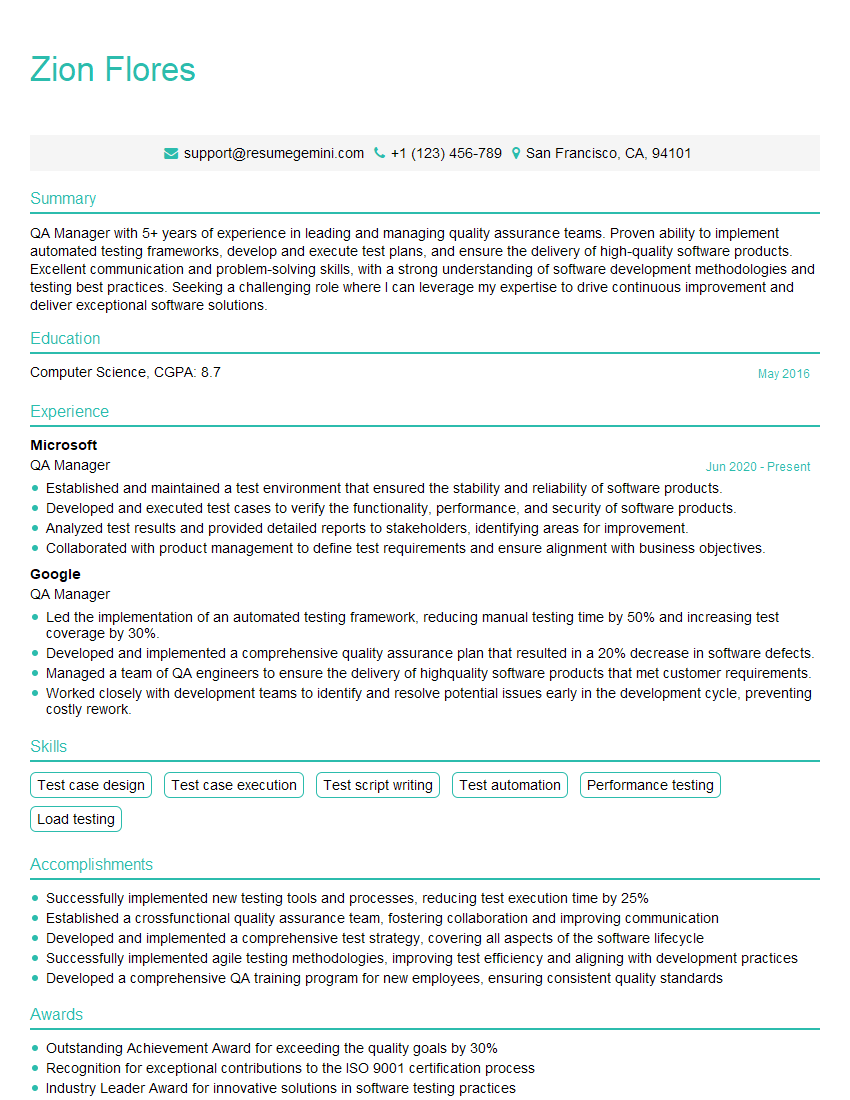
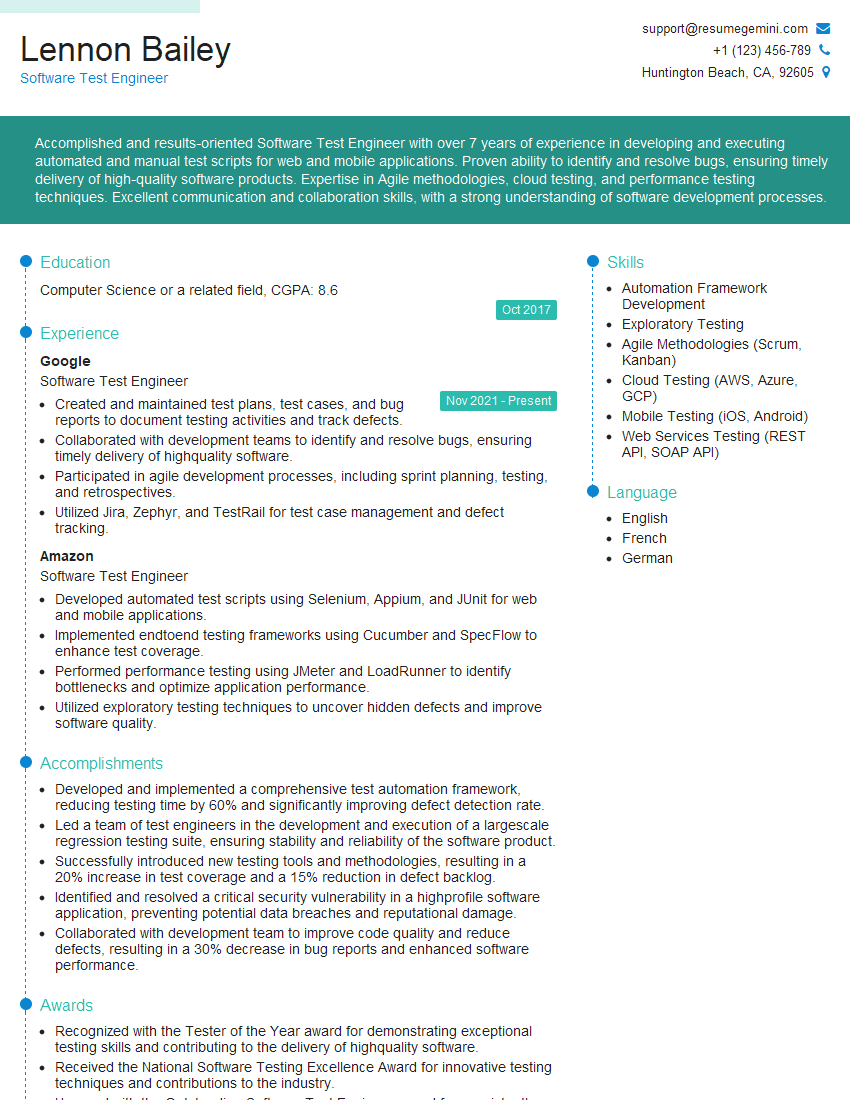
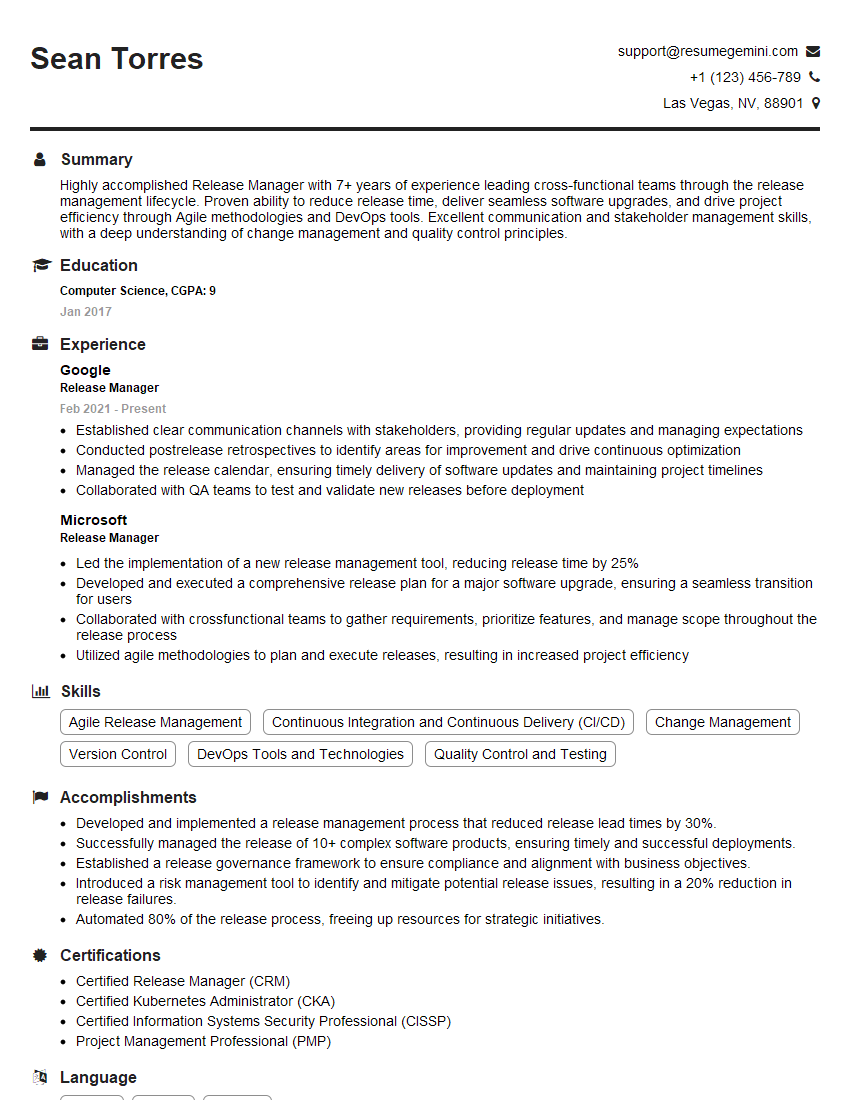
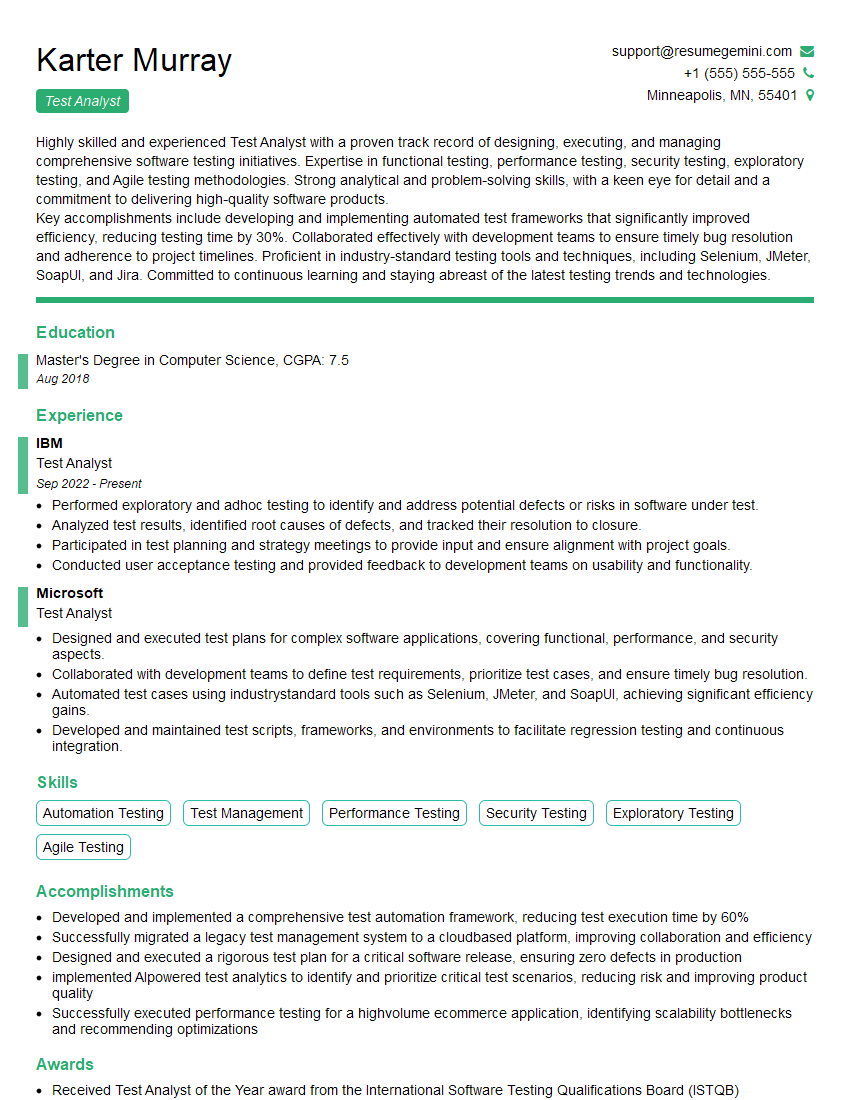
Mastering Test Management tools like Jira and TestLink is crucial for career advancement in software testing. These tools are industry standards, and proficiency significantly enhances your value to any team. To increase your chances of landing your dream role, focus on creating a compelling and ATS-friendly resume that showcases your skills and experience. ResumeGemini is a trusted resource to help you build a professional and effective resume. They offer examples of resumes tailored to highlight expertise in Test Management Tools such as Jira and TestLink, helping you present your qualifications in the best possible light.

Explore more articles
Users Rating of Our Blogs
Share Your Experience
We value your feedback! Please rate our content and share your thoughts (optional).
What Readers Say About Our Blog
Amazing blog
Interesting Article, I liked the depth of knowledge you’ve shared.
Helpful, thanks for sharing.