The right preparation can turn an interview into an opportunity to showcase your expertise. This guide to Maptitude interview questions is your ultimate resource, providing key insights and tips to help you ace your responses and stand out as a top candidate.
Questions Asked in Maptitude Interview
Q 1. Explain the difference between Maptitude’s various map projections.
Maptitude offers a variety of map projections, each distorting the Earth’s surface in different ways to optimize for specific needs. The choice of projection depends heavily on the analysis being performed and the geographic area of interest. For example, a Mercator projection is excellent for navigation because it preserves direction, but it significantly distorts area near the poles. Conversely, an equal-area projection, like Albers Equal Area Conic, is better for analyzing population density or resource distribution as it accurately represents areas, though it distorts shapes.
- Mercator: Preserves direction, ideal for navigation, but distorts area dramatically at higher latitudes.
- Albers Equal Area Conic: Preserves area, suitable for thematic mapping displaying quantities, but distorts shape.
- Lambert Conformal Conic: Minimizes distortion in both shape and area within a limited region, often used for regional mapping.
- Plate Carrée (Equirectangular): Simple projection with minimal distortion near the equator, useful for global overview maps but with significant distortion at higher latitudes.
Choosing the right projection is crucial for accurate spatial analysis. For instance, calculating distances using a Mercator projection near the North Pole would yield significantly inaccurate results compared to using a projection with less distortion in that region. Maptitude simplifies this selection process by providing a clear description of each projection’s properties and suitability.
Q 2. How do you import and manage data in Maptitude?
Importing and managing data in Maptitude is straightforward and supports a wide range of formats. I typically begin by identifying the data’s format – shapefiles (.shp), GeoJSON, CSV, databases (SQL Server, Oracle, etc.). Maptitude excels at handling both spatial data (points, lines, polygons) and attribute data linked to these features.
For example, importing sales data linked to store locations (points) involves loading the spatial data (store locations) and then joining it to a CSV file containing sales figures. This join operation uses a common identifier, like a store ID, to link the spatial and attribute data. Maptitude’s intuitive interface makes this a relatively simple drag-and-drop procedure. Managing data involves utilizing Maptitude’s tools for data cleaning, editing, and projection transformations. For instance, I might use spatial queries to identify and correct any overlapping or erroneous geometries in a shapefile.
Example: Importing a shapefile: File > Import > Shapefile; selecting the .shp file and specifying the coordinate system.Data management also includes organizing data into layers within a map project, applying symbology (colors, sizes) to effectively represent data attributes and managing the project’s spatial reference system (projection) to ensure accurate analysis.
Q 3. Describe your experience using Maptitude’s spatial analysis tools.
My experience with Maptitude’s spatial analysis tools is extensive. I’ve used a wide array of functions including buffer analysis, proximity analysis, overlay analysis, and spatial queries for various projects. For instance, I used buffer analysis to determine the area within a certain radius of a proposed new store to assess potential customer catchment areas. Overlay analysis helped me identify areas where two datasets overlapped – for example, finding high crime areas that also have low property values.
Spatial queries are indispensable; I frequently used them to select features based on attribute values – such as finding all stores with sales above a certain threshold. Maptitude allows these queries to be performed directly on the map, making the visualization of results instantaneous. The results of these analyses are easily exported in various formats, ready for report generation or further analysis.
One project involved analyzing the spatial distribution of disease outbreaks. By using overlay analysis to combine outbreak locations with demographic data, I was able to identify spatial clusters and potential risk factors, contributing significantly to public health planning. This highlights the power and versatility of Maptitude’s analytical tools for solving complex real-world problems.
Q 4. How would you create a thematic map in Maptitude showing sales density?
Creating a thematic map showing sales density in Maptitude involves several steps. First, I’d ensure my point data (store locations) is linked to sales figures. Then, I would use a spatial analysis technique such as kernel density estimation to create a surface representing sales density across the study area. This process effectively smooths the point data into a continuous surface, highlighting areas with high and low sales concentrations.
Once the density surface is generated, I’d choose a color ramp or classification scheme to represent the density values, selecting colors that intuitively convey high (e.g., dark red) and low (e.g., light yellow) density. Maptitude offers several classification methods, such as equal interval, quantile, or natural breaks, to optimally display the data. Finally, I’d add a legend explaining the color scheme and density units to provide context to the map. The result is a visually appealing and informative thematic map illustrating sales density patterns across the region.
Q 5. Explain how you would perform a proximity analysis in Maptitude.
Proximity analysis in Maptitude involves determining the spatial relationships between features. A common application is finding features within a certain distance of a target feature. For instance, I might want to find all houses within 1 mile of a proposed new school. To do this, I’d create a buffer around the school location, using a specified radius (1 mile), then perform a spatial query to identify all houses intersecting the buffer. Maptitude’s tools make this incredibly simple.
Another approach to proximity analysis would be to determine the nearest neighbor for each point in a dataset. This is useful for applications such as facility location optimization, where we aim to minimize the distance between service points and clients. Maptitude provides tools to perform this analysis efficiently, providing a list of the nearest features and their associated distances.
Q 6. How do you handle data inconsistencies or errors in Maptitude?
Handling data inconsistencies or errors in Maptitude often involves a combination of data cleaning, validation, and spatial analysis techniques. I typically start with data validation, checking for missing values, outliers, and inconsistencies in attribute data. Maptitude provides tools for identifying and correcting such errors within the dataset. For example, I can easily find and fix errors such as mismatched attribute codes or incorrectly formatted dates.
Spatial inconsistencies, such as overlapping polygons or self-intersecting lines, require careful attention. Maptitude offers editing tools to manually correct these geometric errors. Additionally, I often utilize spatial queries to flag and investigate potential problems such as geographically improbable locations or attribute values that don’t match their spatial context. For instance, finding a point that appears to be in the ocean but has attributes indicating a land-based location. Finally, it’s important to document any changes made to the dataset and any assumptions made to ensure data integrity and transparency.
Q 7. Describe your experience creating custom map layouts in Maptitude.
Creating custom map layouts in Maptitude is a key part of my workflow. I utilize Maptitude’s tools to design visually appealing and informative maps tailored to specific needs. This involves careful selection of map elements, such as scale bars, north arrows, legends, titles, and annotations. Maptitude’s layout features allow for precise placement and styling of these elements. I often use text boxes and graphics to enrich the map’s presentation and clarity.
For example, I might create a map showing the distribution of businesses, overlayed with demographic data. The layout would incorporate a clear title, informative legend, a scale bar for spatial reference, and potentially images or logos to enhance the map’s professional appearance. The customization options in Maptitude enable the creation of maps that are both informative and aesthetically pleasing, ensuring that my work effectively communicates the spatial patterns of interest.
Q 8. How would you use Maptitude to identify optimal store locations?
Identifying optimal store locations using Maptitude involves leveraging its powerful spatial analysis tools. Think of it like this: you’re not just looking at a map; you’re using data to find the *sweet spot* for your business. The process typically begins with defining your target market. This might involve demographic data (age, income, etc.) or even data on existing competitor locations. Maptitude allows you to overlay this data onto a map, creating thematic layers that visually represent different aspects of your market.
Next, we use Maptitude’s tools like Drive-Time/Drive-Distance analysis to determine areas easily accessible to your potential customers. We can define a radius around potential locations and analyze the population density or consumer spending power within that radius. The Market Potential analysis feature is particularly useful. It allows you to weight different factors – proximity to competitors, population density, income levels – and generate a weighted score for each potential location, effectively prioritizing areas with higher potential returns. Finally, Maptitude’s visualization tools let you easily compare different potential locations side-by-side, making the decision-making process transparent and data-driven.
For example, imagine opening a new coffee shop. You could use census data to identify high-density residential areas with a high average income. You’d then use drive-time analysis to ensure the location is accessible within a reasonable distance for your target customers. Maptitude would then help you visualize the overlap of these factors to find the ideal location.
Q 9. Explain the process of generating reports from Maptitude data.
Generating reports from Maptitude data is straightforward and highly customizable. The software offers a variety of reporting options, allowing you to transform your spatial analysis into clear and actionable insights. The process typically begins by selecting the data you wish to report on. This could be anything from demographic data associated with specific geographic areas to the results of spatial analyses such as market potential scores.
Maptitude provides several methods for generating reports. You can create simple summary tables showing counts, averages, or sums for various variables across different geographic regions (e.g., total population within each zip code). You can also generate more sophisticated reports incorporating thematic maps and charts, offering a visual representation of your data alongside numerical summaries. The built-in report writer enables the customization of report layouts, allowing you to tailor the output to your specific needs. You can include various elements, such as company logos, titles, footers, and even export reports as PDFs or other common file formats. For instance, you might create a report showing the market potential scores for your top three potential store locations, including a map highlighting these locations alongside supporting demographic information.
Q 10. How familiar are you with Maptitude’s data manipulation features?
I’m very familiar with Maptitude’s data manipulation features. This is a critical aspect of using the software effectively. The ability to clean, transform, and prepare data is crucial for accurate and meaningful analysis. Maptitude offers a wide range of tools for this, including:
- Data import and export: Maptitude seamlessly integrates with common data formats like shapefiles, CSV, and databases.
- Data cleaning: Tools for identifying and correcting inconsistencies and errors in your data.
- Data transformation: Capabilities to manipulate and convert data, for example, calculating new fields based on existing ones (like calculating population density from population and area data).
- Data joining: Ability to merge data from different sources based on common fields (e.g., joining demographic data to a map of census tracts).
For example, I’ve used Maptitude to clean up messy address data, ensuring accuracy before conducting location analysis. I’ve also used it to calculate new variables—like proximity to competitors—to enhance the insights derived from my analyses.
Q 11. Describe your experience with Maptitude’s integration with other software.
My experience with Maptitude’s integration with other software is extensive. Maptitude isn’t a siloed application; it’s designed to work effectively within a broader analytical workflow. It integrates well with various database management systems (DBMS) like SQL Server and Oracle, allowing for seamless data import and export. This enables users to easily incorporate data from their existing systems directly into their Maptitude projects.
I’ve also successfully integrated Maptitude with spreadsheet software such as Excel and statistical packages like R and SPSS. This allows for comprehensive data analysis and visualization, moving easily between map-based analysis and statistical modeling. For example, I’ve used Maptitude to geographically visualize the results of regression models generated in R, providing a powerful method to communicate complex statistical findings to a wider audience. Data sharing and collaboration are significantly enhanced with such seamless integration.
Q 12. How would you address data privacy concerns when working with Maptitude?
Data privacy is paramount when working with Maptitude, especially when dealing with sensitive information like personal location data. My approach emphasizes a multi-layered strategy:
- Data anonymization: Where appropriate, I apply techniques to remove or disguise identifying information, ensuring individual privacy is protected while retaining the utility of the data for analysis.
- Data security: I implement robust security measures to control access to data, including secure data storage, encryption, and access control lists. Maptitude allows controlling which data is visible or exportable in the final product.
- Compliance with regulations: I am well-versed in relevant data privacy regulations like GDPR and CCPA and ensure all projects adhere to these guidelines.
- Informed consent: Transparency is crucial. When working with data involving individuals, I ensure that informed consent is obtained, clarifying how the data will be used and protected.
In essence, I approach data privacy as an integrated part of the entire analytical process, not merely an afterthought.
Q 13. Explain how you would use Maptitude to analyze transportation networks.
Analyzing transportation networks in Maptitude is a strength of the software. It goes beyond simple visualization; it enables powerful spatial analysis to optimize routes, assess accessibility, and understand flow patterns. I often use Maptitude’s network analysis tools to solve real-world transportation problems.
For example, I might use shortest path analysis to determine the quickest route between two points, considering traffic conditions or road restrictions. This is crucial for logistics companies optimizing delivery routes or emergency services determining optimal response paths. Service area analysis helps define areas accessible within a certain travel time or distance from a specific point, like determining the service area of a hospital or fire station. Network flow analysis assesses the movement of goods or people across a network, identifying potential bottlenecks or congestion points, useful for traffic engineers or urban planners. Maptitude also provides tools to visualize network congestion and analyze the impact of changes to the network layout.
Q 14. How familiar are you with Maptitude’s scripting capabilities?
My familiarity with Maptitude’s scripting capabilities is strong. While Maptitude offers a user-friendly graphical interface, its scripting capabilities allow for advanced automation and customization of analyses. This is particularly beneficial for repetitive tasks or complex analyses. Maptitude uses a variant of Visual Basic for Applications (VBA), a widely used scripting language.
I’ve used VBA scripting in Maptitude to automate tasks such as:
- Batch processing of spatial analyses: running the same analysis on multiple datasets without manual intervention.
- Creating custom map layouts: generating maps with specific symbology and labels according to predefined rules.
- Integrating with external data sources: automating the import and processing of data from various sources.
- Developing custom tools and functions: extending the software’s functionality to meet specific analytical needs.
For instance, I wrote a script to automatically generate weekly reports on traffic congestion patterns, extracting data from a transportation database and producing maps and charts, all without manual intervention. This greatly improved efficiency and consistency.
Q 15. How would you use Maptitude to model market potential?
Modeling market potential in Maptitude involves leveraging geographic data to understand where your target customers are most concentrated and their purchasing power. This usually starts with identifying key factors influencing market demand, such as population density, income levels, proximity to competitors, and even consumer preferences obtained from surveys.
In Maptitude, I would typically begin by importing datasets containing this information. For example, I might import demographic data from the census, sales data from my company’s CRM, and competitor location data. Then, I’d use Maptitude’s spatial analysis tools like buffer zones (to analyze areas around existing locations) and thematic mapping to visualize potential customer density. I might assign weights to each factor based on their relative importance to market success and create a composite index representing overall market potential. Finally, this index would be mapped, allowing me to identify high-potential areas for market expansion or new store locations. For instance, if high income households and proximity to major roadways are key factors, I’d create layers representing each and combine them to visualize optimal locations for a premium car dealership.
Imagine opening a new coffee shop – I’d use Maptitude to overlay population density data with competitor locations and proximity to high foot traffic areas. The resulting map would reveal areas with high population density, few competing coffee shops, and access to significant pedestrian traffic, highlighting ideal locations.
Career Expert Tips:
- Ace those interviews! Prepare effectively by reviewing the Top 50 Most Common Interview Questions on ResumeGemini.
- Navigate your job search with confidence! Explore a wide range of Career Tips on ResumeGemini. Learn about common challenges and recommendations to overcome them.
- Craft the perfect resume! Master the Art of Resume Writing with ResumeGemini’s guide. Showcase your unique qualifications and achievements effectively.
- Don’t miss out on holiday savings! Build your dream resume with ResumeGemini’s ATS optimized templates.
Q 16. How would you perform spatial joins in Maptitude?
Spatial joins in Maptitude combine attributes from two different datasets based on their spatial relationships. Imagine you have a dataset of census tracts (areas) and another with retail store locations. A spatial join would allow you to add the demographic characteristics of each census tract (like population, income) to the corresponding retail store’s record if the store falls within that census tract.
Maptitude offers different join types:
- One-to-one: Each feature in the first dataset is joined with only one feature in the second (e.g., assigning the characteristics of the census tract a store is located in).
- One-to-many: One feature in the first dataset can be joined with multiple features in the second (e.g., assigning all census tracts within a certain radius of a store to that store).
- Many-to-one: Multiple features in the first dataset can be joined to one feature in the second (e.g., assigning all stores within a given census tract to that tract).
The process is usually straightforward. You select your target dataset and the dataset to join with. Then, Maptitude guides you to define the spatial relationship (e.g., ‘contains,’ ‘intersects,’ ‘within a distance’). The result is a new dataset containing attributes from both original datasets, enriched with spatial context.
Q 17. Explain the differences between various Maptitude data formats.
Maptitude supports a range of data formats, each with its strengths and weaknesses. Understanding these differences is critical for efficient data handling. Common formats include:
- Shapefiles (.shp): A widely used geospatial vector format storing point, line, and polygon data. Great for representing features like roads, buildings, and boundaries. They are often accompanied by related database files (.dbf) holding attribute information.
- GeoDatabases (.gdb): A more advanced format offered by Esri’s ArcGIS, enabling relational database management within a geospatial context. Maptitude can often import and export these files with proper drivers. They provide enhanced data management capabilities compared to shapefiles.
- Comma Separated Values (CSV): A simple, tabular format commonly used to store attribute data. While not inherently geospatial, you can use a CSV alongside a shapefile to link attributes to spatial features.
- Maptitude’s Native Format: Maptitude maintains its own internal format offering optimal performance within the Maptitude environment. This format allows for efficient storage of various data types and spatial relationships.
The choice of format often depends on the data’s source and the intended analysis. Shapefiles are excellent for simpler datasets, while geodatabases are preferred for more complex projects with multiple layers and relational attributes.
Q 18. How do you ensure data accuracy and quality in Maptitude?
Ensuring data accuracy and quality in Maptitude is paramount for reliable analysis. My approach involves a multi-step process:
- Source Verification: I rigorously examine data sources, checking their credibility, methodology, and update frequency. Using multiple reputable sources helps cross-reference and validate information.
- Data Cleaning: Before importing, I thoroughly clean the data. This includes handling missing values (imputation or removal), identifying and correcting inconsistencies, and checking for errors (e.g., coordinates outside the expected range). I’d use Maptitude’s data editing capabilities to rectify these issues.
- Spatial Accuracy Checks: After importing, I visually inspect the data in Maptitude, checking for topological errors (e.g., overlapping polygons) and spatial inconsistencies. Maptitude’s tools help identify and fix these problems.
- Attribute Consistency Checks: I check for inconsistencies and errors in the attribute data (data associated with the features). This might involve using Maptitude’s querying and reporting capabilities to identify outliers or incorrect data values.
- Metadata Management: Documenting data sources, cleaning procedures, and any limitations or assumptions is essential. This ensures transparency and traceability, crucial for maintaining data quality and enabling reproducibility of results.
Thorough data quality checks are essential – the garbage-in-garbage-out principle applies strongly here. Without careful attention to data accuracy, the results of any spatial analysis are meaningless.
Q 19. Describe your experience creating interactive maps in Maptitude.
I have extensive experience creating interactive maps in Maptitude, utilizing its powerful capabilities to engage users and convey complex information effectively. This involves several key techniques:
- Interactive Layering: Using Maptitude’s layering functionality, I build maps where users can easily switch on and off data layers, compare different datasets, and focus on specific geographic areas.
- Dynamic Queries and Filtering: I utilize Maptitude’s ability to dynamically filter data based on user input (e.g., a range of incomes or specific attributes). This allows users to interactively explore different subsets of data.
- Interactive Thematic Mapping: I use a variety of symbology (color, size, shading) to visually represent data patterns, enabling users to easily grasp key insights. The choice of thematic mapping (choropleth, proportional symbol, etc.) depends on the type of data and the message I aim to communicate.
- Data-driven Pop-ups: Customizing pop-up windows to display detailed information upon clicking on a map feature provides context and deepens user understanding of the data. These pop-ups can contain attributes and charts relevant to the selected feature.
- Map Navigation Tools: Providing users with seamless zoom, pan, and measuring tools enhances user experience and allows for in-depth exploration of the map.
For example, I recently created an interactive map showing crime statistics across a city, allowing users to filter by crime type, time period, and neighborhood. This facilitated easier analysis and informed better decision-making by stakeholders. The interactive elements were key to making the analysis accessible and engaging for a non-technical audience.
Q 20. How would you use Maptitude to analyze demographic data?
Analyzing demographic data in Maptitude is a core strength of the software. I typically use it to gain insights into population distribution, characteristics, and trends within a geographic area. My process involves:
- Data Acquisition: I usually source demographic data from reliable sources like census bureaus or market research firms. These datasets often contain information such as age, income, ethnicity, education level, and housing characteristics, all at various geographic scales (e.g., census tracts, zip codes).
- Data Import: Once acquired, I import the data into Maptitude, ensuring accurate geographic referencing. This step often involves geoprocessing to match the data’s geographic identifiers with Maptitude’s spatial framework.
- Spatial Analysis: Maptitude allows powerful spatial analysis of the demographic data. This could involve creating thematic maps to visualize the spatial distribution of certain demographics (e.g., poverty levels, age cohorts), performing spatial joins with other datasets (e.g., combining demographics with business locations to assess market suitability), or calculating aggregate statistics for specific geographic areas.
- Data Visualization and Reporting: I use Maptitude’s charting and reporting tools to present the analysis in an accessible and insightful manner. This can include creating various maps, charts, and reports to communicate patterns, trends, and correlations discovered through the analysis.
For example, I could analyze the spatial distribution of elderly populations to understand the need for healthcare services. By overlaying population density data with the location of existing facilities, I can identify areas of unmet need and guide planning and resource allocation for future facilities.
Q 21. Explain your approach to problem-solving using Maptitude’s analytical tools.
My approach to problem-solving with Maptitude’s analytical tools is systematic and iterative:
- Problem Definition: I clearly define the problem I’m trying to solve, identifying the key questions and the desired outcomes. This could be something like “Identify optimal locations for new retail stores,” or “Assess the impact of a new highway on local businesses.”
- Data Gathering and Preparation: I gather relevant data from various sources. I then prepare the data using Maptitude’s tools to ensure accuracy, consistency, and compatibility. This includes data cleaning, transformation, and projection.
- Spatial Analysis: I select the appropriate Maptitude analytical tools to address the problem. This might involve spatial joins, overlay analysis, buffer creation, network analysis, or geoprocessing functions. I experiment with different techniques and parameters to refine the analysis.
- Visualization and Interpretation: I use Maptitude’s visualization capabilities to create maps, charts, and reports to interpret the results of the analysis. I carefully consider the choice of visual elements to effectively communicate the findings.
- Iteration and Refinement: I continuously iterate on the analysis, refining the methods, data, and visualizations based on my findings. Maptitude’s interactive nature allows for this iterative approach, facilitating dynamic problem-solving.
- Communication of Results: I present the findings in a clear and concise manner, tailored to the audience. This might involve creating presentations, reports, or interactive maps for stakeholders.
This structured process ensures a robust and insightful analysis, guiding decision-making and problem resolution. For example, when optimizing delivery routes, Maptitude’s network analysis tools would be crucial in identifying the most efficient routes, minimizing travel time and costs.
Q 22. How would you use Maptitude to optimize delivery routes?
Maptitude excels at optimizing delivery routes through its powerful routing engine. Imagine you’re a logistics manager for a pizza delivery company. You have a list of addresses and need the most efficient route to deliver all the pizzas. Instead of manually planning routes, you can import your delivery addresses into Maptitude, and then use the ‘Route Optimization’ tool. This tool considers factors like distance, traffic patterns (if you have that data integrated), time windows for delivery, and even vehicle capacity to generate the shortest, fastest, or most cost-effective route.
The process typically involves importing your delivery locations as points, defining your vehicle’s characteristics (e.g., speed, capacity), and specifying any constraints (e.g., time windows). Maptitude then uses sophisticated algorithms to calculate the optimal route and presents the result visually on the map, along with a detailed report showing the total distance, time, and sequence of stops.
For a more complex scenario, let’s say you have multiple delivery drivers and multiple delivery vehicles. Maptitude can handle this too, assigning orders to drivers and vehicles in a way that maximizes efficiency across the entire fleet.
Q 23. How familiar are you with Maptitude’s advanced mapping techniques?
I’m highly familiar with Maptitude’s advanced mapping techniques. My expertise spans several key areas, including spatial analysis, geoprocessing, and data visualization. For instance, I routinely use techniques like interpolation (e.g., Kriging) to estimate values at unsampled locations based on known data points; this is valuable when analyzing things like air pollution or soil quality. I’m proficient in overlay analysis—combining different map layers to identify spatial relationships (think of identifying areas where both high crime rates and low property values overlap). Network analysis, as used in route optimization, is another strength. I’m also skilled at creating customized thematic maps using various symbology and classification methods to effectively communicate geographic patterns. Finally, 3D visualization allows me to show spatial data in a way that is both engaging and informative.
Q 24. Describe a challenging project you completed using Maptitude.
One challenging project involved optimizing the placement of new cell phone towers for a major telecommunications company. The goal was to maximize coverage while minimizing infrastructure costs. The challenge lay in the complexity of the terrain and the existing network. Using Maptitude, I first created a detailed elevation model, incorporating terrain data to identify areas with poor reception. Then, using a combination of buffer analysis (to identify areas within range of existing and proposed towers) and network analysis (to ensure connectivity), I conducted numerous simulations. We experimented with different tower locations and configurations, evaluating coverage and cost implications for each scenario. Ultimately, the analysis resulted in a recommended placement plan that significantly reduced the number of required towers while achieving near-complete coverage, saving the company millions of dollars.
Q 25. How would you use Maptitude to perform buffer analysis?
Buffer analysis in Maptitude is a simple yet powerful tool for identifying areas within a specified distance of geographic features. For example, let’s say you want to determine all houses within a 1-mile radius of a new school. You would first import the school location as a point and the house locations as points. Then, using Maptitude’s geoprocessing tools, you would create a buffer of 1 mile around the school. Maptitude automatically creates a polygon representing this buffer area. Finally, you can use a spatial query or overlay analysis to identify all houses that fall within the newly created buffer polygon.
This process can be easily adapted to various scenarios. You could use it to find potential customers within a certain distance of a business, analyze the impact of a proposed highway on nearby residences, or assess the vulnerability of infrastructure to natural hazards within a specified buffer zone.
Q 26. Explain your experience working with different coordinate systems in Maptitude.
Working with different coordinate systems is crucial in GIS, and Maptitude handles this seamlessly. I’ve extensively worked with various projections including UTM, State Plane, and geographic (latitude/longitude). Understanding the implications of different projections is critical; for example, using the wrong projection can lead to significant distortions in distance and area calculations. In Maptitude, I’ve managed this by ensuring that all data used in an analysis shares a consistent coordinate system. This often requires projecting data from one system to another using Maptitude’s built-in projection tools. I always carefully document the coordinate systems used in each project to maintain accuracy and reproducibility.
For instance, while working on a national-level analysis, I would likely use a geographic coordinate system like WGS84. However, for a local-level analysis with a focus on precise distances, a projected coordinate system like UTM might be more appropriate.
Q 27. How would you use Maptitude to visualize temporal data?
Maptitude offers robust capabilities for visualizing temporal data—data that changes over time. Imagine tracking the spread of a disease. You have data points showing infection rates in different cities over several months. In Maptitude, you can create animated maps or a series of static maps to show how the infection rates changed over time. You could use different color schemes to represent the infection levels, and the animation would visually demonstrate the progression of the disease. Alternatively, you could use graduated symbols where the size of a symbol (e.g., a circle) reflects infection rate over time.
Other applications include visualizing population changes over decades, tracking the movement of wildlife, or monitoring environmental changes. The key is to choose the appropriate visualization technique (animation, time series graphs integrated with maps, etc.) to effectively convey the temporal dynamics of your data.
Q 28. How do you stay up-to-date with the latest Maptitude features and updates?
Staying current with Maptitude features is paramount. I actively utilize several strategies: I regularly check Caliper’s website for announcements of new releases and updates. I also participate in online forums and user groups dedicated to Maptitude, where users share insights and tips. Additionally, I attend webinars and workshops offered by Caliper to stay abreast of new functionalities and best practices. Furthermore, I actively read the Maptitude documentation and explore the software’s tutorials to ensure a complete understanding of all its capabilities. Finally, working on diverse projects constantly exposes me to new applications and encourages continuous learning.
Key Topics to Learn for Maptitude Interview
- Data Import and Management: Understanding various data formats (shapefiles, CSV, databases), data cleaning techniques, and efficient data import methods within Maptitude.
- Map Creation and Customization: Mastering the creation of different map types (point, line, polygon), customizing map elements (colors, symbols, labels), and applying effective cartographic principles for clear communication.
- Spatial Analysis Techniques: Familiarize yourself with core spatial analysis tools like buffer creation, overlay analysis (union, intersection), proximity analysis, and their practical applications in solving real-world problems.
- Geoprocessing and Automation: Explore Maptitude’s capabilities for automating repetitive tasks and performing complex geoprocessing operations to streamline workflows and improve efficiency.
- Data Visualization and Presentation: Learn to create compelling and informative maps and charts to effectively communicate spatial data insights to both technical and non-technical audiences. Practice presenting your analysis clearly and concisely.
- Advanced Maptitude Features: Depending on the specific job description, explore advanced features like network analysis, 3D visualization, or specific industry-relevant extensions.
- Problem-Solving with Maptitude: Practice formulating and solving spatial problems using Maptitude. Think critically about how to apply Maptitude’s tools to answer specific questions and interpret results effectively.
Next Steps
Mastering Maptitude significantly enhances your career prospects in GIS and related fields, opening doors to exciting opportunities in various industries. A strong understanding of spatial analysis and data visualization is highly sought after. To increase your chances of landing your dream job, it’s crucial to present your skills effectively. Create an ATS-friendly resume that highlights your Maptitude expertise and relevant projects. ResumeGemini is a trusted resource that can help you build a professional and impactful resume. Examples of resumes tailored to Maptitude are available to guide you, showcasing how to best present your skills and experience.
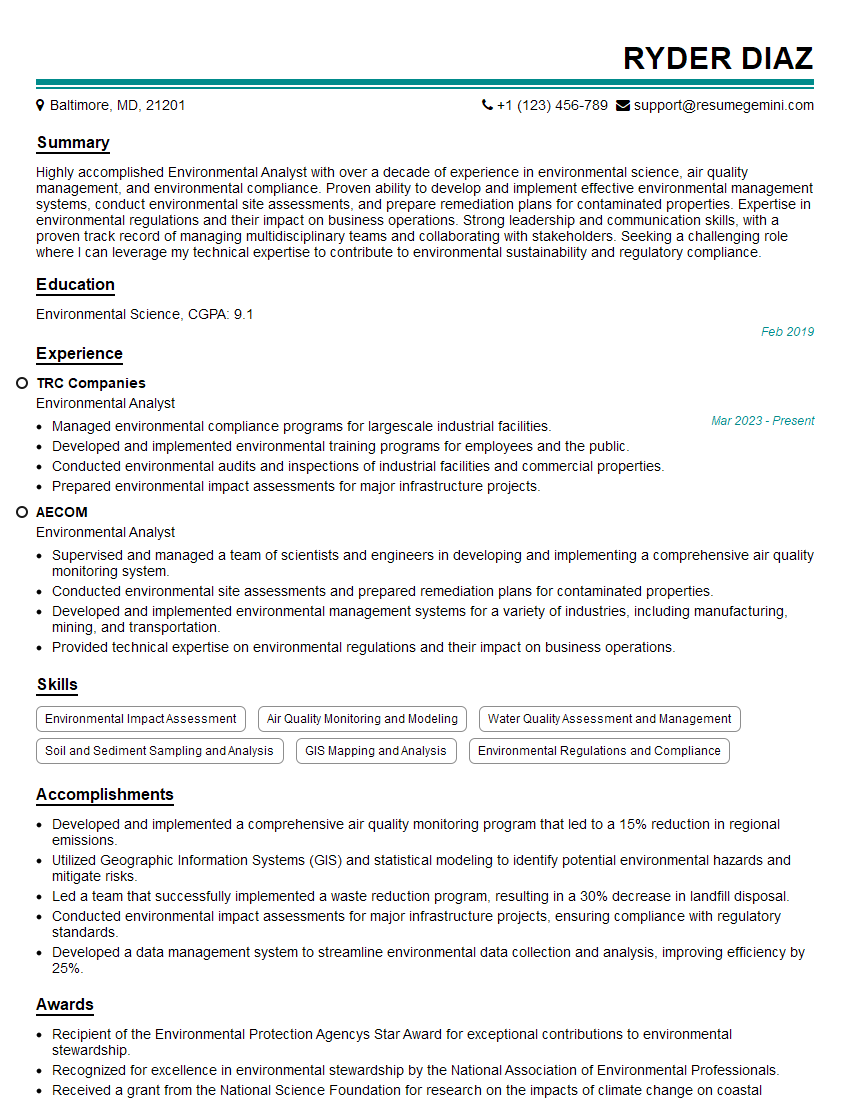
Environmental Analyst Resume Sample

Logistics Analyst Resume Sample
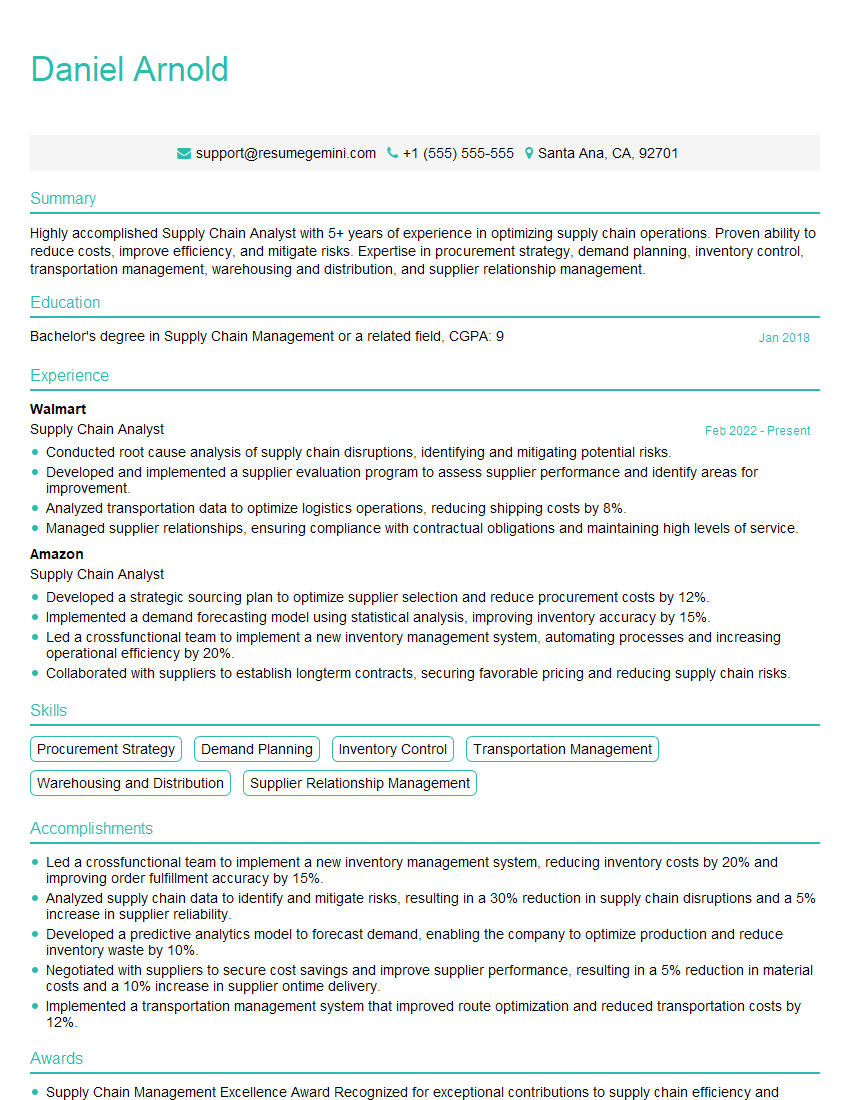
Supply Chain Analyst Resume Sample
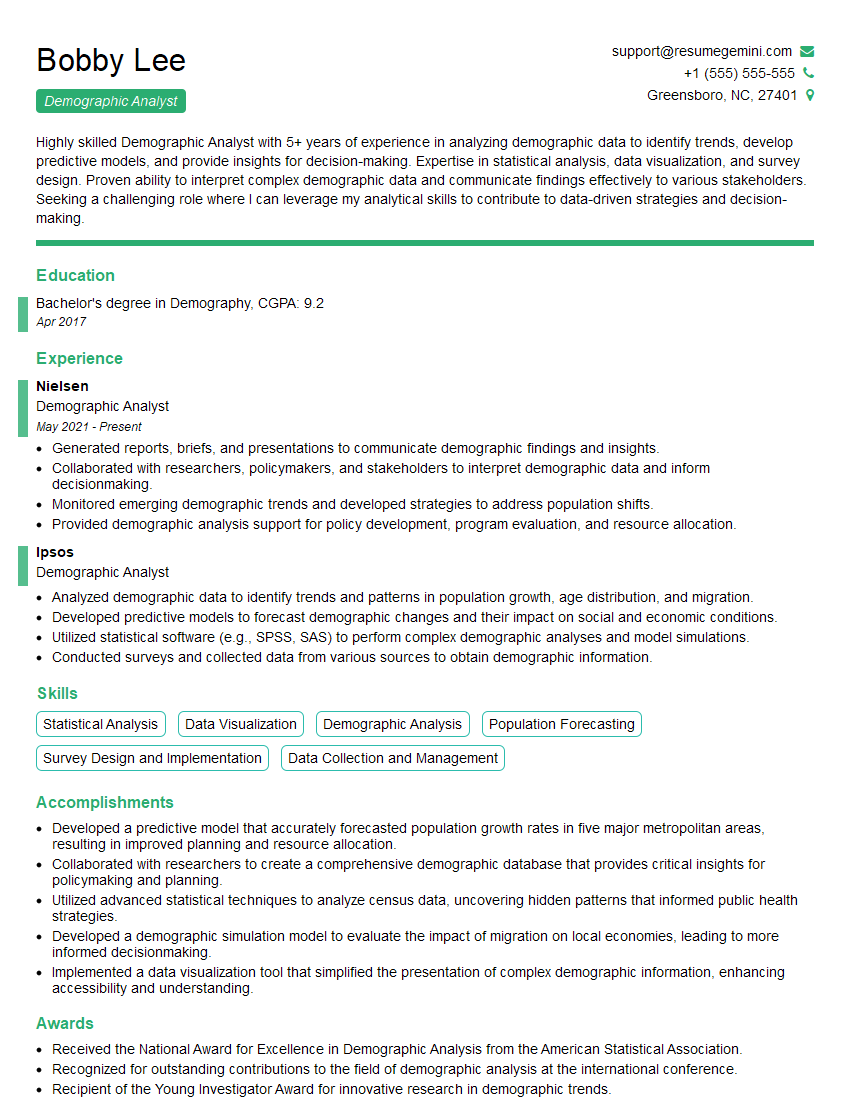
Demographic Analyst Resume Sample
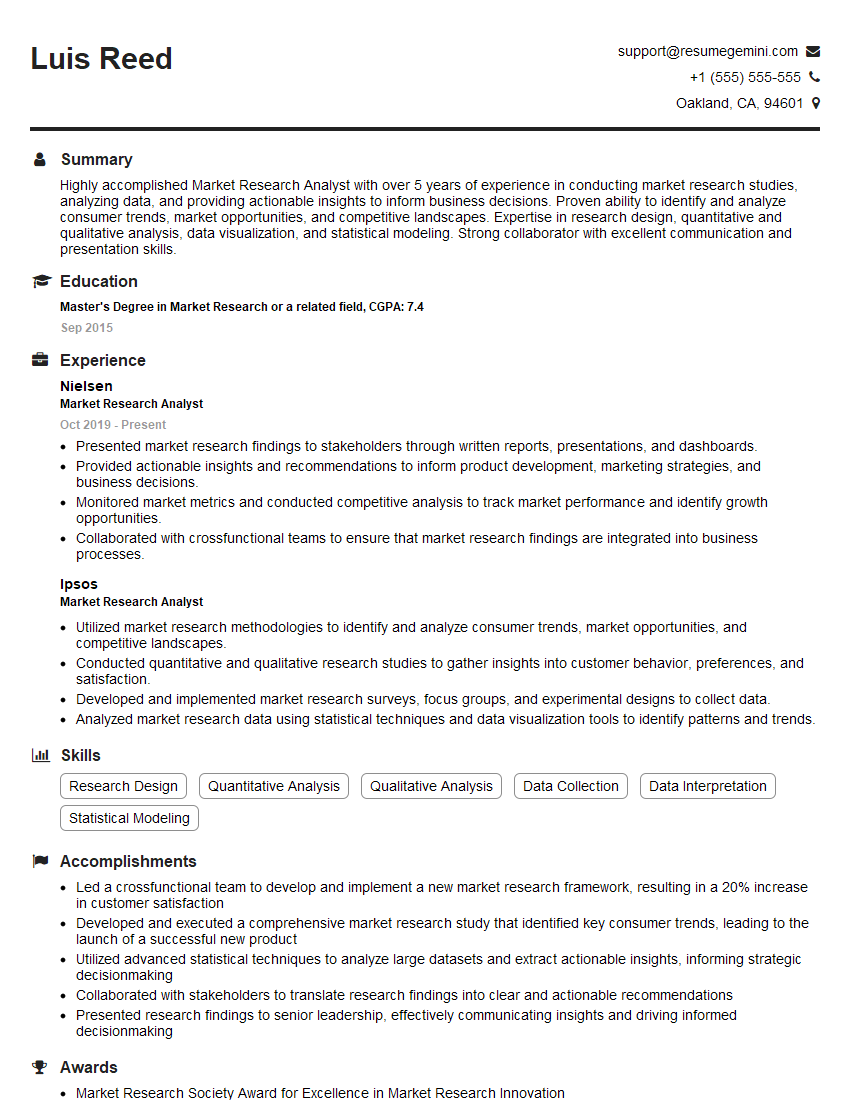
Market Research Analyst Resume Sample
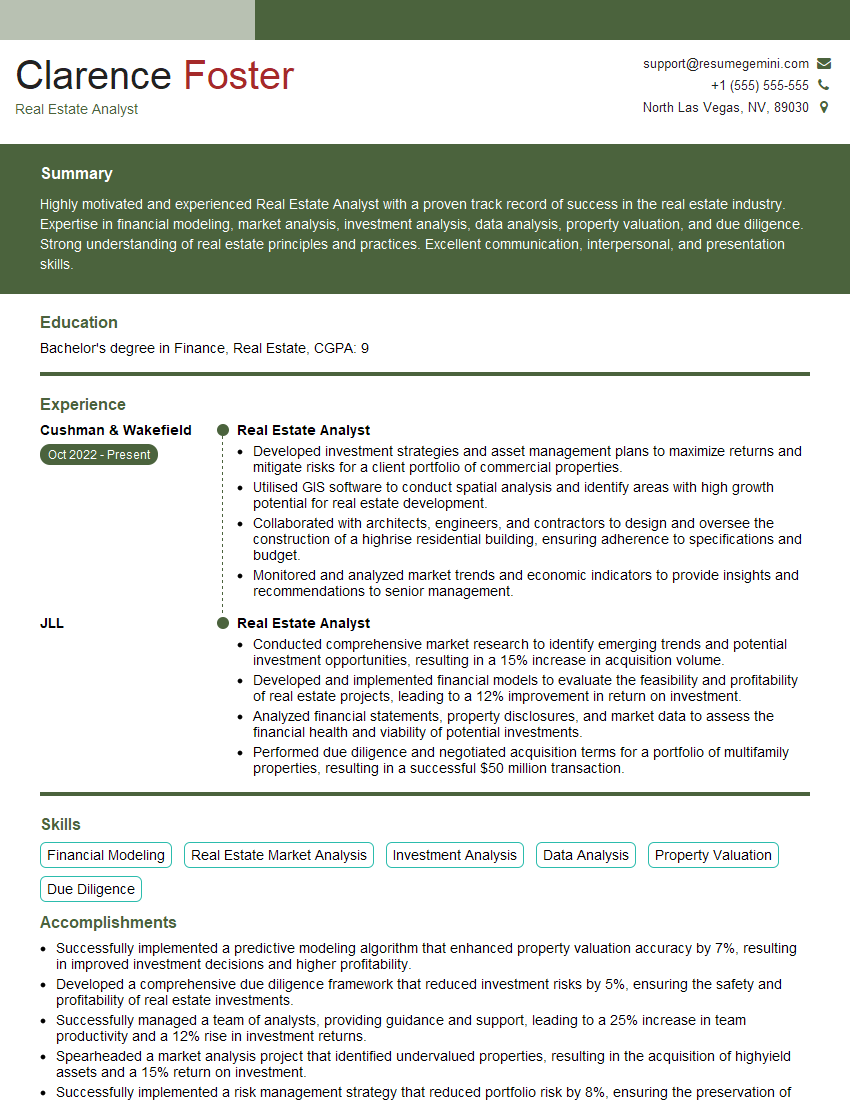
Real Estate Analyst Resume Sample
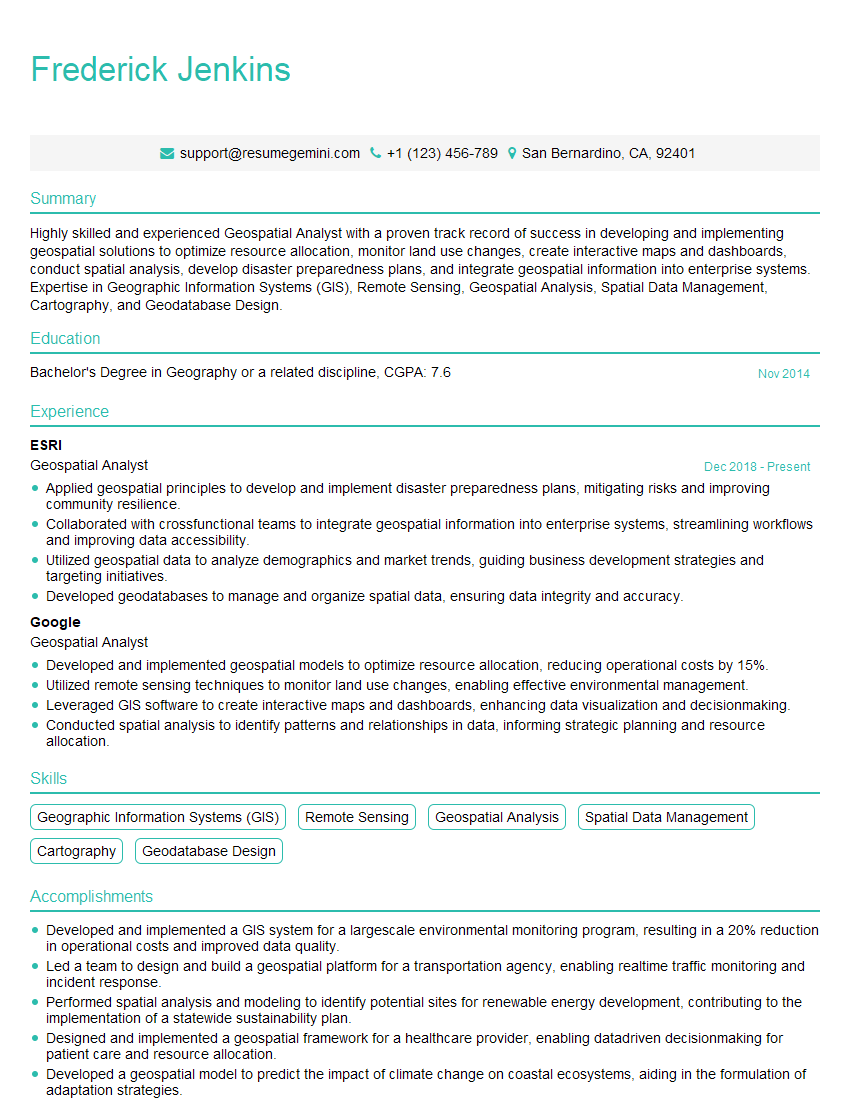
Geospatial Analyst Resume Sample
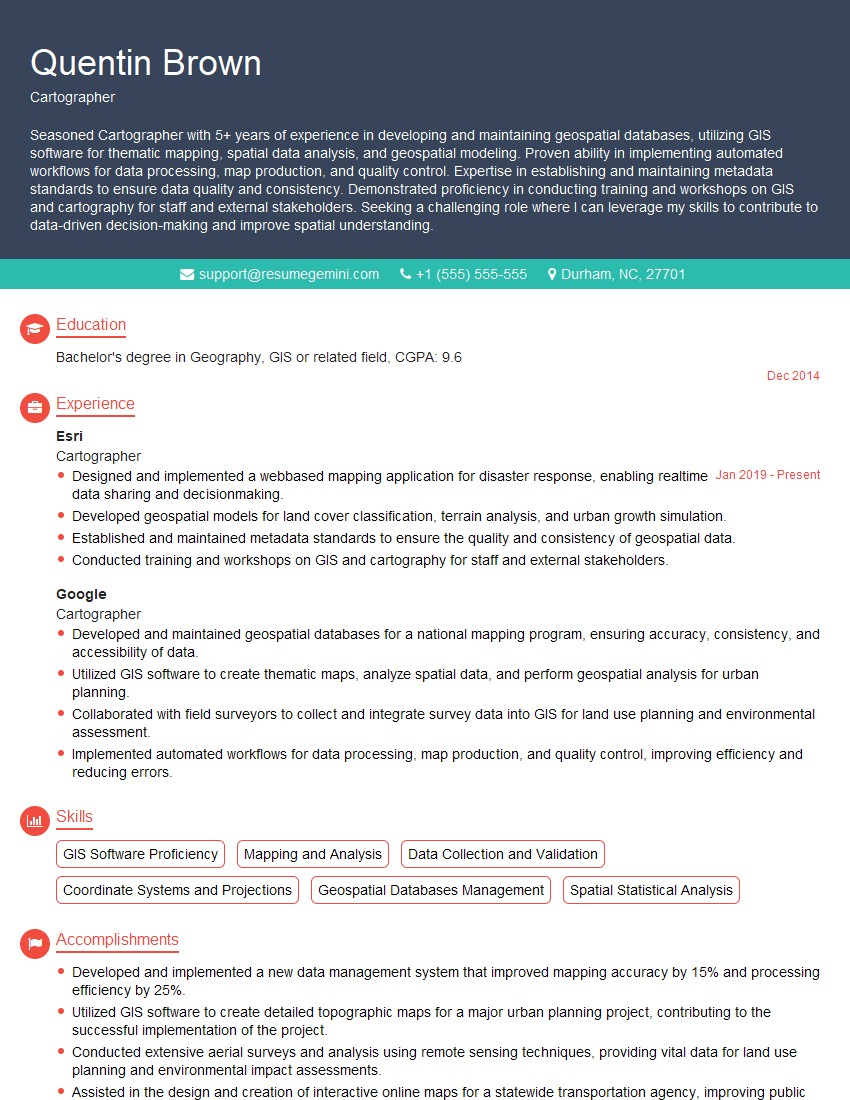
Cartographer Resume Sample
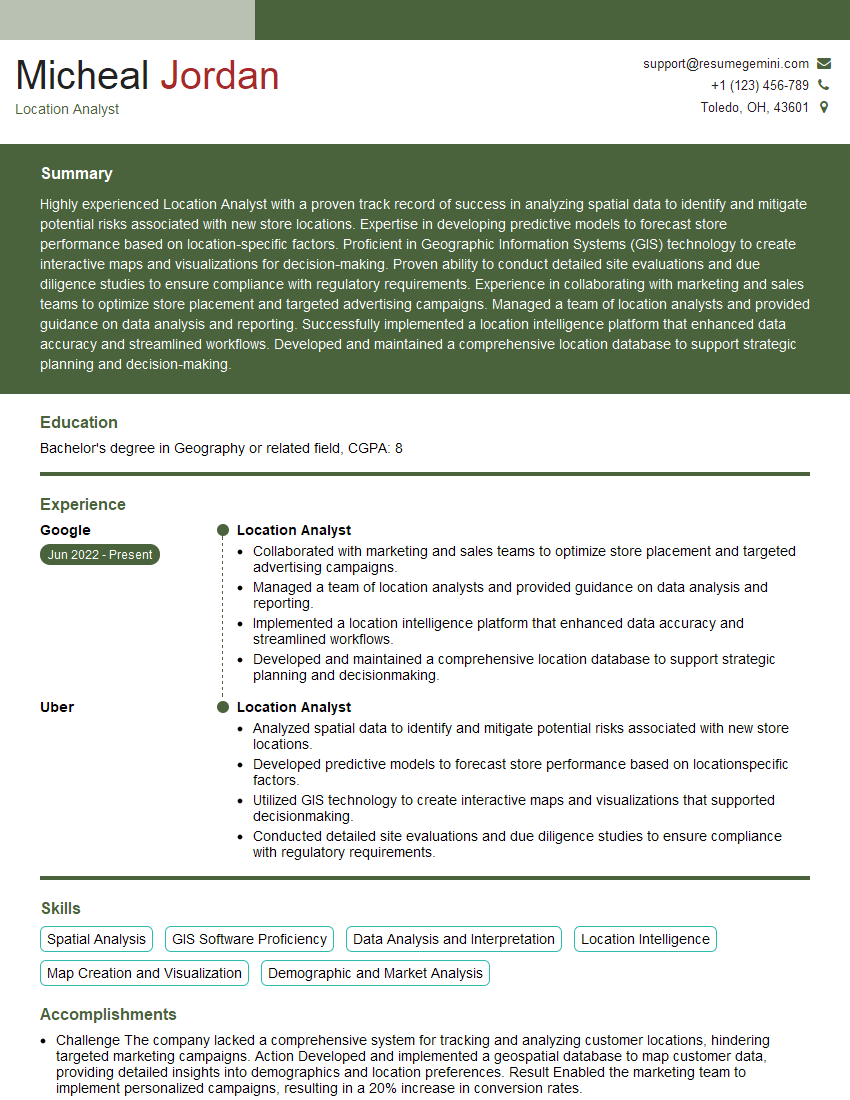
Location Analyst Resume Sample
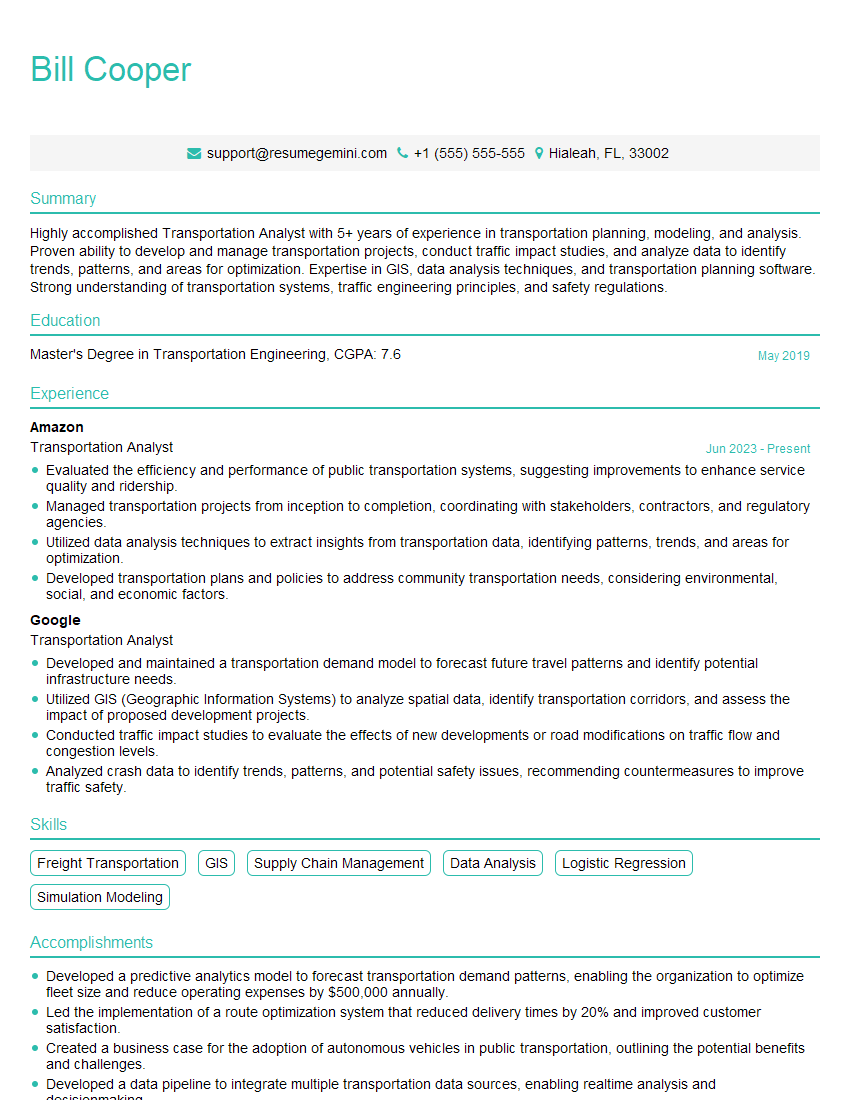
Transportation Analyst Resume Sample
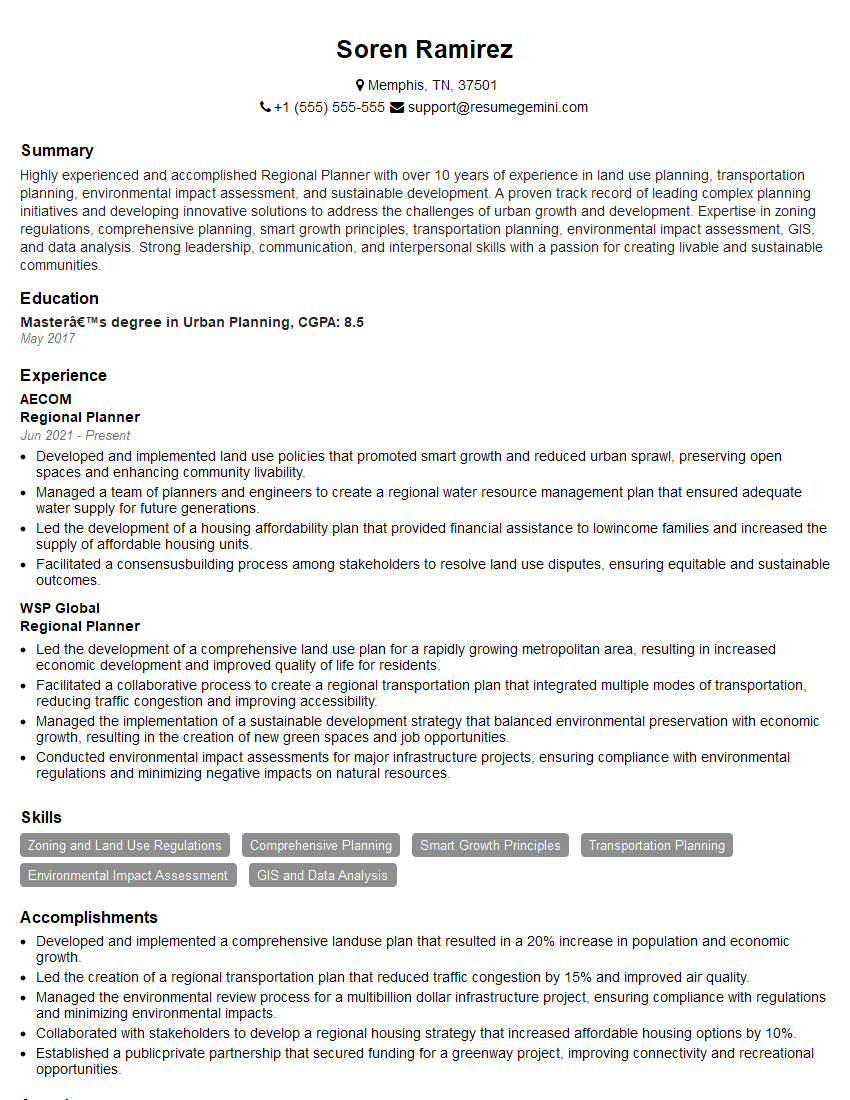
Regional Planner Resume Sample
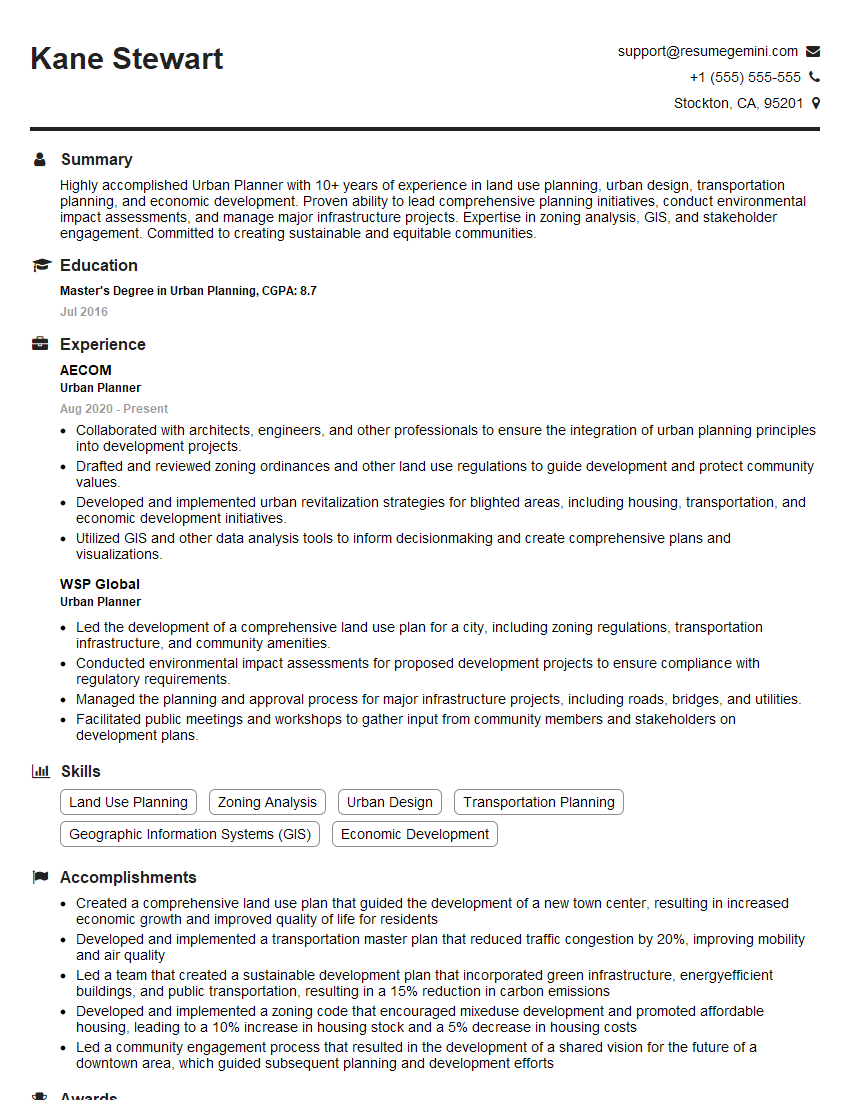
Urban Planner Resume Sample

Public Health Analyst Resume Sample
Explore more articles
Users Rating of Our Blogs
Share Your Experience
We value your feedback! Please rate our content and share your thoughts (optional).
What Readers Say About Our Blog
Amazing blog
Interesting Article, I liked the depth of knowledge you’ve shared.
Helpful, thanks for sharing.