The right preparation can turn an interview into an opportunity to showcase your expertise. This guide to Presentation software (e.g., Microsoft PowerPoint) interview questions is your ultimate resource, providing key insights and tips to help you ace your responses and stand out as a top candidate.
Questions Asked in Presentation software (e.g., Microsoft PowerPoint) Interview
Q 1. Explain the difference between a slide master and a theme in PowerPoint.
Think of a PowerPoint presentation as a house. The theme is like the overall architectural style – the basic color scheme, font choices, and background patterns that apply to the entire house. The slide master, however, is the blueprint for each individual room (slide). It allows you to define placeholders for text, images, and other elements, ensuring consistency across all slides but offering room for variation within that consistent framework.
For example, you might choose a professional theme with a dark blue background and a specific font. But within that theme, the slide master could pre-define a title placeholder, a bullet point list area, and an image placeholder, making it easy to populate each slide with consistent elements without repeatedly formatting them. Changing the theme changes the whole house’s style; modifying the slide master changes individual room layouts within that style.
Q 2. How would you optimize a PowerPoint presentation for a large audience?
Optimizing a PowerPoint presentation for a large audience requires careful consideration of several factors. First, visual clarity is paramount. Use large, easy-to-read fonts (at least 24pt for body text), high-contrast color schemes, and simple, uncluttered layouts. Avoid overwhelming the audience with too much text on a single slide; less is more. Second, ensure accessibility by using sufficient color contrast for those with visual impairments and providing alternative text for images. Third, projector compatibility is crucial – check the aspect ratio and resolution of the projector beforehand and test your presentation before the event to avoid any surprises. Lastly, keep it concise. Respect the audience’s attention span and prioritize key takeaways.
For instance, I once presented to an auditorium of 500 people. To ensure readability, I used a sans-serif font like Arial in 30pt for headings and 28pt for body text. I also pre-tested the presentation on the venue’s projector to confirm that the colors and fonts appeared as intended, resolving a potential issue with a low-resolution projector.
Q 3. Describe your process for creating visually appealing and informative charts and graphs.
Creating effective charts and graphs begins with understanding the data’s story. I start by determining the most appropriate chart type to represent the data accurately and clearly. A bar chart works well for comparisons, a line chart for trends, and a pie chart for proportions. Then, I focus on simplicity. Avoid unnecessary clutter like excessive labels or gridlines. Use clear and concise titles and legends. The visual appeal comes from thoughtful choices of colors and a clean design. A consistent color palette reinforces the data’s flow.
For example, when presenting sales data over time, I’d choose a line chart with distinct line colors for each product category. I’d also use a color-blind friendly palette, ensuring the data is easily understandable for everyone. I’d then meticulously label each axis and add a clear title summarizing the key takeaway.
Q 4. How do you ensure consistency in branding and design across multiple slides?
Consistency in branding and design is maintained through meticulous use of the slide master and themes. I define a consistent set of templates within the slide master that dictates font families, colors, logos, and even image styles. This ensures that each slide aligns with the overall branding guidelines. For complex presentations involving multiple contributors, I provide them with this well-defined template to maintain consistent design.
Imagine a corporate presentation; by defining company logos, fonts (e.g., Arial for headings, Calibri for body), and a specific color palette (e.g., corporate blue and gray) within the slide master, any slide created using that master will automatically inherit the established branding, avoiding visual inconsistencies.
Q 5. What are some best practices for using animation and transitions in a presentation?
Animation and transitions should enhance, not distract. Best practices involve using them sparingly and purposefully. Overuse can be disorienting for the audience. Animations should highlight key information, reveal points sequentially, or create visual interest. Transitions should be subtle and consistent, avoiding jarring changes between slides. I opt for simple, smooth transitions like fades or wipes.
For example, I might animate a bullet point list to appear one point at a time as I explain each, maintaining audience focus. However, I avoid flashy, distracting transitions such as spinning cubes or page curls, focusing on smooth and subtle visual changes that aid understanding.
Q 6. How would you handle incorporating feedback from stakeholders into an existing presentation?
Incorporating stakeholder feedback is crucial for a successful presentation. My process starts by carefully reviewing each comment, categorizing feedback by type (e.g., content, design, clarity). I prioritize feedback based on impact and feasibility. For content changes, I ensure accuracy and consistency with overall message. For design suggestions, I evaluate their alignment with the established branding and overall presentation style. I then update the presentation, documenting all changes, and share the revised version for final approval.
For example, if a stakeholder suggested rewording a section for clarity, I’d revise it, carefully preserving the original meaning while improving its accessibility. If the feedback requested a significant design change, I’d carefully consider its impact on the overall presentation’s consistency and seek confirmation that the change aligns with the larger goals.
Q 7. Explain your approach to creating effective visuals for complex data.
Presenting complex data requires translating intricate information into easily digestible visuals. I start by simplifying the data, focusing on key takeaways. Instead of overwhelming the audience with raw numbers, I choose appropriate chart types (e.g., heatmaps, clustered bar charts, or even interactive dashboards if appropriate) to highlight patterns and relationships. Data visualization tools can be invaluable here. Clear and concise labeling is essential, and I always prioritize a color palette that enhances understanding, not confusion.
Suppose I need to present a vast dataset showing the correlation between customer demographics and product preferences. Instead of dumping a table of numbers, I might create a heatmap showing the strongest correlations, immediately revealing patterns. Or, if dealing with sales data, I might use interactive charts where the user can explore data subsets.
Q 8. What are some techniques for engaging an audience during a PowerPoint presentation?
Engaging an audience during a PowerPoint presentation goes beyond simply displaying information; it’s about creating a connection. Think of it like storytelling – you want to captivate your listeners and make your message memorable. Several techniques can help achieve this.
Interactive elements: Instead of a passive lecture, incorporate polls, quizzes, or Q&A sessions to actively involve your audience. For instance, a quick poll using a tool like Mentimeter can gauge understanding and spark discussion.
Visual storytelling: Use compelling visuals – not just data points, but images, videos, and even short animations – to illustrate your narrative. A well-chosen image can be worth a thousand words and significantly improve engagement. For example, if presenting sales figures, use a chart to visually represent the growth, rather than simply stating the numbers.
Vary your delivery: Avoid monotone delivery! Change your pace, tone, and volume to maintain interest. Incorporate pauses for emphasis and to allow the audience to process information. Think of a comedian – they use timing and inflection to deliver punchlines effectively.
Personal anecdotes: Share relatable stories or personal experiences to connect with your audience on an emotional level. This adds a human touch and makes the information more memorable. For example, if presenting on project management, sharing a brief story about a past challenge and how you overcame it can resonate with the audience.
Humor (when appropriate): A well-placed joke or witty remark can lighten the mood and make your presentation more enjoyable. However, ensure the humor is relevant and appropriate to the context. Avoid anything offensive or potentially alienating.
Q 9. How do you manage multiple versions of a presentation?
Managing multiple versions of a presentation requires a systematic approach to avoid confusion and ensure you’re working with the correct file. Here’s how I handle it:
Version Control System: I often use a version control system like Git (though not directly within PowerPoint itself, but rather for the accompanying presentation notes or source material if created digitally), which allows tracking changes and reverting to previous versions easily. This is particularly useful for collaborative projects.
Descriptive File Names: I use clear and descriptive file names that reflect the version (e.g., “Presentation_v1.pptx”, “Presentation_Final_ClientA.pptx”). This makes it simple to identify the correct file quickly.
Cloud Storage: Storing presentations on cloud services like OneDrive, Google Drive, or Dropbox allows for easy access from multiple devices and helps prevent accidental data loss. Additionally, some cloud services offer version history features.
Backup Strategy: Regular backups are crucial. I save copies to external hard drives or another cloud service in addition to my primary storage location. This ensures protection against data loss.
Save As: Before making significant changes, I always create a new version using the “Save As” function. This allows me to easily revert to previous versions if needed.
Q 10. Describe your experience with PowerPoint’s collaboration features.
PowerPoint’s collaboration features are incredibly valuable for team projects. I’ve extensively used the co-authoring capabilities in PowerPoint Online (within Microsoft 365). This allows multiple users to work on the same presentation simultaneously, in real-time. It’s like a shared whiteboard for presentations.
Real-time Collaboration: Seeing others’ edits as they happen is incredibly efficient. We can discuss changes instantly and avoid conflicting edits.
Comment Feature: The commenting feature allows for feedback and suggestions without directly altering the presentation. It’s ideal for revisions and ensuring everyone’s input is considered.
Version History: PowerPoint Online maintains a version history, letting us easily revert to earlier versions if necessary. This safeguards against accidental deletions or unwanted changes.
Simultaneous Editing: I’ve found that simultaneous editing significantly accelerates the presentation development process, reducing turnaround time and promoting team cohesion.
I have successfully used these features on several projects, resulting in improved teamwork and quicker project completion.
Q 11. What file formats are suitable for exporting PowerPoint presentations?
PowerPoint offers a variety of export formats, each with its own advantages. The choice depends on the intended use of the presentation.
PPTX (PowerPoint Presentation): This is the native format, preserving all formatting and features. It’s the best option if you anticipate further edits or want to retain maximum fidelity.
PPT (PowerPoint Presentation 97-2003): A legacy format compatible with older versions of PowerPoint. Use this only if backward compatibility is absolutely essential.
PDF (Portable Document Format): A universally compatible format suitable for sharing with a wide audience, including those without PowerPoint. The layout and formatting remain consistent across different devices and operating systems.
PNG/JPEG (Image Formats): You can export individual slides as images, which is useful if you need to use them in other applications or online platforms.
MP4 (Video Format): PowerPoint allows exporting the entire presentation as a video file which can be readily shared or embedded in web pages. This can help when you need a self-running presentation.
Q 12. How do you ensure accessibility in your PowerPoint presentations?
Accessibility is crucial to ensure that everyone can access and understand your presentation, regardless of their abilities. I focus on several key aspects to ensure accessibility:
Alternative Text for Images: Always provide alternative text (alt text) for all images. This describes the image for screen readers used by visually impaired individuals. For example, instead of just having an image of a graph, add alt text describing the data points represented.
High Contrast: Use sufficient contrast between text and background colors to ensure readability for people with low vision. Avoid using colors that are too similar.
Clear Font Choices: Choose clear and easy-to-read fonts like Arial or Calibri, and use a sufficiently large font size.
Captioning and Transcripts: If you use audio or video, provide captions or transcripts to make it accessible to individuals who are deaf or hard of hearing.
Structured Content: Use headings, subheadings, and bullet points to organize the information logically. This helps screen readers navigate and interpret the content effectively.
Keyboard Navigation: Ensure that all interactive elements can be accessed using the keyboard only, making the presentation usable for people with limited motor skills.
Before finalizing a presentation, I use the built-in accessibility checker within PowerPoint to identify and correct any potential issues.
Q 13. What are some tips for creating concise and impactful bullet points?
Concise and impactful bullet points are essential for effective presentations. They should serve as signposts guiding the audience through your key messages. Here are some tips:
Keep it short: Each bullet point should contain only one key idea or concept. Aim for a maximum of six to seven words per bullet point.
Use strong verbs: Start each bullet point with a strong verb to make it active and engaging. For instance, instead of “The project is completed,” use “Completed the project.”
Parallel structure: Maintain a consistent grammatical structure for all bullet points within the same list. This improves readability and coherence.
Focus on keywords: Use keywords that are easily memorable and directly relate to your main points.
Avoid jargon: Unless you are certain your audience understands the terms, avoid technical jargon. Replace it with clear and simple language.
Visual hierarchy: Use bullet points, numbering, or different font sizes/weights to create a visual hierarchy for your key points, making them easily scannable.
Think of bullet points as concise summaries of your key arguments, not full sentences. They should spark your narrative, not replace it.
Q 14. How do you use visuals to support your narrative in a presentation?
Visuals are powerful tools that can significantly enhance your narrative in a presentation. They don’t just illustrate data; they communicate your message visually and emotionally.
Choose relevant visuals: Select images, charts, graphs, or videos that directly support your key points. Avoid using irrelevant visuals that distract the audience.
Data Visualization: Use charts and graphs to present complex data in an easily digestible manner. Choose the right chart type for your data (e.g., bar chart for comparisons, line chart for trends).
High-quality images: Use high-resolution images that are clear, sharp, and visually appealing. Avoid using low-quality or blurry images.
Visual consistency: Maintain visual consistency throughout your presentation by using a consistent color palette, font style, and image style.
Strategic placement: Carefully place your visuals on the slide to avoid cluttering and to maintain a clear visual flow. Ensure there’s sufficient space for text and images.
Minimalist approach: Avoid overwhelming your audience with too many visuals on a single slide. Less is often more.
Remember, visuals are a supporting element to your narrative, not the main focus. They should complement your spoken words and reinforce your key points, making your presentation more impactful and memorable.
Q 15. Describe your experience with creating presentations for different audiences.
Creating effective presentations hinges on understanding the audience. I tailor my approach based on factors like their level of expertise, their interests, and the overall purpose of the presentation. For example, a presentation for a group of seasoned executives will differ significantly from one for a team of new hires. For executives, I might focus on concise data visualization and high-level strategic points, using sophisticated charts and minimal text. For new hires, I might use more illustrative examples, simpler language, and a more step-by-step approach. I always consider the context – is it a sales pitch, a training session, or a progress report? Each requires a distinct style and tone.
In practice, this means carefully crafting the narrative, selecting appropriate visuals, and choosing a delivery style that resonates with the target group. I always aim for clarity and impact, regardless of the audience.
- Example 1: For a technical audience, I would include detailed diagrams and specifications, while for a non-technical audience, I would use analogies and metaphors to explain complex concepts.
- Example 2: Presenting to a board of directors requires a formal tone and focus on key performance indicators (KPIs), whereas presenting to a sales team might involve more interactive elements and discussion of strategies.
Career Expert Tips:
- Ace those interviews! Prepare effectively by reviewing the Top 50 Most Common Interview Questions on ResumeGemini.
- Navigate your job search with confidence! Explore a wide range of Career Tips on ResumeGemini. Learn about common challenges and recommendations to overcome them.
- Craft the perfect resume! Master the Art of Resume Writing with ResumeGemini’s guide. Showcase your unique qualifications and achievements effectively.
- Don’t miss out on holiday savings! Build your dream resume with ResumeGemini’s ATS optimized templates.
Q 16. What are your go-to resources for improving your PowerPoint skills?
Continuously improving my PowerPoint skills involves leveraging several key resources. I regularly explore online tutorials and courses on platforms like LinkedIn Learning and Coursera, focusing on advanced features and design principles. I also actively engage with design blogs and communities, such as those focused on visual communication and presentation design, to stay abreast of best practices and emerging trends. Books on presentation skills, such as those by Garr Reynolds and Nancy Duarte, are valuable additions to my learning arsenal. Finally, I critically analyze high-quality presentations from various fields, paying close attention to their structure, visuals, and narrative flow. This deconstruction helps me understand what makes a presentation truly effective.
Q 17. How do you handle last-minute changes to a presentation?
Handling last-minute changes requires a calm and methodical approach. My first step is to understand the nature and scope of the change. Is it a minor tweak to data, or a significant restructuring of the presentation’s narrative? For minor changes, I can quickly update the relevant slides while ensuring consistency with the overall design. For major changes, I prioritize the most crucial information and reorganize the content logically. I use PowerPoint’s features, such as the ability to easily copy and paste, move, and rearrange slides, to my advantage. Time management is crucial; I determine what can be sacrificed or simplified to meet the deadline without compromising core message delivery. Clear communication with stakeholders regarding the adjustment is essential to ensure everyone’s on the same page.
I always keep a backup version of my presentation in case something goes wrong.
Q 18. Describe a time you had to troubleshoot a PowerPoint issue.
In one instance, I was preparing a presentation with many high-resolution images, causing the file size to become excessively large. This resulted in slow loading times and even occasional crashes during the presentation. The issue wasn’t immediately apparent; it took a while to pinpoint the culprit. My troubleshooting process involved systematically identifying the problem. I first checked the individual file sizes of the images. I then tested reducing image compression while maintaining reasonable quality. I discovered that converting some images to a less resource-intensive format drastically improved performance without sacrificing visual clarity. The solution involved a combination of technical understanding and problem-solving skills, which allowed me to deliver the presentation successfully.
Q 19. How do you ensure your presentation aligns with the overall message?
Aligning the presentation with the overall message is paramount. I begin by defining the core message or key takeaway I want the audience to remember. This message becomes the guiding principle throughout the design and development process. Each slide, each visual, each piece of data should directly support this central idea. I create an outline that maps the narrative flow, ensuring a coherent journey from introduction to conclusion. This structured approach helps maintain focus and prevents digressions. Regular checks throughout the process help ensure that every element contributes to reinforcing the core message.
Think of it like building a house; the message is the blueprint, and each slide is a part of the structure, all working together to create a cohesive whole.
Q 20. Explain your process for choosing appropriate fonts and colors for a presentation.
Choosing appropriate fonts and colors is crucial for visual appeal and readability. I select fonts that are both legible and visually consistent with the brand or the presentation’s tone. Sans-serif fonts like Arial or Calibri are generally preferred for their readability on screen, while serif fonts like Times New Roman might be used for more formal occasions. I avoid using too many different fonts to prevent a cluttered or unprofessional appearance. Color selection is equally important. I typically use a limited palette to maintain consistency and visual harmony. I consider the psychological impact of colors—e.g., blues often convey trust and calmness, while reds might signify urgency or excitement. Accessibility is also a priority; I ensure sufficient contrast between text and background colors for optimal readability, particularly for individuals with visual impairments. Tools like the color contrast checker help to ensure accessibility standards are met.
Q 21. How do you incorporate multimedia elements (audio, video) effectively into your presentations?
Multimedia elements like audio and video can significantly enhance presentations, but their integration must be purposeful and well-planned. I use audio sparingly, mainly for voiceovers in short, relevant segments or background music to set the mood (only if appropriate for the context). Video clips are used strategically to illustrate points or provide engaging visuals, keeping them concise and relevant. I always ensure that any embedded media is high-quality and professionally produced, as low-quality audio or video can detract from the presentation. Crucially, I preview all multimedia elements thoroughly to prevent technical issues during the presentation. I also consider accessibility – providing captions for videos and alternative text for audio clips for viewers with disabilities.
Before incorporating any multimedia, I always ask myself: Does this add value and enhance understanding, or is it simply a distraction? Only if the answer is the former do I include it.
Q 22. How familiar are you with PowerPoint’s features for creating interactive presentations?
PowerPoint offers a robust suite of tools for creating interactive presentations, far beyond simple slide transitions. I’m highly familiar with features like hyperlinks, embedded videos, animations, and the use of action buttons to navigate between slides or trigger specific content. These allow for a dynamic experience that keeps the audience engaged.
- Hyperlinks: I use hyperlinks extensively to connect slides, link to external resources (websites, documents), or even jump to specific points within a long presentation. For instance, if I’m discussing different project phases, each phase could be a hyperlink to a detailed slide.
- Embedded Videos and Audio: Multimedia significantly enhances engagement. I seamlessly integrate relevant videos or audio clips to illustrate complex ideas or add a human touch. Imagine using a short video testimonial in a marketing presentation.
- Animations and Transitions: While using these sparingly is crucial to avoid overwhelming the audience, well-placed animations can emphasize key points or guide the eye. I utilize subtle animations to draw attention to specific data points in a chart, for example.
- Action Buttons: These provide interactive choices, enabling viewers to control the flow of the presentation. They’re ideal for quizzes, branching scenarios, or allowing users to explore topics at their own pace. Imagine a presentation on investment choices where users click buttons to explore different strategies.
My approach is always to prioritize user experience. Overuse of interactive elements can be distracting. I carefully consider where these features add value and avoid overwhelming the audience.
Q 23. What techniques do you employ to create a visually engaging narrative arc in your presentation?
Creating a visually engaging narrative arc involves a deliberate structuring of information and design elements to guide the audience through a compelling story. This goes beyond simply presenting facts; it’s about crafting an emotional journey.
- Clear Introduction: The beginning should immediately grab attention—a captivating image, a provocative question, or a compelling statistic. Think of it like the hook of a good story.
- Building Momentum: Subsequent slides should build upon each other, progressively unveiling information and maintaining a consistent pace. I use visuals like timelines or progressive reveals to guide the flow.
- Climax and Resolution: A strong narrative arc culminates in a powerful climax, the main takeaway or conclusion. This is followed by a concise summary or call to action to leave a lasting impression.
- Visual Consistency: Maintaining a consistent color palette, font, and visual style throughout the presentation provides visual cohesion and strengthens the narrative.
- Visual Hierarchy: Using size, color, and placement of elements directs the audience’s attention to the most important information. I often use visual cues like arrows or highlighting to guide the viewer’s eye.
For example, in a presentation on a product launch, the introduction might showcase a problem the product solves, followed by slides explaining features, benefits, and finally a call to action – pre-orders or early bird discounts.
Q 24. How do you prioritize content when creating a presentation with time constraints?
When time is limited, prioritizing content is critical. My approach involves a combination of ruthless editing and strategic selection.
- Define Objectives: Before starting, I clearly define the key takeaways I want the audience to remember. This helps eliminate unnecessary information.
- Content Mapping: I create a content map outlining the essential points and their logical order. This allows me to easily identify less critical information that can be removed or summarized.
- The Pareto Principle (80/20 Rule): I focus on the 20% of the content that delivers 80% of the impact. This means concentrating on the most vital messages and cutting out anything tangential.
- Prioritize Visuals: Concise visuals like charts, graphs, and images can communicate complex information more efficiently than lengthy text.
- Rehearse and Time: I always rehearse the presentation to ensure I stay within the allotted time and adjust content accordingly.
For instance, if I’m presenting a research paper, I would prioritize the core findings, methods, and implications over detailed background information. I’d make the background accessible separately, perhaps as an appendix, for anyone who wants to delve deeper.
Q 25. Describe your experience with using templates versus creating presentations from scratch.
My experience encompasses both using templates and creating presentations from scratch, each approach having its advantages.
- Templates: Templates provide a solid foundation for a consistent look and feel, saving time on basic design elements. They’re particularly useful for presentations with a defined style guide or when time is of the essence. However, reliance on templates can sometimes limit creativity and lead to generic-looking presentations if not customized effectively.
- From Scratch: Designing presentations from scratch offers maximum creative control and allows for a unique visual style perfectly tailored to the content and audience. This requires more time and design skill but can result in more impactful and memorable presentations.
My choice depends on the project’s needs. For corporate reports where consistency is crucial, I’d likely use a template, while for a more creative project, like a marketing pitch, I prefer building from scratch to ensure complete alignment with the brand’s identity.
Q 26. How do you ensure your presentations are visually clear and easy to understand?
Visual clarity is paramount. I employ several techniques to ensure my presentations are easy to understand.
- Minimalist Design: I avoid clutter by using whitespace effectively and limiting the number of elements on each slide. Too much information overwhelms the audience.
- Clear Typography: I select legible fonts in appropriate sizes, ensuring sufficient contrast between text and background. I also use headings, subheadings, and bullet points to structure the information hierarchically.
- Consistent Color Palette: A limited color scheme enhances visual harmony and avoids jarring transitions. I use color strategically to emphasize key information.
- High-Quality Images and Graphics: I use professional-quality images and graphics that are relevant, high-resolution, and visually appealing. Poor-quality images detract from the presentation’s credibility.
- Data Visualization: I employ effective data visualization techniques (charts, graphs) to present complex data in an easily digestible format.
For example, instead of a dense paragraph explaining sales figures, I’d use a clear and concise bar chart highlighting key trends.
Q 27. Explain your process for organizing and structuring information within a PowerPoint presentation.
My process for organizing and structuring information involves a clear framework that prioritizes logical flow and audience comprehension.
- Outline: I begin by creating a detailed outline of the presentation’s content, breaking down the topic into key sections and sub-sections. This helps me organize thoughts and ensure a logical progression.
- Storyboarding: I often create a storyboard, sketching out each slide’s visual layout and content before actually creating the slides. This helps visualize the flow and identify any potential gaps or inconsistencies.
- Slide Structure: Each slide generally focuses on a single idea or key point. I use headings, bullet points, and visuals to clearly communicate information concisely. I generally adhere to the ‘rule of seven’ – no more than seven bullet points per slide, and no more than seven words per bullet point.
- Transitions and Connections: I carefully plan transitions between slides to ensure a smooth and logical flow. I use clear signposting to guide the audience through the presentation’s structure.
- Summary and Conclusion: The presentation concludes with a strong summary of key points and a clear call to action, reinforcing the main message.
Think of it as writing a well-structured essay: an introduction, multiple supporting paragraphs, and a conclusion. This framework is applicable to almost any presentation regardless of the subject matter.
Q 28. What strategies do you use to maintain audience engagement throughout a presentation?
Maintaining audience engagement requires a multifaceted approach that combines strong content with interactive delivery techniques.
- Interactive Elements: As discussed earlier, interactive elements such as polls, quizzes, or Q&A sessions can significantly increase engagement.
- Storytelling: Weaving a compelling narrative into the presentation helps capture the audience’s attention and make the content more memorable. Relatable stories and anecdotes enhance connection.
- Visual Variety: Using diverse visual aids like images, videos, charts, and diagrams prevents monotony and keeps the audience visually stimulated.
- Active Participation: Encourage audience participation through questions, discussions, or small group activities. This transforms the presentation from a passive lecture into an interactive experience.
- Body Language and Delivery: My presentation style is confident, enthusiastic, and engaging. I use variations in tone, pace, and body language to emphasize key points and maintain audience interest.
- Humor (when appropriate): Well-placed humor can be a powerful tool for connecting with the audience and making the presentation more memorable. However, it’s crucial to ensure humor is relevant and appropriate for the context.
For example, I might incorporate a short poll during a presentation to gauge the audience’s understanding or use a brief anecdote to illustrate a point.
Key Topics to Learn for Presentation Software (e.g., Microsoft PowerPoint) Interview
- Mastering the Interface: Understanding the ribbon, menus, and quick access toolbar. Knowing how to efficiently navigate and customize the workspace.
- Slide Design and Layout: Creating visually appealing and effective slides using appropriate templates, fonts, colors, and images. Understanding the principles of visual communication and information hierarchy.
- Content Creation and Organization: Structuring presentations logically with clear headings, subheadings, and bullet points. Using effective storytelling techniques to engage the audience.
- Animations and Transitions: Utilizing animations and transitions effectively to enhance the presentation without overwhelming the audience. Knowing when to use them and when to keep it simple.
- Data Visualization: Creating charts and graphs to effectively communicate data insights. Selecting the most appropriate chart type for the data and audience.
- Presentation Delivery: Understanding the importance of practicing and delivering a confident and engaging presentation. Knowing how to handle Q&A effectively.
- Advanced Features: Explore features like hyperlinks, embedded media, speaker notes, and collaboration tools. Understanding their practical applications.
- Troubleshooting and Problem-Solving: Knowing how to handle common issues like formatting problems, corrupted files, and technical difficulties during a presentation.
Next Steps
Mastering presentation software like Microsoft PowerPoint is crucial for career advancement across numerous fields. From delivering compelling pitches to presenting complex data, these skills are highly valued by employers. To significantly improve your job prospects, it’s essential to create an ATS-friendly resume that showcases your proficiency. ResumeGemini is a trusted resource to help you build a professional and impactful resume that highlights your skills effectively. Examples of resumes tailored to showcasing Presentation Software expertise are available through ResumeGemini, providing you with a strong foundation for your job search.
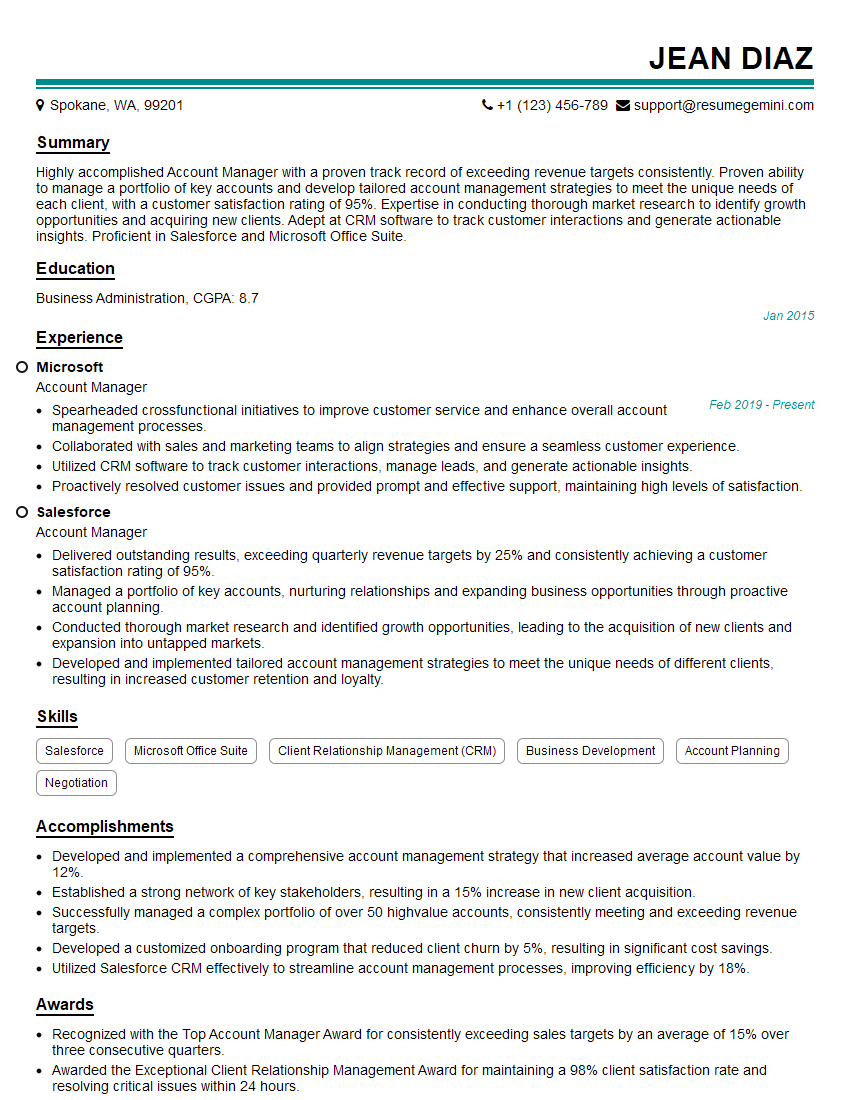
Account Manager Resume Sample
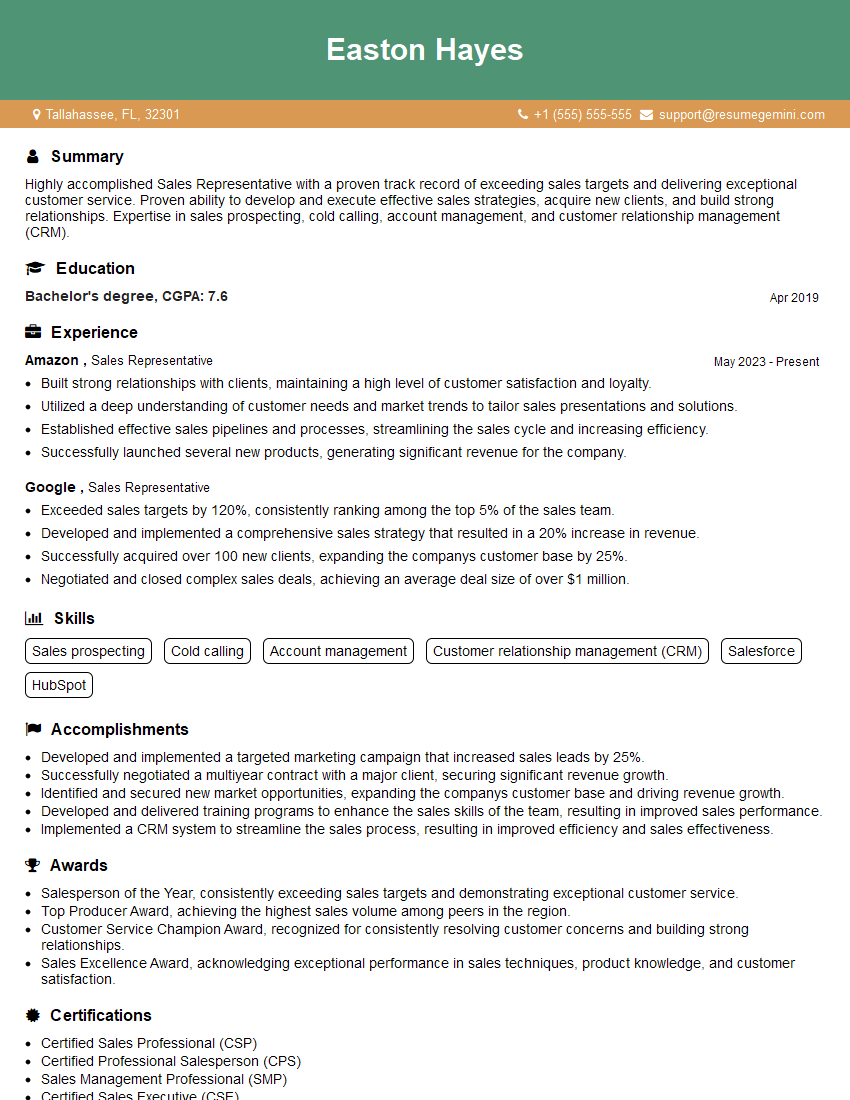
Sales Representative Resume Sample

Communications Manager Resume Sample
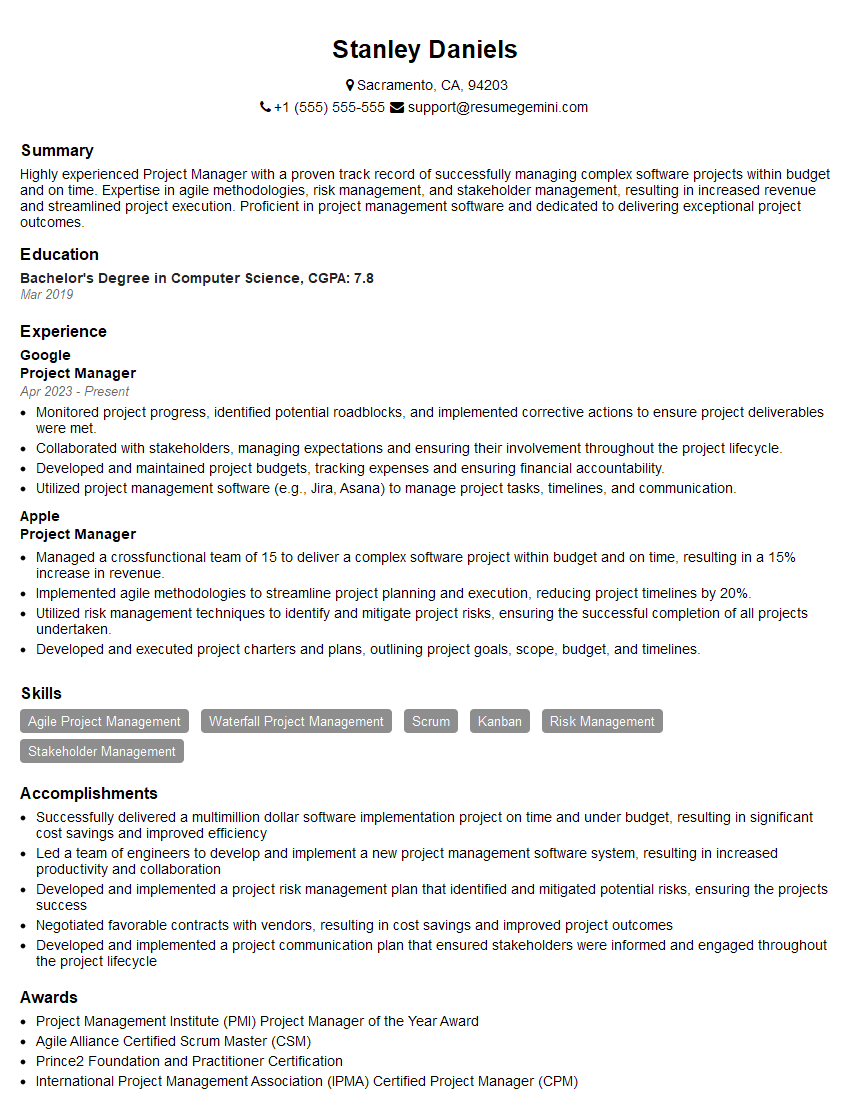
Project Manager Resume Sample

Business Analyst Resume Sample
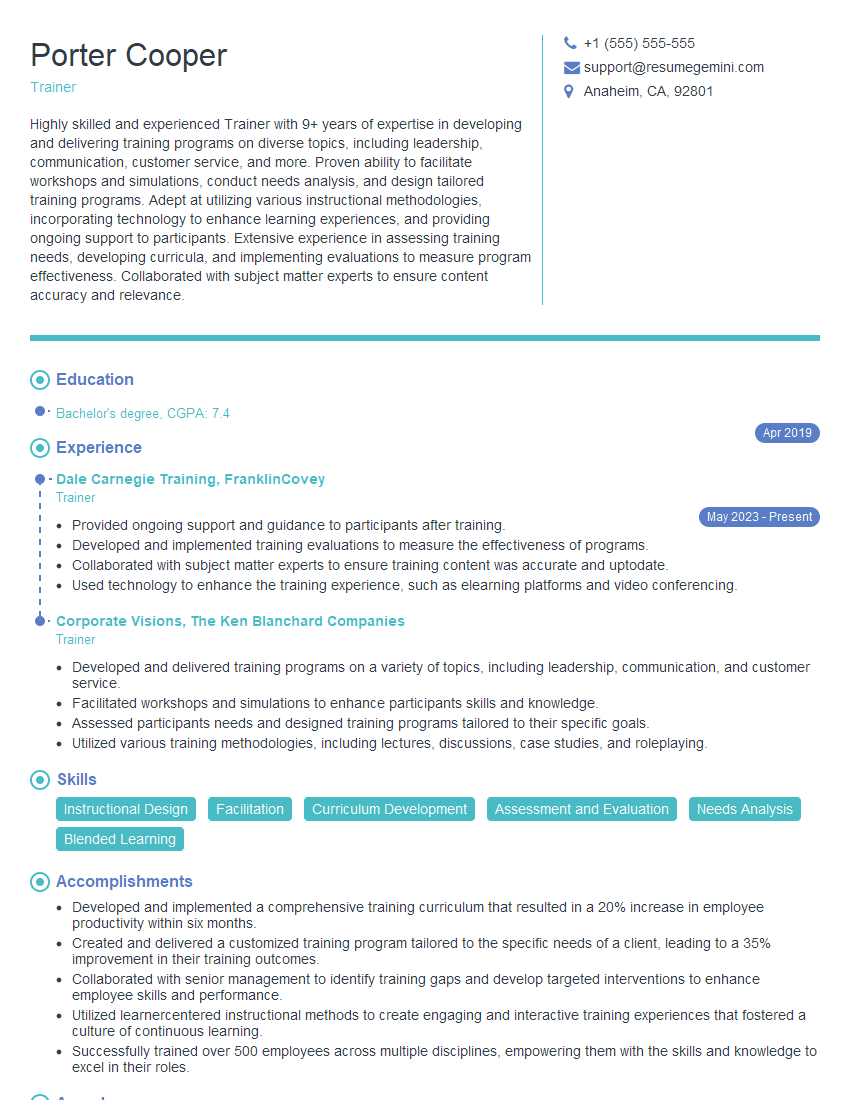
Trainer Resume Sample

Training Specialist Resume Sample
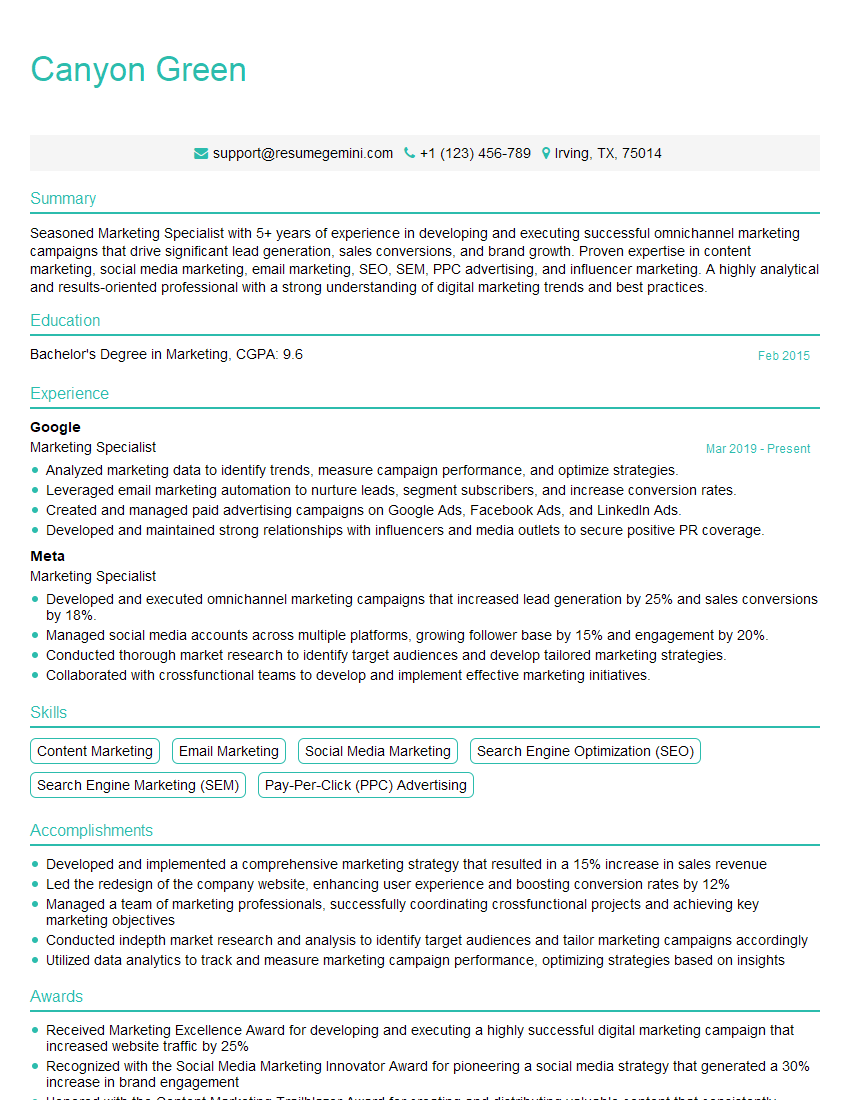
Marketing Specialist Resume Sample

Data Analyst Resume Sample

Web Designer Resume Sample
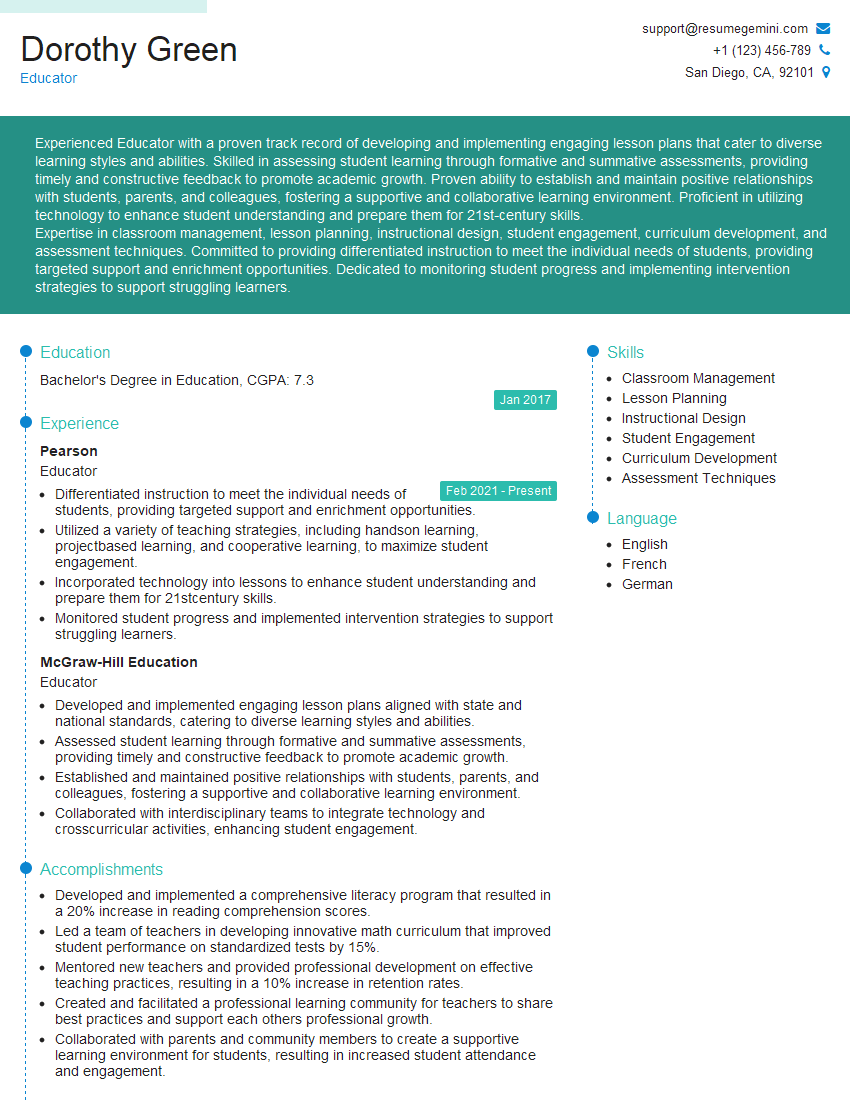
Educator Resume Sample
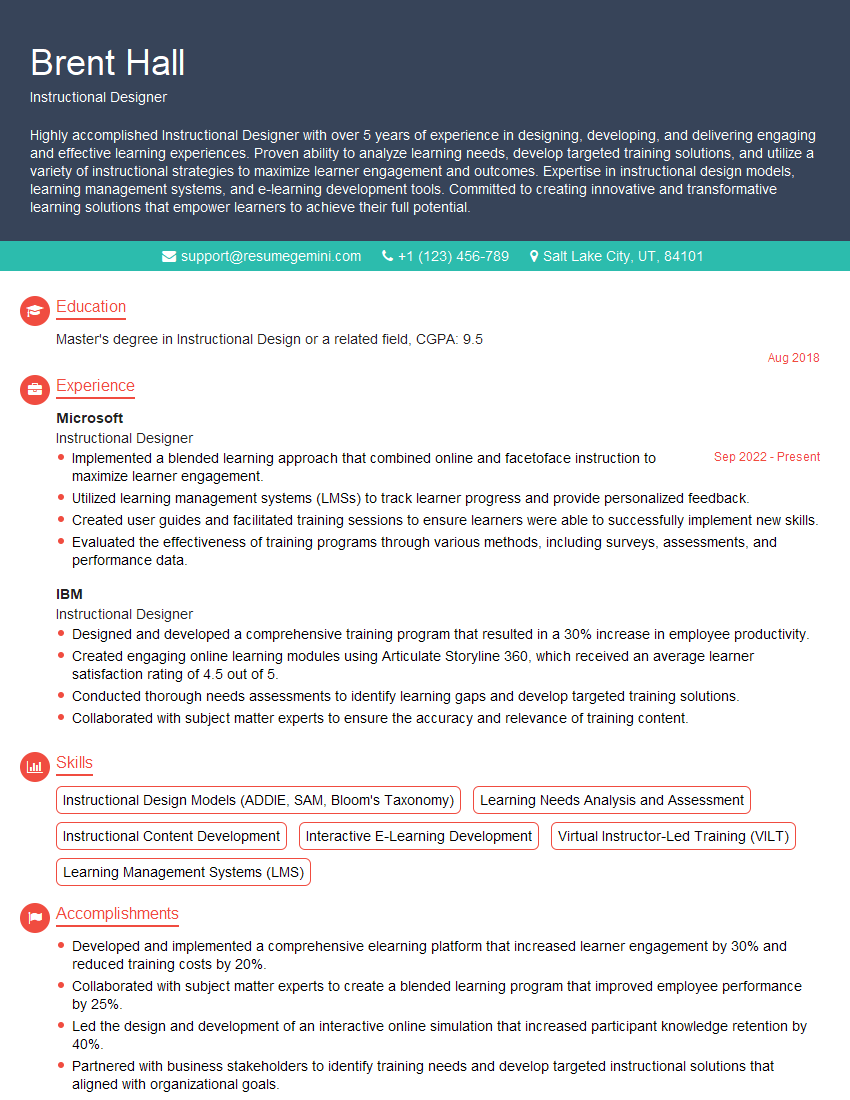
Instructional Designer Resume Sample
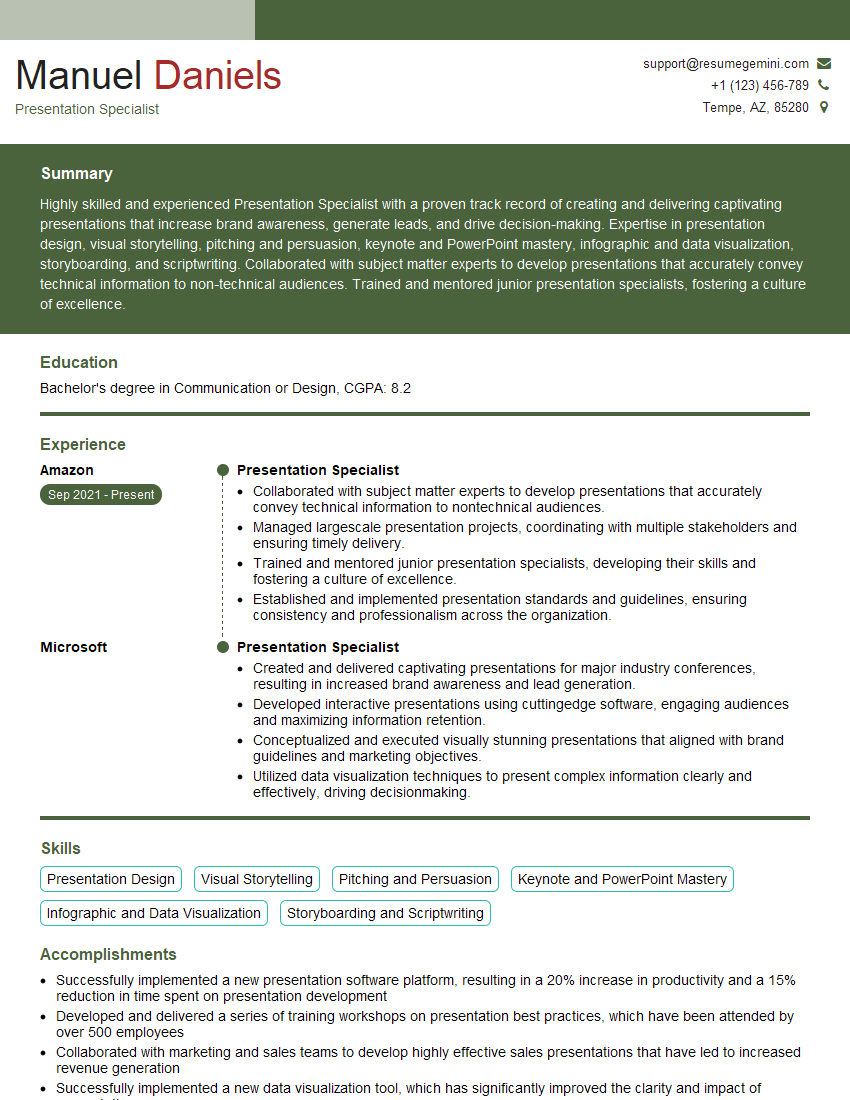
Presentation Specialist Resume Sample

Graphic Designer Resume Sample
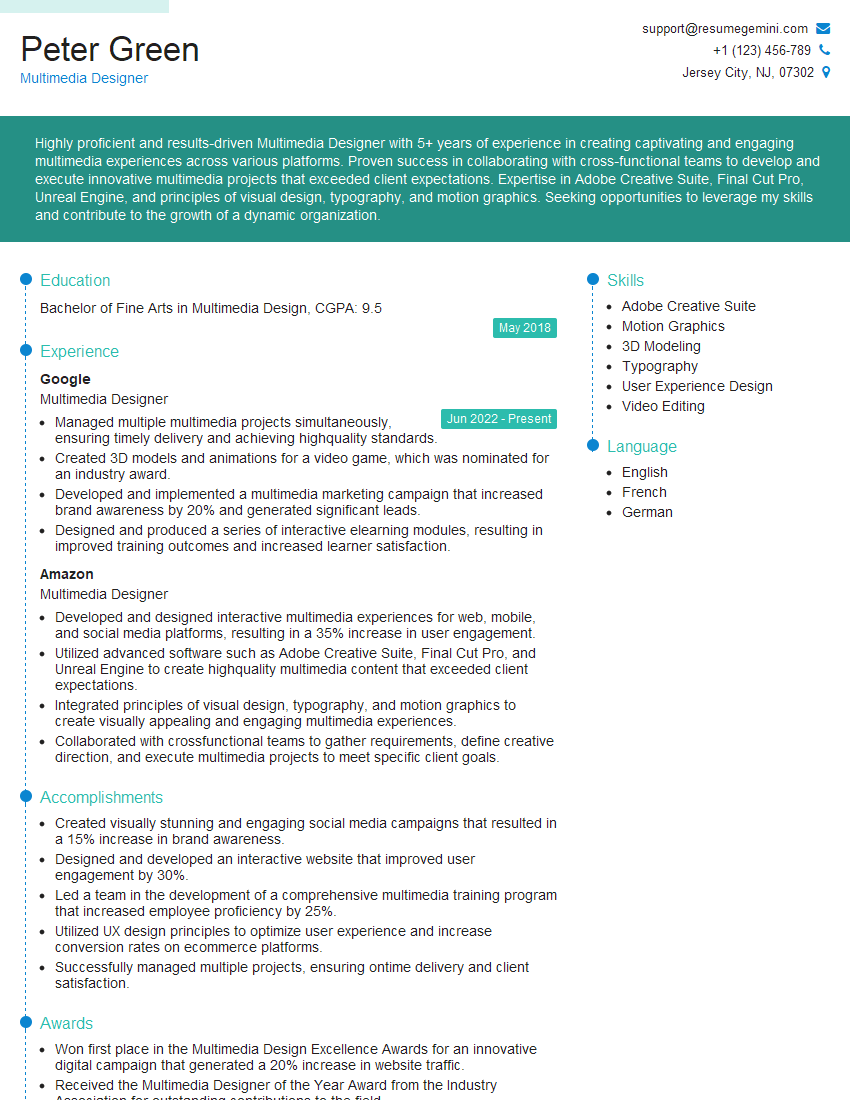
Multimedia Designer Resume Sample

Technical Writer Resume Sample

Executive Assistant Resume Sample

Content Creator Resume Sample
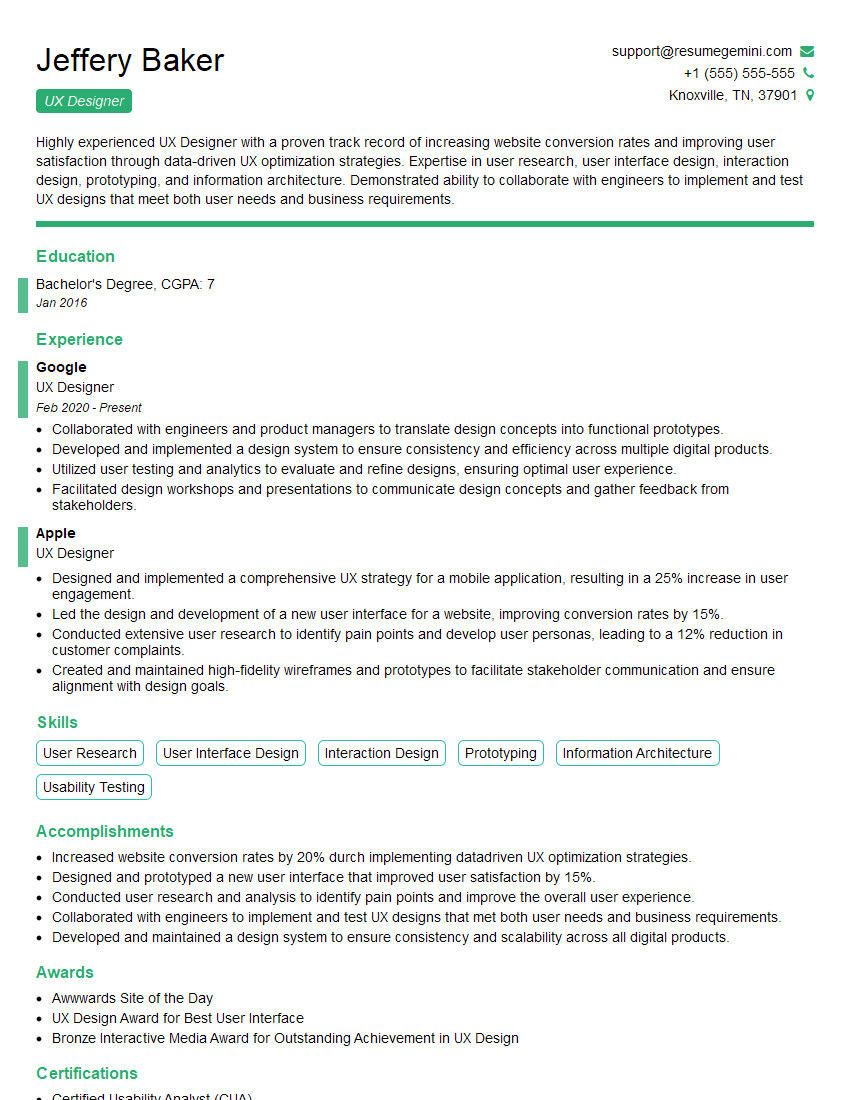
UX Designer Resume Sample
- Account Manager
- Sales Representative
- Communications Manager
- Project Manager
- Business Analyst
- Trainer
- Training Specialist
- Marketing Specialist
- Data Analyst
- Web Designer
- Educator
- Instructional Designer
- Presentation Specialist
- Graphic Designer
- Multimedia Designer
- Technical Writer
- Executive Assistant
- Content Creator
- UX Designer
Explore more articles
Users Rating of Our Blogs
Share Your Experience
We value your feedback! Please rate our content and share your thoughts (optional).
What Readers Say About Our Blog
Amazing blog
Interesting Article, I liked the depth of knowledge you’ve shared.
Helpful, thanks for sharing.