Are you ready to stand out in your next interview? Understanding and preparing for Photo Editing and Manipulation (Photoshop, Lightroom) interview questions is a game-changer. In this blog, we’ve compiled key questions and expert advice to help you showcase your skills with confidence and precision. Let’s get started on your journey to acing the interview.
Questions Asked in Photo Editing and Manipulation (Photoshop, Lightroom) Interview
Q 1. Explain the difference between raster and vector graphics.
Raster and vector graphics are two fundamentally different ways of representing images. Think of it like this: raster is like a mosaic, made of tiny colored squares (pixels), while vector is like a blueprint, made of mathematical equations defining lines and curves.
- Raster Graphics: These are composed of a grid of pixels. Examples include JPEGs, PNGs, and TIFFs. They are great for photorealistic images but lose quality when scaled up (enlarging them makes them pixelated). Editing involves manipulating individual pixels.
- Vector Graphics: These use mathematical formulas to define shapes and lines. Examples include SVGs and AI files. They can be scaled to any size without losing quality because they’re not pixel-based. They’re ideal for logos, illustrations, and designs where crisp lines are crucial.
In practical terms, I choose raster graphics (like Photoshop’s PSD) for photo editing and manipulation because of its ability to handle nuanced color and detail, while I might use vector graphics in Illustrator for creating sharp logos or elements to integrate into my Photoshop projects.
Q 2. Describe your experience with Photoshop’s layer masks.
Layer masks are one of Photoshop’s most powerful features. They allow you to selectively hide or reveal portions of a layer without permanently altering the layer’s content. Imagine it as a stencil: you paint on the mask, and only the areas you paint on are visible.
My experience with layer masks is extensive. I use them constantly for things like:
- Non-destructive editing: I can make changes to a mask without affecting the original image data. This allows for easy adjustments and experimentation.
- Complex selections: Masks are incredibly helpful for creating precise selections, especially when dealing with hair or other intricate details, far exceeding the capabilities of the lasso or quick selection tools.
- Blending modes: Combining layer masks with different blending modes unlocks a whole new level of creative control.
- Retouching: I frequently use masks to delicately retouch portraits, selectively adjusting skin tone or removing blemishes without affecting the surrounding areas.
For example, when retouching a portrait, I might create a layer mask on a layer dedicated to smoothing skin. I would then paint on the mask to only apply the smoothing effect to the skin, leaving the eyes and hair untouched.
Q 3. How do you use adjustment layers in Photoshop?
Adjustment layers are non-destructive ways to make global or localized edits to the image. They sit above the image layers and modify the pixels below without directly altering them. This is crucial for maintaining editing flexibility.
I use adjustment layers regularly for:
- Color correction: Hue/Saturation, Color Balance, and Curves adjustment layers allow me to fine-tune colors throughout the image or selectively in specific areas via masking.
- Exposure adjustments: Levels and Brightness/Contrast layers help me adjust overall exposure and contrast.
- Tone adjustments: Exposure, Shadows/Highlights, and Vibrance layers are invaluable for optimizing the tonal range of an image.
For instance, if I need to brighten a dark image, I’d use a Brightness/Contrast adjustment layer rather than directly adjusting the image itself. This means I can later go back and modify the brightness, or even delete the adjustment layer entirely, leaving the original image untouched.
Q 4. What are your preferred methods for color correction in Lightroom?
My preferred color correction workflow in Lightroom leverages its intuitive tools and non-destructive editing capabilities. I usually start with global adjustments before moving to more localized corrections.
- White Balance: I carefully set the white balance using the eyedropper tool or preset options to ensure accurate color representation.
- Basic Panel: I fine-tune exposure, contrast, highlights, shadows, whites, and blacks to achieve a balanced and pleasing tonal range. This is the foundation of most of my adjustments.
- HSL Panel: For more precise color adjustments, I use the HSL (Hue, Saturation, Luminance) panel to subtly adjust individual colors. For example, I might desaturate overly vibrant greens in a landscape photo.
- Split Toning: I often use split toning to add subtle color casts to the highlights and shadows, creating a more stylized and moody look.
- Local Adjustments: For targeted corrections, I utilize the radial and graduated filters to selectively adjust specific areas of the image without affecting the rest. This is great for correcting uneven lighting or adjusting the color of a specific part of the scene.
My approach is iterative. I make small adjustments, frequently checking the results, and refine them until I achieve the desired look.
Q 5. Explain your workflow for retouching portraits in Photoshop.
My portrait retouching workflow in Photoshop is a multi-step process that emphasizes non-destructive editing and natural results. It typically involves these steps:
- Preparation: I start by opening the image in Photoshop and making a backup copy. I often work with layers for non-destructive editing.
- Frequency Separation: This technique separates the image into two layers: one for textures (details like pores and wrinkles) and one for color and tones. This allows for independent manipulation of each layer, resulting in a more natural look.
- Skin Smoothing: Using a combination of healing brush, clone stamp, and frequency separation, I carefully smooth out imperfections like blemishes and uneven skin tone, maintaining realistic texture.
- Dodging and Burning: I use these tools to subtly enhance the highlights and shadows, adding depth and dimension to the portrait.
- Color Correction: I utilize adjustment layers (curves, color balance, etc.) to fine-tune the colors and overall tone of the portrait.
- Sharpening: A final sharpening step enhances the details without introducing artifacts.
I always strive for a natural and subtle retouch, avoiding an overly processed or artificial look. The goal is to enhance the subject’s natural beauty, not to create a completely different person.
Q 6. How do you handle high-resolution images in Photoshop?
Handling high-resolution images in Photoshop requires careful management of resources to prevent crashes and slowdowns. My approach incorporates several strategies:
- Larger Memory Allocation: I allocate sufficient RAM to Photoshop in the application’s preferences to allow for smooth processing of large files.
- Using 16-bit Images: For maximum dynamic range and color information, I usually work with 16-bit images, although this significantly increases file size.
- Layer Management: I organize my layers effectively to avoid unnecessary layers and group related layers together. I frequently merge layers when possible.
- Saving as PSD: I save my work regularly as PSD files to retain layers and maintain non-destructive editing.
- Image Compression: When exporting the final image, I choose a suitable file format (like TIFF or JPEG) and compression level to balance file size and image quality.
- Save for Web: For web use, ‘Save for Web’ in Photoshop allows for optimized image sizes and formats.
Working with high-resolution images requires patience and planning, but by following these guidelines, I ensure that I can work efficiently without compromising the quality of my work or my system’s stability.
Q 7. Describe your experience with Photoshop’s healing brush tool.
Photoshop’s Healing Brush tool is a powerful retouching tool that seamlessly blends areas of an image to remove blemishes or unwanted objects. It cleverly samples surrounding pixels to create a natural-looking repair.
My experience with the Healing Brush includes various applications:
- Spot Healing Brush: This is ideal for quickly removing small imperfections like blemishes or dust spots. Photoshop automatically samples surrounding pixels for seamless blending.
- Healing Brush Tool (standard): This provides more control. I specify the sample source myself, which gives me the ability to repair more complex areas or create more natural looking blends.
- Patch Tool: For larger areas, the Patch tool is incredibly useful. I select a region and drag it to a clean area, allowing Photoshop to automatically sample and replace the damaged area.
I often use the Healing Brush in combination with other tools, such as the Clone Stamp, for more complex retouching. For example, I might use the Healing Brush for small blemishes and the Clone Stamp for larger areas that require more precise control. The key is to always sample from similar texture and lighting areas for the most natural-looking repair.
Q 8. What are your strategies for reducing noise in images?
Reducing noise in images is crucial for achieving high-quality results. Noise, that grainy or speckled appearance, is often introduced in low-light conditions or with high ISO settings. My strategy involves a multi-pronged approach, combining in-camera techniques with post-processing in software like Lightroom and Photoshop.
In-Camera Strategies: Shooting in RAW format captures more image data, providing greater flexibility for noise reduction during post-processing. Using a tripod to minimize camera shake, and choosing the lowest possible ISO consistent with good exposure, also significantly reduces noise at the source.
Lightroom Noise Reduction: Lightroom’s Develop module offers powerful noise reduction tools. I typically start by adjusting the ‘Luminance’ slider in the ‘Detail’ panel. This reduces the graininess without significantly affecting sharpness. I then carefully adjust the ‘Detail’ slider, which helps to preserve fine details while reducing noise. The ‘Color’ slider addresses color noise, which often appears as tiny colored speckles. It’s important to use these tools subtly, avoiding over-processing that can lead to a muddy or unnatural look. I often zoom in to 100% to check for artifacts.
Photoshop Noise Reduction: For more complex noise reduction, especially in challenging situations, I turn to Photoshop. The ‘Reduce Noise’ filter (under Filter > Noise) is a great starting point. This filter allows for fine-grained control over luminance and color noise reduction. I often experiment with the ‘Strength’, ‘Preserve Details’, and ‘Reduce Color Noise’ sliders to find the optimal balance between noise reduction and detail preservation. I also explore using specialized plugins or actions for advanced noise reduction techniques.
For example, I once had to restore a photograph taken at a night concert. The image was incredibly noisy due to the low light. By combining a careful adjustment of Lightroom’s noise reduction tools with Photoshop’s ‘Reduce Noise’ filter and some strategic masking, I was able to significantly improve the image quality while preserving the atmosphere of the concert.
Q 9. Explain how you use Lightroom’s Develop module for image enhancement.
Lightroom’s Develop module is my go-to for non-destructive image enhancement. I approach it systematically, focusing on several key areas:
Basic Panel: This is where I begin, adjusting the Exposure, Contrast, Highlights, Shadows, Whites, and Blacks sliders to achieve a proper tonal balance. I use these adjustments to recover detail in both the highlights and shadows, ensuring a good dynamic range.
Tone Curve: For finer tonal control, I utilize the Tone Curve. This allows me to selectively adjust the brightness and contrast at different tonal ranges, providing precise control over the image’s mood and contrast. I prefer working with the points on the curve instead of presets, allowing for a personalized approach.
HSL/Color Mixer: This panel enables targeted color adjustments, allowing me to fine-tune individual colors or color ranges. For instance, I might boost the saturation of greens in a landscape photo or subtly desaturate the reds in a portrait to achieve a more harmonious color palette.
Detail Panel: Beyond noise reduction (as discussed in the previous answer), I use the sharpening tools here to enhance detail and clarity. It’s important to sharpen intelligently. I usually start with a small amount of sharpening, focusing on ‘Amount’ and ‘Radius’, and avoiding over-sharpening which leads to halos around edges.
Calibration Panel: This allows adjustments to the camera’s color profile and provides fine control over color balance. This step ensures colors are accurately represented and consistent across my workflow.
For example, when editing landscape images, I often use the Tone Curve to add contrast to the sky, creating a more dramatic effect. I then might subtly desaturate the blues to avoid overpowering other colors in the scene. Finally, careful use of the sharpening tools helps to enhance the detail in the mountain ranges.
Q 10. How do you create and use actions in Photoshop?
Actions in Photoshop automate repetitive tasks, significantly increasing efficiency. Creating an action involves recording a series of steps, which can then be replayed on other images. This is invaluable for tasks like batch processing or applying consistent edits.
Creating an Action: To create an action, go to Window > Actions to open the Actions panel. Click the ‘Create New Action’ button (a small folder icon). Give your action a name and optionally assign a function key. Then, perform the desired steps (e.g., resizing, sharpening, applying a filter). Click the ‘Stop Playing/Recording’ button when finished.
Using an Action: Once an action is created, selecting it from the Actions panel and clicking the ‘Play’ button (a triangle icon) will replay the recorded steps on the currently open image. You can easily apply the same set of edits to multiple images. Actions support conditional statements and other functionalities offering significant control over the automated process.
Example: I often create actions for my standard photo retouching workflow. This might involve adjusting levels, sharpening, removing blemishes, and adding a vignette. This automated workflow saves considerable time and ensures consistency across my projects. Advanced actions might involve loops and conditional logic, handling complex batch processing tasks.
Actions are a time-saver and ensure consistency across a large volume of similar edits. For instance, if I need to resize 500 product images for a website, an action will quickly resize all of them to the exact specifications I set.
Q 11. How do you manage color profiles in your workflow?
Managing color profiles is critical for color accuracy and consistency throughout the entire workflow. This involves understanding and working with different color spaces (e.g., sRGB, Adobe RGB) and ensuring that images are consistently transformed between spaces without losing color information.
Working Space: I always begin by setting my working space in Photoshop (Edit > Color Settings) and Lightroom (in the Preferences). Adobe RGB is my preferred working space due to its wider gamut, allowing for greater color depth during editing. This prevents information loss during edits.
Converting to sRGB: When preparing images for web use or printing, where sRGB is the standard, I convert to this color space just before exporting. This ensures that the images are displayed correctly on various devices and printing presses. I usually avoid embedding color profiles in JPEGs, as this can cause display problems on some systems.
Soft Proofing: To visualize how an image will look under different color profiles, I make use of ‘Soft Proofing’ in Photoshop (View > Proof Setup). This allows me to preview the image in sRGB before the final export, ensuring there are no unexpected color shifts.
In essence, managing color profiles is a quality control measure. It guarantees that the colors displayed on my screen, the colors in my edited image file and the colors after output (on web or printed) are as close as possible to my creative intent. Ignoring this can lead to significant color discrepancies.
Q 12. Describe your experience with different file formats (JPEG, TIFF, PSD, RAW).
Understanding the characteristics of different file formats is crucial for efficient workflow and quality image output. Each format offers different advantages and disadvantages.
RAW: RAW files are uncompressed image data, capturing all the information recorded by the camera’s sensor. They provide maximum flexibility during editing, allowing for extensive adjustments to exposure, white balance, and other parameters without significant quality loss. However, RAW files are larger in size and require specialized software for editing.
TIFF: TIFF (Tagged Image File Format) is a versatile format that supports lossless compression and a wide range of color depths. It’s ideal for archiving high-quality images and for situations requiring maximum image fidelity, such as professional printing.
JPEG: JPEG (Joint Photographic Experts Group) is a lossy compressed format, meaning some image data is discarded to reduce file size. It’s widely compatible and suitable for web use and general image sharing. The compression can lead to some quality loss, but it’s generally acceptable for most applications.
PSD: PSD (Photoshop Document) is Photoshop’s native format. It’s a lossless format that preserves all layers, masks, and adjustment layers. This makes it ideal for ongoing editing and collaboration, but it is not suitable for web or general usage unless flattened.
For example, I would always shoot in RAW for professional photography to ensure maximum quality. However, I would convert to JPEG for uploading images online, balancing quality with file size constraints. I would use TIFF for archiving important images where maximum quality is paramount. PSD is used for ongoing projects in Photoshop, to maintain all the edits and layers.
Q 13. How do you optimize images for web use?
Optimizing images for web use involves balancing image quality and file size to ensure fast loading times. Larger files negatively impact website performance.
File Format: JPEG is generally preferred due to its smaller file sizes compared to other formats. For logos or graphics with sharp lines, PNG can be used to ensure lossless compression and transparency.
Resizing: Reduce image dimensions to the appropriate size for the web. Excessive size only increases loading times without improving image quality on screen. I typically use the ‘Save for Web (Legacy)’ option in Photoshop, which offers excellent control over file size and quality.
Compression: The ‘Save for Web’ dialog offers several compression options. Higher quality settings result in larger files, whereas lower settings result in smaller files with some quality loss. Finding the optimal balance depends on the content and the acceptable level of visual quality loss.
Image Optimization Tools: Some plugins and online tools offer automated image optimization. These services often work well, especially for batch processing large amounts of images. It’s important to always test the output, as the results can vary based on the input and selected settings.
For example, for a website banner, I would aim for a file size under 100KB using JPEG. For high-quality product photos, I might accept a slightly larger file size. It’s a trade-off between file size and quality. I always check the load times to ensure a balance is achieved.
Q 14. What techniques do you use for image sharpening?
Image sharpening is a delicate process that enhances detail and clarity without introducing artifacts. Over-sharpening can result in a harsh, unnatural look with halos around edges. I employ a multi-step approach for effective sharpening:
Unsharp Mask: Photoshop’s Unsharp Mask filter (Filter > Sharpen > Unsharp Mask) is a versatile tool. I use this selectively, often masking out areas where sharpening isn’t needed such as skies. Adjusting the Amount, Radius, and Threshold parameters controls the intensity and detail of the sharpening effect. A low radius generally helps achieve more natural results.
Smart Sharpen: Photoshop’s Smart Sharpen filter offers more advanced controls, including different sharpening algorithms. I often find its ‘Gaussian Blur’ option produces better results compared to the ‘Unsharp Mask’ in many situations. The ability to control the radius and amount individually provides more nuanced control.
High Pass Filter: For subtle sharpening, I often use the High Pass filter. This involves duplicating the image layer, applying a High Pass filter (Filter > Other > High Pass), setting the blend mode to ‘Overlay’ or ‘Soft Light’, and adjusting the opacity. This technique is non-destructive and more subtle.
Output Sharpening: I rarely perform all sharpening in one step. I generally start with some sharpening during the editing process, but leave the final sharpening step for the final output stage. This ensures the image is appropriately sharpened for the intended medium (web, print etc.).
For example, when retouching portrait photos, I would use Smart Sharpen carefully on the face and eyes, ensuring fine detail is maintained while avoiding harshness. I then might use a High Pass filter for additional refinement. For web images, a moderate sharpening at the final output stage is sufficient. For prints, it may require a more aggressive approach, though usually done in conjunction with other print specific output settings.
Q 15. Explain your experience with masking and selections in Photoshop.
Masking and selections in Photoshop are fundamental for isolating specific areas of an image for editing. Think of it like using a stencil – you define the area you want to work on and everything outside that area remains untouched. I’m proficient in using a variety of selection tools, each with its strengths depending on the image and the task.
Marquee tools: Ideal for selecting rectangular, elliptical, or single-row/column areas; great for simple selections.
Lasso tools: Allow freehand or polygonal selections, perfect for irregular shapes requiring precise control. The magnetic lasso intelligently snaps to edges, making it efficient for selecting objects with defined boundaries.
Quick Selection tool: A fast way to select large areas based on color and tone. It’s great for quick edits but might need refinement using other tools.
Magic Wand tool: Selects areas of similar color, useful for isolating objects with uniform coloring. Tolerance settings are key to controlling the selection’s inclusiveness.
Pen tool: The most precise selection method, allowing for the creation of vector paths that perfectly outline complex shapes. This is crucial for high-precision work and is my go-to for intricate selections.
Refine Edge: This invaluable tool helps to fine-tune selections, smoothing out jagged edges and removing halos. I frequently use this to perfect selections before applying masks.
Once a selection is made, I can create a mask, which acts like a layer of transparency, allowing me to reveal or hide parts of the image. I utilize layer masks extensively for non-destructive editing, allowing me to easily refine or completely remove masks without affecting the underlying image. For example, I recently used a refined edge selection and layer mask to seamlessly replace a bland sky in a landscape photo with a vibrant sunset, preserving all the details of the foreground.
Career Expert Tips:
- Ace those interviews! Prepare effectively by reviewing the Top 50 Most Common Interview Questions on ResumeGemini.
- Navigate your job search with confidence! Explore a wide range of Career Tips on ResumeGemini. Learn about common challenges and recommendations to overcome them.
- Craft the perfect resume! Master the Art of Resume Writing with ResumeGemini’s guide. Showcase your unique qualifications and achievements effectively.
- Don’t miss out on holiday savings! Build your dream resume with ResumeGemini’s ATS optimized templates.
Q 16. How do you use Lightroom’s catalog system?
Lightroom’s catalog system is the backbone of my workflow. It’s a non-destructive database that manages all my photos, their metadata, and edits. Instead of editing the raw image files directly, Lightroom creates a catalog that points to them, storing the edits as instructions. This means the original image files remain untouched, preserving their quality.
I organize my images within the catalog using keywords, color labels, and collections. This makes searching and locating specific photos incredibly efficient. For example, I might have a collection for ‘Wedding Photography 2023’ further organized into sub-collections like ‘Ceremony,’ ‘Reception,’ and ‘Portraits.’ This hierarchical structure allows me to quickly find images, regardless of how many photos are in my catalog.
Furthermore, I utilize Lightroom’s powerful metadata tools to add information like camera settings, shooting location, and copyright details directly to the image data, ensuring proper organization and facilitating easier searching across large libraries.
The smart previews function is another game-changer, enabling me to work with high-resolution images even when the originals aren’t accessible. It significantly speeds up my workflow, especially when dealing with extensive photo shoots.
Q 17. Describe your experience with HDR imaging.
HDR (High Dynamic Range) imaging is a technique used to capture a wider range of tones and details than a standard photograph. It involves taking multiple exposures of the same scene at different exposures, then combining them to create a single image with a greater dynamic range. This helps to preserve both highlights and shadows, preventing blown-out highlights or crushed shadows.
My HDR workflow typically begins by shooting bracketed exposures— typically 3 to 5 shots, covering a range of exposures. I use Lightroom or Photoshop to merge these exposures using either its built-in HDR merge function or third-party plugins like Photomatix Pro. These programs align the images and combine them intelligently, balancing the brightness levels to reveal details often lost in a single exposure.
After merging, I typically make adjustments to tone, contrast, and color in Lightroom or Photoshop to refine the final image and achieve a natural-looking result. Overly processed HDR images can look unnatural and overly saturated; my focus is always on maintaining a realistic and aesthetically pleasing final product. For example, recently, I used HDR to capture the detail in a cathedral’s interior, preserving both the bright stained glass windows and the dimly lit architectural details. The final product was stunningly detailed and showcased the entire scene much better than a single exposure could have.
Q 18. What are your methods for creating panoramas?
Creating panoramas involves stitching multiple overlapping photographs together to create a wider field of view. I typically use Photoshop’s Photomerge feature, which is a simple and effective tool for creating panoramas. However, for more complex situations or when high precision is required, I might use dedicated panorama stitching software like PTGui.
The process begins by taking a series of overlapping photos, ensuring there’s enough overlap between each shot (typically 20-30%). It’s crucial to keep the camera as level as possible during the shooting process to avoid significant distortion and misalignment. Once the images are imported into Photoshop, the Photomerge function automatically aligns and blends the images, creating a seamless panorama. I often fine-tune the blending and cropping in Photoshop to remove any ghosting or unwanted artifacts.
For example, I once used this technique to create a stunning panorama of a mountainous landscape, capturing the expansive views that would have been impossible with a single shot. The resulting image was breathtaking and showcased the scale of the scene much more effectively than individual photos.
Q 19. How do you handle different color spaces (RGB, CMYK)?
Understanding and managing color spaces (RGB and CMYK) is crucial for print and web projects. RGB (Red, Green, Blue) is the additive color model used for digital screens, while CMYK (Cyan, Magenta, Yellow, Key – Black) is the subtractive color model used for printing. The key difference lies in how colors are created: RGB adds light to create color, while CMYK subtracts light from white to create color.
For web use, RGB is always the preferred color space as it accurately represents the colors displayed on screens. When preparing images for print, the final conversion to CMYK needs careful management. I typically work in RGB throughout the editing process and convert to CMYK only at the final stage, immediately before sending to print. This minimizes color shifts that can occur during conversion.
I also use soft proofing to preview the image in CMYK mode while still in RGB. This allows for accurate assessment of how the colors will look in print without actually converting the file. This is particularly useful for preventing unwanted color surprises when it comes to print materials. For example, a rich blue in RGB might appear significantly duller when converted to CMYK without careful management of the color profile.
Q 20. Explain your experience with Photoshop’s pen tool.
Photoshop’s Pen tool is my go-to for precise selections and creating vector paths. It’s a powerful tool requiring practice, but it’s invaluable for creating clean, smooth selections, especially around complex objects or hair. Unlike other selection tools that work by analyzing pixels, the Pen tool creates vector paths, making the selections infinitely scalable without losing quality.
I use the pen tool to create vector masks which can be easily edited or adjusted at any time unlike raster masks. I also use it to create custom shapes and precise cutouts. The ability to create anchor points and curves makes it perfect for following the contours of intricate subjects with precision.
For example, I recently used the Pen tool to create a precise selection around strands of hair for a product shot, allowing me to isolate the hair from the background flawlessly and add subtle color adjustments without affecting the subject’s skin tone. It’s a meticulous process but gives unparalleled control and accuracy.
Q 21. Describe your experience with cloning and stamping in Photoshop.
Cloning and stamping in Photoshop are non-destructive methods used for retouching and removing unwanted elements from an image. The Clone Stamp tool copies pixels from one area of the image and paints them onto another, effectively covering up imperfections or blemishes. The Healing Brush tool is a similar tool but it intelligently blends the cloned pixels for a more natural result.
I use the Clone Stamp tool for tasks such as removing blemishes, dust spots, or unwanted objects. It’s especially handy when removing repetitive elements like scratches or cracks. For example, I recently removed a distracting powerline from a landscape shot, seamlessly blending the cloned area with the surrounding scenery.
The Healing Brush is particularly effective for blending in textures and removing imperfections while preserving the texture and tone of the surrounding area. It’s a less destructive alternative to the clone stamp tool, producing more natural and seamless results. For example, I used it to remove small blemishes from a person’s face, giving the skin a smoother appearance without losing the underlying skin texture and tone. The key to success with both tools is selecting a good sample source and using a soft brush with low opacity for a natural finish.
Q 22. How do you batch process images in Lightroom?
Batch processing in Lightroom is a lifesaver for photographers dealing with large volumes of images. It allows you to apply the same edits to multiple photos simultaneously, saving incredible amounts of time. Think of it like using a stamp instead of individually coloring each picture.
The process usually starts by selecting the images you want to batch process. This can be done by selecting individual images, or using Lightroom’s powerful filtering capabilities to select photos based on metadata like date, rating, or keywords. Once selected, you can make adjustments to one image, and then right-click and choose ‘Sync Settings’. A dialogue box will appear, allowing you to choose which settings to sync across all selected images. You can carefully select which aspects, such as white balance, exposure, or even specific Develop module settings, are applied to the batch. This precision is crucial to maintain consistency while saving time.
For example, if I’m processing a series of landscape shots from a single photoshoot, I might batch process them, adjusting the white balance and exposure to ensure consistent color and brightness across all images. I could then further refine each image individually if necessary. The key is starting with a strong batch edit to lay the groundwork for more targeted adjustments.
Q 23. What are your methods for removing blemishes and imperfections?
Removing blemishes and imperfections is a common task, and my approach depends on the severity and type of imperfection. For minor blemishes like small spots or freckles, Lightroom’s Spot Removal tool is efficient and non-destructive. It intelligently samples surrounding pixels to seamlessly blend the imperfection away. For more complex issues, I usually prefer Photoshop, leveraging tools like the Healing Brush, Clone Stamp, and Patch tool. The Healing Brush cleverly blends texture and color from nearby areas, while the Clone Stamp provides more direct control for precise duplication of textures. The Patch tool is excellent for covering larger areas with a more seamless result.
I always prioritize a subtle and natural approach. Over-correction often leads to an unnatural look. Layering is key; multiple subtle adjustments usually achieve better results than one drastic correction. For example, when removing a large blemish, I might use the Patch tool first to cover the majority of the area and then use the Healing Brush to refine the edges and blend in any remaining discrepancies. The process is akin to carefully sculpting rather than aggressively erasing.
Q 24. How do you use Lightroom’s presets?
Lightroom presets are like pre-configured editing recipes. They provide a starting point for your edits, saving you significant time. They’re particularly useful for establishing a consistent style across a large body of work or for quickly applying a desired look. I approach presets as a foundation, not a final product. I rarely use a preset exactly as it comes; instead, I use them as a springboard for further customization.
When using a preset, I carefully assess its effect on the image, paying close attention to the adjustments made to exposure, contrast, white balance, and other parameters. I then fine-tune these settings to ensure they complement the image’s individual characteristics and artistic vision. For instance, I might start with a preset that boosts vibrancy, but then reduce the saturation in specific areas to maintain realism and prevent over-processing.
Creating your own custom presets is another valuable tool. By saving your frequently used edits, you build a personal library of quick-access styles that consistently match your aesthetic preferences. This greatly enhances workflow efficiency.
Q 25. Explain your experience with Photoshop’s blend modes.
Photoshop’s blend modes are powerful tools that fundamentally change how layers interact. They offer an array of options to creatively combine images or blend colors, textures, and lighting. Each mode has unique properties, modifying how the top layer’s pixels interact with the underlying layer’s pixels. Think of it as adjusting the transparency and blending behavior of each pixel.
For example, ‘Overlay’ mode increases contrast in the midtones, while ‘Soft Light’ subtly affects the colors and luminosity. ‘Multiply’ darkens the underlying layer, while ‘Screen’ brightens it. I use these modes extensively for various tasks: creating realistic lighting effects, subtly blending textures, and enhancing image details. For example, I might use ‘Multiply’ to darken a layer to create a vignette, or ‘Overlay’ to enhance the contrast of a texture applied to an image.
Experimentation is key to mastering blend modes. Understanding how each mode affects various aspects of color and luminosity is crucial for achieving specific creative results. The learning curve is steep, but the potential for creative control is immense.
Q 26. How do you handle large image files efficiently?
Handling large image files efficiently is critical for maintaining workflow speed and preventing computer crashes. My strategy involves a multi-pronged approach, focusing on reducing file size without sacrificing quality where possible.
First, I work with non-destructive editing techniques as much as possible. This means using adjustment layers in Photoshop and utilizing Lightroom’s Develop module, which stores edits as metadata, rather than directly modifying the image data. This allows for changes without increasing file size or permanently altering the original image. Second, I use a layered approach in Photoshop, combining images or elements as separate layers to keep the overall file size smaller than merging them into a single layer.
For reducing file size after editing, I use lossy compression methods such as JPEG, selecting a quality level that maintains acceptable detail without excessive file sizes. For situations where lossless quality is vital (like archival purposes), I use TIFF or PNG formats, understanding the larger file sizes involved. Finally, I utilize external hard drives for storage and employ cloud-based storage solutions to maintain accessibility and backups. These strategies allow me to manage large image files effectively while protecting my original work.
Q 27. What are some common pitfalls in photo editing, and how do you avoid them?
Several pitfalls can derail even experienced photo editors. Over-sharpening is a common one; it creates a harsh, unnatural look. Over-saturation similarly leads to unrealistic and garish colors. Both issues are often associated with the overuse of tools without attention to the underlying image texture and detail. I avoid this by using sharpening and saturation tools subtly and gradually, frequently zooming in to check for artefacts.
Another common mistake is ignoring the importance of white balance. Inconsistent white balance can make your images look unnatural and muddy. I always carefully check and correct the white balance during the early stages of the editing process. Also, neglecting proper color grading can result in images lacking visual unity and impact. I typically focus on color grading to enhance mood and atmosphere while maintaining overall consistency throughout a series of images.
Finally, maintaining a non-destructive workflow is paramount; this prevents the loss of original image data, allowing for later adjustments and corrections without compromising quality. By adhering to these best practices, I strive to consistently produce high-quality, visually pleasing results.
Q 28. Describe a time you had to solve a complex image editing problem.
One memorable challenge involved restoring a severely damaged historical photograph. The image was faded, scratched, and had significant portions missing due to age and wear. It required a blend of Photoshop techniques and a significant amount of patience.
My strategy was multi-faceted. First, I used Photoshop’s dust and scratch filter to reduce minor imperfections. I then employed the Healing Brush and Clone Stamp tools to painstakingly fill in missing areas, referencing the surrounding details to maintain consistency. Where portions were completely missing, I had to intelligently reconstruct sections based on the remaining image structure and context, using reference images and understanding the historical subject. Layer masks were crucial for maintaining control and allowing for precise blending and editing. This blend of meticulous restoration and creative reconstruction resulted in a presentable image, successfully restoring the historical value while remaining ethically transparent about the restoration process.
This experience highlighted the power of image editing as a historical preservation tool, requiring a deep understanding of both the technical aspects and the sensitivity involved in working with historical documents.
Key Topics to Learn for Photo Editing and Manipulation (Photoshop, Lightroom) Interview
- Image Retouching & Restoration: Mastering techniques like blemish removal, color correction, and reconstructing damaged areas. Practical application: Restoring old family photos or preparing product images for e-commerce.
- Color Grading & Correction: Understanding color theory, white balance adjustment, and achieving consistent color palettes across multiple images. Practical application: Creating a cohesive look for a portfolio or a series of marketing images.
- Layer Management & Masking: Efficiently using layers, layer masks, and adjustment layers for non-destructive editing and complex compositing. Practical application: Combining multiple images, creating photo manipulations, or isolating specific elements for editing.
- Selection Tools & Techniques: Proficiency in using various selection tools (lasso, pen, quick selection) for precise selections and masking. Practical application: Isolating objects for manipulation or background replacement.
- Workflow Optimization: Developing efficient workflows for managing large image files, organizing layers, and streamlining the editing process. Practical application: Meeting tight deadlines while maintaining image quality.
- File Formats & Resolution: Understanding the differences between various image file formats (JPEG, TIFF, PSD) and their appropriate uses. Practical application: Preparing images for print vs. web. Knowledge of resolution and DPI.
- Lightroom Workflow: Importing, organizing, and editing photos using Lightroom’s catalog system, including keywording, metadata management, and non-destructive edits. Practical application: Efficiently managing and processing large volumes of images for a photoshoot.
- Photoshop Actions & Automation: Creating and utilizing actions to automate repetitive tasks, saving time and ensuring consistency. Practical application: Batch processing images for a client or streamlining a repetitive editing process.
- Understanding Color Spaces (RGB, CMYK): Knowing the differences and implications of using different color spaces for various output methods. Practical application: Preparing images for print or web, avoiding color shifts.
- Problem-Solving & Troubleshooting: Diagnosing and resolving common image editing issues, such as artifacts, color casts, and file corruption. Practical application: Demonstrating resourcefulness and technical expertise in handling unexpected problems.
Next Steps
Mastering Photo Editing and Manipulation in Photoshop and Lightroom is crucial for career advancement in various creative fields, opening doors to exciting opportunities in photography, graphic design, advertising, and more. To maximize your job prospects, focus on crafting an ATS-friendly resume that highlights your skills and experience effectively. ResumeGemini is a trusted resource for building professional and impactful resumes. They offer examples of resumes tailored to Photo Editing and Manipulation (Photoshop, Lightroom) roles to guide you in showcasing your expertise.

Art Director Resume Sample

Web Designer Resume Sample

Multimedia Specialist Resume Sample
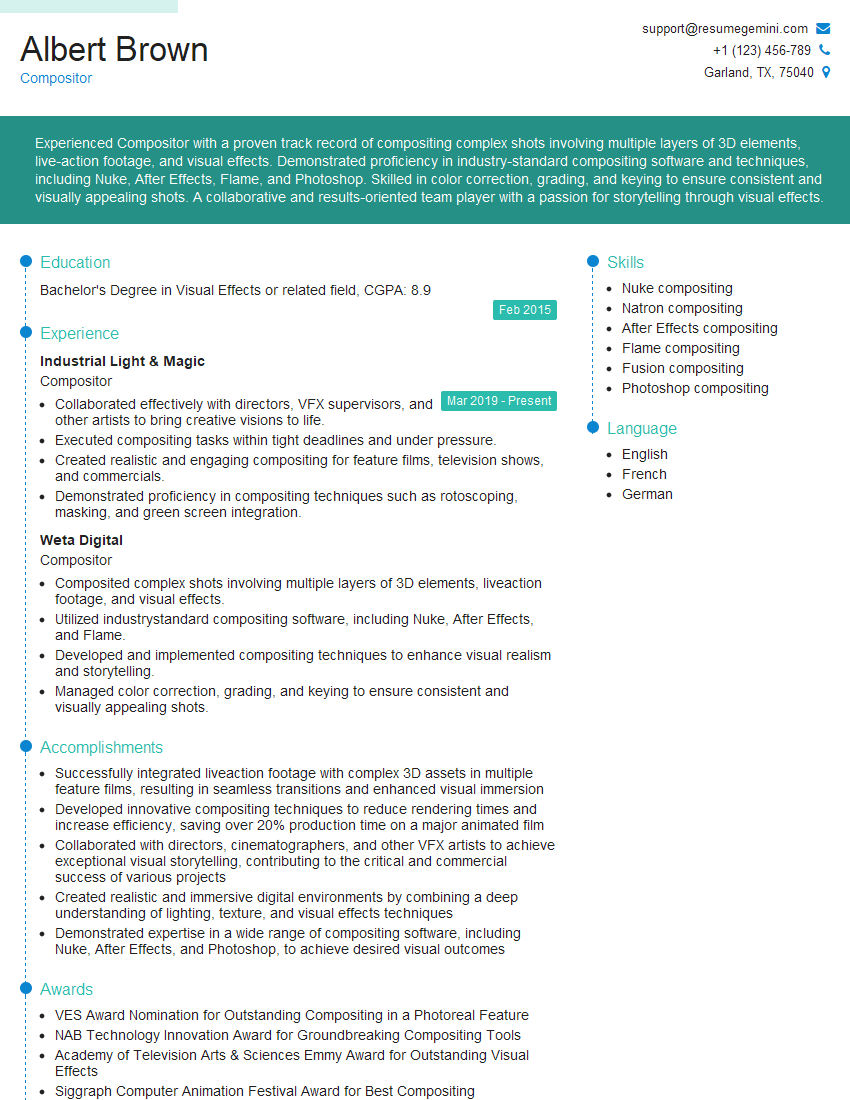
Compositor Resume Sample
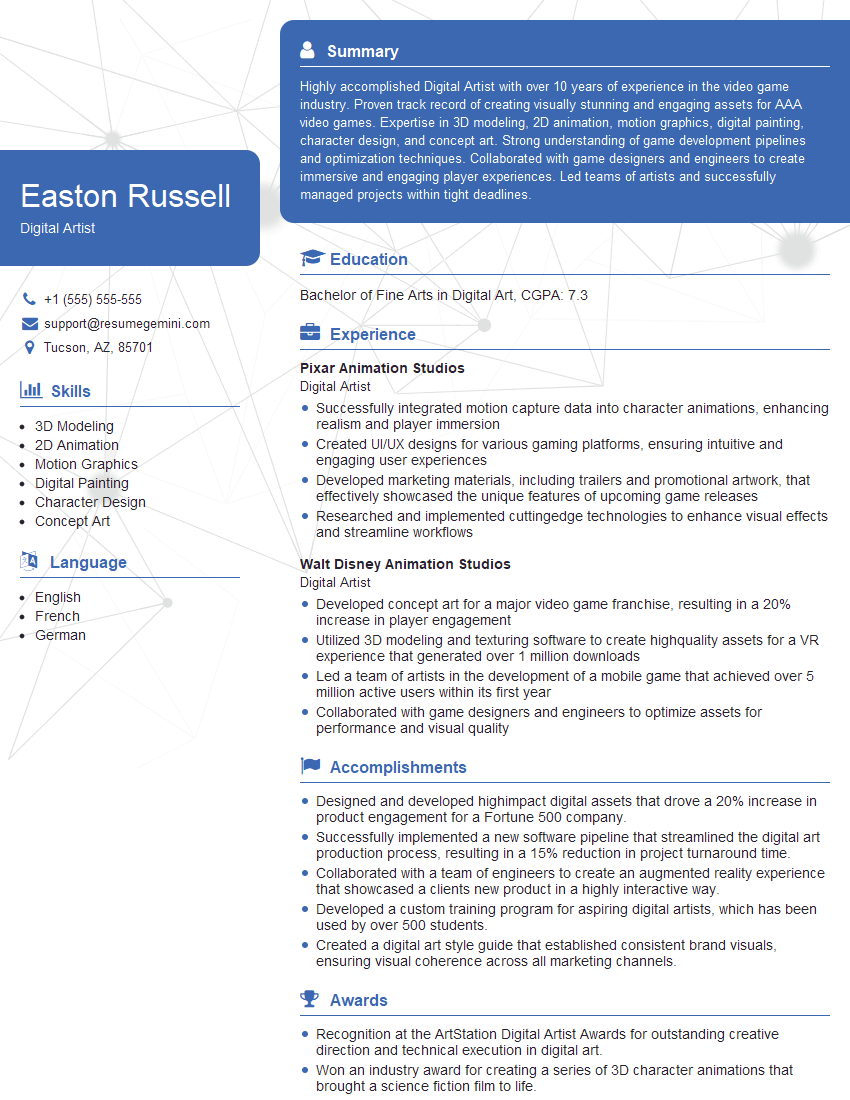
Digital Artist Resume Sample

Graphic Designer Resume Sample

Photo Editor Resume Sample
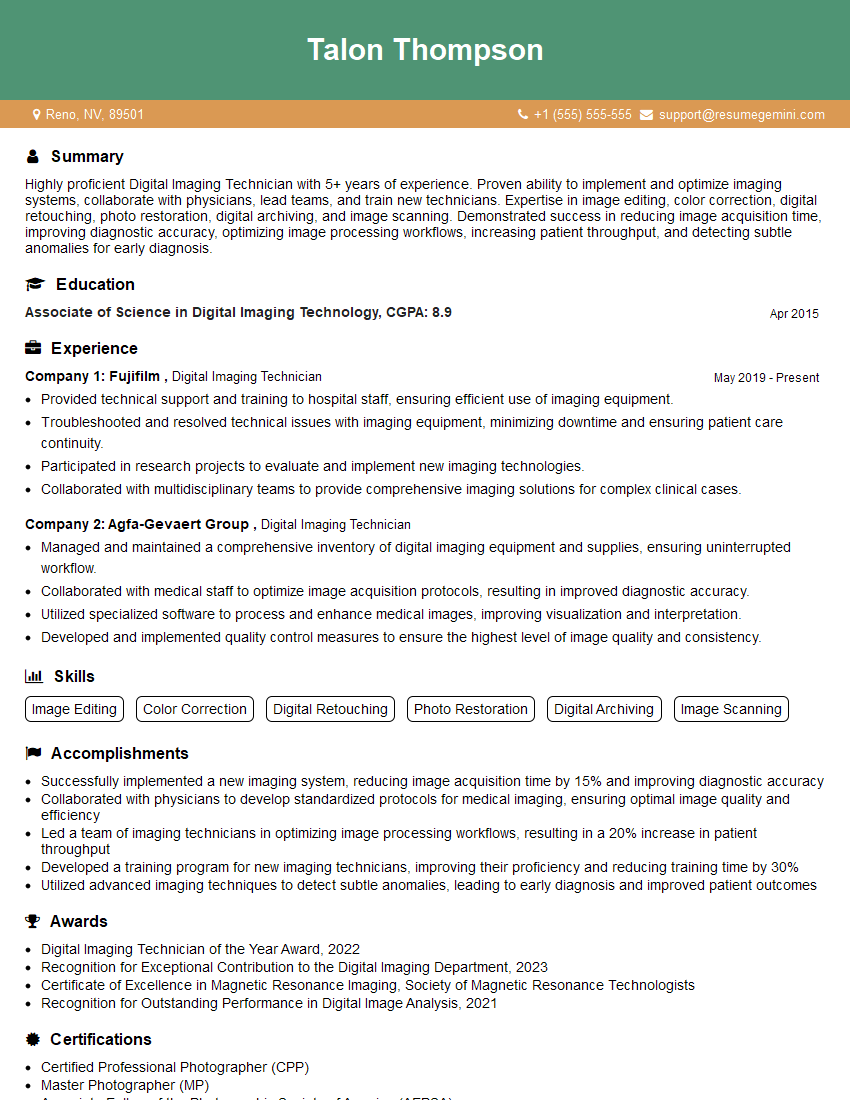
Digital Imaging Technician Resume Sample
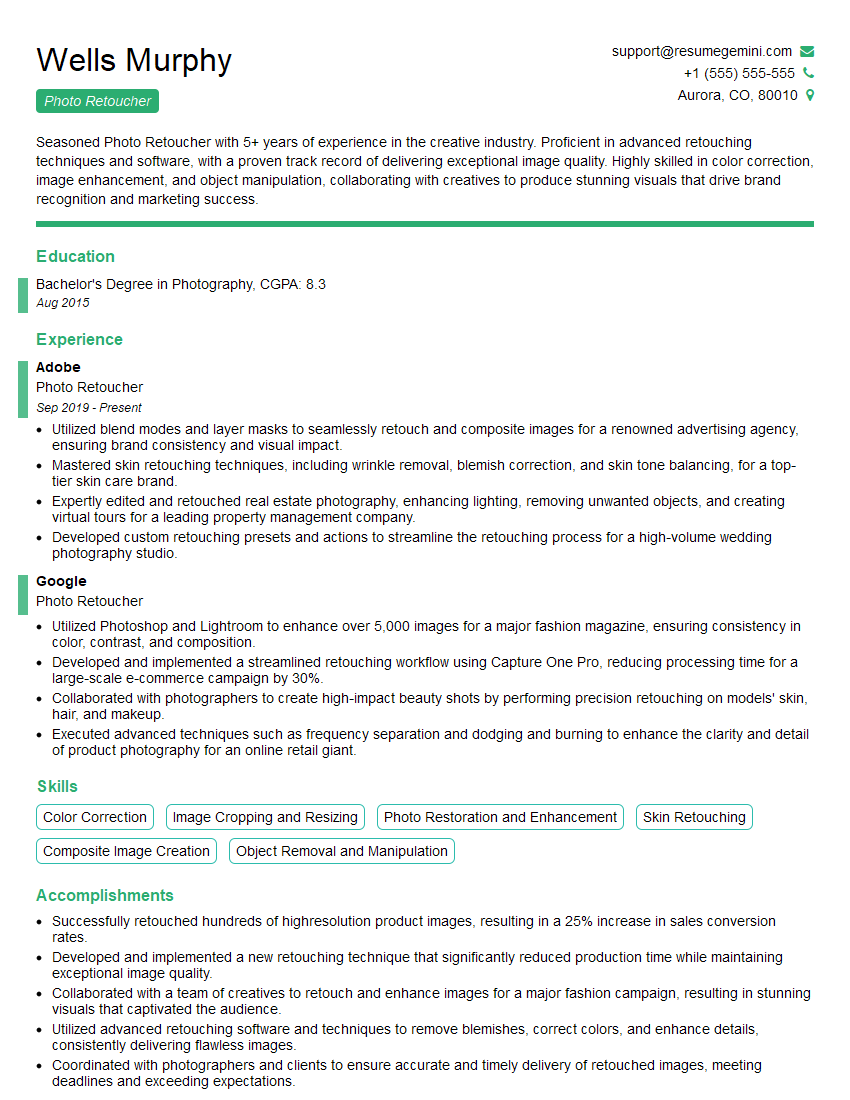
Photo Retoucher Resume Sample
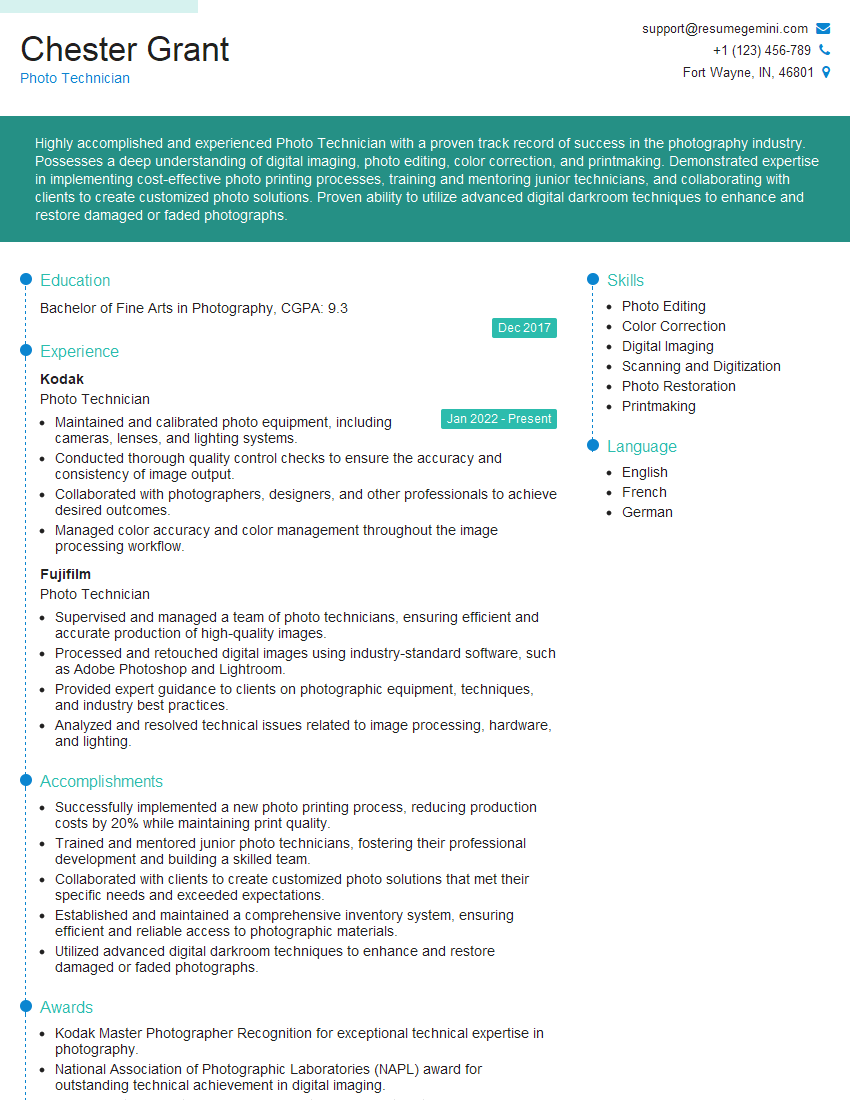
Photo Technician Resume Sample
Explore more articles
Users Rating of Our Blogs
Share Your Experience
We value your feedback! Please rate our content and share your thoughts (optional).
What Readers Say About Our Blog
Amazing blog
hello,
Our consultant firm based in the USA and our client are interested in your products.
Could you provide your company brochure and respond from your official email id (if different from the current in use), so i can send you the client’s requirement.
Payment before production.
I await your answer.
Regards,
MrSmith
hello,
Our consultant firm based in the USA and our client are interested in your products.
Could you provide your company brochure and respond from your official email id (if different from the current in use), so i can send you the client’s requirement.
Payment before production.
I await your answer.
Regards,
MrSmith
These apartments are so amazing, posting them online would break the algorithm.
https://bit.ly/Lovely2BedsApartmentHudsonYards
Reach out at BENSON@LONDONFOSTER.COM and let’s get started!
Take a look at this stunning 2-bedroom apartment perfectly situated NYC’s coveted Hudson Yards!
https://bit.ly/Lovely2BedsApartmentHudsonYards
Live Rent Free!
https://bit.ly/LiveRentFREE
Interesting Article, I liked the depth of knowledge you’ve shared.
Helpful, thanks for sharing.
Hi, I represent a social media marketing agency and liked your blog
Hi, I represent an SEO company that specialises in getting you AI citations and higher rankings on Google. I’d like to offer you a 100% free SEO audit for your website. Would you be interested?