The right preparation can turn an interview into an opportunity to showcase your expertise. This guide to Adobe Illustrator Proficiency interview questions is your ultimate resource, providing key insights and tips to help you ace your responses and stand out as a top candidate.
Questions Asked in Adobe Illustrator Proficiency Interview
Q 1. Explain the difference between vector and raster graphics.
The core difference between vector and raster graphics lies in how they represent images. Raster graphics, like JPEGs and PNGs, are composed of a grid of pixels. Each pixel has a specific color, and enlarging a raster image makes these pixels larger and visible, resulting in a loss of quality – that pixelated look. Think of it like a mosaic – zoom in too far, and you see the individual tiles.
Vector graphics, on the other hand, are made up of mathematical equations that define lines, curves, and shapes. These equations can be scaled infinitely without losing quality because they don’t rely on a fixed grid of pixels. Imagine it like a blueprint – you can enlarge the blueprint without the lines becoming blurry or pixelated. In Illustrator, we primarily work with vector graphics, making it ideal for logos, illustrations, and designs that need to be scaled for different applications (like print or web).
For example, a company logo created in Illustrator will look crisp on a business card and equally sharp when blown up for a billboard. This is a key advantage of vector graphics over raster images in professional design.
Q 2. Describe your experience using the Pen Tool in Illustrator.
The Pen Tool is my most frequently used tool in Illustrator. It’s the foundation of precise vector illustration. I’ve mastered its nuances over years of practice, using it to create everything from smooth curves to sharp, angular lines. My workflow often starts with sketching the outline, then carefully placing anchor points with the Pen Tool to replicate the sketch, manipulating curves using the handles to achieve the desired shape. I frequently use the keyboard shortcut P to quickly select the Pen Tool, and I’m proficient in using the [ and ] keys to adjust the curvature of the handles for precise control.
I’ve used the Pen Tool extensively in projects ranging from creating intricate illustrations for children’s books to designing precise diagrams for technical manuals. My experience includes working with complex, multi-path illustrations requiring a high degree of accuracy. I’m comfortable using various techniques with the Pen Tool like creating closed paths, converting points, and utilizing the direct selection tool to fine-tune the curves and anchor points for a polished finish.
Q 3. How do you create and manage layers effectively in Illustrator?
Effective layer management is crucial for organizing complex illustrations in Illustrator. I use a hierarchical approach, creating main layers for major components of the design (e.g., background, characters, text) and then sub-layers within those for specific elements. This keeps the layers panel clean and easy to navigate. I use descriptive layer names—not just ‘Layer 1,’ ‘Layer 2’—to make it easy to find the right element. For instance, instead of ‘Layer 1’ I would use ‘Character-Main,’ ‘Character-Hair,’ etc.
I frequently use layer grouping to combine related elements, which helps maintain a structured design. Color-coding layers can also significantly improve organization. I often use a consistent color scheme for different parts of the illustration, making it easier to visually identify elements. Furthermore, I regularly utilize layer effects like opacity, blending modes, and clipping masks to achieve complex effects without making the file unnecessarily complicated.
My layer management skills are essential for efficient collaboration; it makes it much easier for others to understand and modify my work.
Q 4. What are some common keyboard shortcuts you use in Illustrator?
I rely heavily on keyboard shortcuts to accelerate my workflow in Illustrator. Some of my most frequently used shortcuts include:
V: Select toolA: Selection toolP: Pen toolL: Line segment toolM: Rectangle toolE: Ellipse toolCtrl+Z(Cmd+Zon Mac): UndoCtrl+Shift+Z(Cmd+Shift+Zon Mac): RedoCtrl+C(Cmd+Con Mac): CopyCtrl+V(Cmd+Von Mac): PasteCtrl+S(Cmd+Son Mac): SaveCtrl+G(Cmd+Gon Mac): GroupCtrl+U(Cmd+Uon Mac): Ungroup
Beyond these, I have numerous shortcuts memorized for manipulating paths, transforming objects, and controlling color—shortcuts that become second nature to me through consistent usage.
Q 5. How do you work with color palettes and color modes in Illustrator?
Working with color palettes and color modes is crucial for achieving a cohesive and visually appealing design. I commonly use Illustrator’s Swatches panel to create and manage custom color palettes, ensuring consistency throughout a project. I often begin by defining a base palette using either a specific color scheme (like complementary or analogous) or drawing inspiration from existing branding guidelines. I find that using a limited palette creates harmony and avoids visual clutter.
Understanding color modes (CMYK for print and RGB for screen) is vital. I always ensure my color settings match the intended output medium. When preparing artwork for print, I work in CMYK mode to avoid color discrepancies during the printing process. For web designs, I opt for RGB. I often use the ‘Convert to CMYK’ function to preview how my RGB palette will appear in print, which aids in anticipating potential issues.
I’m also comfortable using various color tools within Illustrator, such as the Color Guide and Eyedropper Tool, to ensure color harmony and consistency across complex projects.
Q 6. Describe your process for creating a complex illustration.
Creating a complex illustration involves a structured approach. I start by sketching out my concept—often digitally now, using a tablet—to establish the composition and overall flow. Next, I create a detailed outline in Illustrator, using layers to separate different elements. This step helps visualize the illustration’s structure before focusing on intricate details. I utilize reference images and create sub-layers for various components like textures, shadows, and highlights.
Then, I move into the detailing phase, using the Pen Tool to create precise vector shapes. I employ various techniques like blending modes to create depth and realism. I frequently utilize the Pathfinder panel to combine or subtract shapes to build complex forms. Throughout the process, I regularly zoom in to refine details, ensuring the highest level of precision. Finally, I incorporate color and texture, paying attention to the overall harmony and visual impact.
For example, when creating a character illustration, I might have layers for the body, clothing, hair, eyes, each with its own sub-layers to manage individual elements like highlights or shadows, making it easy to adjust specific parts without affecting the overall design.
Q 7. How do you handle scaling vector graphics without losing quality?
The beauty of vector graphics is their scalability without loss of quality. Because they’re based on mathematical equations rather than pixels, you can enlarge or reduce them infinitely without pixelation or blurriness. This is a significant advantage over raster images, which degrade when scaled.
To ensure perfect scaling, I simply adjust the size of my vector objects using the Scale tool (S), ensuring the ‘Scale Strokes & Effects’ option is checked to maintain stroke weights and any applied effects. Illustrator will recalculate the mathematical representations of the shapes, maintaining their sharpness regardless of size. This ensures your artwork remains crisp at any resolution, a crucial factor for creating assets for various applications—from small website icons to large-scale billboards.
Q 8. What are your preferred methods for tracing images in Illustrator?
Image tracing in Illustrator is a crucial skill for converting raster images (like photos) into editable vector graphics. My preferred methods depend on the image’s complexity and desired outcome. For simple line art, I often use the Image Trace feature, experimenting with different presets like ‘Line Art,’ ‘High Fidelity Photo,’ or ‘Detailed.’ I carefully adjust the settings like Paths, Corners, and Noise to optimize the result. For more complex images with many colors and details, I may manually trace using the Pen Tool, which offers the ultimate control but requires more time and skill. This involves meticulously outlining shapes and using the Pathfinder panel (discussed below) to combine and refine these paths. I’ll often use a combination of both automated tracing and manual refinement for the best results.
Example: For a logo design with a simple silhouette, I might use the ‘Line Art’ preset with minimal adjustments. A complex photographic image of a landscape, however, would demand manual tracing with the Pen Tool to retain fine details and avoid overly simplified results. I always start with a high-resolution image for the best tracing results.
Q 9. Explain your experience using the Pathfinder panel.
The Pathfinder panel is my go-to tool for manipulating vector shapes. Think of it as a powerful digital sculptor for shapes. I use it extensively to combine, subtract, intersect, and divide shapes, creating complex forms from simpler ones. For example, creating a complex logo might start with multiple simple shapes: a circle for a head, a square for a body, and a triangle for a hat. The Pathfinder panel allows me to unite these into a single, seamless shape. I frequently use the ‘Unite,’ ‘Minus Front,’ ‘Intersect,’ and ‘Exclude’ functions. This is particularly useful for creating intricate designs or complex illustrations that require precise manipulation of paths.
Example: Imagine creating a badge with a shield shape. I would use basic shapes—circles and rectangles—then employ the Pathfinder panel’s ‘Minus Front’ function to cut out areas of one shape from another, creating the perfect shield form. A good understanding of boolean operations—the underlying logic of the Pathfinder panel—is key to efficient and effective use.
Q 10. How do you create and use custom brushes in Illustrator?
Creating custom brushes in Illustrator allows for immense creativity and efficiency. To create a custom art brush, I first draw the shape of the brush stroke using the Pen Tool, ensuring the stroke weight is exactly how I want the brush to appear. Then, I go to Brush > New Brush and select ‘Art Brush.’ I can then tweak settings like ‘Direction,’ ‘Width,’ and ‘Colorization Method’ to control how the brush behaves. Scatter brushes are fantastic for creating interesting textures, often by starting with a simple shape and adjusting the scatter settings.
For calligraphic brushes, I create a path that represents the stroke’s curve, selecting Brush > New Brush > Calligraphic Brush. Here, I can fine-tune Angle, Roundness, and Fidelity for life-like brushstrokes. The beauty of custom brushes is the ability to create repeatable elements, saving time and ensuring consistency in a design.
Example: I created a custom art brush based on a stylized flower petal to quickly add a repeating floral pattern to an invitation design. Another time, I built a custom calligraphic brush mimicking my own signature for a personalized branding project.
Q 11. Describe your process for preparing artwork for print.
Preparing artwork for print requires meticulous attention to detail. I begin by ensuring my document is set up correctly with the appropriate dimensions, color mode (CMYK), and resolution (at least 300 DPI for high-quality printing). I always use CMYK color mode for print, converting RGB images beforehand. Next, I check for any embedded images with low resolutions, replacing them with higher-quality versions. I make sure there are no overlapping objects that could lead to printing artifacts, checking and resolving any path issues like gaps or stray points using the Outline stroke command. I then create a flattened PDF file, ensuring that all fonts and images are embedded, which is crucial for reliable printing on various devices.
Example: While preparing a poster design, I ensured all images were 300 DPI, converted RGB to CMYK, and flattened the file into a high-quality PDF/X-1a for consistent printing across different print providers. This ensures that the colors and sharpness of the design remain accurate.
Q 12. How do you optimize Illustrator files for web use?
Optimizing Illustrator files for web use focuses on file size and format. Instead of saving as an AI file (which is large and requires Illustrator to open), I usually export as SVG (Scalable Vector Graphics) which maintains vector quality while keeping files compact. For more complex illustrations, I might use PNG, ensuring sufficient resolution (72 DPI is often suitable). When exporting as PNG or JPG, I compress the image appropriately, balancing file size and visual quality using tools available in most image editing software. I avoid excessive layers and complex effects to reduce file sizes. Also, ensuring that all fonts are outlined or embedded properly helps avoid rendering issues on different devices and browsers.
Example: For a website logo, an SVG export is ideal. For a complex web banner, I’d carefully export it as a PNG, adjusting compression to optimize the file size for quick web loading times without compromising significant visual quality.
Q 13. What are some common troubleshooting techniques you use in Illustrator?
Troubleshooting in Illustrator often involves identifying the source of the problem—is it a file corruption issue, a path problem, or a setting issue? For file corruption, I try to save the file as a different format or use the ‘Recover’ option. If it’s a path issue, using the ‘Outline Stroke’ command and the Direct Selection Tool to manually inspect and edit individual paths can fix gaps or unexpected behavior. Incorrect settings are usually diagnosed by comparing against known working configurations. Illustrator’s extensive help documentation often provides solutions to common problems. If the problem persists, restarting Illustrator or even the computer itself can often resolve minor glitches.
Example: If an object becomes unresponsive, I often try expanding the appearance attributes. If that fails, I’ll try to save a copy of the file, close and reopen Illustrator, then try to recover the file. If all else fails, I carefully examine the file structure and might recreate parts of the work from scratch if the damage is severe. For more persistent issues, contacting Adobe support can be helpful.
Q 14. What are your preferred techniques for creating gradients?
Creating gradients in Illustrator is a key aspect of adding depth and visual interest to designs. I commonly use two gradient types: linear and radial. Linear gradients create a smooth transition of color along a straight line, while radial gradients transition from a central point outwards, like ripples in water. I frequently use the Gradient Tool to adjust the gradient stops, changing colors and their positions along the gradient ramp. I can also adjust the angle and scale to create the desired effect. I find that experimenting with different blending modes can create unique and unexpected gradient effects. Combining multiple gradients or using gradient meshes can create very complex and realistic color transitions.
Example: For a simple button design, a linear gradient from a darker shade to a lighter shade can create a 3D effect. To simulate a glowing effect, a radial gradient radiating outward from a light source works beautifully. Gradient meshes are useful when you need high degrees of color control across complex shapes. I’ll often use gradient meshes for realistic shading on illustration elements.
Q 15. How familiar are you with the use of clipping masks?
Clipping masks in Adobe Illustrator are a powerful tool for masking portions of an object or group of objects with another object. Think of it like using a cookie cutter – the shape of the cookie cutter (your clipping mask) determines what part of the dough (your artwork) is visible. The masked portion is revealed, while everything outside the mask is hidden.
To create a clipping mask, you select both your artwork (the dough) and your masking shape (the cookie cutter), then go to Object > Clipping Mask > Make (or use the keyboard shortcut Cmd/Ctrl + 7). You can easily modify the mask later; changes to the masking shape will automatically update the visible artwork.
Example: Imagine creating a logo with text inside a circle. You could create the text and the circle separately, then use the circle as a clipping mask to reveal only the text within the circular boundary. This prevents you from having to painstakingly cut out the text.
I frequently use clipping masks for creating complex shapes, image masking for web design, and isolating elements in illustrations to ensure a clean and professional look. It’s incredibly efficient and reduces the need for tedious manual editing.
Career Expert Tips:
- Ace those interviews! Prepare effectively by reviewing the Top 50 Most Common Interview Questions on ResumeGemini.
- Navigate your job search with confidence! Explore a wide range of Career Tips on ResumeGemini. Learn about common challenges and recommendations to overcome them.
- Craft the perfect resume! Master the Art of Resume Writing with ResumeGemini’s guide. Showcase your unique qualifications and achievements effectively.
- Don’t miss out on holiday savings! Build your dream resume with ResumeGemini’s ATS optimized templates.
Q 16. Describe your experience with creating and using symbols.
Symbols are reusable graphic elements in Illustrator that allow for efficient design workflow. Once a symbol is created, any changes made to the master symbol are reflected across all instances of that symbol in your artwork. This is invaluable for maintaining consistency and saving time, especially in projects with many repeated elements.
My experience involves creating symbols for logos, icons, recurring patterns, or even complex illustrations that might need multiple versions with slight alterations. For instance, in a project designing a website’s UI, I would use symbols for buttons, navigation elements, or icons to ensure consistency across all pages.
Creating symbols is straightforward: select the artwork, go to Object > Symbol > New Symbol, give it a name, and place it within the Symbols panel. To edit the master symbol, you double-click the instance, make your changes in the symbol edit mode, and save. All instances will update automatically.
I often leverage symbol libraries to manage and organize numerous symbols efficiently. This makes it easy to locate and reuse elements across different projects, thereby streamlining my creative process and maintaining brand consistency.
Q 17. How do you manage and organize your artwork files efficiently?
Organizing artwork files efficiently is crucial for smooth workflow and avoiding frustrating searches later. My approach combines a structured file system and effective use of Illustrator’s features.
- Organized File Structure: I create folders for each project, subfolders for different stages (sketches, drafts, final artwork), and clearly named files. This allows for easy navigation and retrieval of files.
- Layers: In Illustrator itself, I utilize layers extensively. Each layer is dedicated to a specific element or purpose (background, text, illustrations, etc.), making it easy to edit and manage individual components without affecting others.
- Layer Groups: To improve layer organization, I group related layers together into larger groups for better visual clarity and management.
- Layer Names: I always use descriptive layer and group names to ensure I can easily locate and understand each element’s function.
- Color Coding: For projects involving numerous elements, color coding layers can improve visual identification and workflow.
This structured approach, coupled with a systematic naming convention, ensures that even complex files remain easily manageable and comprehensible. It saves significant time and prevents errors caused by disorganization.
Q 18. What are your preferred methods for exporting files from Illustrator?
My preferred methods for exporting files from Illustrator depend heavily on the intended use. I carefully consider the target platform and required fidelity.
- AI (Adobe Illustrator): For preserving all editing capabilities and vector data, I use the AI format. This is ideal for projects where further editing or modifications are expected.
- PDF (Portable Document Format): PDF is widely compatible and provides high-quality raster and vector output. It’s suitable for print materials and online sharing, offering options for embedding fonts and color profiles.
- SVG (Scalable Vector Graphics): For web use, SVG is my choice. It maintains scalability without pixelation, which is ideal for responsive design elements and icons. It’s a lightweight file format that’s easily integrated into websites and web applications.
- EPS (Encapsulated PostScript): While less frequently used now, EPS remains a useful format for exchanging vector artwork between applications, particularly in prepress workflows.
I always preview the exported files to ensure the quality meets expectations before delivering them. The choice of export settings, such as resolution (for rasterized elements), compression, and color profiles, is critical and highly depends on the final application.
Q 19. Explain your experience working with different file formats (AI, EPS, PDF, SVG).
I have extensive experience working with AI, EPS, PDF, and SVG file formats, understanding their strengths and limitations for various applications.
- AI: Native Illustrator format; preserves all editing capabilities, layers, and effects. Best for projects requiring ongoing modifications.
- EPS: A common format for vector graphics, though less prevalent today. Compatible with most vector graphics editors, suitable for print projects, but can have compatibility issues in some applications.
- PDF: Widely compatible and versatile format, supporting both vector and raster graphics. Excellent for print and digital distribution, offering control over compression, fonts, and color profiles. There are options to create press-ready files.
- SVG: A key format for web graphics, offering scalability without loss of quality. It’s lightweight, compatible with modern web browsers, and ideal for icons, logos, and responsive design elements.
Understanding the nuances of each format allows me to select the most appropriate option for a project, ensuring compatibility, quality, and file size optimization.
Q 20. How do you ensure consistency in your designs across different projects?
Maintaining design consistency is paramount across projects. My approach involves a multi-faceted strategy:
- Style Guides: For large-scale projects or brands, I create detailed style guides documenting fonts, colors, imagery styles, and spacing guidelines. This ensures uniformity across all design materials.
- Color Palettes: Using consistent color palettes ensures brand cohesion and a unified visual language across projects. I often save these palettes for easy reuse.
- Master Symbols and Libraries: In Illustrator, symbols are critical. Reusing consistent symbols for logos, buttons, and other elements prevents variations and ensures uniformity.
- Templates: Creating templates for common document types (e.g., brochures, presentations) establishes a baseline structure and ensures consistent layout and design elements.
- Version Control: Using version control systems (e.g., Git, though not directly within Illustrator) allows me to track changes and collaborate effectively while maintaining design consistency over time.
By meticulously adhering to these principles, I guarantee the visual identity remains coherent and professional across different projects.
Q 21. Describe your experience using Illustrator’s effects panel.
Illustrator’s Effects panel offers a vast array of tools to add creative enhancements and manipulate artwork. My experience spans using many of these effects for diverse purposes.
- Stylize Effects: I use these to add bevels, embossing, and drop shadows to add depth and visual interest to text and shapes. These can drastically enhance the look of logos or other graphical elements.
- Distort & Transform Effects: These allow me to manipulate shapes and text, creating warping, twisting, and other transformations for unique visual effects.
- Pathfinder Effects: These are indispensable for combining, merging, and subtracting shapes to create intricate and complex designs. These are very useful for logo creation and illustrations.
- Raster Effects: These effects allow for the manipulation of pixel-based images within the vector environment. This is useful for applying blurs, filters, and other image-editing functions without compromising the core vector nature of the artwork.
I often combine multiple effects to achieve the desired visual result. My skill lies in understanding how effects interact and ensuring that the final artwork is of high quality. Understanding the effects’ influence on file size is also crucial; I strive to balance visual appeal with efficient file management.
Q 22. How do you use the Appearance panel to create complex effects?
The Appearance panel in Illustrator is a powerhouse for creating complex effects. Think of it as a layer system specifically for effects, allowing you to stack and manipulate multiple styles on a single object without altering the object’s underlying shape or path. This non-destructive editing is crucial for flexibility and easy revisions.
For example, you might start with a simple shape. Then, in the Appearance panel, you can add a fill, then a stroke, then a gradient overlay, and finally a drop shadow. Each effect resides on its own line, and you can adjust, reorder, or delete any of these effects independently. This allows for incredible control. You can even duplicate appearance attributes to easily apply the same complex effect to multiple objects.
Let’s say I’m designing a logo. I want a metallic effect on my text. I’d add a fill color, then add a gradient overlay using a metallic texture, followed by an inner glow to simulate depth and finally a subtle drop shadow to give it dimension. Each step is recorded in the Appearance panel, making it easy to adjust the gradient, shadow blur or even change the order without redoing the entire effect. This control is much more efficient than combining all effects into a single, difficult-to-modify object.
Q 23. Explain your process for creating and applying styles.
My process for creating and applying styles involves a combination of planning and efficiency. I start by identifying recurring design elements – say, specific button styles or text formatting – within a project. I then create these styles, which are essentially saved design attributes, within Illustrator’s Graphic Styles and Paragraph Styles panels. This ensures consistency and reduces repetition.
I begin by creating a sample object with the desired formatting—color, stroke, effects, etc. Then, I select the object and choose ‘New Graphic Style’ (or ‘New Paragraph Style’ for text). I give it a descriptive name – ‘Button-Primary’, for instance – so I can easily find and apply it later. For complex styles, I often use the Appearance panel as described earlier to build multiple effects into a single style.
Applying styles is as simple as selecting the object or text and choosing the saved style from the panel. This is especially useful when dealing with large projects or multiple iterations of the same element. Imagine needing to change the colour of all primary buttons on a website; a simple style update affects them all instantaneously, saving huge amounts of time and effort.
Q 24. What is your experience with Illustrator scripting or extensions?
While I don’t have extensive experience in writing Illustrator scripts from scratch, I am proficient in utilizing and modifying existing scripts and extensions. I regularly use extensions like Astute Graphics’ suite for advanced effects and automation. My understanding of JavaScript allows me to tailor some scripts for specific tasks and understand the underlying logic of extensions.
For example, I’ve used scripts to automate repetitive tasks like creating multiple variations of a design with different colors or applying consistent spacing to elements across a complex layout. This efficiency is invaluable in a production environment. I find that keeping up with developments in the extension ecosystem is crucial to remaining competitive and improving workflow.
Q 25. How do you handle feedback and revisions on your designs?
Handling feedback and revisions is a cornerstone of my design process. I believe in clear, open communication. When receiving feedback, I listen actively, ask clarifying questions to fully understand the intent behind the suggestions, and then present solutions rather than just making changes blindly.
For example, if feedback suggests a logo needs to be more modern, I’ll explore several options – presenting different iterations with explanations of the design choices behind each one. This approach facilitates informed decision-making. I always maintain version control, keeping track of all revisions. This allows for quick access to previous versions and a clear history of the design evolution.
I firmly believe that collaborative design is the best way to achieve a successful outcome. Constructive criticism leads to stronger and more impactful designs.
Q 26. Describe your experience with collaborating on Illustrator projects.
I have extensive experience collaborating on Illustrator projects, both within teams and through client collaboration platforms. My preferred approach involves using version control systems like Adobe Creative Cloud Libraries, where we can share assets and styles, ensuring everyone works with the latest approved versions. This significantly reduces conflicts and keeps everyone on the same page.
Clear communication channels are key – regular check-ins, shared documentation, and feedback sessions all help prevent misunderstandings and maintain project momentum. When working remotely, I find tools like Slack or Microsoft Teams invaluable for quick queries and immediate feedback, ensuring a smooth and efficient workflow. I emphasize transparency and collaboration to achieve the best possible outcome as a team.
Q 27. How do you stay up-to-date with the latest trends and features in Adobe Illustrator?
Staying updated in the dynamic world of Adobe Illustrator is crucial. I consistently follow industry blogs, online forums, and Adobe’s official channels for announcements of new features and updates. I participate in online communities and attend webinars to learn from other designers and stay abreast of emerging trends.
I actively experiment with new features as they are released, exploring their practical applications to my design workflow. I also find inspiration through online design platforms like Behance and Dribbble, observing the work of other professionals and learning about innovative techniques and styles. This continuous learning ensures I’m always equipped with the latest tools and knowledge to provide the highest-quality designs.
Q 28. Describe a challenging design problem you solved using Illustrator.
One challenging project involved creating a highly detailed, intricate pattern for a textile client. The pattern needed to be seamlessly repeatable at various scales, maintaining crispness and visual appeal. The initial approach using simple copy-pasting proved inefficient and resulted in minor inconsistencies in the pattern repeat. I addressed this by leveraging Illustrator’s advanced features like the Pattern Options panel and the ability to create complex path manipulations.
My solution involved meticulously constructing the base pattern elements using precise paths and vector shapes. Then I utilized the Pattern Options panel to control the tile size and position perfectly, ensuring the pattern repeated flawlessly. I also used the pathfinder tools to efficiently combine and adjust shapes within the pattern tile. The final result was a flawless, high-resolution pattern that met the client’s specifications, demonstrating my proficiency in handling complex pattern creation and resolving challenging repeat issues.
Key Topics to Learn for Adobe Illustrator Proficiency Interview
- Vector Graphics Fundamentals: Understanding the core principles of vector graphics, including paths, points, and handles. Practical application: Explaining the advantages of vector graphics over raster graphics in various design contexts.
- Tool Proficiency: Mastering essential tools like the Pen Tool, Shape Tools, Type Tool, and Pathfinder. Practical application: Demonstrating efficient workflows for creating complex shapes and illustrations.
- Color Theory and Application: Understanding color modes (CMYK, RGB), color palettes, and effective color usage for various design projects. Practical application: Explaining the process of creating and managing a consistent color scheme.
- Working with Layers and Layers Panels: Efficiently organizing and managing layers for complex designs. Practical application: Describing strategies for maintaining a clean and organized layer structure.
- Typography and Text Handling: Understanding typography principles and applying them effectively within Illustrator. Practical application: Explaining the process of creating and formatting text for different design needs.
- File Management and Exporting: Understanding various file formats (AI, EPS, PDF, SVG) and appropriate export settings for different applications. Practical application: Choosing the optimal file format and settings for specific project requirements.
- Advanced Techniques: Exploring techniques like blending modes, gradients, effects, and creating patterns. Practical application: Demonstrating the ability to utilize these techniques to enhance design aesthetics and functionality.
- Workflow Optimization: Efficiently using keyboard shortcuts, actions, and other time-saving techniques. Practical application: Explaining your personal workflow and strategies for maximizing productivity.
- Problem-Solving and Troubleshooting: Identifying and resolving common issues encountered during the design process. Practical application: Describing how you approach challenges and find solutions in Illustrator.
Next Steps
Mastering Adobe Illustrator proficiency is crucial for career advancement in graphic design, web design, and related fields. A strong understanding of Illustrator translates directly into higher earning potential and more diverse job opportunities. To maximize your job prospects, crafting an ATS-friendly resume is essential. ResumeGemini can significantly enhance your resume-building experience by providing the tools and resources to create a professional and impactful document that highlights your skills effectively. Examples of resumes tailored to Adobe Illustrator proficiency are available to help you get started. Invest the time to build a compelling resume; it’s your first impression on potential employers.

Art Director Resume Sample

Creative Director Resume Sample

Web Designer Resume Sample
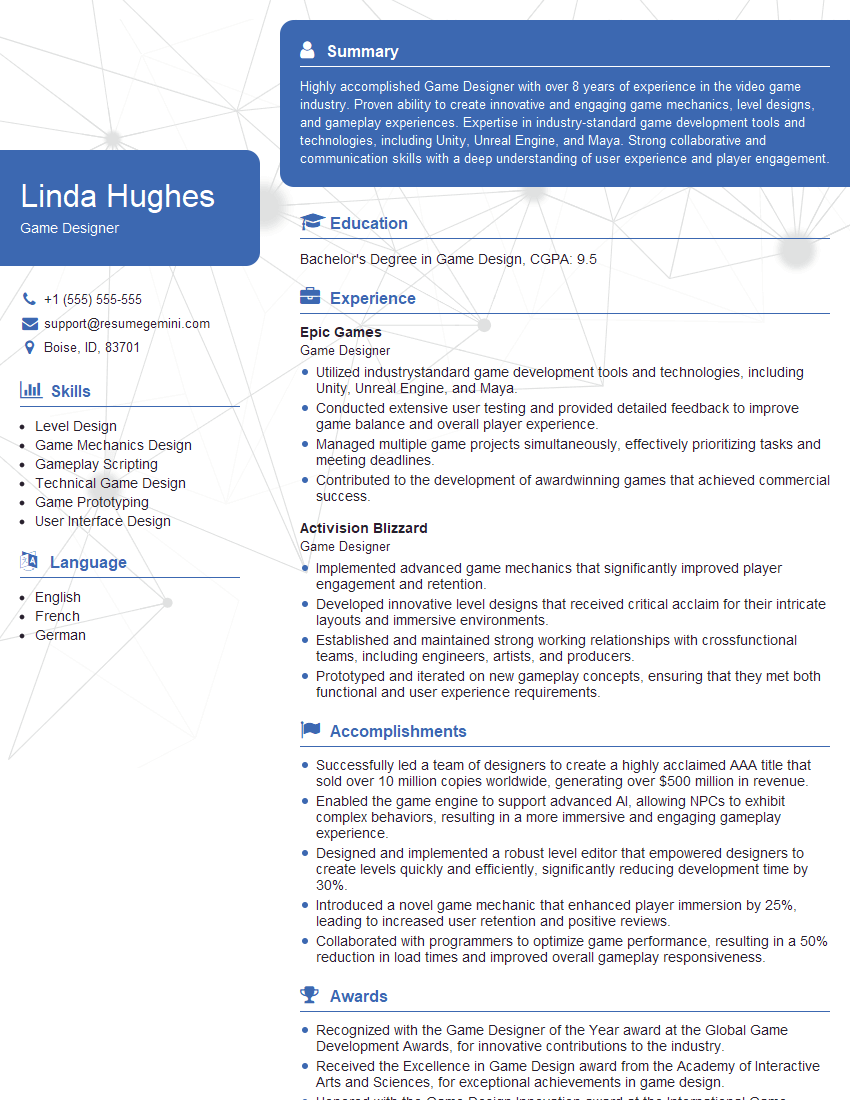
Game Designer Resume Sample
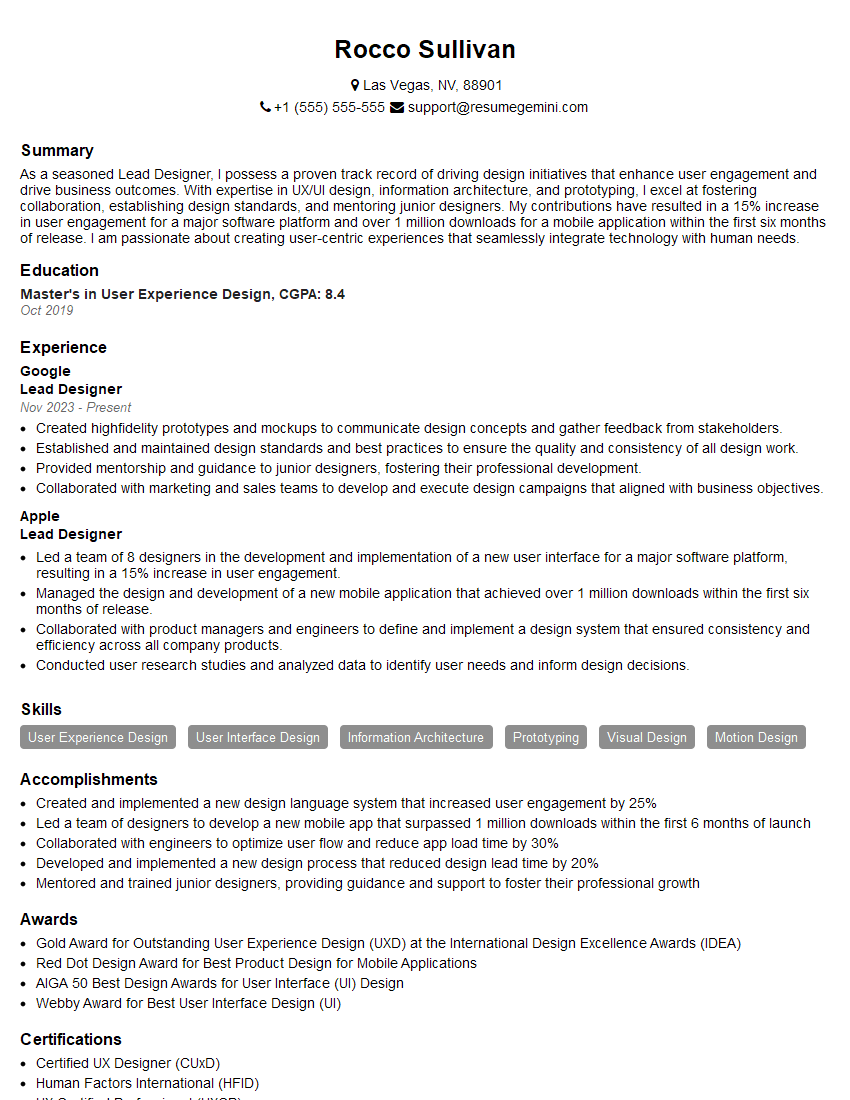
Lead Designer Resume Sample
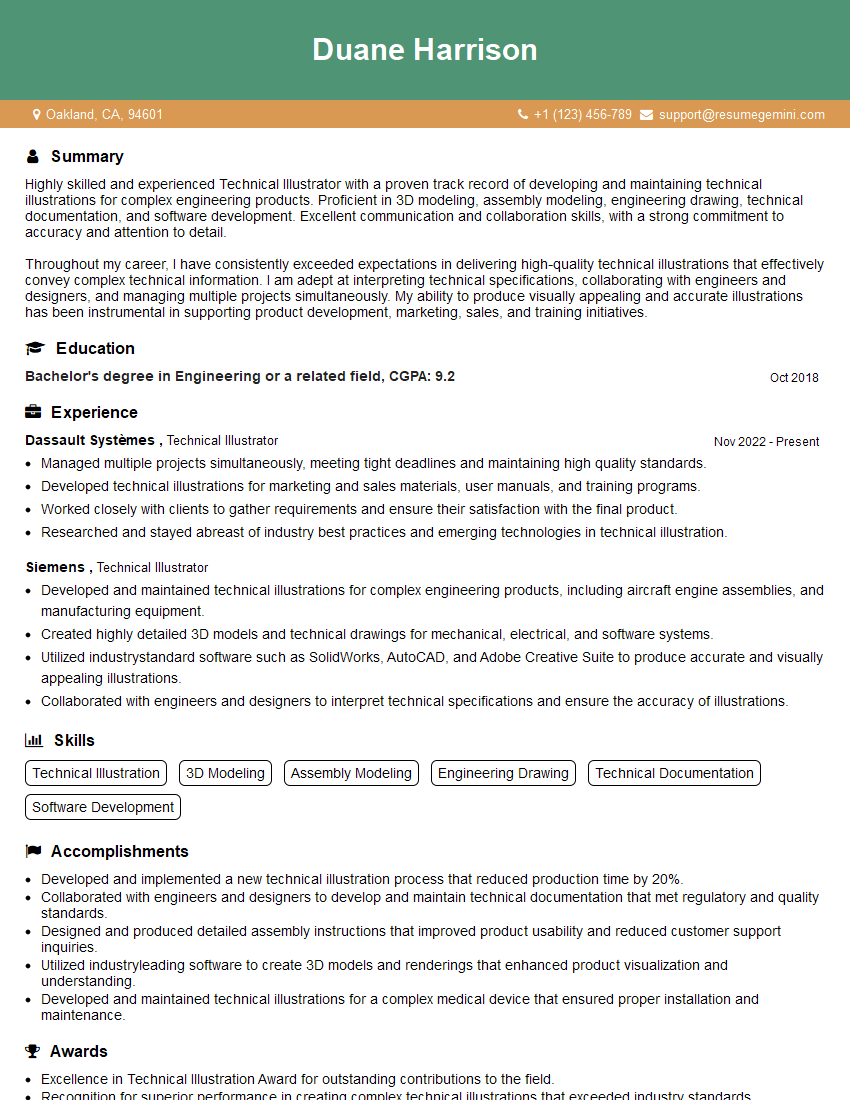
Technical Illustrator Resume Sample
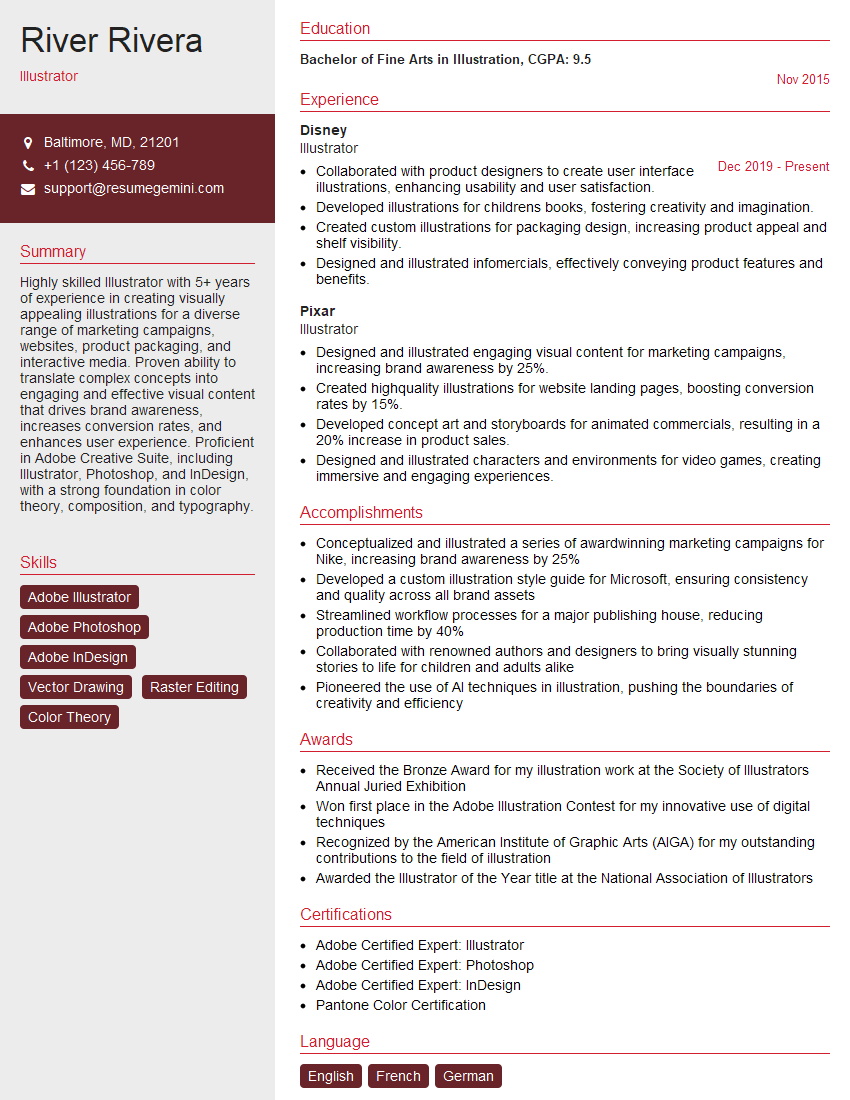
Illustrator Resume Sample
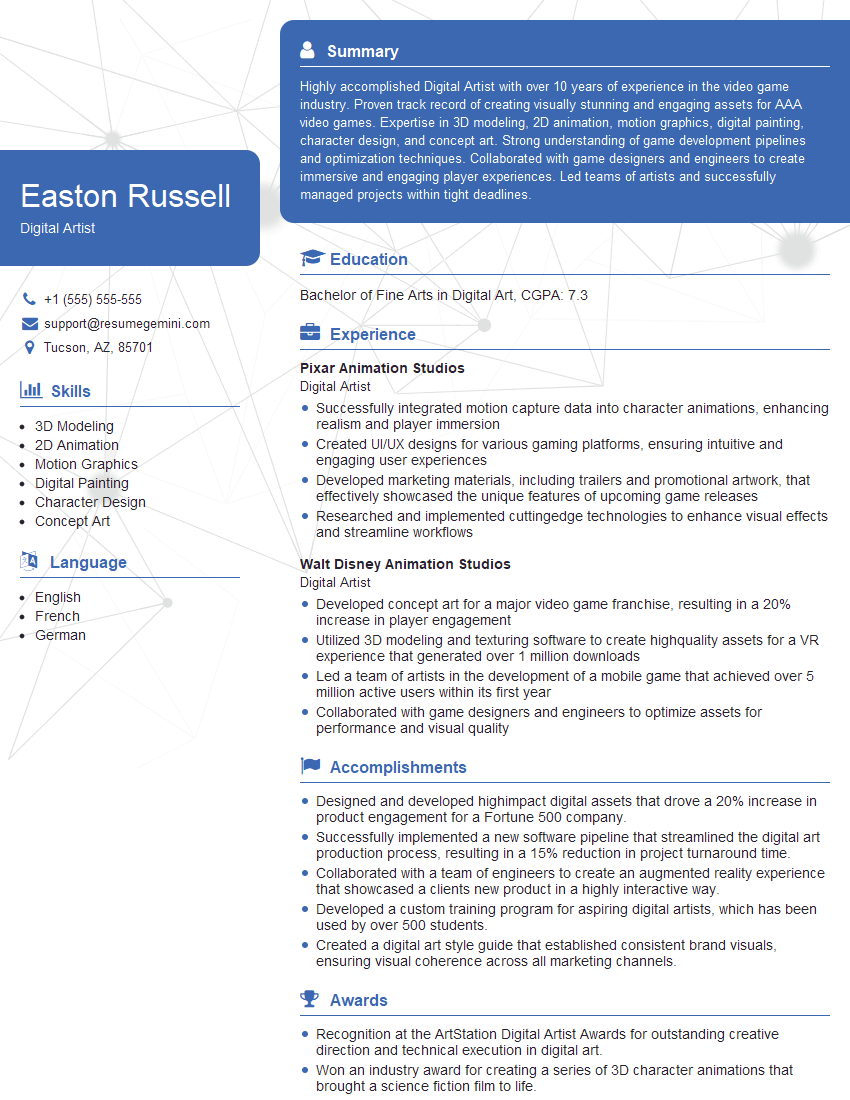
Digital Artist Resume Sample

Graphic Designer Resume Sample
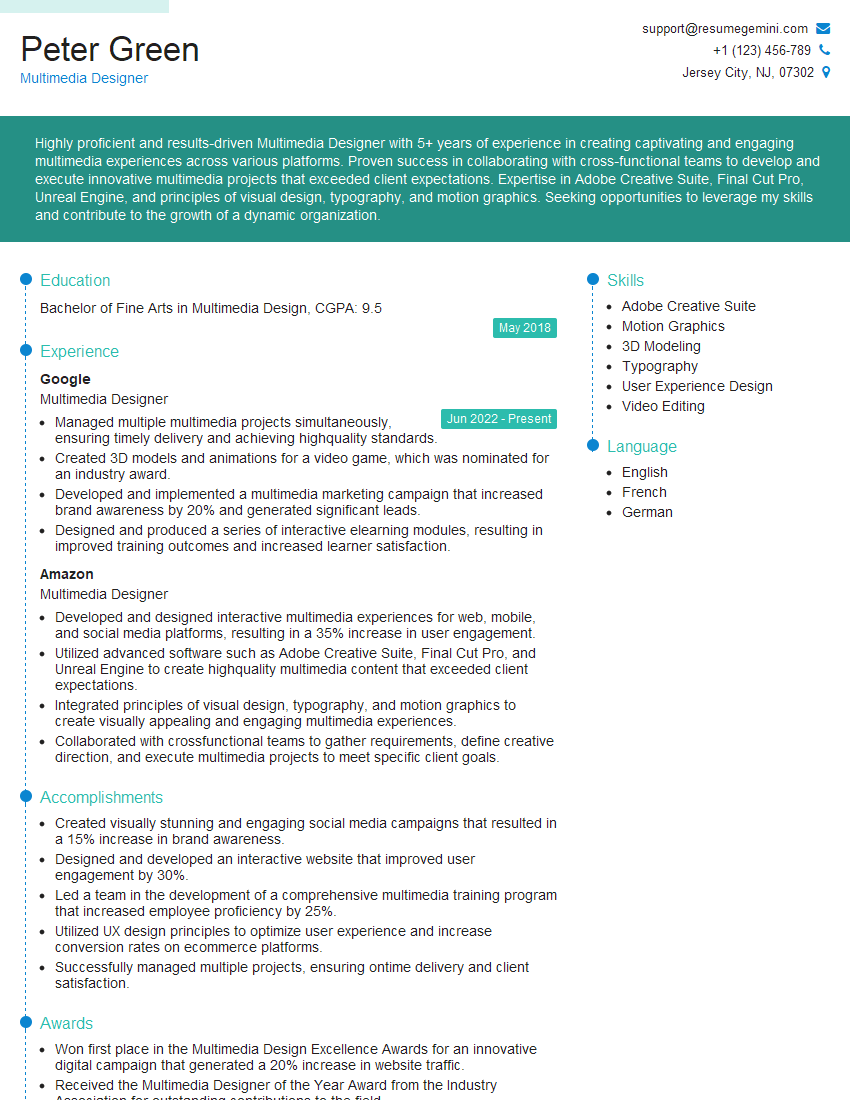
Multimedia Designer Resume Sample
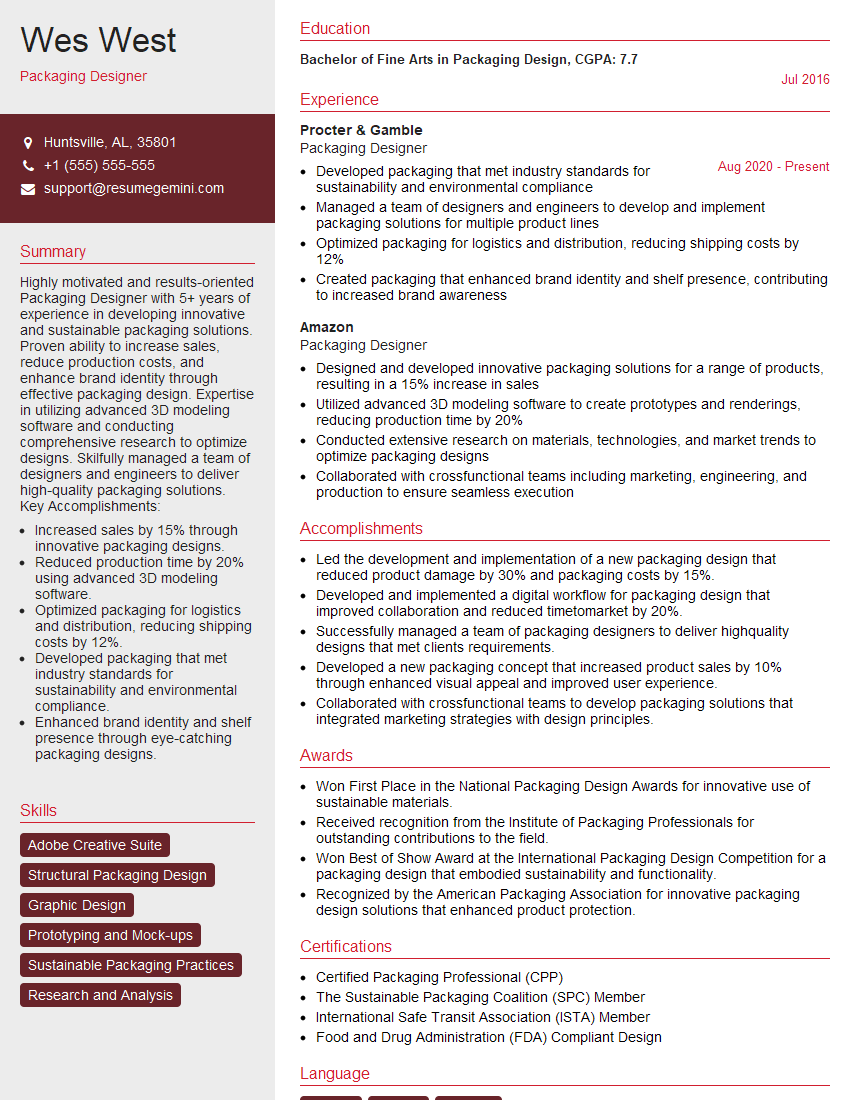
Packaging Designer Resume Sample
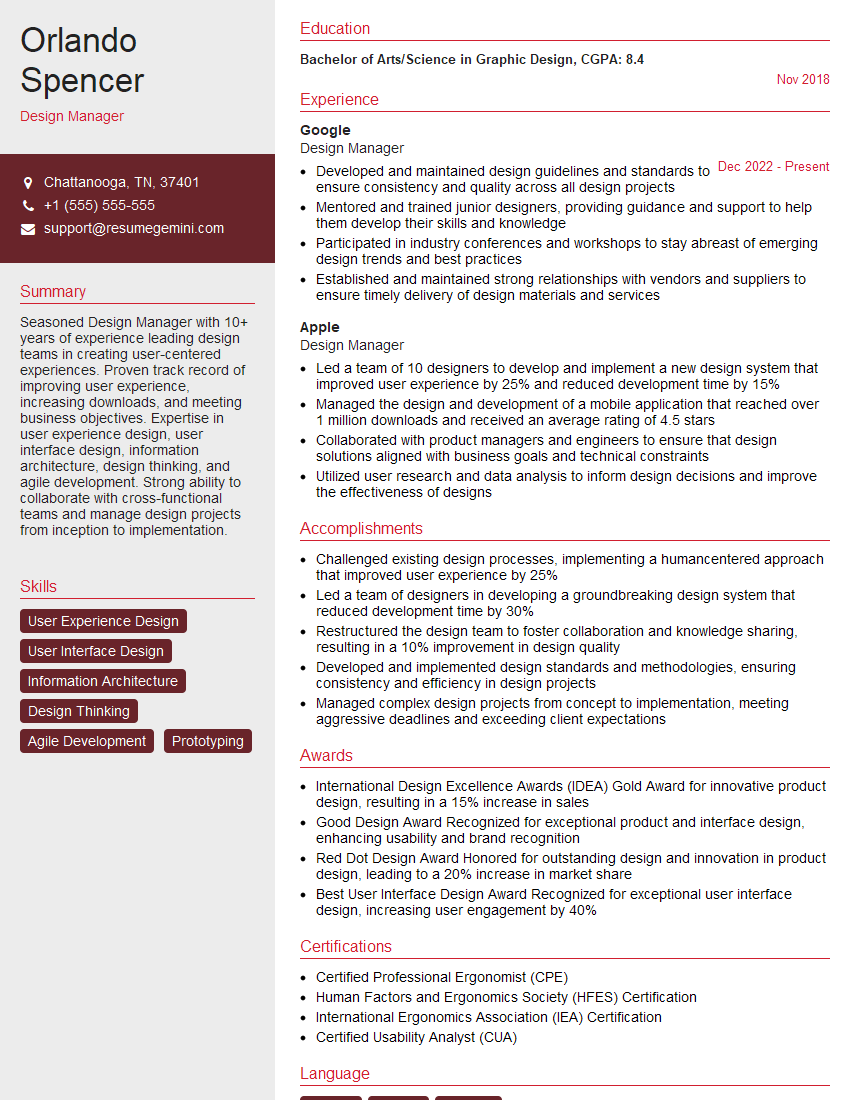
Design Manager Resume Sample
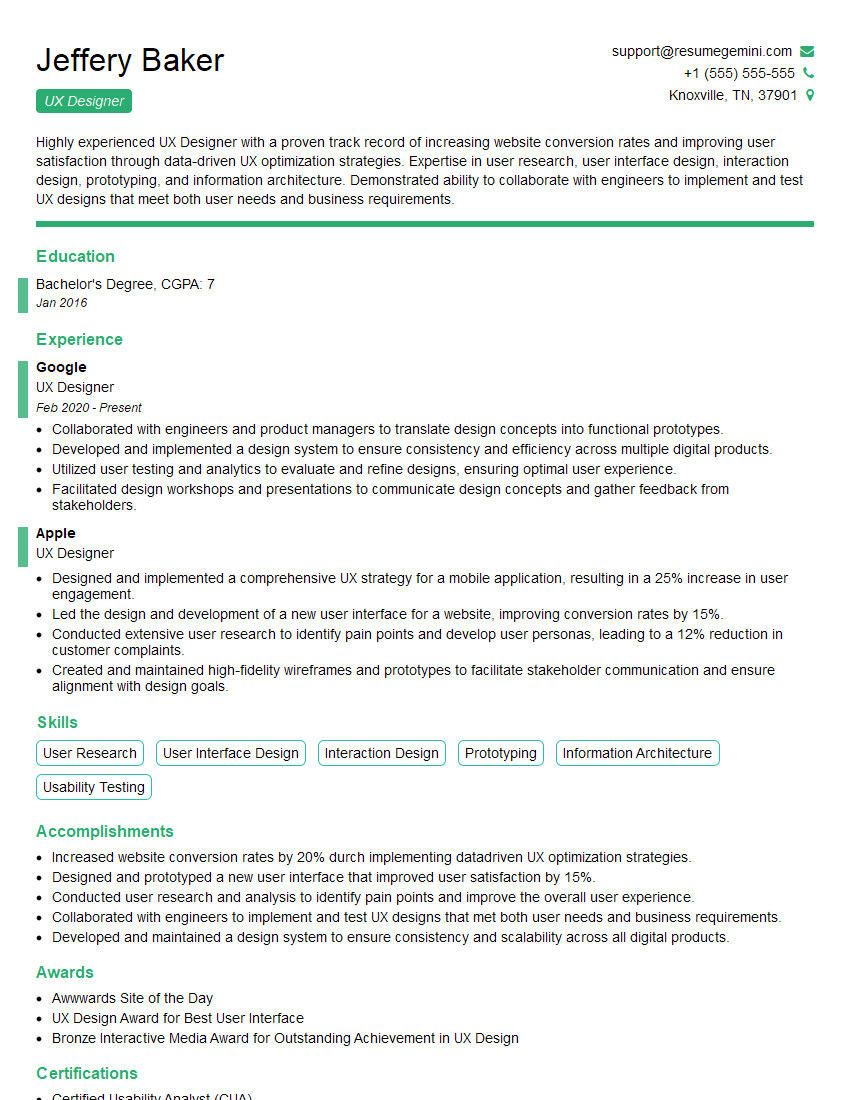
UX Designer Resume Sample
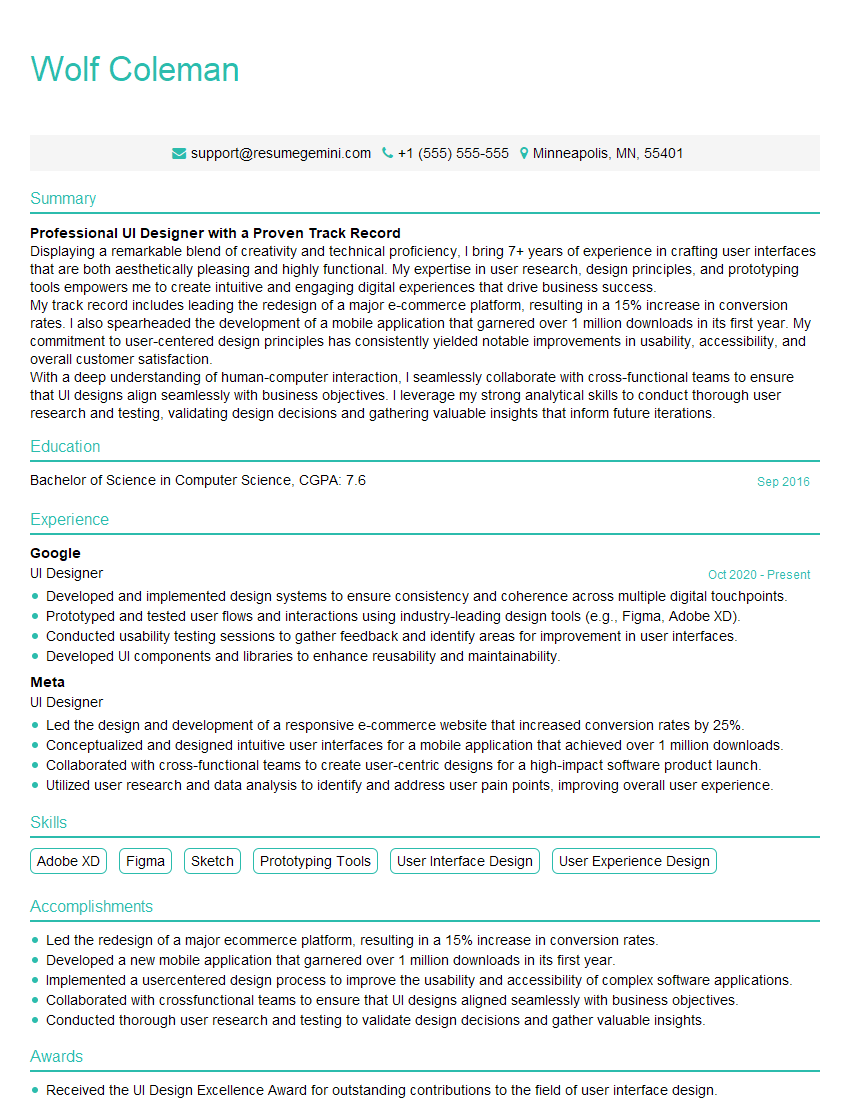
UI Designer Resume Sample
Explore more articles
Users Rating of Our Blogs
Share Your Experience
We value your feedback! Please rate our content and share your thoughts (optional).
What Readers Say About Our Blog
Amazing blog
Interesting Article, I liked the depth of knowledge you’ve shared.
Helpful, thanks for sharing.