Every successful interview starts with knowing what to expect. In this blog, we’ll take you through the top Proficient in Final Cut Pro, Premiere Pro, and other video editing software interview questions, breaking them down with expert tips to help you deliver impactful answers. Step into your next interview fully prepared and ready to succeed.
Questions Asked in Proficient in Final Cut Pro, Premiere Pro, and other video editing software Interview
Q 1. Explain your experience with Final Cut Pro’s magnetic timeline.
Final Cut Pro’s magnetic timeline is a revolutionary feature that simplifies video editing by automatically adjusting clips as you move them. Think of it like magnets – clips snap together seamlessly, preventing gaps and overlaps. This eliminates the tedious manual adjustment required in traditional timelines. It’s particularly useful for quick edits and assembling rough cuts. For example, if I’m adding a short b-roll clip into a sequence, I simply drag and drop it; the magnetic timeline automatically pushes subsequent clips down the timeline to accommodate the new footage without requiring any manual trimming or repositioning of other clips. This speeds up the editing process dramatically and allows me to focus more on the creative aspects of storytelling rather than the technicalities.
However, it’s important to understand that while powerful, the magnetic timeline isn’t always ideal. For more complex edits requiring precise frame-by-frame control, I’ll sometimes temporarily disable the magnetic behavior to gain finer control over clip placement. It’s a tool that’s best used judiciously, balancing its speed and ease of use with the precision required for certain projects.
Q 2. How do you manage large video projects in Premiere Pro?
Managing large video projects in Premiere Pro involves a multi-pronged approach. Firstly, I meticulously organize my project files using a folder structure that mirrors the project’s timeline. This ensures easy location of assets, and avoids confusion. Each project has a dedicated folder, typically organized into subfolders for footage, audio, graphics, and rendered elements. Secondly, I leverage Premiere Pro’s proxy workflow. By creating smaller, lower-resolution proxies of my high-resolution footage, I can edit smoothly even on less powerful machines. This drastically improves performance without compromising the final output quality. Once editing is complete, I simply switch back to the high-resolution footage for rendering. Finally, I utilize Premiere Pro’s render queue effectively. For very long and complex timelines, I break the final render down into smaller segments or sequences to speed up the process and make troubleshooting easier. This allows for better performance and control of the final output, particularly essential for projects involving extensive visual effects or color grading.
Q 3. Describe your workflow for color correction in a video editing software.
My color correction workflow typically follows a three-step process: First, I assess the footage and identify the overall color temperature and balance. This might involve adjusting the white balance to ensure a neutral starting point. Next, I tackle global adjustments, using tools like curves and color wheels to fine-tune contrast, saturation, and overall color vibrancy. This stage is all about ensuring a consistent look across the project. Finally, I perform selective color corrections, targeting specific areas or clips that need individual attention. For instance, I might use a color picker to select and adjust a specific shade of blue in the sky while leaving the rest of the image unaffected. This approach, combined with leveraging tools like scopes (waveform, vectorscope, parade) ensures accurate and aesthetically pleasing color grading. I always begin with subtle adjustments and gradually build up my adjustments to avoid over-correction. This entire process varies depending on the software used but the underlying principles remain the same.
Q 4. What are your preferred keyboard shortcuts in Final Cut Pro or Premiere Pro?
My preferred keyboard shortcuts vary slightly depending on the software I’m using, but some remain consistent. In both Final Cut Pro and Premiere Pro, Command/Ctrl + Z (undo) and Command/Ctrl + Shift + Z (redo) are essential for quick error correction. In Final Cut Pro, I frequently use Command + T (trim) for precise clip editing, Command + B (add marker) for marking important points in the timeline, and Command + R (reveal in finder) for quickly locating assets. In Premiere Pro, I heavily rely on Shift + Tab for quick toggling of tools and, C, V, and B for cuts, video insertion and razor edits, respectively. These shortcuts, learned through years of experience, dramatically boost my efficiency.
Q 5. How do you handle audio mixing and mastering in your editing process?
Audio mixing and mastering is a critical aspect of my workflow. I always start by cleaning up the audio, removing any unwanted noise or pops. I then adjust levels, ensuring a balanced mix where dialogue is clear and music and sound effects enhance the visual storytelling without overpowering the other elements. I utilize EQ (equalization) and compression to refine individual tracks, bringing out the best qualities of each audio source. For more complex projects, I may utilize a dedicated DAW (Digital Audio Workstation) like Logic Pro X or Ableton for detailed sound design and mixing before importing the finalized audio back into my video editing software. Mastering, the final step, involves creating a consistent and polished audio experience using tools such as limiters and final level adjustments, guaranteeing optimal sound quality across different playback environments. I believe good audio is just as crucial as good visuals for creating a truly compelling piece.
Q 6. What is your experience with exporting video in different formats and resolutions?
Exporting videos in various formats and resolutions is a routine task. My approach involves carefully considering the intended platform and audience. For web platforms like YouTube or Vimeo, I typically export in H.264 format at 1080p or 720p for optimal streaming compatibility and file size. For broadcast or high-resolution deliverables, I use codecs like ProRes or DNxHD to preserve the highest possible quality. Before export, I meticulously examine the settings for frame rate, bitrate, and aspect ratio to match the intended specifications. I often create multiple versions of the video at different resolutions and bitrates to cater to various devices and bandwidth limitations. This ensures my work can reach the broadest possible audience without compromising quality or creating excessively large file sizes.
Q 7. Describe your approach to working with various codecs.
My approach to working with various codecs involves understanding their strengths and weaknesses. ProRes, for instance, is a high-quality, lossless codec excellent for editing but results in very large file sizes. H.264 and H.265 are highly compressed codecs, ideal for online distribution but can introduce some compression artifacts, especially at lower bitrates. DNxHD offers a good balance between quality and file size, making it suitable for both editing and delivery. My choice of codec depends heavily on the project’s requirements. If I’m working on a project with extensive visual effects or color grading, I prefer a lossless or nearly lossless codec like ProRes to avoid further quality degradation during post-production. If the final output is solely for online distribution, I choose a more compressed codec to reduce file size and improve upload/download speeds. Understanding each codec’s tradeoffs between quality, file size, and encoding/decoding speed is crucial for efficient and effective workflow.
Q 8. How do you organize your media files and project folders?
Organizing media files and project folders is crucial for efficiency and preventing chaos. My system revolves around a clear, hierarchical structure. I begin by creating a main project folder named after the client or project title. Within this, I have subfolders for different stages: ‘Raw Footage,’ ‘Audio,’ ‘Graphics,’ ‘Exports,’ and ‘Final Project.’ Inside each of these, I further organize by date, shot type, or scene number – ensuring easy retrieval of any asset. For example, a project folder for a corporate video might have ‘Raw Footage/Day 1/Interview/Camera A,’ ‘Raw Footage/Day 1/B-roll/establishing shots,’ and so forth. This system is easily adaptable to any video editing software and allows for seamless collaboration.
For file naming, I employ a consistent convention; for instance, [Project Name]_[Date]_[Shot Type]_[Take Number].mov. This ensures quick identification and minimizes confusion. I also use keywords and metadata in the file properties of my video editing software for detailed searchability. Finally, I maintain a comprehensive log or spreadsheet of all the files, their locations and metadata, especially helpful for larger productions.
Q 9. How would you address a deadline crunch on a video editing project?
Deadline crunches are a reality in video editing. My approach involves a systematic prioritization of tasks. First, I assess the project scope, pinpointing the most crucial sequences and elements that cannot be sacrificed. Then, I create a revised timeline, focusing on these key components, potentially sacrificing less critical elements if absolutely necessary. Effective communication with the client is essential at this stage, ensuring we agree on feasible compromises. I leverage keyboard shortcuts and efficient editing techniques to expedite the process – minimizing unnecessary steps and mouse movements. If absolutely necessary, I’ll bring in additional help, if possible, and divide the workload in a strategic manner.
For example, instead of meticulously color-grading every shot, I might focus on key scenes. If animation is a low priority, it might need to be simplified or cut entirely. Ultimately, maintaining clear communication and flexible problem-solving skills are essential to navigating deadline pressure effectively. Quality is important, but so is meeting deadlines.
Q 10. What is your experience with motion graphics and compositing?
I possess extensive experience in motion graphics and compositing using After Effects, along with the motion graphics capabilities within Final Cut Pro X and Premiere Pro. I’m comfortable creating everything from simple lower thirds and animated logos to more complex 2D animations and kinetic typography. My compositing skills allow me to seamlessly integrate different video sources, adding visual effects, adjusting color, and creating seamless transitions.
For instance, I recently created a promotional video where I used After Effects to create animated infographics explaining complex data. The motion graphics integrated smoothly into the overall video using my compositing workflow. I’m adept at using masks, keying techniques, and blending modes to achieve visually appealing and polished results. My knowledge spans various stylistic approaches, from clean and minimalist designs to more stylized, expressive animation.
Q 11. Describe your experience with VFX or special effects integration.
My VFX experience includes integrating pre-rendered CGI elements, rotoscoping, and basic compositing techniques to create more complex effects. While I don’t specialize solely in VFX, I have a solid understanding of the process – from receiving assets from VFX artists to incorporating them seamlessly into the edit. This includes meticulous attention to detail in matching lighting, color grading, and motion between the real footage and digital components.
For example, I worked on a project that involved incorporating a CGI dragon into a live-action landscape. This required meticulous rotoscoping to isolate the background from the live-action footage to seamlessly blend the dragon into the scene. I then color-matched the dragon’s scales and lighting to make it look realistic within the shot.
Q 12. Explain your process for creating lower thirds and other on-screen graphics.
My process for creating lower thirds and on-screen graphics is straightforward and efficient. I prefer to design graphics in After Effects or a similar program for maximum control and flexibility. This allows for creating professional-looking animations that integrate well with the footage. I then export these graphics as high-quality video files, typically in ProRes or similar codecs. These assets are then imported into my primary editing software (FCPX or Premiere Pro), where they are accurately positioned and timed according to the video’s flow.
I usually create templates for frequently used elements like lower thirds to save time and maintain consistency. I always ensure the graphics have sufficient contrast against the background to maintain legibility. My goal is to create graphics that are both aesthetically pleasing and informatively clear without disrupting the viewing experience.
Q 13. What is your experience using keyframes and animation?
Keyframes and animation are fundamental to my workflow. I use keyframes extensively for creating smooth transitions, subtle camera movements, and nuanced animation effects. My understanding extends beyond simple linear animations; I’m proficient in using easing functions (like ease-in/ease-out) to create more realistic and engaging movement. I utilize keyframes to subtly enhance the viewer’s experience without drawing excessive attention to them. For example, a slow pan across a landscape, or a gradual fade-in/out of a title, is made infinitely more engaging by this control.
In Final Cut Pro, I’m comfortable using the built-in animation features, while in Premiere Pro I’ll use the essential graph editor for precise keyframe control. I understand how to work with different animation curves to achieve the desired effect. Understanding the nuances of speed, timing and easing in this way allows me to create smooth, professional animations seamlessly integrated into the videos.
Q 14. How do you troubleshoot common video editing problems?
Troubleshooting is a vital skill in video editing. My approach is systematic. First, I identify the specific problem – is it a corrupted file, a codec issue, rendering errors, or something else? This is often the hardest part! Once identified, I try several solutions. For instance, with corrupted files, I try opening them in other video players or using repair tools. If it’s a codec problem, I ensure I have the necessary codecs installed and that the software settings are correctly configured.
Rendering issues often stem from insufficient RAM or processing power. In these cases, I optimize my project settings for a lower resolution, reduce the bitrate, or render in smaller segments. Often I work to improve the efficiency of the project file itself, reducing the number of effects or the resolution until it becomes manageable. For unknown errors, my first step is checking online forums and documentation for similar issues and their solutions.
I keep detailed project notes. This has proved exceptionally helpful in troubleshooting errors. Detailed record-keeping combined with methodical analysis are essential to resolving problems quickly and effectively.
Q 15. Describe a time when you had to creatively solve a technical issue during editing.
One time, I was editing a corporate video where a crucial interview segment was severely corrupted. The footage was heavily compressed, and standard repair tools weren’t effective. The client’s deadline was looming. Instead of panicking, I systematically approached the problem. First, I meticulously examined the corrupted frames to identify the extent of the damage. I noticed the corruption was localized, primarily affecting the color channels, not the overall structure. Then, I employed a multi-step strategy. I utilized Premiere Pro’s advanced frame interpolation features in conjunction with a third-party plugin specializing in noise reduction and video stabilization. By carefully interpolating the corrupted sections and then subtly smoothing the result with noise reduction, I was able to restore the clip without significant quality loss. It wasn’t perfect, but the resulting segment was certainly watchable and didn’t compromise the video’s overall integrity. The client was impressed with my resourcefulness and problem-solving abilities.
Career Expert Tips:
- Ace those interviews! Prepare effectively by reviewing the Top 50 Most Common Interview Questions on ResumeGemini.
- Navigate your job search with confidence! Explore a wide range of Career Tips on ResumeGemini. Learn about common challenges and recommendations to overcome them.
- Craft the perfect resume! Master the Art of Resume Writing with ResumeGemini’s guide. Showcase your unique qualifications and achievements effectively.
- Don’t miss out on holiday savings! Build your dream resume with ResumeGemini’s ATS optimized templates.
Q 16. How do you collaborate with other team members in a video editing environment?
Collaboration is key in video editing. I use a variety of methods depending on the project and team size. For smaller projects, I often leverage cloud-based storage platforms like Dropbox or Google Drive to share project files and provide version control. This allows for real-time feedback and allows each member to work on their respective segments concurrently. For larger projects, we utilize project management software like Asana or Monday.com to track tasks, deadlines, and revisions. We hold regular team meetings to discuss progress, address challenges, and ensure everyone is on the same page. Communication is paramount – regular check-ins, constructive criticism, and clear expectations ensure a smooth and productive workflow. For example, I’ve successfully collaborated on documentaries where the director provided notes on cuts and pacing while I handled color grading and sound design, using shared project files and detailed feedback sessions to ensure a cohesive vision.
Q 17. What is your familiarity with different types of camera footage?
My familiarity with different camera footage types is extensive. I’m proficient in handling various formats, including RAW, ProRes, H.264, and H.265, understanding their strengths and weaknesses. I’m comfortable working with footage from various camera types including DSLR cameras (Canon, Nikon), professional cinema cameras (RED, Arri Alexa), and even mobile devices like iPhones and high-end smartphones. I understand the color science behind different codecs and how to adjust my workflow to best manage the footage and maintain image quality throughout the post-production process. Knowing the differences in dynamic range, resolution, and compression allows me to make informed decisions during the editing process, optimizing for quality and efficiency.
Q 18. How do you approach editing interviews to keep them engaging?
Engaging interview edits require a keen understanding of pacing, rhythm, and storytelling. I start by meticulously reviewing the entire interview footage to identify the most compelling and insightful moments. I then focus on building a narrative structure, weaving together responses to create a logical flow. I strategically edit out pauses and filler words, while carefully preserving the spontaneity and authenticity of the interview. J cuts and L cuts are my reliable tools to seamlessly transition between different parts of the interview, maintaining a fast pace without feeling choppy. I incorporate B-roll footage to enhance visual interest and break up the monotony of static shots, maintaining the viewer’s attention. For example, in one project, I used dynamic graphics and lower-thirds to support the narrative and keep the audience engaged without overwhelming the content.
Q 19. Explain your understanding of video compression techniques.
Video compression techniques involve reducing the file size of video data without significant quality loss. This is crucial for storage, distribution, and streaming. Common techniques include lossy compression (like H.264 and H.265) which discards some data, and lossless compression which preserves all data. Lossy codecs achieve higher compression ratios but can result in some information loss, while lossless compression keeps the original quality but with larger file sizes. Choosing the right compression codec depends on several factors like desired quality, target platform (YouTube, Vimeo, etc.), and storage space. I understand the trade-offs involved and choose the appropriate codec based on the project’s requirements. For example, when preparing a video for online streaming where bandwidth is a concern, I might use H.265, which offers a good balance between compression and quality. For archival purposes, however, I might choose a lossless codec to retain the highest possible quality.
Q 20. What are your go-to plugins or extensions for your preferred NLE?
My go-to plugins in Premiere Pro are quite varied, depending on the task. For color grading, I rely heavily on Lumetri Color and often utilize FilmConvert Nitrate for that classic film look. For audio enhancement, I use iZotope RX for noise reduction, audio restoration, and dialogue cleanup. For visual effects, I sometimes use Red Giant plugins such as Magic Bullet Suite for color correction and effects. My choice of plugin depends on the specific needs of the project, prioritizing efficiency and achieving the desired aesthetic. I regularly explore and experiment with new plugins to stay current with advancements in the field. It’s vital to choose plugins that integrate seamlessly into the NLE and complement one’s workflow.
Q 21. How do you maintain a consistent brand aesthetic across multiple videos?
Maintaining a consistent brand aesthetic across multiple videos involves meticulous planning and execution. It begins with defining the brand’s visual identity, including color palettes, typography, logo placement, and overall visual style. These elements should be established upfront and documented for reference throughout the video production process. I often create customizable templates in my NLE, incorporating the pre-defined brand elements. This template can include consistent lower thirds, transitions, intros, and outros. For example, I’ve worked with a client who had a distinctive color palette (teal and orange) and specific font styles. I created Premiere Pro templates that applied these elements consistently across all their videos, thereby ensuring brand recognition and uniformity. Consistency is not just visual; maintaining a consistent tone of voice, music style, and overall narrative across different videos also reinforces brand identity.
Q 22. Describe your process for reviewing and refining an edited video.
My video review and refinement process is iterative and meticulous. It begins with a ‘first pass’ viewing, focusing on the overall pacing, narrative flow, and the emotional impact. I look for any jarring cuts, inconsistencies in audio levels, or moments where the story feels unclear. Then, I move into a more granular review, examining individual shots for technical issues like focus, exposure, and color balance. I use markers in my NLE (non-linear editor) – Final Cut Pro or Premiere Pro – to flag areas needing attention.
Next comes the refinement phase. This involves making adjustments to the edit based on my initial observations. I might experiment with different transitions, adjust the timing of scenes, or refine the audio mix. After several refinements, I conduct a final review, often with fresh eyes (perhaps after a break), looking for any remaining issues. This final review is crucial for ensuring a polished and professional end product. Think of it like polishing a gemstone – each pass reveals imperfections that need attention until it gleams.
Q 23. How do you incorporate feedback from clients or supervisors into your edits?
Incorporating client or supervisor feedback is essential. I begin by actively listening and taking detailed notes, ensuring I fully understand their concerns and suggestions. I then categorize the feedback: major edits (requiring significant changes), minor edits (subtle adjustments), and suggestions (ideas to consider). I then systematically address each point, starting with the major edits. For example, if a client feels a scene is too slow, I might experiment with different cuts, add B-roll footage, or adjust the music to create a more dynamic pace. For minor edits, I’ll typically make the changes directly in the timeline.
Communication is key. After making the edits, I’ll provide a revised version with specific comments highlighting the changes made based on the feedback. I might even create a short video showcasing the revisions and explanation for context and transparency, fostering a collaborative environment that builds trust and ensures the final product meets their vision.
Q 24. What is your experience with color grading and using LUTs?
Color grading is a vital part of my workflow. I’m proficient in both color correction (fixing exposure, white balance, etc.) and color enhancement (adjusting saturation, contrast, and creating a specific mood or look). I regularly utilize LUTs (Look-Up Tables) to speed up the process and achieve consistent looks across different projects. LUTs are essentially pre-sets that apply a specific color grading style. I’ll often start with a LUT as a base and then fine-tune it manually to match the project’s specific needs and aesthetic.
For example, I might use a cinematic LUT to give a project a more film-like appearance, or a vibrant LUT for a brighter, more energetic feel. I also create and save my own custom LUTs for recurring projects or clients to maintain a consistent brand look and feel. This ensures efficient workflow and brand consistency. Both Final Cut Pro and Premiere Pro offer excellent tools for working with and creating LUTs.
Q 25. What are the advantages and disadvantages of working with different frame rates?
Different frame rates (the number of frames displayed per second) significantly impact the look and feel of a video. Higher frame rates (e.g., 60fps or 120fps) produce smoother motion and a more realistic appearance, often preferred for action sequences or sports. However, they also require significantly more storage space and processing power. Lower frame rates (e.g., 24fps) have a more cinematic or classic look, often used in film production. The choice depends on the project’s style and intended audience.
Advantages of higher frame rates: Smoother motion, reduced motion blur, more detail in fast-moving scenes.
Disadvantages of higher frame rates: Larger file sizes, increased processing demands, potential for ‘soap opera effect’ depending on the content.
Advantages of lower frame rates: Smaller file sizes, easier to process, classic cinematic look.
Disadvantages of lower frame rates: More noticeable motion blur, less detail in fast-moving scenes.
Q 26. How do you approach working with various aspect ratios (e.g., 16:9, 4:3)?
Working with various aspect ratios requires careful planning and execution. The most common ratios are 16:9 (widescreen) and 4:3 (standard definition). My approach starts with understanding the intended platform for the video. Will it be viewed on a widescreen monitor, a standard television, or mobile devices? The aspect ratio choice should reflect this.
When adapting footage from one aspect ratio to another, I typically use the ‘letterbox’ or ‘pillarbox’ method in my NLE. Letterboxing adds black bars to the top and bottom of a 16:9 video to fit a 4:3 screen, while pillarboxing adds bars to the sides of a 4:3 video to fit a 16:9 screen. Cropping is another option, but it involves sacrificing some of the original frame. I aim to maintain the integrity of the shot composition and avoid unintended distortion. It’s crucial to preview the video in various aspect ratios during editing to ensure a pleasing and consistent view across all platforms.
Q 27. Describe your experience with proxy workflows for high-resolution footage.
Proxy workflows are invaluable when working with high-resolution footage (e.g., 4K, 8K). Proxy editing involves creating smaller, lower-resolution versions of your source files. These proxies are then used during the editing process, significantly reducing rendering times and improving overall performance. Once the edit is locked, you then switch back to the original high-resolution files for final export. This is especially critical for collaborative projects or when working on systems with limited processing power.
Both Final Cut Pro and Premiere Pro offer robust proxy workflows. In FCP, it’s a straightforward process through the media management tools, while in Premiere, you can use features like ‘proxy media’. The advantage is a massive increase in efficiency, enabling seamless editing without the lag and frustration that high-resolution footage can cause. Think of it as building a Lego castle with smaller, easier-to-handle bricks (proxies) and then replacing them with the larger, more detailed ones (original footage) only at the very end.
Q 28. What is your experience with closed captioning and subtitles?
I have extensive experience with closed captioning and subtitles. I understand their importance for accessibility and reaching a wider audience. My workflow usually involves using dedicated captioning software or plugins integrated within my NLE. I pay close attention to accuracy, ensuring the captions accurately reflect the dialogue and any other relevant audio cues.
For example, when working with multilingual projects, I use subtitle tools to add multiple subtitle tracks. I also ensure the captions are properly formatted and timed to match the video content. This involves careful attention to detail, including punctuation, capitalization, and line breaks to ensure readability. A well-captions video demonstrates a commitment to inclusivity and enhances the overall viewing experience for a diverse audience.
Key Topics to Learn for Proficient in Final Cut Pro, Premiere Pro, and other video editing software Interviews
- Non-Linear Editing Principles: Understanding the fundamental concepts of non-linear editing workflows, including the use of timelines, tracks, and layers in different software.
- Software-Specific Expertise: Mastering the key features and shortcuts of Final Cut Pro and Premiere Pro. This includes importing and organizing media, using different editing techniques, and applying effects and transitions.
- Color Correction and Grading: Developing proficiency in color correction and grading techniques to enhance the visual appeal of videos. Understanding color spaces and color wheels is crucial.
- Audio Editing and Mixing: Demonstrating skills in audio editing, including noise reduction, equalization, and mixing to create a professional soundscape. Familiarity with audio waveforms is important.
- Exporting and Rendering: Understanding different export settings and codecs, and optimizing videos for different platforms (web, social media, broadcast).
- Project Management and Workflow: Explaining how you organize projects, manage assets, and collaborate with teams efficiently. This includes discussing your approach to version control and backups.
- Problem-Solving & Troubleshooting: Being able to articulate how you approach and resolve technical issues, such as rendering problems, corrupted files, or unexpected software behavior. This showcases your critical thinking skills.
- Advanced Techniques (Optional): Depending on the role, showcasing expertise in areas like motion graphics, visual effects (VFX), or 3D animation can be a significant advantage.
Next Steps
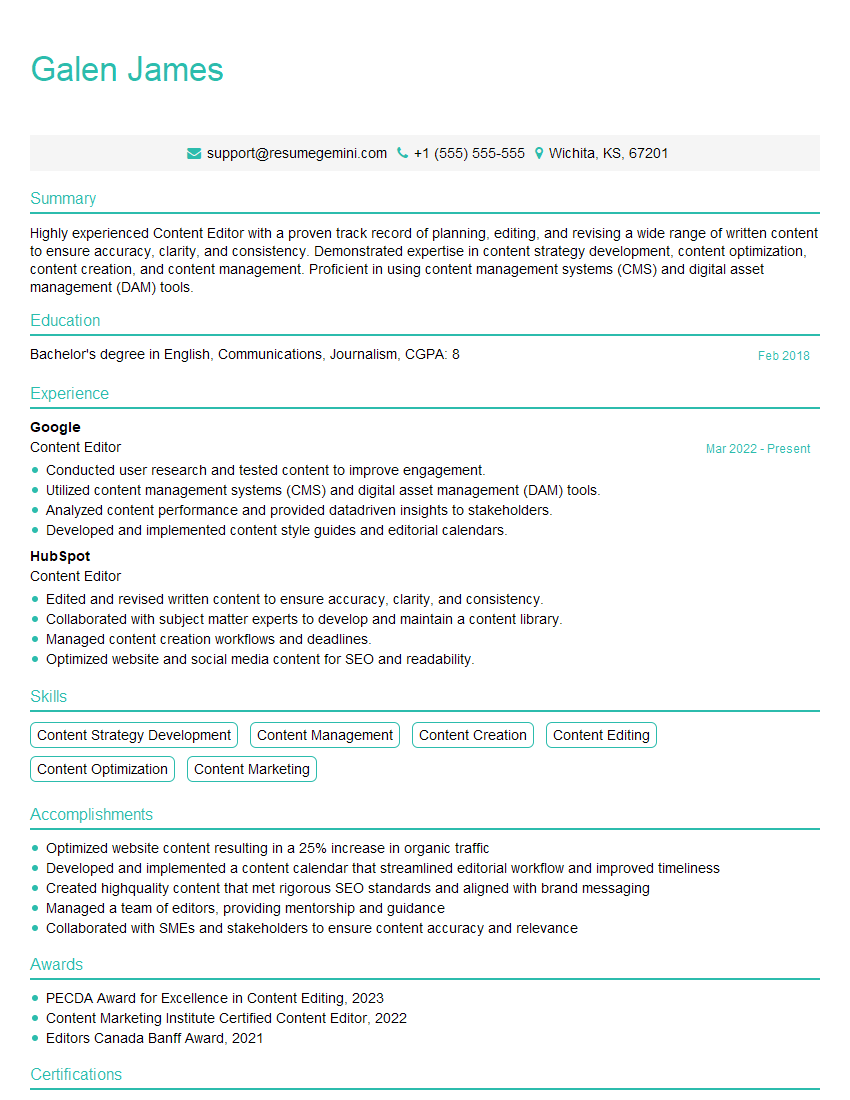
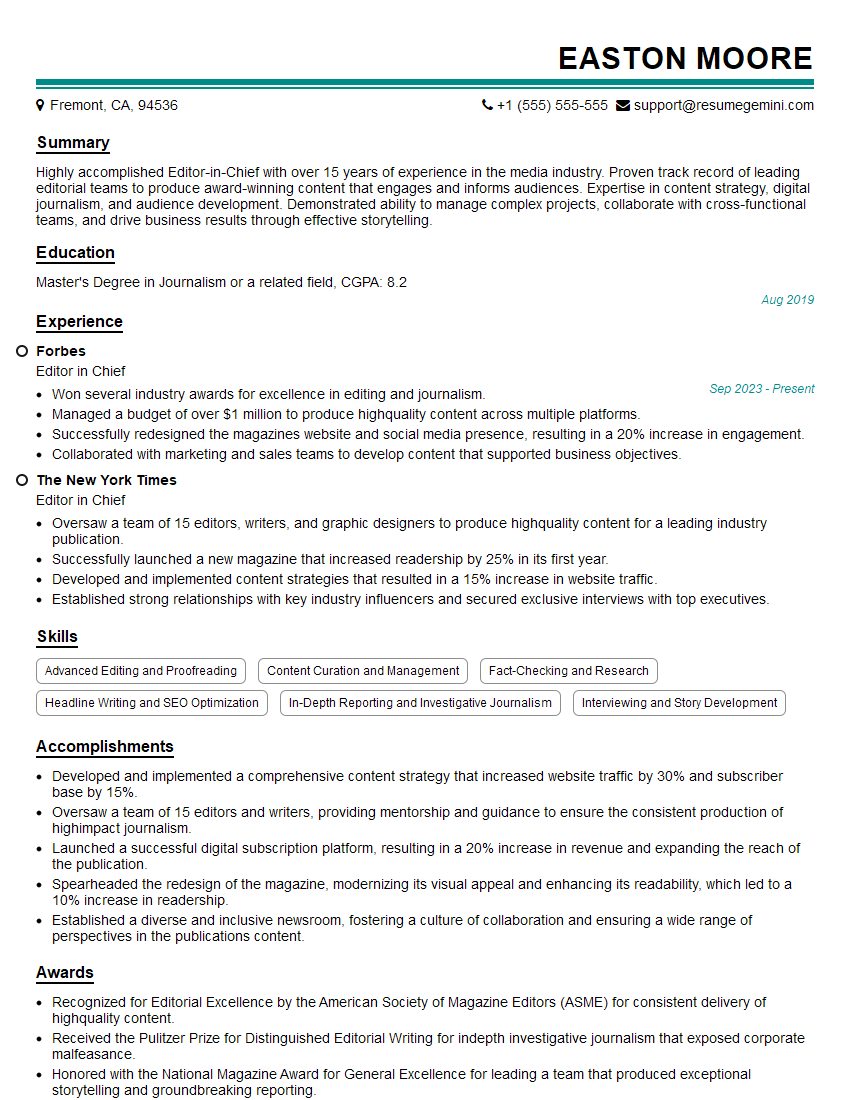
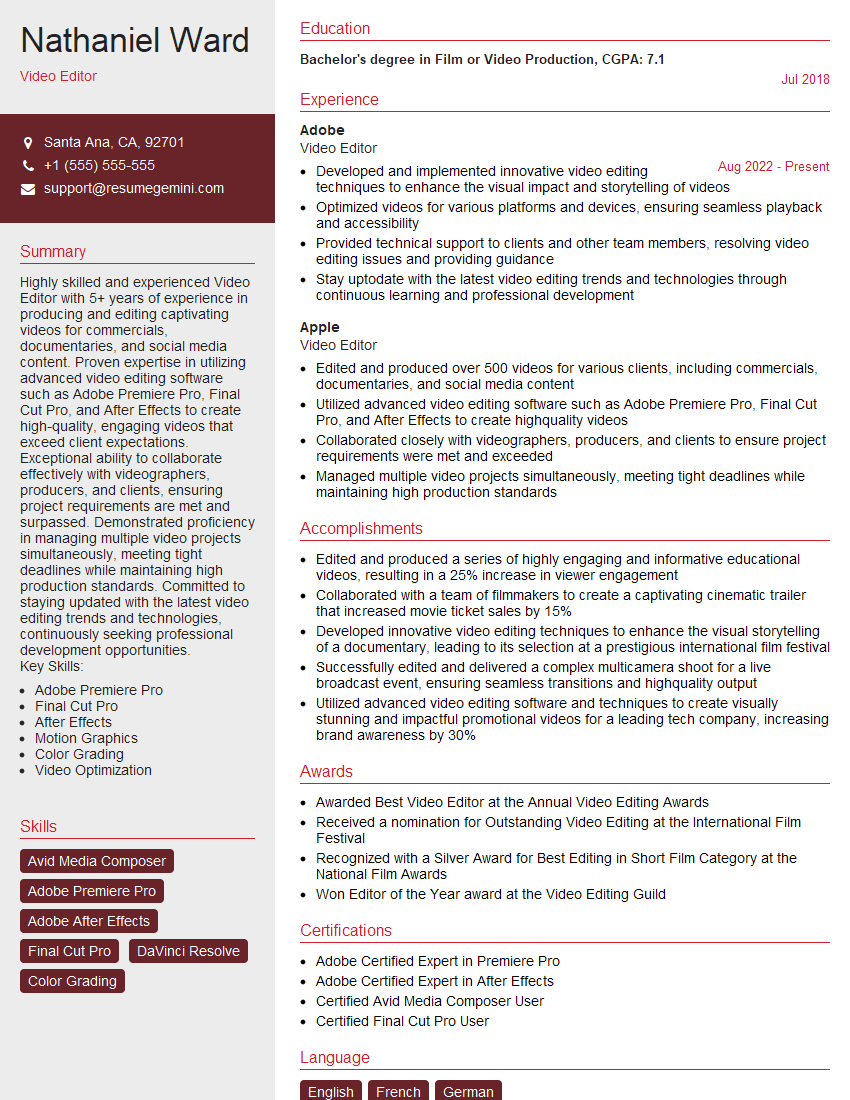
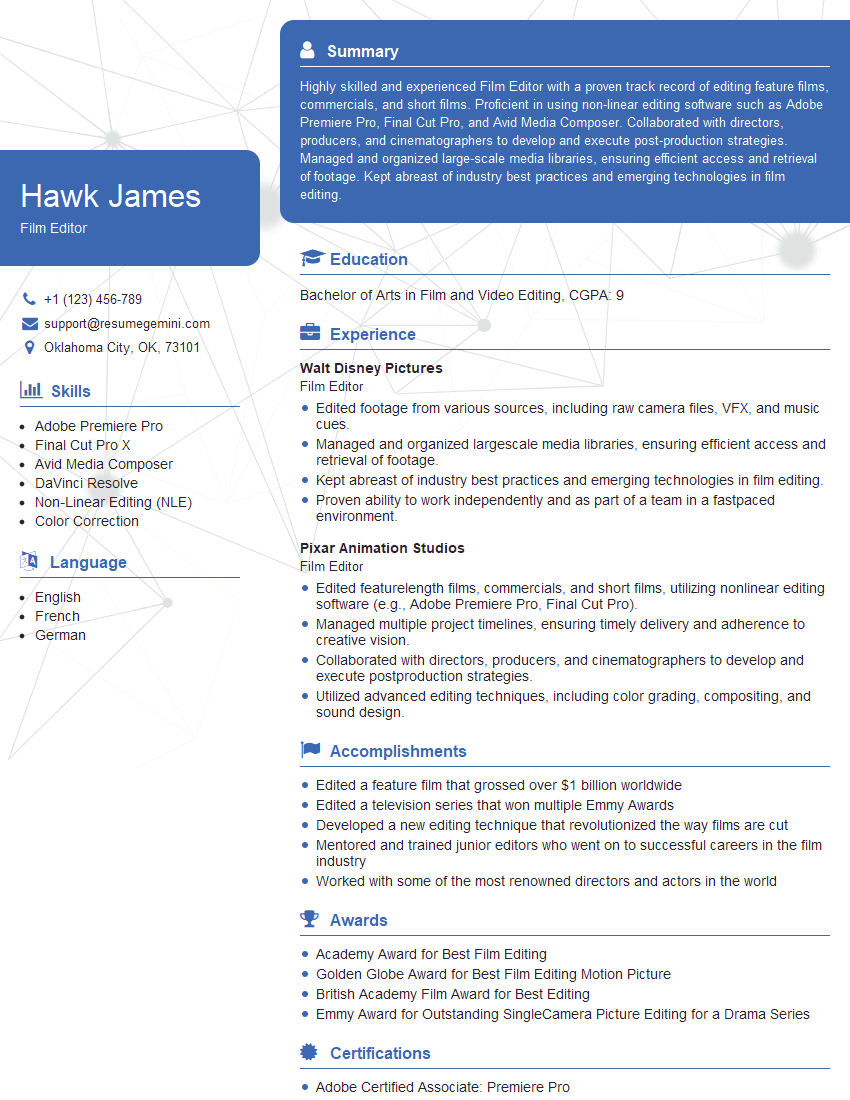
Mastering video editing software like Final Cut Pro and Premiere Pro is essential for career advancement in the dynamic media industry. A strong command of these tools opens doors to exciting opportunities and allows you to contribute meaningfully to creative projects. To maximize your job prospects, create a compelling and ATS-friendly resume that highlights your skills effectively. ResumeGemini is a trusted resource that can help you build a professional resume tailored to your experience and the specific requirements of your target roles. Examples of resumes tailored to video editing proficiency, highlighting expertise in Final Cut Pro, Premiere Pro, and other software, are available to help guide you.

Explore more articles
Users Rating of Our Blogs
Share Your Experience
We value your feedback! Please rate our content and share your thoughts (optional).
What Readers Say About Our Blog
Amazing blog
Interesting Article, I liked the depth of knowledge you’ve shared.
Helpful, thanks for sharing.