Cracking a skill-specific interview, like one for Word processing software (e.g., Microsoft Word), requires understanding the nuances of the role. In this blog, we present the questions you’re most likely to encounter, along with insights into how to answer them effectively. Let’s ensure you’re ready to make a strong impression.
Questions Asked in Word processing software (e.g., Microsoft Word) Interview
Q 1. Explain the difference between ‘Track Changes’ and ‘Compare’ in Microsoft Word.
Both ‘Track Changes’ and ‘Compare’ in Microsoft Word are revision-tracking tools, but they serve different purposes. ‘Track Changes’ allows you to monitor edits made to a single document over time, ideal for collaborative projects. ‘Compare’ lets you see the differences between two separate versions of a document, highlighting additions, deletions, and formatting changes. Think of ‘Track Changes’ as a live, ongoing record of edits within one file, while ‘Compare’ provides a snapshot comparison of two distinct files.
Track Changes: Imagine multiple authors working on a report. Each edit – from adding a sentence to changing a font – is marked, allowing reviewers to accept, reject, or comment on each change. This maintains a history of revisions and facilitates discussions. It’s activated through the ‘Review’ tab.
Compare: Suppose you have a draft of a contract and a revised version. Using ‘Compare’, you can quickly identify all the alterations between the two versions without manually scrolling through the documents. It’s particularly beneficial for legal documents or technical specifications where precision is paramount. This is also accessed via the ‘Review’ tab.
Q 2. How do you create and manage styles in a Word document?
Styles in Word are pre-defined sets of formatting that you can apply consistently throughout your document. They’re far more efficient than manually formatting each paragraph or heading individually. Creating and managing styles ensures uniformity and allows for easy updates; changing a style automatically changes every element formatted with that style.
- Creating a Style: Select the text you want to format. Go to the ‘Home’ tab, and in the ‘Styles’ group, click ‘More’. You can either modify an existing style or click ‘New Style’ to create one from scratch. Name your style (e.g., ‘Heading 1’, ‘Body Text’) and define the formatting (font, size, spacing, etc.).
- Managing Styles: The ‘Styles’ pane (accessible via the ‘Home’ tab) provides a list of all your styles. You can modify existing styles here, delete unnecessary ones, and even create style sets for reuse in other documents. The ‘Styles’ pane allows you to easily see and organize your formatting consistency.
Example: If you have a style named ‘Heading 1’, every time you select text and apply that style, it will automatically be formatted with the same font, size, and spacing you’ve defined. If you later decide to change the font size for ‘Heading 1’, the change instantly updates every heading using that style across your whole document.
Q 3. Describe your experience with mail merge functionality.
Mail merge is a powerful tool that lets you personalize documents, such as letters or labels, by combining a main document (the template) with a data source (like a spreadsheet) containing recipient information. I’ve extensively used mail merge for creating personalized marketing materials, customized invitations, and mass email campaigns. The process is straightforward yet extremely effective for large-scale document creation.
My Experience: I’ve used mail merge to send hundreds of personalized thank-you letters to clients after a project completion. The data source contained client names, addresses, and specific project details, which were automatically inserted into the letter template, saving a significant amount of time and effort. I also created personalized certificates for an online course using mail merge, incorporating participant names and course completion dates.
Process: It generally involves selecting the main document, specifying the data source (often an Excel file or a database), and then inserting merge fields (placeholders) where personalized information should appear. Word then generates individual documents based on the data in each row of the data source.
Q 4. How would you insert a table of contents into a long document?
Inserting a table of contents (TOC) in a long document is crucial for navigation and readability. It automatically generates a list of headings and their page numbers, allowing readers to quickly locate specific sections.
Steps:
- Ensure Heading Styles: First, use Word’s built-in heading styles (Heading 1, Heading 2, etc.) for your document’s major and sub-headings. This is vital; the TOC automatically uses these styles.
- Insert TOC: Go to the ‘References’ tab and click ‘Table of Contents’. Choose a pre-designed TOC style or customize it as needed.
- Update TOC: After making changes to your headings or adding/removing sections, right-click on the TOC and select ‘Update Field’. Choose ‘Update entire table’ to ensure accuracy.
Example: In a lengthy research paper, a well-formatted TOC enables readers to quickly navigate between chapters, sections, and subsections, improving the user experience.
Q 5. Explain how to use headers and footers effectively.
Headers and footers are areas at the top (header) and bottom (footer) of each page in a document. They’re ideal for consistent information like page numbers, company logos, document titles, or revision dates.
Effective Use:
- Page Numbers: Essential for multi-page documents. They can be positioned at the top or bottom, centered or aligned to the sides. Different section page numbering styles can be used to have different numbering for different parts of the document.
- Document Title/Author: Add the title and author’s name to the header for identification.
- Company Logo/Footer Information: A company logo or copyright notice is great for professional documents.
- Different Headers/Footers for Sections: Word allows different headers and footers for various sections, providing flexibility when needed.
Accessing Headers/Footers: Double-clicking the top or bottom margin opens the header/footer editing mode. You can insert text, images, or page numbers directly in this mode.
Q 6. How do you create and modify footnotes and endnotes?
Footnotes and endnotes are used to add explanatory notes or citations to your document. Footnotes appear at the bottom of the page where they’re referenced, while endnotes are compiled at the end of the document.
Creating:
- Insert Footnote/Endnote: Place your cursor where you want the note. Go to the ‘References’ tab and click ‘Insert Footnote’ or ‘Insert Endnote’.
- Write the Note: A footnote or endnote marker will appear in your text, and the cursor will automatically move to the note’s section. Type your note.
Modifying: Simply click on the footnote or endnote number in the main text, and the cursor will jump to the corresponding note, allowing you to edit the content. Word automatically renumbers footnotes and endnotes as you add or remove them.
Example: In an academic paper, footnotes would provide sources for each claim, while endnotes could offer more extensive commentary or detailed clarifications without interrupting the main text flow.
Q 7. How do you insert and format images within a Word document?
Inserting and formatting images is crucial for enhancing the visual appeal and content of your Word documents. Word offers extensive options for managing image placement, size, and style.
Insertion: Go to the ‘Insert’ tab and click ‘Pictures’. Browse your files and select the image you want to add. Word will insert it at your cursor’s position.
Formatting:
- Sizing and Positioning: You can resize the image by dragging its handles. You can also precisely control its size using the ‘Size’ options in the ‘Picture Format’ tab. The ‘Wrap Text’ option lets you control how text flows around the image (inline, square, tight, through).
- Image Styles: The ‘Picture Styles’ provide pre-defined formatting combinations, such as borders, shadows, and effects. You can customize these styles further.
- Compression: To reduce file size, you can compress the image (found in ‘Picture Format’ under ‘Compress Pictures’).
Example: In a marketing proposal, incorporating high-quality images related to the product or service can significantly improve its effectiveness. Ensuring that images are appropriately sized and do not disrupt the text flow enhances readability and professional presentation.
Q 8. Describe your experience using templates in Microsoft Word.
Templates in Microsoft Word are pre-designed documents that provide a head start on various projects. Think of them as customizable blueprints. They offer structured layouts, styles, and content placeholders, saving you time and effort. I’ve extensively used templates for everything from creating professional reports and presentations to designing marketing materials and personal letters. For example, I once used a pre-designed report template to quickly generate a quarterly performance summary, simply replacing the placeholder data with the relevant information. This was significantly faster than starting from a blank document and manually formatting everything. The ability to customize these templates, tweaking fonts, colors, and layouts to match branding guidelines or personal preferences, is incredibly valuable. My experience includes using both built-in templates provided by Word and downloading custom templates from trusted online sources.
Q 9. How do you control page breaks and section breaks?
Controlling page and section breaks is crucial for document organization and visual appeal. A page break forces a new page, while a section break divides the document into independent sections, allowing different formatting for each (e.g., different headers, footers, or page orientations). You insert page breaks manually using the ‘Insert Page Break’ function, or they can be automatically inserted based on text flow. Section breaks are added via the ‘Layout’ tab, choosing between different section break types (next page, continuous, even page, odd page) depending on your desired layout. For instance, I recently used section breaks to create a report with a landscape-oriented table on a separate page from the portrait-oriented text. This ensured the table was fully visible without compromising the readability of the rest of the report. Mastering these breaks allows for precise control over your document’s flow and visual organization.
Q 10. How do you use the find and replace function efficiently?
The Find and Replace function is a powerful tool for editing large documents efficiently. It’s not just about finding and replacing simple words; you can use wildcards and special characters to perform complex searches. For example, Find: \b[A-Z]{2}\b will find all two-letter uppercase words. This is invaluable for tasks like standardizing acronyms or replacing all instances of a particular style. The ‘Replace All’ option speeds up the process considerably, but always review the changes to ensure accuracy and avoid unintended consequences. I used this function recently to correct a spelling mistake across a 50-page document in seconds, a task that would have taken hours manually. Understanding regular expressions significantly expands this function’s capabilities, allowing for highly targeted searches and replacements.
Q 11. Explain the various options for formatting paragraphs in Word.
Paragraph formatting in Word offers extensive control over the appearance and flow of your text. This includes options for indentation (first line, left, right, special), alignment (left, right, center, justified), line spacing (single, 1.5, double, multiple), spacing before and after paragraphs, and the application of styles (heading styles, body text styles). Styles are particularly important for consistency and efficient formatting; changes made to a style are applied to all paragraphs using that style. For example, I might define a specific style for all section headings, ensuring uniformity in font, size, and formatting across the document. Effectively using paragraph formatting tools leads to a polished, professional-looking document and also allows easy updates and consistency of styling across large documents.
Q 12. How do you create and customize a table in Microsoft Word?
Creating and customizing tables in Word is a straightforward process. You can insert a table by specifying the number of rows and columns, or you can draw a table manually using the table drawing tools. Once inserted, you can customize various aspects, including: cell merging and splitting, adding or deleting rows and columns, changing cell size and alignment, applying borders and shading, and adding text wrapping. I frequently use tables to present data clearly and concisely, creating reports, presentations, and even simple organizational charts. Advanced features like sorting data within a table, adding formulas for calculations, and converting tables to charts enhance their usefulness for data analysis and visualization.
Q 13. Describe your experience with creating and modifying hyperlinks.
Creating and modifying hyperlinks is essential for linking to online resources, internal documents, or even specific sections within the same document. To create a hyperlink, you select the text, right-click, and choose the ‘Hyperlink’ option; you then provide the target URL or file path. I use hyperlinks regularly to add citations, create interactive content in reports, and include links to supporting materials. Modifying hyperlinks involves simply re-selecting the text and choosing the ‘Edit Hyperlink’ option to change the destination. Removing a hyperlink is as simple as selecting the text and clicking the ‘Remove Hyperlink’ option. This simple yet powerful feature enhances document navigation and provides quick access to additional information.
Q 14. How do you ensure your document is accessible to users with disabilities?
Ensuring document accessibility for users with disabilities involves following established accessibility guidelines, such as those outlined in WCAG (Web Content Accessibility Guidelines). This primarily involves using descriptive text alternatives for images, adding alt text, using clear and consistent headings, maintaining sufficient color contrast, and using styles for logical document structure. I often use the ‘Accessibility Checker’ built into Word to identify and correct potential accessibility issues, ensuring that documents can be understood and used by individuals with visual, auditory, motor, or cognitive impairments. It’s not just about compliance; it’s about inclusivity and creating a document usable by everyone.
Q 15. How do you manage different versions of a document using Word’s revision features?
Managing different versions of a document in Word is crucial for tracking changes and collaborating effectively. Word’s built-in Track Changes feature is your best friend here. It allows multiple users to edit a document simultaneously, recording every insertion, deletion, and formatting alteration. Think of it like a detailed history of your document’s evolution.
- Activating Track Changes: Go to the ‘Review’ tab and click ‘Track Changes’. You can choose to display changes in a variety of ways: ‘Simple Markup’ shows only the changes themselves, ‘All Markup’ shows the changes along with comments, and ‘No Markup’ hides the changes entirely.
- Accepting/Rejecting Changes: Once the changes are made, you can review them in the ‘Review’ tab. Click ‘Next’ and ‘Previous’ to navigate through each change. You can accept or reject each alteration individually, or accept/reject all changes at once.
- Saving Versions: While Track Changes keeps a record of edits within a single file, it’s wise to save different versions as separate files, using a naming convention like ‘Document_v1.docx’, ‘Document_v2.docx’, etc. This creates independent backups in case something goes wrong.
- Using Comments: For collaborative work, incorporate comments to explain your changes or request clarifications from other contributors. This fosters open communication and reduces misunderstandings.
Example: Imagine you’re working on a marketing proposal. One colleague writes the initial draft (v1), another adds data (v2), and a third refines the tone (v3). Track Changes allows you to see each person’s contributions, decide what to keep, and keep a complete history of changes.
Career Expert Tips:
- Ace those interviews! Prepare effectively by reviewing the Top 50 Most Common Interview Questions on ResumeGemini.
- Navigate your job search with confidence! Explore a wide range of Career Tips on ResumeGemini. Learn about common challenges and recommendations to overcome them.
- Craft the perfect resume! Master the Art of Resume Writing with ResumeGemini’s guide. Showcase your unique qualifications and achievements effectively.
- Don’t miss out on holiday savings! Build your dream resume with ResumeGemini’s ATS optimized templates.
Q 16. How would you troubleshoot a corrupted Word document?
A corrupted Word document can be incredibly frustrating. The first step is to try and open it in Word’s safe mode (open Word holding down Ctrl+Shift). This bypasses add-ins that might be interfering. If that doesn’t work, try these troubleshooting steps:
- Open and Repair: When opening the document, Word might prompt you with an ‘Open and Repair’ option. This attempts to fix minor corruptions and recover as much of the data as possible.
- Recovery Mode: Word’s recovery mode attempts to salvage files from recent temporary autosaves. Look in your temporary files folder or the Word’s autorecover folder.
- Using Previous Versions: If you have file history enabled (through Windows settings or a cloud service), you might find an earlier, uncorrupted version of your document.
- Third-Party Recovery Tools: If the above steps fail, specialized data recovery tools might be able to recover data from a severely damaged Word document. However, this is a last resort as it can be costly and may not guarantee full recovery.
Important Note: Always back up your important documents regularly to minimize data loss in case of corruption.
Q 17. How do you use macros in Microsoft Word (if any experience)?
Macros in Microsoft Word automate repetitive tasks, saving significant time and effort. They are essentially mini-programs written in VBA (Visual Basic for Applications). I have extensive experience using macros to perform actions like:
- Automating Formatting: Applying consistent styles to headers, footers, and paragraphs across large documents.
- Generating Reports: Creating reports based on data from a spreadsheet or database by dynamically inserting data into the document.
- Managing Document Properties: Automating the addition of metadata, like author’s name, document version, or project code.
- Customizing Menus: Adding custom menu items to streamline access to frequently used macros.
Example: A macro could be written to automatically insert the current date and time into a header, apply a specific font and size to all headings, and add page numbers. This ensures consistency across every page without manual intervention.
Sub AddDateHeader() ActiveDocument.Sections(1).Headers(wdHeaderFooterPrimary).Range.Text = Date & vbCrLf & Time End Sub
This is a simple VBA code example that adds the date and time to the header. More complex macros involve conditional logic, loops and interactions with other applications.
Q 18. Describe your experience with collaborating on a Word document using co-authoring features.
Co-authoring in Word is a game-changer for collaborative writing. I’ve extensively used Word’s co-authoring features, particularly with OneDrive or SharePoint, for projects involving multiple team members. The experience is generally smooth, allowing for real-time editing and simultaneous contributions.
- Real-Time Collaboration: All authors see each other’s changes in real-time, fostering a dynamic and responsive writing process.
- Conflict Resolution: When multiple users edit the same section simultaneously, Word’s co-authoring intelligently manages conflicts, allowing authors to review and resolve discrepancies.
- Version History: Even with real-time collaboration, a version history is maintained, enabling easy rollback to earlier versions if necessary.
- Communication: Using comments and inline feedback improves communication and reduces misinterpretations.
Example: In a recent project, a team of five writers worked on a lengthy technical report, leveraging co-authoring to divide sections, write concurrently, and review each other’s work seamlessly. The real-time feature significantly expedited the editing process.
Q 19. How would you create a document with consistent formatting across multiple sections?
Maintaining consistent formatting throughout a multi-section document is vital for professionalism and readability. Here’s how to achieve this:
- Styles: The most efficient method is using Word’s built-in styles. Define styles for headings, paragraphs, lists, etc., and apply them consistently throughout the document. Any changes to a style will automatically update all instances where it’s applied.
- Templates: Create a template with the desired formatting applied, including styles, headers, footers, page numbers, etc. Start new documents from this template to ensure consistency from the outset. This is particularly effective for regularly produced documents, like reports or letters.
- Copy-Paste Formatting: For smaller sections, use the Format Painter tool (paintbrush icon in the Home tab) to copy formatting from a styled section to another. However, this is less efficient and less maintainable for large documents.
- Section Breaks: Use section breaks strategically if you need different formatting for various sections. Make sure you apply styles consistently within each section.
Example: A company report might have different formatting for the executive summary (larger font), body text (standard font), and appendix (smaller font). Using separate styles for each section and applying them appropriately ensures consistency while allowing for specific needs per section.
Q 20. How do you use the built-in citation and bibliography tools?
Word’s citation and bibliography tools simplify the process of creating properly formatted citations and bibliographies. The feature works with a variety of citation styles (MLA, APA, Chicago, etc.).
- Adding Citations: While editing, find the ‘References’ tab and click ‘Insert Citation’. Search for the source or manually add its details. Word will automatically generate a citation in the chosen style.
- Managing Sources: The ‘Source Manager’ allows you to add, edit, and organize your sources effectively, making it easy to track your research.
- Generating Bibliography: Once all citations are inserted, click ‘Bibliography’ in the ‘References’ tab to automatically generate a properly formatted bibliography at the end of your document.
- Style Selection: Choose the appropriate citation style (MLA, APA, Chicago, etc.) from the ‘Style’ dropdown menu to comply with specific formatting guidelines.
Example: If you’re writing a research paper, using these tools ensures consistent and accurate citation formatting, preventing plagiarism and simplifying the entire bibliography creation process. It reduces manual effort and enhances the credibility of your work.
Q 21. Explain the difference between landscape and portrait page orientation.
Page orientation determines the layout of your document’s pages. Think of it like holding a piece of paper: portrait is the normal vertical orientation (taller than wider), while landscape is the horizontal orientation (wider than taller).
- Portrait: The standard orientation, best suited for documents with more vertical content like letters, reports, and most general documents.
- Landscape: Ideal for content that is wider than it is tall, such as spreadsheets, wide images, or presentations with horizontal slides. Using landscape may allow you to avoid text wrapping across many lines, improving readability.
Example: A letter is usually printed in portrait orientation, whereas a table with many columns might be better presented in landscape to avoid horizontal scrolling.
To change the orientation, go to the ‘Layout’ tab and choose ‘Orientation’. You can select either ‘Portrait’ or ‘Landscape’. You can apply this change to the entire document or a specific section using section breaks.
Q 22. How do you insert and format page numbers?
Inserting and formatting page numbers in Microsoft Word is a fundamental task for creating professional-looking documents. It ensures consistent numbering throughout your document, making navigation easier for readers. You can achieve this through the ‘Insert’ tab.
Step-by-step guide:
- Go to the Insert tab on the Word ribbon.
- In the ‘Header & Footer’ group, click on Page Number.
- Choose your desired page number location (top or bottom of the page, and the alignment).
- Word automatically inserts the page numbers. To format them (e.g., change font, size, style), simply select the page number and use the formatting tools on the ‘Home’ tab.
- For more advanced formatting or different page numbering styles (e.g., starting from a specific number, different numbering styles for different sections), you can right-click on the page number and select ‘Page Number Format’ to adjust settings.
Example: Imagine you’re writing a thesis. Consistent page numbering is crucial for referencing figures, tables, and chapters. Word’s page numbering feature ensures smooth navigation and a professional appearance.
Q 23. How do you create a table of figures or table of illustrations?
Creating a Table of Figures or Table of Illustrations in Word streamlines the navigation of your document, especially for longer reports or academic papers. Word doesn’t automatically create these, but it makes the process fairly straightforward using its built-in cross-referencing features. These tables list all figures and illustrations with their corresponding page numbers.
Step-by-step guide:
- Insert Captions: First, you need to insert captions for each figure and illustration. Select the image or illustration, go to the ‘References’ tab, and click ‘Insert Caption’. Choose ‘Figure’ or ‘Illustration’ from the label dropdown. You can also add a descriptive title here.
- Insert Table of Figures/Illustrations: Once captions are added to all your figures/illustrations, go to the ‘References’ tab and click ‘Table of Figures’ or ‘Table of Illustrations’. Word will automatically generate the table based on the captions you’ve inserted.
- Update Table: If you later add or remove figures/illustrations, remember to right-click the table and select ‘Update Field’ to reflect the changes.
Example: In a scientific report, a Table of Figures is essential for readers to quickly locate specific diagrams or charts referenced in the text. Word’s functionality makes generating and maintaining this table efficient.
Q 24. How do you use Word’s built-in grammar and spell check tools effectively?
Word’s built-in grammar and spell check tools are invaluable for ensuring the accuracy and professionalism of your documents. While not perfect, they significantly improve your writing by identifying potential errors in spelling, grammar, and style.
Effective use:
- Enable Proofing Tools: Ensure the spell and grammar check options are enabled in Word’s settings (File > Options > Proofing).
- Regular Checks: Run a spell and grammar check regularly throughout the writing process, not just at the end. This allows for catching mistakes early.
- Context is Key: Understand that the tools aren’t perfect. They may flag correctly spelled words used incorrectly or miss subtle grammatical errors. Always review the suggestions carefully, using your own judgment.
- Customize Settings: You can customize the tools to ignore specific words or phrases that are correct in your context (e.g., proper nouns, technical terms).
- Proofreading Beyond the Tools: Even with these tools, remember that human proofreading is essential. The tools assist but don’t replace your critical eye.
Example: Imagine you’re drafting a formal business proposal. Word’s grammar and spell check can identify typos and grammatical errors, significantly improving the overall quality and professionalism of the document.
Q 25. How familiar are you with different file formats that can be used with Microsoft Word?
Microsoft Word supports a wide variety of file formats, catering to diverse needs and compatibility across different applications. Understanding these formats is essential for seamless collaboration and data exchange.
Common file formats:
- .docx (Word Open XML Document): This is the default format for modern Word versions. It’s widely compatible and offers advanced formatting capabilities.
- .doc (Word Document): This is the older format used by older Word versions. While widely compatible, it lacks some of the advanced features of .docx.
- .rtf (Rich Text Format): A cross-platform format offering basic formatting compatibility across different word processors. Good for exchanging documents with users of other software.
- .pdf (Portable Document Format): A common format for distributing documents that preserves formatting and prevents unauthorized editing. Word can save and import PDFs.
- .txt (Plain Text): A simple format containing only text, without any formatting. Useful for when only content matters, not visual style.
- .xml (Extensible Markup Language): Word can work with XML for data exchange with other applications. This format is used extensively in enterprise systems.
Example: If you need to collaborate on a document with someone using a different word processor, .rtf is a suitable choice. If you need to distribute a final, uneditable version, .pdf is the preferred format. Understanding the nuances of each format is crucial for managing your documents efficiently.
Q 26. Describe your experience working with different page layouts.
Experience with different page layouts is critical for creating visually appealing and effective documents. This involves understanding how to manage margins, orientations, columns, and sections to tailor the document’s presentation to its purpose.
Layout aspects:
- Margins: Adjusting margins (top, bottom, left, right) impacts the document’s readability and available space for text and images. Narrow margins might increase text density but might make it feel crowded. Wider margins enhance readability and spaciousness.
- Orientation: Choosing between portrait (vertical) and landscape (horizontal) orientation depends on the content. Landscape is suitable for wide tables or images, while portrait is generally better for standard text.
- Columns: Using columns helps organize information, particularly in newsletters or brochures. Word allows for adjusting column widths and spacing.
- Sections: Dividing a document into sections provides flexibility to apply different page layouts (e.g., different headers, footers, margins, column numbers) within the same document. For example, you might have a title page with different margins than the rest of the report.
- Headers and Footers: Using headers and footers for page numbers, titles, or other recurring information enhances consistency and makes the document easier to navigate.
Example: A newsletter might utilize multiple columns for visual appeal and to organize different sections. A formal report might use sections with different header and footer settings for title pages and subsequent chapters. My experience includes designing many documents with different layout configurations to meet specific requirements.
Q 27. How do you create and use bookmarks in Microsoft Word?
Bookmarks in Microsoft Word are invaluable for navigating and referencing specific locations within a long document. They’re essentially placeholders that mark specific points in your document, enabling quick jumps to those locations.
Creating and using bookmarks:
- Insert Bookmark: Select the text or location you want to bookmark. Go to the ‘Insert’ tab and click ‘Bookmark’. Give the bookmark a descriptive name (avoid spaces).
- Navigate to Bookmark: To jump to a bookmark, go to the ‘Insert’ tab, click ‘Bookmark’, and select the desired bookmark from the list. Or press Ctrl+G (or Cmd+G on Mac) to open the ‘Go To’ dialog box and enter the bookmark name.
- Cross-referencing with Bookmarks: You can also use bookmarks to create cross-references. For example, insert a cross-reference to a bookmark in a different section, making it easy for readers to quickly navigate to that specific section.
Example: In a lengthy legal document, bookmarks can be used to quickly jump to specific clauses or sections. This significantly speeds up navigation and reference.
Q 28. Explain your experience with using Word’s advanced formatting options (e.g., columns, text boxes).
Word’s advanced formatting options, such as columns, text boxes, and other features, extend its capabilities beyond basic text formatting, enabling creation of visually rich and engaging documents.
Advanced Formatting features:
- Columns: As mentioned before, columns are great for creating newsletters, brochures, or any document where organizing information into multiple columns enhances readability and visual appeal.
- Text Boxes: Text boxes allow you to place text anywhere on the page, free from the constraints of the standard text flow. This is useful for callouts, sidebars, or creating visually distinct areas.
- Tables: Beyond simple tables, you can use Word’s table features for advanced layout and formatting, controlling cell sizes, borders, shading, and more.
- Drop Caps: Large decorative initial letters for paragraphs can add visual interest, especially for formal documents.
- Watermarks: Adding watermarks (e.g., ‘Draft’ or ‘Confidential’) helps prevent unauthorized use or distribution of the document.
- Styles: Using built-in styles helps maintain consistency in your document’s formatting. Styles ensure your headings, body text, and other elements are formatted consistently across the document. This speeds up formatting and improves consistency.
Example: I’ve designed many marketing brochures using a combination of columns, text boxes, and images to present information in an engaging and visually appealing manner. Understanding these options helps create professional and impactful documents tailored to specific communication goals.
Key Topics to Learn for Word Processing Software (e.g., Microsoft Word) Interview
- Document Formatting: Mastering styles, headings, fonts, paragraph formatting, and page setup for professional-looking documents. Think about how you’d format a complex report or presentation.
- Tables and Charts: Creating, formatting, and manipulating tables and charts to effectively present data. Consider how you’d analyze data and present it visually using Word’s features.
- Mail Merge: Utilizing mail merge to create personalized documents efficiently. Practice merging data with templates for various scenarios, like mass email campaigns or personalized letters.
- Templates and Styles: Leveraging pre-designed templates and creating custom styles for consistent branding and efficient document creation. Think about how you’d maintain brand consistency across multiple documents.
- Collaboration Features: Understanding and utilizing features like track changes, comments, and co-authoring for seamless teamwork. Practice working on a document collaboratively and resolving merge conflicts.
- Advanced Features: Explore features like macros, VBA scripting (if applicable to the role), or advanced formatting options to demonstrate deeper expertise.
- Problem-Solving: Practice troubleshooting common issues like formatting inconsistencies, merging problems, or resolving compatibility issues between different Word versions.
Next Steps
Mastering Word processing software is crucial for nearly every professional role. Proficiency demonstrates attention to detail, organizational skills, and the ability to produce high-quality deliverables. An ATS-friendly resume, meticulously crafted in Word, significantly increases your chances of getting your application noticed by recruiters. ResumeGemini is a trusted resource to help you build a strong, impactful resume that showcases your skills effectively. We provide examples of resumes tailored specifically for candidates highlighting their Word processing expertise. Take the next step and invest in creating a resume that truly reflects your capabilities.

Office Manager Resume Sample
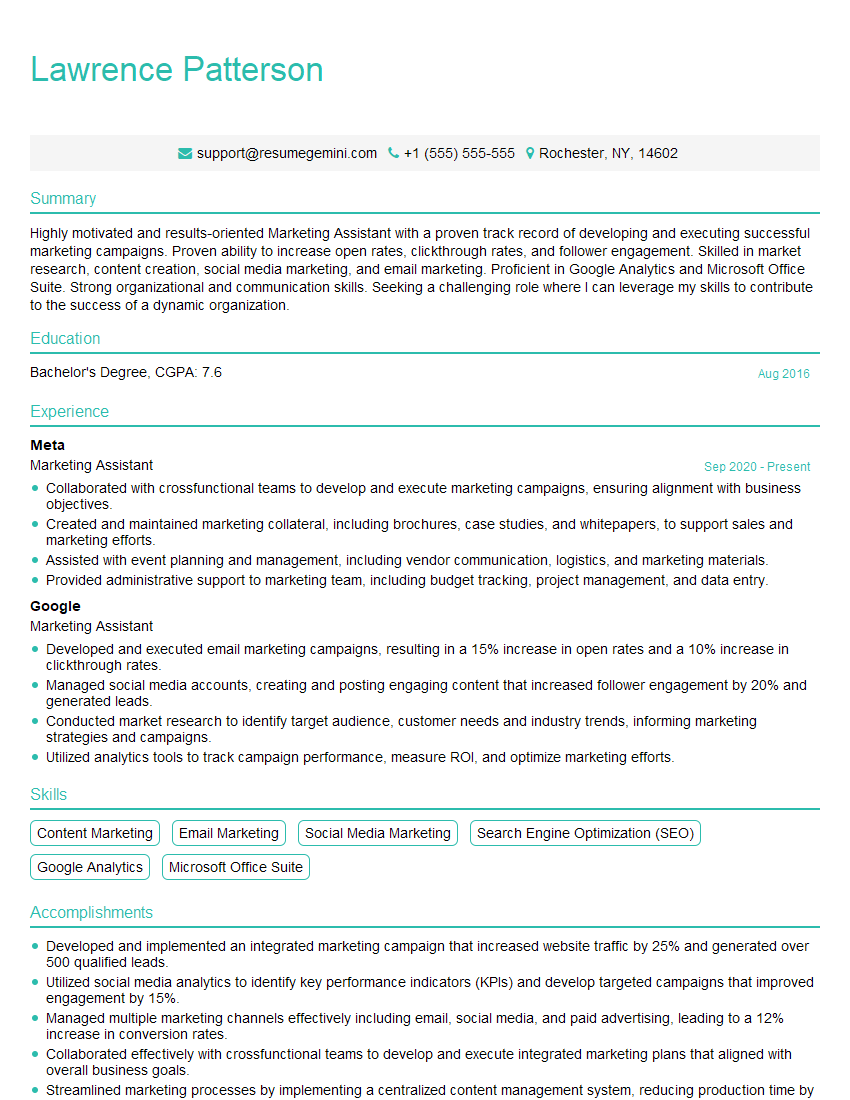
Marketing Assistant Resume Sample

Administrative Assistant Resume Sample
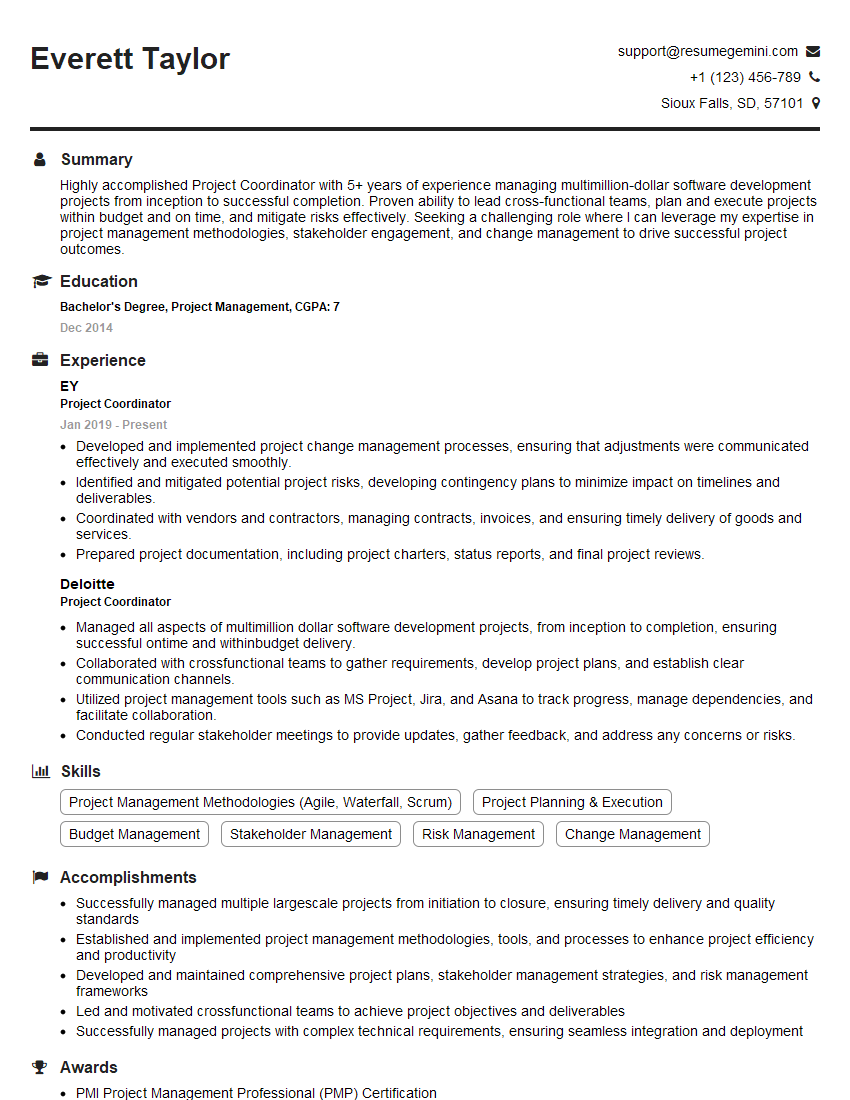
Project Coordinator Resume Sample
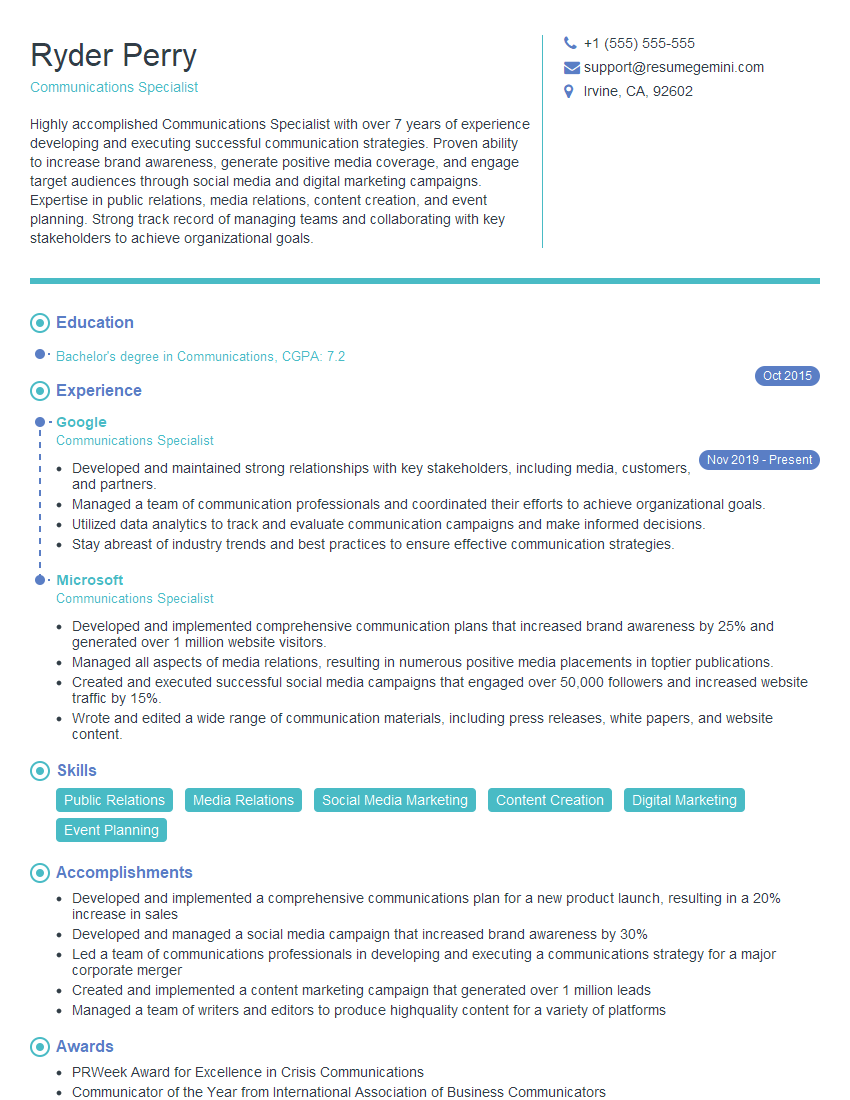
Communications Specialist Resume Sample
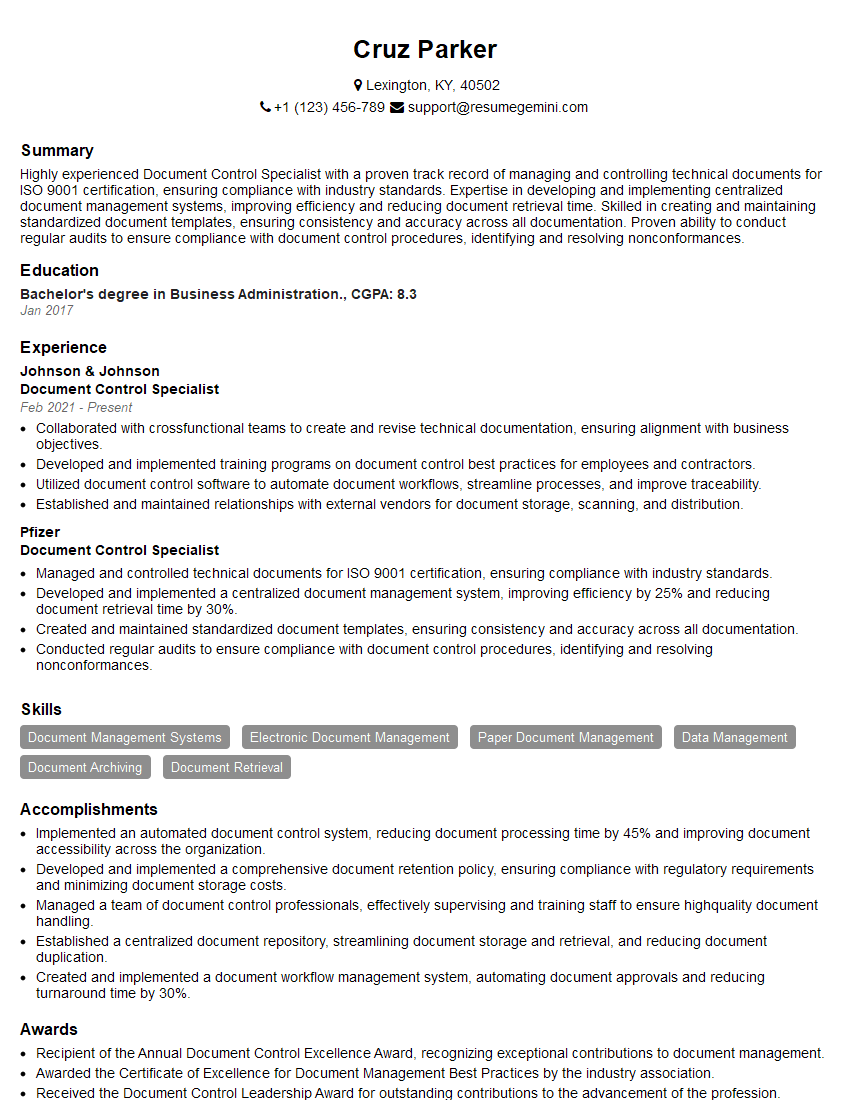
Document Control Specialist Resume Sample
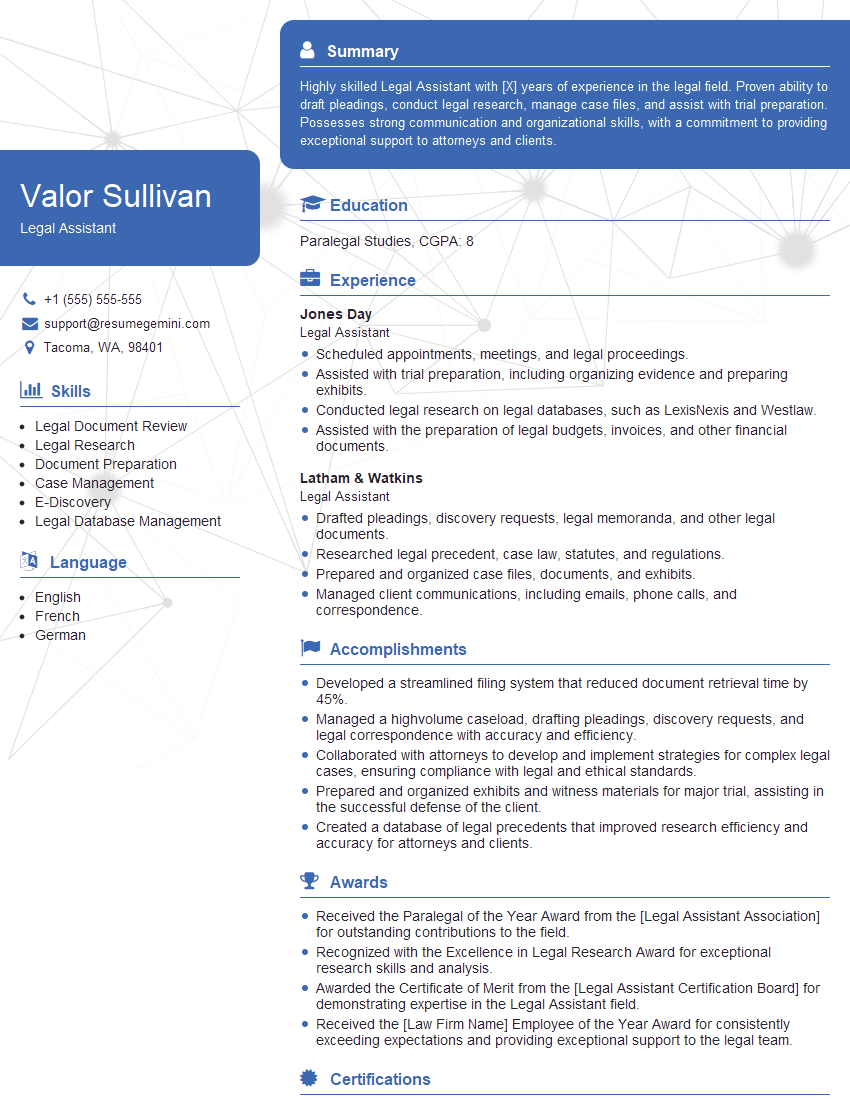
Legal Assistant Resume Sample
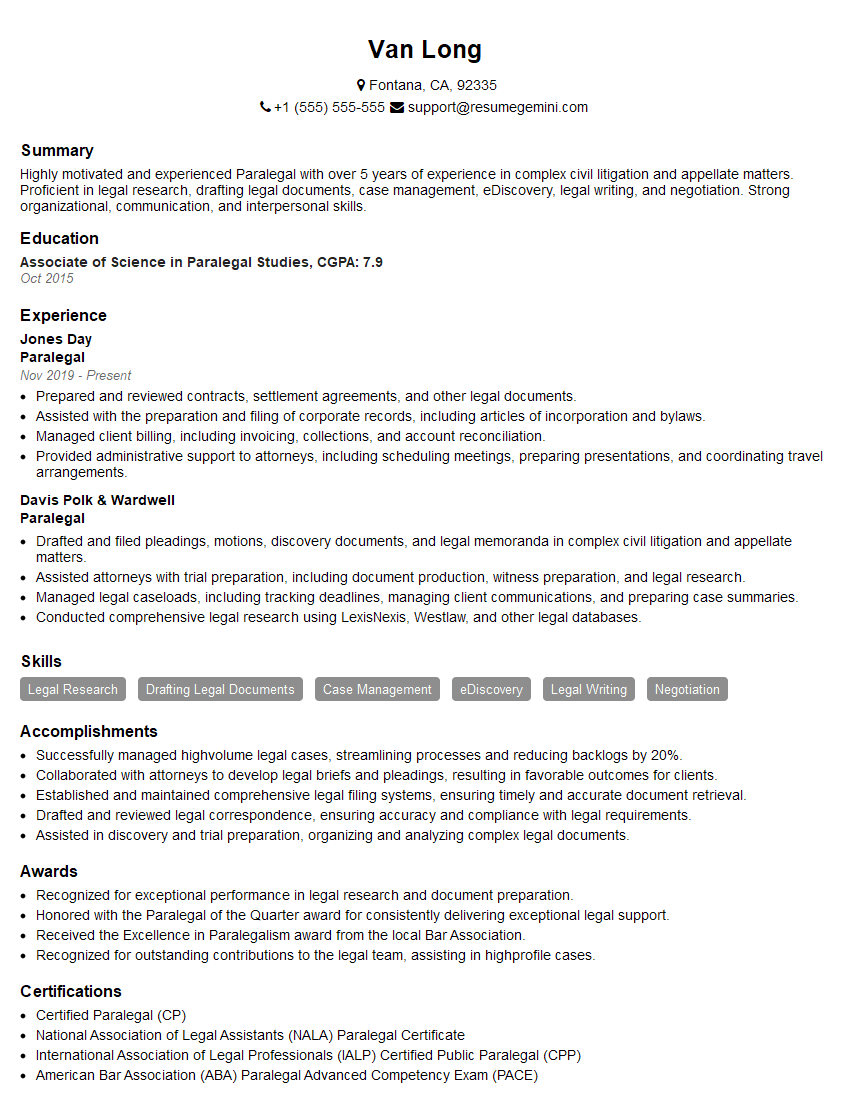
Paralegal Resume Sample
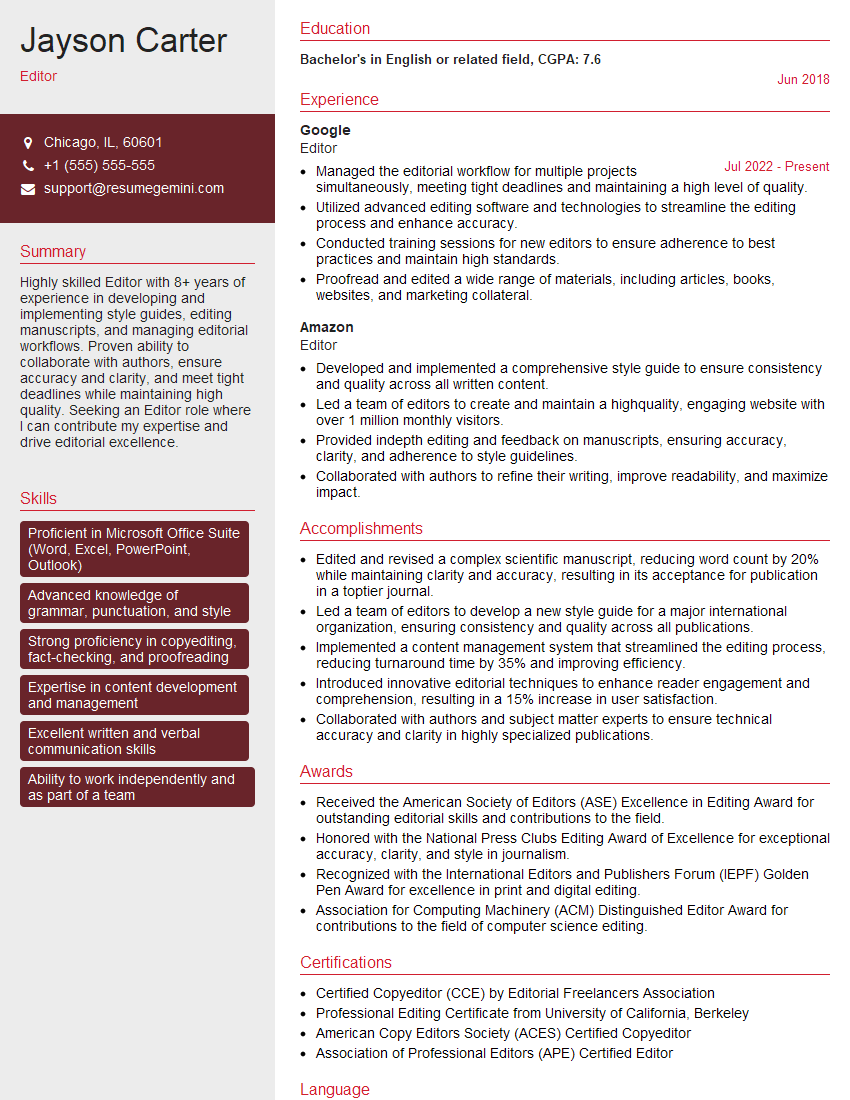
Editor Resume Sample
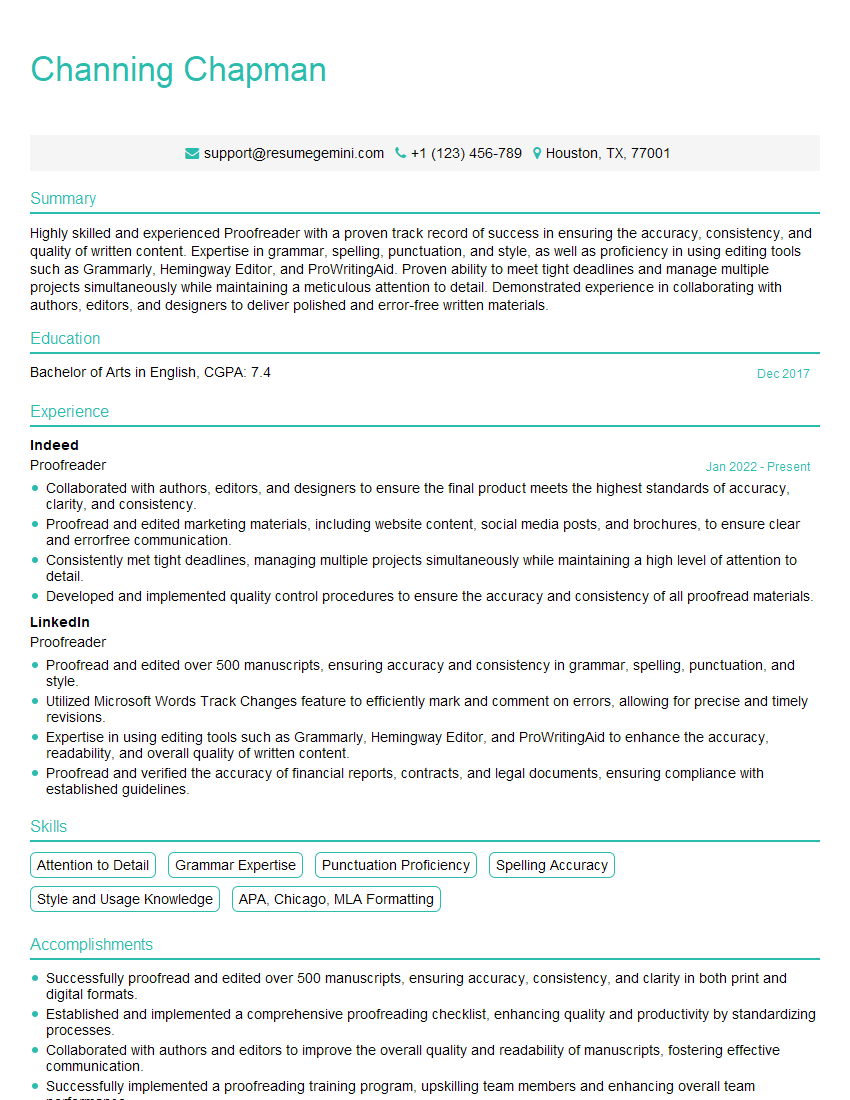
Proofreader Resume Sample

Technical Writer Resume Sample
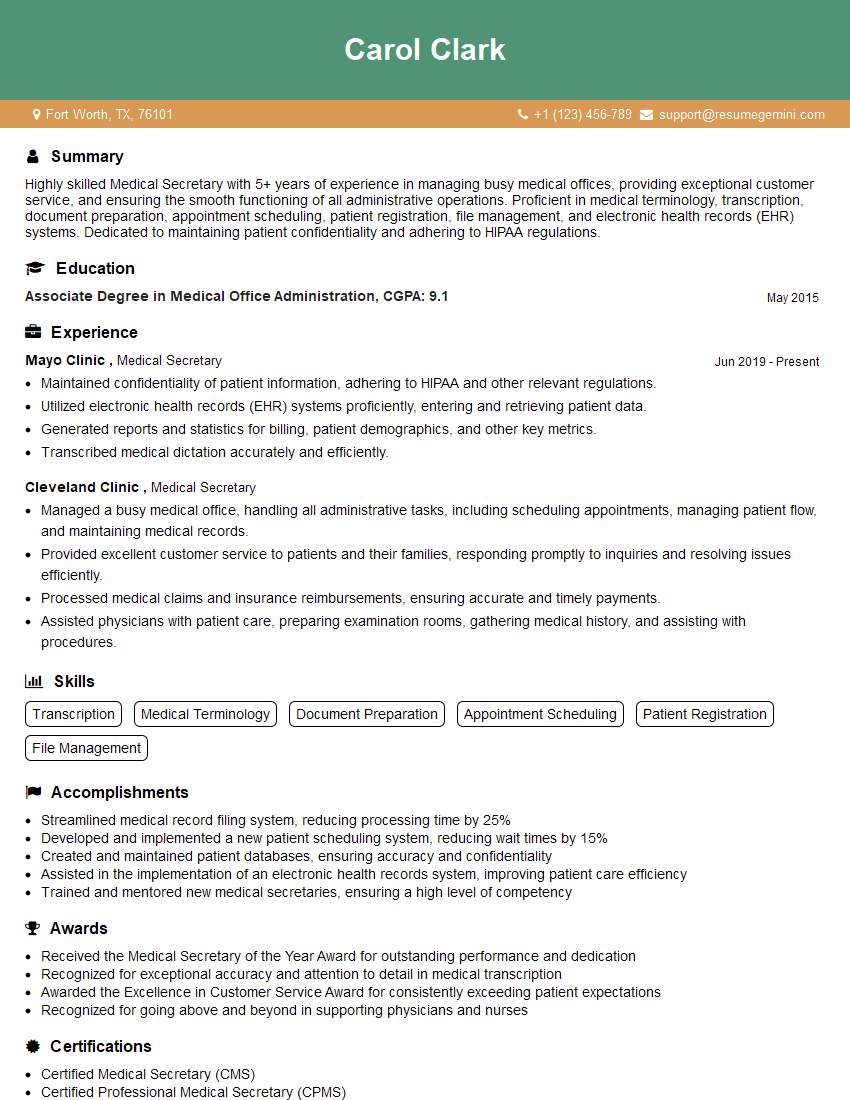
Medical Secretary Resume Sample
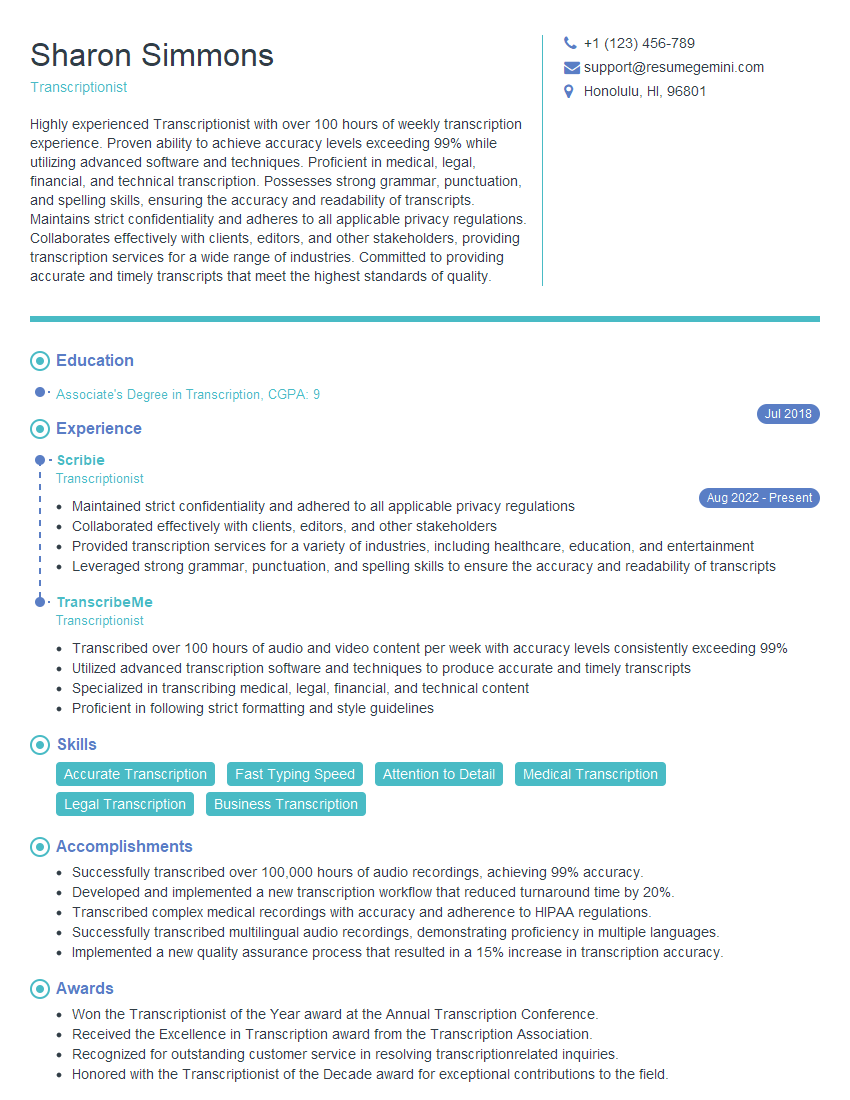
Transcriptionist Resume Sample
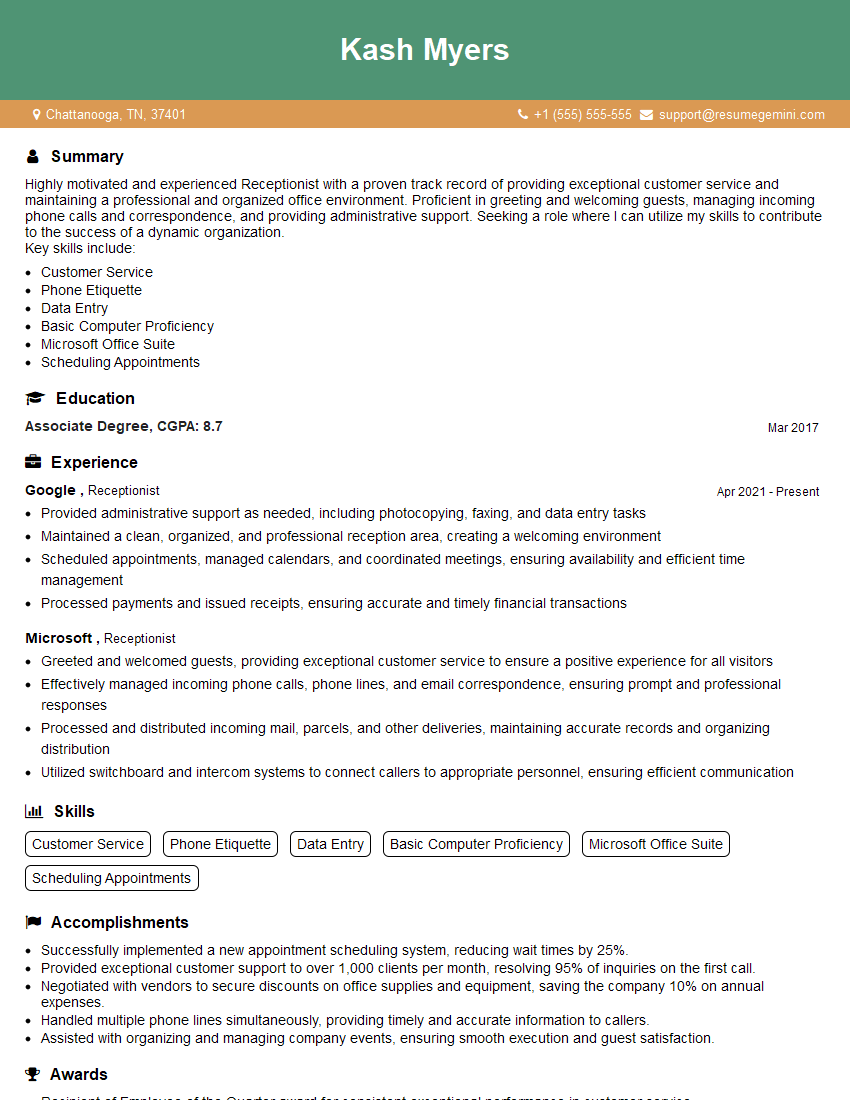
Receptionist Resume Sample

Executive Assistant Resume Sample
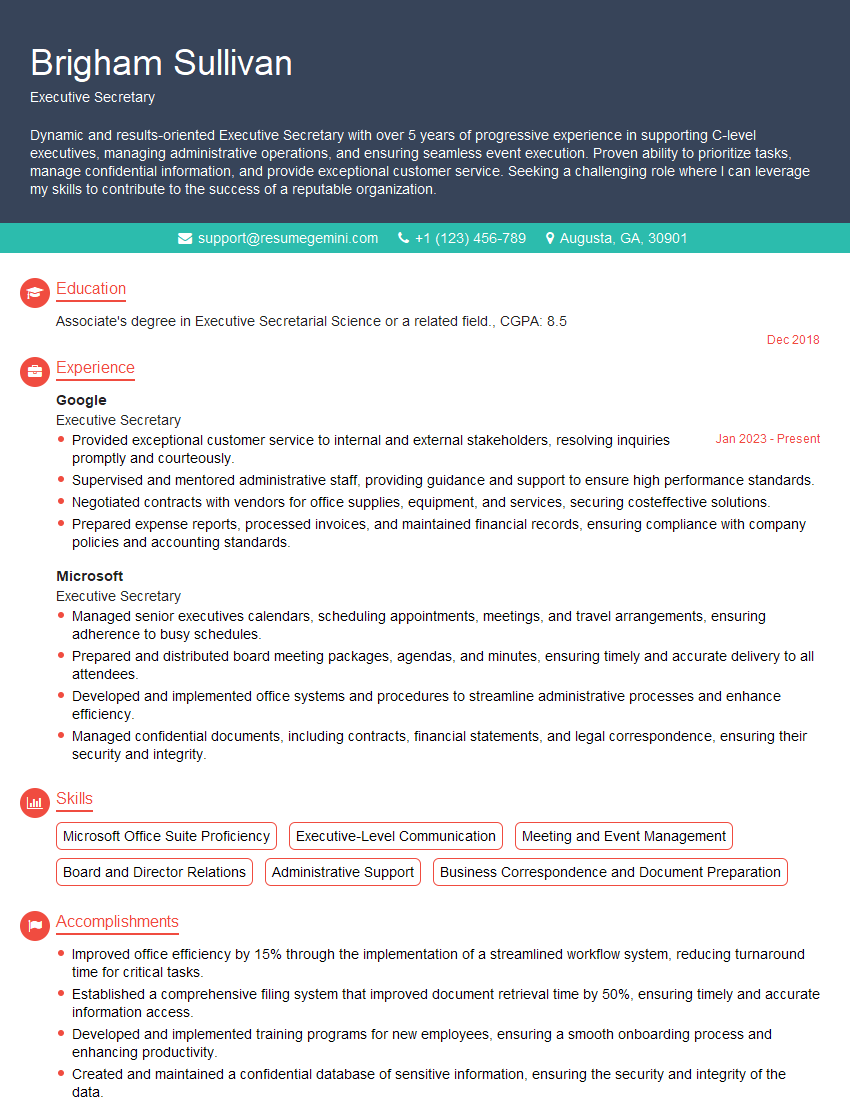
Executive Secretary Resume Sample
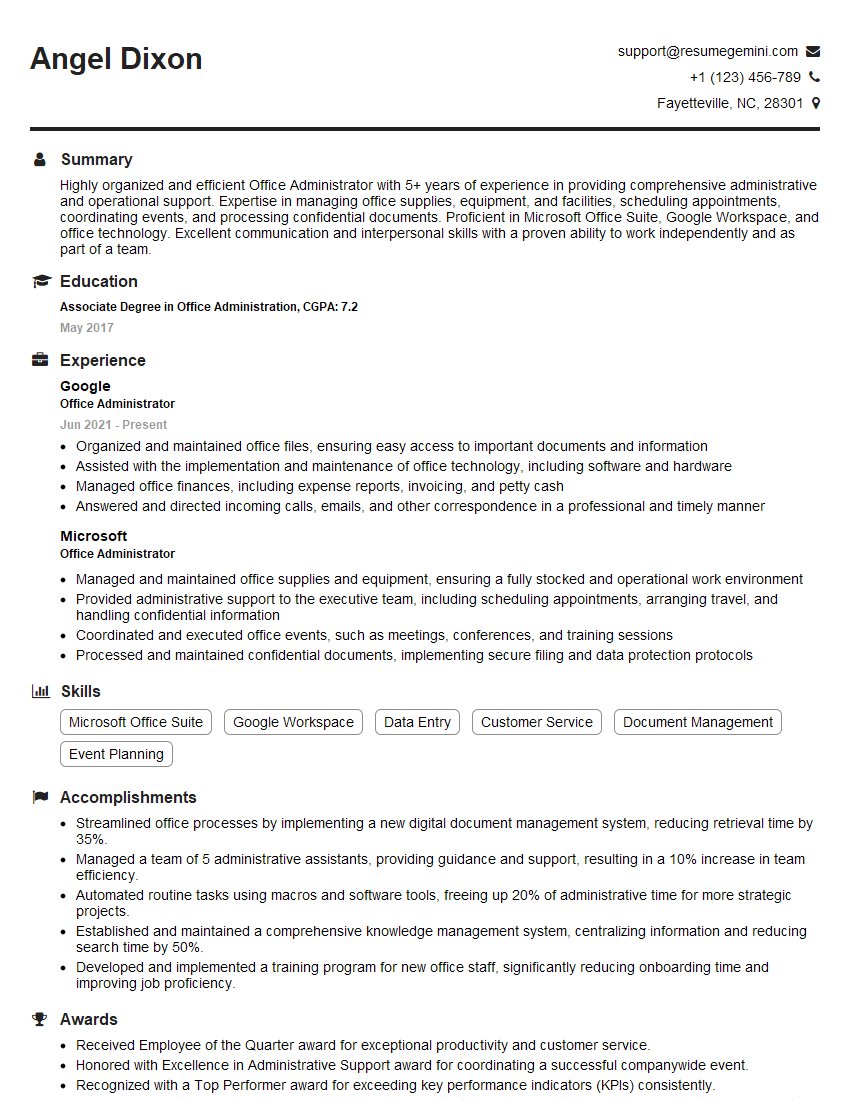
Office Administrator Resume Sample
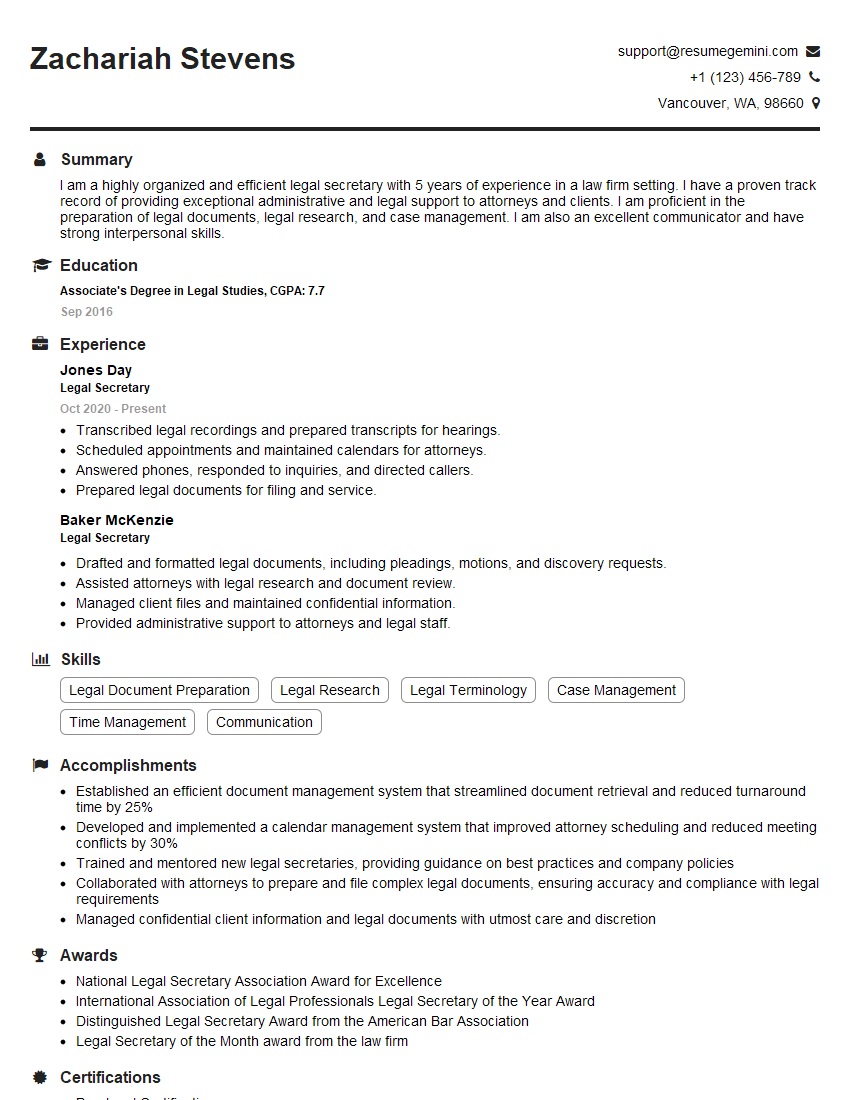
Legal Secretary Resume Sample

Clerk Typist Resume Sample

Data Entry Clerk Resume Sample
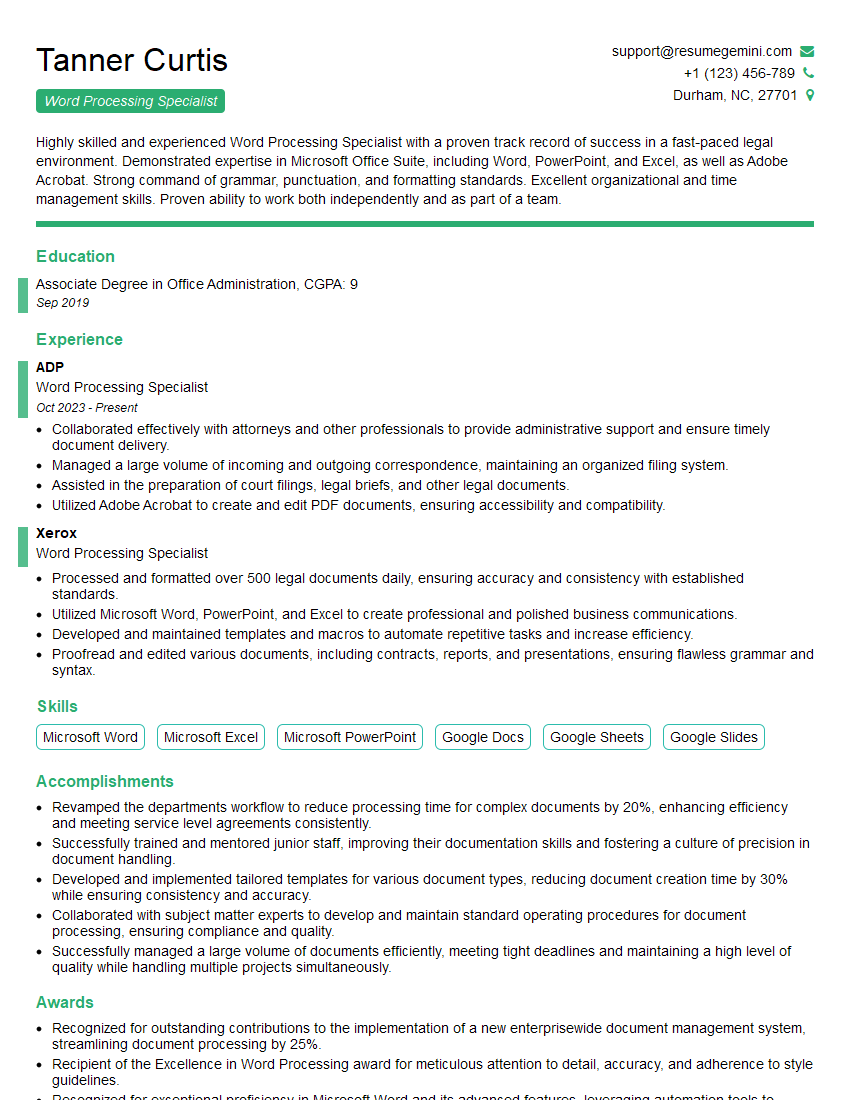
Word Processing Specialist Resume Sample
- Office Manager
- Marketing Assistant
- Administrative Assistant
- Project Coordinator
- Communications Specialist
- Document Control Specialist
- Legal Assistant
- Paralegal
- Editor
- Proofreader
- Technical Writer
- Medical Secretary
- Transcriptionist
- Receptionist
- Executive Assistant
- Executive Secretary
- Office Administrator
- Legal Secretary
- Clerk Typist
- Data Entry Clerk
- Word Processing Specialist
Explore more articles
Users Rating of Our Blogs
Share Your Experience
We value your feedback! Please rate our content and share your thoughts (optional).
What Readers Say About Our Blog
Amazing blog
Interesting Article, I liked the depth of knowledge you’ve shared.
Helpful, thanks for sharing.